Summary
While everyone praises the Samsung Galaxy S25 Ultra’s battery performance, mine just wasn’t up to the mark. For weeks, my Galaxy S25 Ultra would die by 4 PM even on days I barely touched it. My charging cycle went from once a day to twice, and sometimes thrice, a day. I blamed the battery, the apps, everything except the real problem — Google Play Services, which was quietly syncing, polling, and pinging in the background all day long. It may not affect your phone’s battery, but it was affecting mine, and I am sure many would agree. I did not disable Google Play Services, but I did something else that caused the difference. If you are adopting better battery habits on Android, this one setting deserves your attention. The setting was hiding in plain sight Background sync isn’t the app itself There are so many Android phone settings that you should turn off immediately. Most people never touch them because the name sounds like it will break their phone. Google Play Services isn’t an app you use directly but a service that does the lifting behind apps like Gmail, Maps, Play Store updates, and basically every Google app and product you have on your Android phone. So, when people hear “disable,” they assume that means killing all of the apps. That is the part everyone gets wrong. Turning off Play Services entirely would genuinely break things. Sign-in will fail, push notifications will stop, and apps will crash. But restricting its background activity is a completely different move. You are not stopping the app from running, but you are stopping it from constantly working when you are not even looking at your phone. Your Google apps are still open, still loading, still syncing manually when you want them to. It is just that the background activities stop, and your phone doesn’t have to shed battery just to keep them running. Three things draining your battery behind the scenes These are the reasons why you have to put your phone on charge multiple times a day Once I started digging through Google Play Services and what it does in the background, I was able to narrow down three culprits. Unapproved location pings, notification polling in a loop, and account syncing continue. Google says that when Location Accuracy is turned on, your device uses Wi-Fi, mobile networks, and sensors periodically to improve location accuracy, including while running in the background. That is not a one-time check but a repeated background process. The worst part, it is tied directly to Play Services. Additionally, Play Services also keeps checking in for account updates and sync triggers, even for apps you haven’t opened for days. This is separate from actual push notifications, which route through a different messaging channel and mostly continue to work. Calendars, Contacts, Drive, Gmail, and Chrome data all sync automatically by default, and each sync cycle uses both battery and data even when you are not using the app. You would be shocked to know how much of this happens because of Android sync settings without you noticing, and your battery takes real damage. You should turn it off You won’t be losing your Google apps Here is what you need to do since Google Play Services is affecting your battery performance. Mind you that you are not disabling this service entirely, but restricting it from working unnecessarily in the background. You need to follow the steps below for each Google app you have on your phone.
- Open Settings.
- Scroll down and tap on Apps.
- Select any Google app like Google Play Store, Google main app, or Google Play Services itself.
- Tap on Mobile data.
- Toggle off Allow background data usage. Google itself confirms that this doesn’t affect your ability to manually refresh or open the app whenever you want. Sync still works as long as you can sign in to your Google account. It just stops running silently in the background. You should also trim account sync by doing the following:
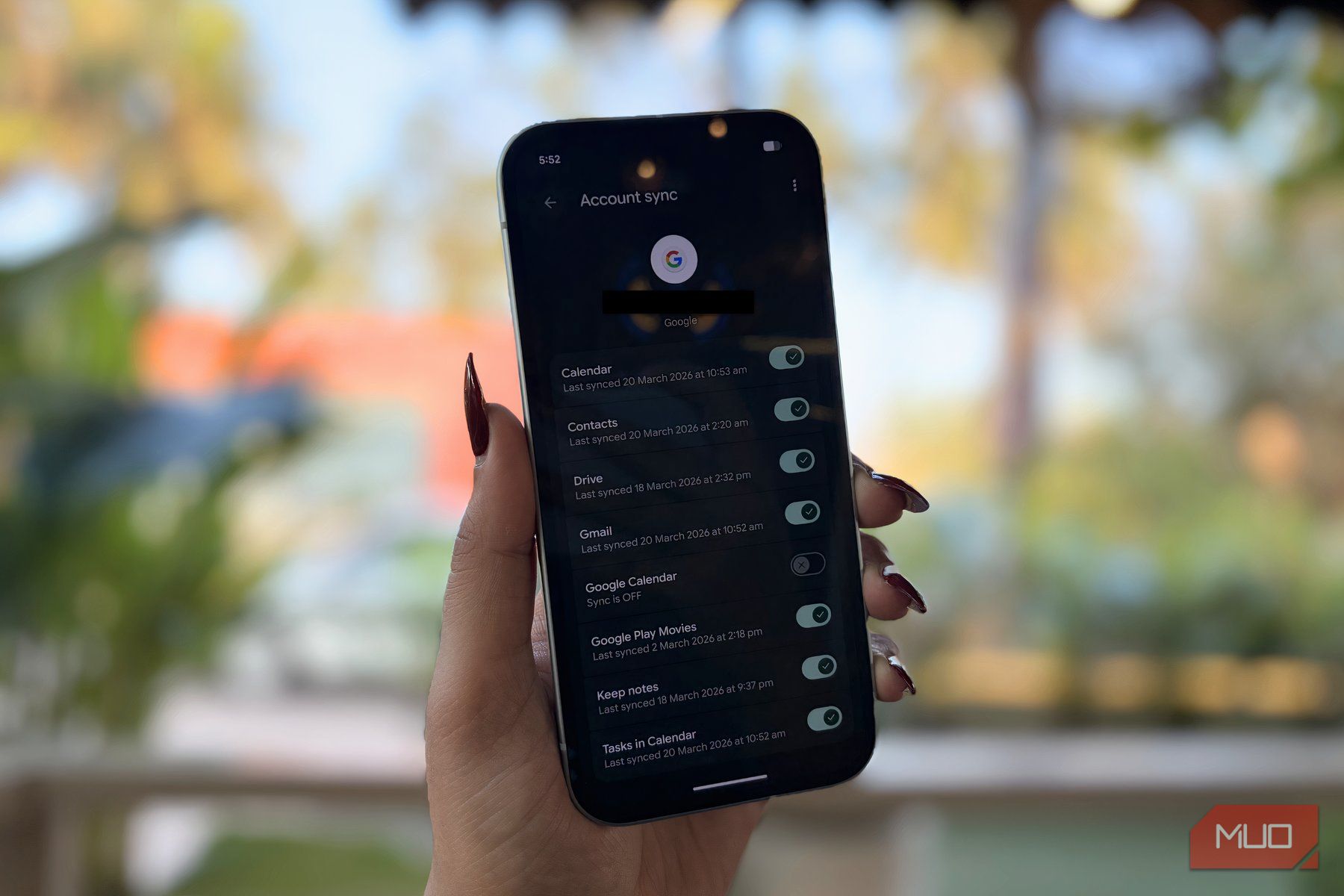
- Head over to Settings.
- Tap on Accounts.
- Then tap on your Google account.
- Turn off syncing for anything you don’t check daily. For instance, I did it for Play Movies and Photos, since I back them up manually anyway.
- Leave Gmail and Calendar on if you actually rely on real-time updates. Nothing here is hidden or unsupported. It is a built-in setting Google expects people to use. My battery had room to breathe I was left with a bit more at the end of the day To be frank, I did not expect a dramatic result. My screen-on time did not change. What changed was when the screen was off. I went from hitting 15–20% by early evening to still sitting at around 40% at the same time of the day. That is roughly 1–2 extra hours of runtime, and it held through multiple days. Of course, your experience will be different, but you will also notice that data usage drops, which matters more, especially if you are traveling or on a limited mobile data plan. But if you want to battery-hungry apps.