Summary
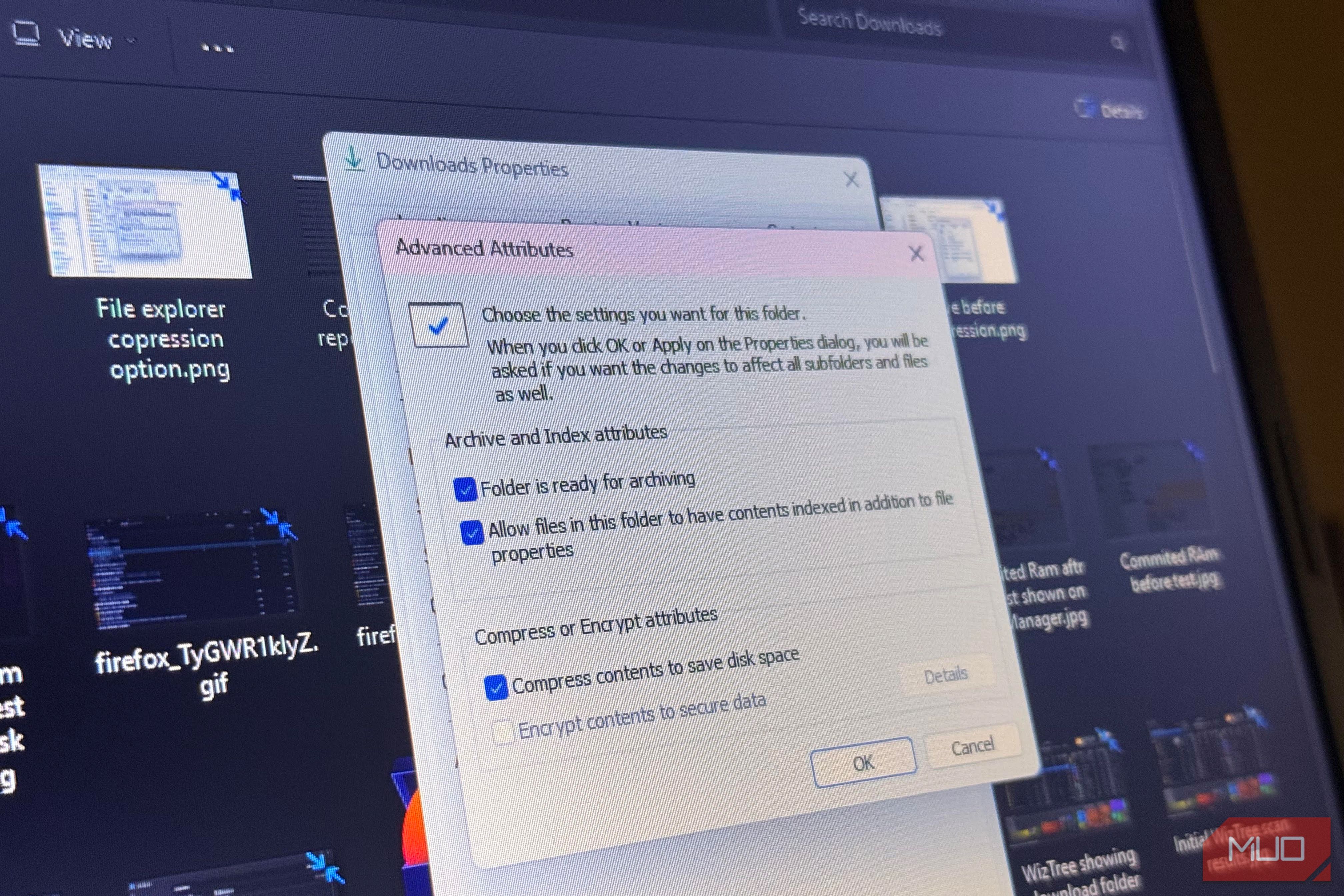
Like many people, I’ve generally ignored NTFS compression in Windows because I assumed it would make my system slower. But my project folders had grown bigger than I wanted, and I decided they were the perfect candidates for compression. So I compressed my 100GB Documents folder and timed everyday activities like file copying, app launching, and CPU use. I reclaimed more space than I had anticipated, and the performance hit wasn’t as exaggerated as I’d assumed. This experiment has made me view NTFS compression a bit differently. NTFS stored my 100GB folder using 82GB of disk space “Size on disk” is the number that matters compact /c /s /i “C:\Users\afamo\Documents” When the command finished, the “Size” stayed around 100GB, but the “Size on disk” dropped to about 82GB. That represented roughly 18GB less physical storage being consumed. The command didn’t delete anything from Documents, nor did it convert files to archives. The files remained the same 100GB of data; the OS simply stored them using fewer physical bytes. If a file doesn’t compress enough to save space, it may remain uncompressed, so the final reduction depends on the folder’s content. For this test, I targeted a real working Documents/project directory that included some files from more than two decades. This is what the content of the folder looked like: | Content | ~Size | Compression potential | |---|---|---| | Source code | 5GB | High | | JSON/XML/YAML/CSV/SQL/Markdown/text/logs | 10GB | High | | Project data, configuration, uncompressed databases | 40GB | Moderate–high | | PDFs and modern Office files | 10GB | Low/variable | | JPEG/PNG/WebP images | 10GB | Very low | | Video/audio | 10GB | Very low | | ZIP/7z/RAR archives | 5GB | Very low | | Other project binaries/assets | 10GB | Variable | | Total | 100GB | This is transparent NTFS compression, so the files remain ordinary files in the same locations, and applications can open them normally without an extraction step. Most of the 18GB savings came from a few file types Text-heavy files delivered most of the savings It’s too simplistic to assume that compressing 100GB with NTFS will always save 18GB. In reality, the reductions weren’t even spread across the entire folder. Some file types compress a lot, while others see little to no compression. Certain patterns repeat in text-heavy data, giving NTFS more redundancy to exploit. This includes source code, logs, JSON, Markdown, and plain text. However, most of the redundancy is already removed from JPEG, compressed video, compressed audio, and ZIP/7z archives, leaving almost nothing for NTFS to compress. So, a 100GB folder full of source code is a different opportunity than a same-size folder full of video; both still show as 100GB in File Explorer. The high-ratio files, in my case, carried the rest of the folder. So, without moving images, media, and archives much, I still got 18GB overall. In other words, the folder doesn’t have to be composed of only perfectly compressible data for you to see gains. However, saving space is just one part of the equation. A second and maybe more important question is what happens when you start using those compressed files every day? The performance hit was smaller than I expected What happened when I put the compressed folder to work Before and after compression, I ran the same tests on the same machine and drive, repeating each measurement several times under similar conditions. | Measurement | Before (uncompressed) | After (compressed) | Change | |---|---|---|---| | Large folder copy | ~12.4s | ~12.8s | +3.2% slower | | App launch (average) | ~8.6s | ~8.7s | +1.2% slower | | CPU during file operations | Avg. 18% / Peak 42% | Avg. 21% / Peak 47% | +3 pp avg / +5 pp peak | Large file copies took a small measurable hit. If I didn’t have a timer, it’s probably not something I’d have noticed in real-world use. Application launch times were essentially unchanged. CPU usage rose slightly, but only while files were being read or written. When applications read compressed data, NTFS has to decompress it before delivering the data to the application, and writes may require NTFS to compress data before storing it. So the measurements I got felt consistent with the way NTFS compression works. And the CPU work wasn’t happening just because the compressed folders existed; it only showed up during active use. However, the scale was more surprising; getting 18GB of storage back for a small measurable performance hit felt like a win. It’s, however, wise not to get carried away. These results come from one computer, one drive, and a mixed project folder. A different setup may not act the very same way. I wouldn’t compress everything The data I collected made the decision to compress straightforward. The files that delivered most of the reclaimed 18GB were the source code, logs, text-heavy project data, and configuration folders. Workload also matters. I’d favor a folder that mostly sits on disk over one that handles constant writes or latency-sensitive workloads. I recommend testing one frequently used folder: compress it, use it normally for a few days, and compare performance and free space. For me, the performance cost was small enough to make it worthwhile.