Summary
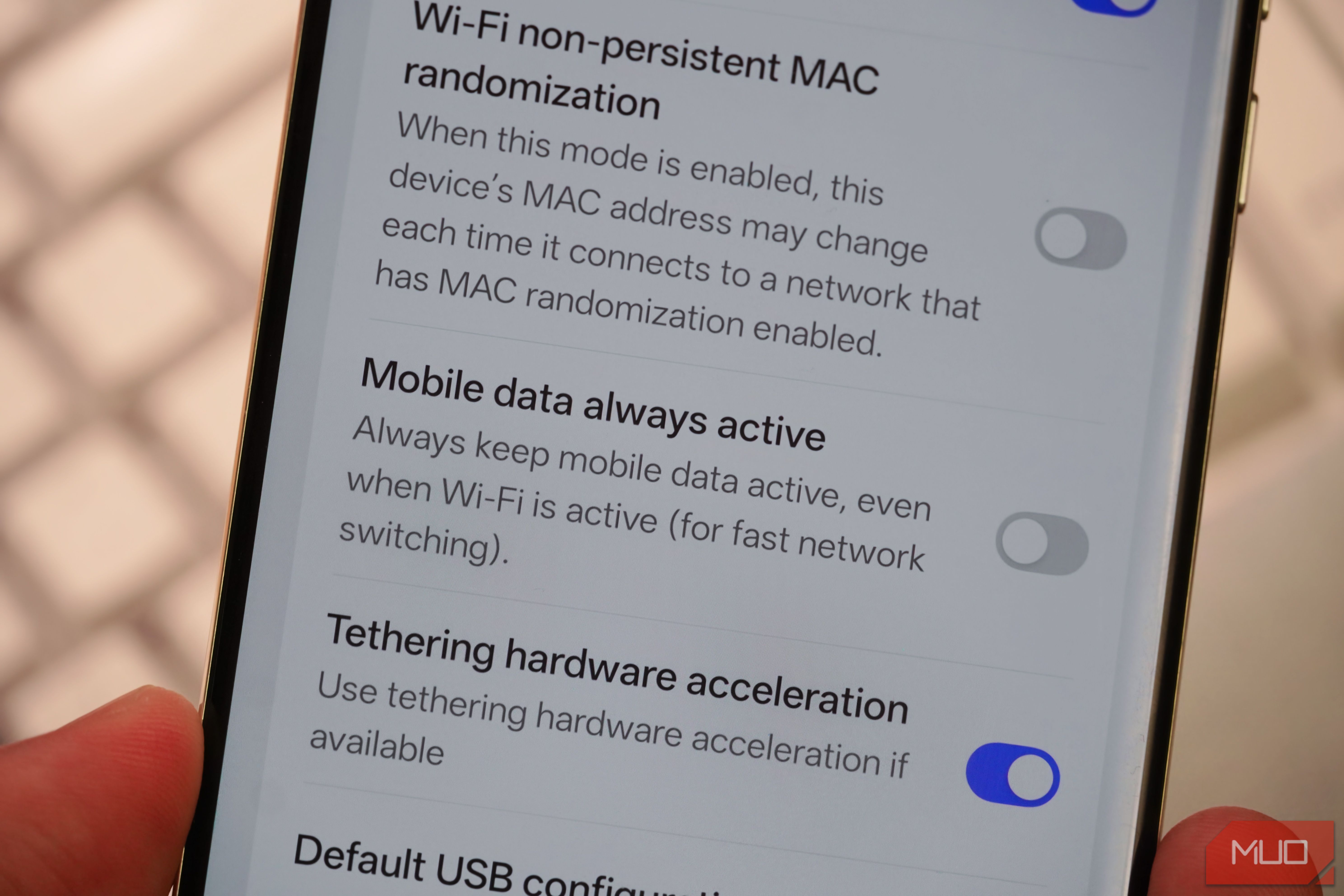
Imagine applying all the best possible techniques to preserve your phone’s battery, only to find it burning through the battery even when sitting untouched on your desk? Quite frustrating, right? Going through background apps, screen brightness settings, etc., nothing explained why my phone was losing battery, doing nothing. Then I decided to take a look at the Developer Options, which hold some genuinely useful options. But I was able to locate the culprit inside Developer Options, which most people never even scroll far enough to see. Once you understand what this simple toggle actually does, turning it off feels like a small revelation; I would never have bothered to explore. It is a setting you probably never noticed The option hides in plain sight, right under Networking Developer Options isn’t a regular menu that is visible on a phone out of the box. If you have never heard of Developer Options, it is a menu built for app developers to test and debug their software. You need to go to Settings → Software Information → tap 7 times on the Build Number, enter your passcode, and then only the Developer Options unlock. It is advisable to tweak any toggle in this menu only if you know what you are doing. Now and then, one of those settings quietly affects regular users too, and the battery drain situation is one of them. The good thing about Developer Options is that it has a lot of fun features that are otherwise turned off by default on an Android phone. Then, to get a fiddle with. In our situation, the culprit is the toggle in Developer Options called Mobile Data Always Active. You will find this option under the Networking section. On most phones, like mine (Galaxy S26 Ultra), this option comes turned on by default. Those who don’t look for deep settings on their phones would probably think that their phone being awake while charging is a feature it comes with. They won’t understand that this feature is unnecessarily draining their phone’s battery. This is where things get frustrating. There are several such options, like the Mobile Data Always Active option, which the user doesn’t turn on but is turned on by default by the phone company. These features keep running in the background and hamper the overall usage experience. It keeps your mobile data connection alive even on Wi-Fi Mobile Data Always Active keeps running in the background From the toggle’s name, you can understand what it does. When enabled, your phone keeps its cellular data connection active at all times, even when you are connected to Wi-Fi and not using mobile data. Notably, your phone is maintaining two live connections simultaneously rather than one. Meaning your mobile data connection stays active even when you are on Wi-Fi, which sounds harmless on paper. But when it is kept on, it keeps on pinging cell towers, negotiating signal strength, and staying ready even though you are not actually using it for anything. The Mobile Data Always Active setting isn’t a leftover debug flag that Google forgot to remove. It exists for a reason, i.e., switching speed. Keeping your mobile data active lets your phone switch between networks instantly, which is genuinely useful if you regularly switch between networks. It keeps you connected to the internet at all times. Think of a situation where you are on a Wi-Fi call and suddenly your Wi-Fi signal drops. In such a case, the mobile network takes charge and keeps you connected. But keeping a redundant connection alive isn’t free, especially in terms of battery usage. The main question is why this setting is buried in Developer Options, which many people don’t know exists, and why it is turned on by default. There is a cost to keeping this feature on, paid by your phone’s battery. Not everyone benefits from turning this off It can be a good feature for many Before you head over to Settings → Developer options and toggle off the Mobile Data Always Active option, it is worth knowing who this feature actually benefits. If you want to stay connected without missing a beat when switching between Wi-Fi networks and mobile data, leave this feature turned on. Additionally, this feature can come in handy when you are connected to the hotel Wi-Fi, so that the moment you step out of your hotel, the song you are playing or the Instagram Reel you were watching doesn’t get interrupted. There is also the MMS factor (if you use it today), as some carriers route multimedia messages through mobile data specifically. You can turn on the Mobile Data Always Active toggle in Developer Options if you don’t mind a slight delay in the internet connection and want to save some battery. Do note that Developer Options includes much more than this one setting, and a few of them can genuinely mess with how your phone behaves if you toggle the wrong thing without knowing what it does. For me…yes, for you…maybe If you are mostly on stable Wi-Fi at home and work and are not glued to calls while moving between networks, turning this off is a low-risk, easy-win solution. You will stop your phone from quietly running two connections at once for no reason. If your daily routine involves constant network hopping, though, this is one of those rare Developer Options settings that is actually doing a good job.