Summary
Samsung retired its Messages app this July, and millions of Android users moved to Google Messages overnight. Most of them are using it the same way they used their old texting app. You open it, send a message, and close it. There’s nothing pushing you to look any further. But Google Messages doesn’t advertise everything it can do, and a few features buried in its menus and gestures change how texting actually works on your phone. If you are still texting in default mode, you are barely using what this app can actually do.
Read texts and voice notes your way
Zoom into chats and silence voice notes
If a text is too small to read at a glance, or you just want the text a little bigger while you’re reading, you don’t need to dig into your phone’s display settings. You can resize the text right inside the conversation.
Place two fingers on the chat screen and pinch out to enlarge the text, or pinch in to shrink it back down, and it adjusts in real time. The best part is that this gesture only affects that specific conversation, so your home screen, other apps, and system font size stay exactly as they are. You just get a more comfortable read inside that one chat.
Reading comfort isn’t just about text size, though. It also applies to voice notes. Receiving one while you’re in a quiet meeting, a noisy train, or a classroom usually means hunting for headphones or ignoring it until later. Google Messages can turn it into text for you.
Tap your profile picture in the top-right corner, go to Messages settings → Voice message transcription, and toggle on Show transcripts of voice messages. After that, incoming RCS voice notes arrive with a transcript right under the audio bubble, so you can read what was said without pressing play.
Turn your gallery into custom stickers
Custom stickers from your camera roll
Standard yellow emojis get repetitive after a while. If you want something more personal, you can turn your own photos into custom reaction stickers using Photomoji.
Open any conversation, tap the emoji icon in the text bar, and select the Photomoji tab. Tap Create, pick a photo from your gallery, and Google Messages automatically cuts out the main subject, whether that’s a pet, a friend, or an object. You can send the cutout as a standalone sticker or attach it as a reaction bubble directly onto a message. Every sticker you create stays saved in your library, so you can reuse it whenever you need.
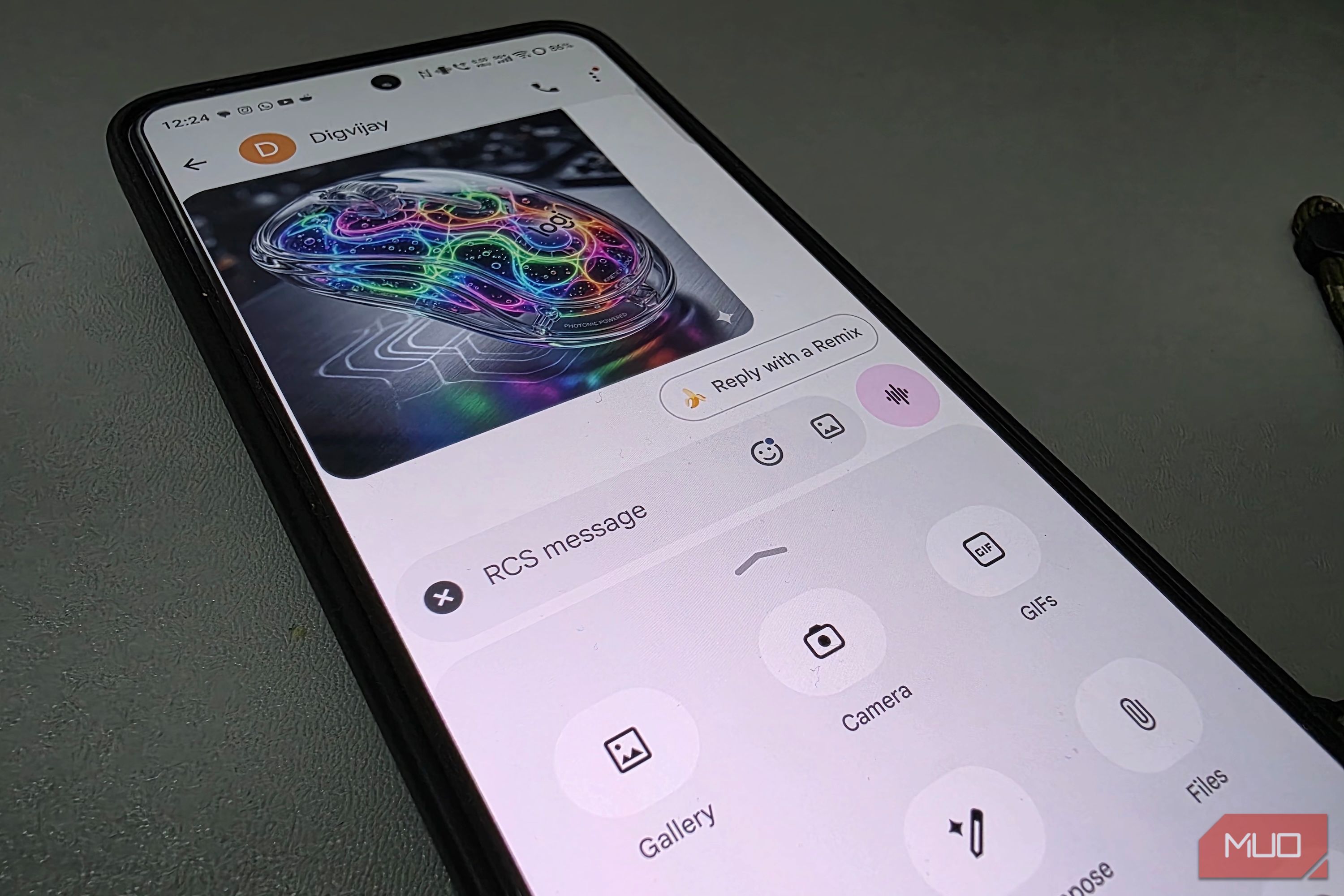
Once you have a sticker, you can even restyle it right in the chat. Long-press any image or Photomoji in the thread and tap Remix. From there, you can pick a suggested AI style or type a quick prompt, like recreate in a 90s style or add a surprised look, and the updated version drops right back into the chat.
Hidden creation tools behind the (+) menu
Schedule, record, and share from one tap
Another corner of the app worth exploring is the (+) button. It looks like a simple attachment menu for photos and contacts, but Google has tucked several creation shortcuts behind it.
If you’ve ever typed out a late-night message and hesitated before hitting send, that’s what Schedule Send is for. Tap the + icon, select Schedule send, and pick a suggested time or set a custom date and time. Or you can write your text and press and hold the Send icon to bring up the same scheduling menu. After that, the message stays in your thread and delivers automatically when the time comes.
Inside the same menu, you’ll find Selfie GIF. Select it, or press and hold the gallery icon next to the emoji button. It opens a circular preview, records a 3-second video loop, and converts it into an animated GIF without opening your main camera app. It’s a faster way to react than switching to your camera and recording a full video.
If you’re meeting up with someone, the live location tool is worth knowing about. Most texting apps only let you send a static map pin that becomes outdated the moment you move. Google Messages lets you share your live location for 15 minutes, an hour, or a custom duration. The map updates right inside the chat thread as you move, so the other person sees exactly where you are without asking for updates.
While you’re exploring
If you are adjusting to Google Messages after switching from Samsung Messages, a quick tweak can round out the experience. In active group chats, typing @ followed by a contact’s name sends a direct alert to that person, even if they have muted the thread. It’s the easiest way to get someone’s attention without disturbing everyone else in the group. Note that RCS needs to be active for all participants for this to work.
 Google Messages
- OS
- Android
- Released
- November 12, 2014
- Publisher(s) Google Messages is the official messaging app for Android, powered by Rich Communication Services (RCS) to offer an enhanced chat experience. It supports high-quality photo and video sharing, dynamic group chats, and end-to-end encryption for privacy. Features include spam protection, AI-powered suggestions, and seamless device integration, making conversations expressive and secure across Android and the web.