Summary
I’m always amazed by how many little tweaks you can make to older Android phones to make them a bit faster so they last longer, in an age where new phone prices are increasing because of the memory shortages caused by the build-out of AI data centers.
I found a tool that is available to all Samsung Galaxy users that, in the case of my aging S22+, made my phone keep more apps in memory (which made app-switching faster with fewer reloads) with almost no downside. I did this using one of the features included in Samsung’s Good Guardian app (the sister app to Good Lock).
Android limits how much RAM can be used for apps
Android has a threshold called the low-memory killer daemon (lmkd) which dictates the point at which Android will start aggressively killing background apps, especially cached processes, to free up RAM for other apps to be able to run.
This tool raises the limit
This tool is essentially raising that limit when you pick a certain mode in Memory Guardian.
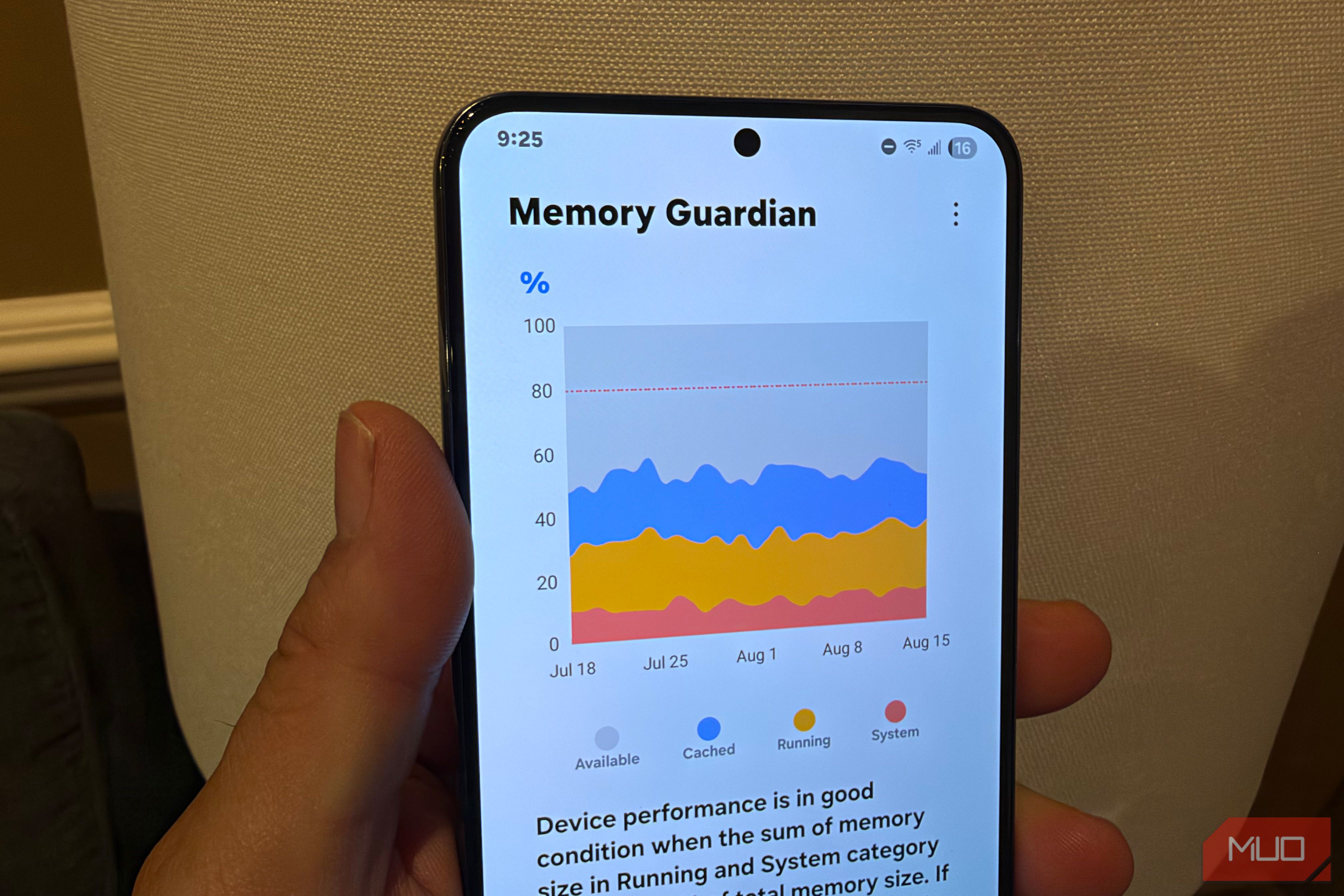
Based on how Android memory management works, this tool appears to raise that threshold from around 80% to 84% on an 8GB phone like my Galaxy S22+ — and up to 88% on higher-RAM phones. Samsung doesn’t publish the exact numbers; these figures come from community documentation, and the mechanism is almost certainly a tweak to lmkd’s kill thresholds rather than an officially confirmed spec.
Installing Memory Guardian is easy, here’s what to do.
How to install Samsung’s Memory Guardian
It’s part of the Good Guardians app suite
Samsung’s Galaxy Labs suite of software is now called Good Guardians which contains multiple modules aimed at improving your phone. To get it, you can just search the Samsung store for “good guardians” or just click this link from your phone.
In fact, we recently tested Galaxy App Booster, which in some cases improved app loading time by 50% by forcing apps to compile ahead of time. The tools in Good Guardian are legit!
And the aforementioned Galaxy App Booster and Memory Guardian aren’t the only tools available in Good Guardians. You also get a few other utilities, such as Thermal Guardian, which lets you find the source of apps or features that cause your phone to heat up, or Battery Guardian, which gives you granular control over how your phone is using power, down to picking which apps use lower-power LTE instead of 5G.
You have two mode choices in Memory Guardaian. Here’s how they are different.
Customize your memory mode
When you open Memory Guardians, you’ll see three tabs along the bottom: Monitor and History, which gives you some data about how your phone is currently using memory, and Customize, which is where we can pick the “Quick switching mode” which increases the lmkd limit, as mentioned. The other profile you can pick is the strangely-titled “Speed up top app mode” which does the opposite: it makes the phone more aggressive about closing background tasks so that your foreground app can use as much RAM as possible.
As mentioned, on phones with less than 8GB of RAM, you’re going to see the biggest impact when running in Quick Switch Mode because you’re frequently hitting the lmkd limit in Android, which makes it difficult to keep a lot of apps in memory at once.
But on phones with more than 8GB or RAM, like most Ultra phones from Samsung, you might benefit even more, especially if you’re a very heavy multitasker, since as a percentage of your total RAM, you’re moving the threshold from 80% to 88%. On a phone with 12GB of RAM, that means you’re increasing the threshold of lmkd significantly.
Does it really work?
This all sounds great, but in daily use, did I notice a difference on my Galaxy?
Personally, I tried this on my Galaxy S22+ which has 8GB of RAM. The results were noticeable but not dramatic: with Quick Switch App Mode turned on, I was able to get 1–2 additional apps to stay in memory without having to reload versus using the default profile. While this change is noticeable in daily use, it’s not a huge difference. The main downside here is that you’re making less RAM available for active apps and are prioritizing running the maximum amount of apps.
As an aside, if you want to go further down the memory-tuning rabbit hole, it’s worth taking a look at RAM Plus, which is turned on by default on most Samsung Galaxy phones. It borrows some of your storage space to act as extra RAM, which lets your phone hold more cached apps in the background — the same goal as Quick Switch App Mode. The catch is that storage is far slower than real RAM by orders of magnitude, so those swapped-out apps are slower to wake up. It’s a genuine tradeoff rather than a clear win: if you multitask heavily and hate reloads, leaving it on (or turning it up) can help, but if you’d rather your active app always run at full speed, some users prefer to dial it down or off. It’s worth experimenting with to see which you prefer based on how you use your device.
It’s not retroactive, but I’m keeping it turned on
One more caveat if you’re using Memory Guardian: it does not apply retroactively, meaning only new apps you open going forward use the new higher threshold before lmkd kicks in.
So, am I going to keep Memory Guardian running on my S22+ with Quick Switch App Mode turned on? Yes, because my S22+ is starting to get sluggish, and this tool helped make app switching more seamless.
 Samsung Galaxy S26
- SoC
- Snapdragon 8 Elite Gen 5 The Samsung Galaxy S26 features a 6.3-inch 120Hz display, a Snapdragon 8 Elite Gen 5 chip, and a 4,300 mAh battery. It includes a 50MP main camera with enhanced AI software, 256GB of base storage, and a slim 7.2mm profile, focusing on fast daily performance.
- Display
- 6.3-inch Dynamic AMOLED 2x