Summary
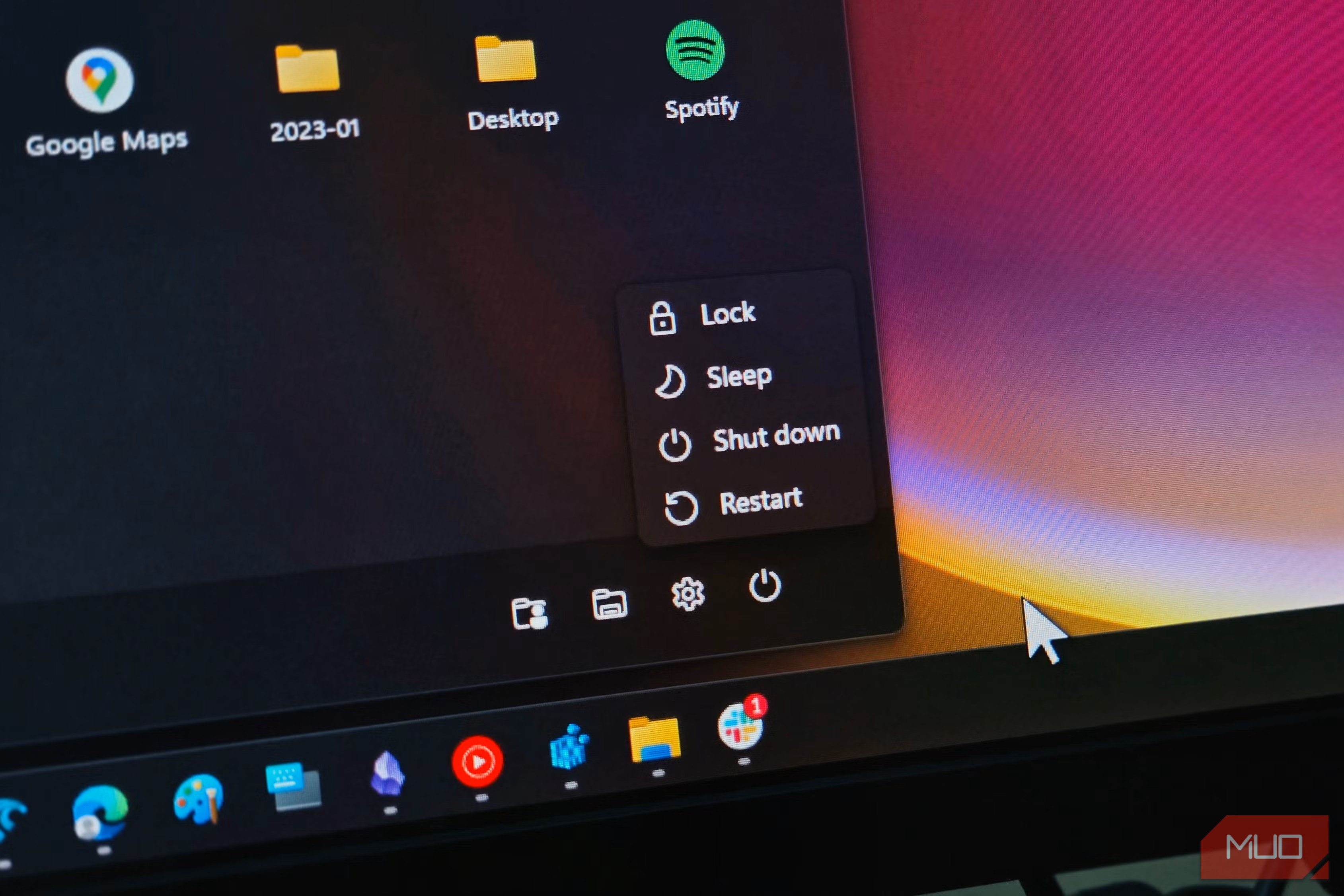
One , and log in to my CMS the next time I boot my PC. That setup alone is bothersome and time-consuming.Shutting down my Windows 11 PC means closing each app manually first, which is the last thing I want to do after a long day working. Unfortunately, Windows 11 won’t shut down until each app closes on its own, which stalls the whole process. Luckily, you can fix this annoying issue by setting a registry key that instantly closes these apps, ensuring a smooth shutdown. Why does your PC take so long to shut down? Your apps closing is halting the process The entire shutdown process takes a long time because Windows saves data and performs a clean shutdown to avoid data loss. The same is true for third-party apps. If they’re running when you press Shutdown, Windows prompts them to close, and sometimes they refuse to cooperate. This is why you get the notification that Windows is waiting for these programs to shut down. Now, the OS can kill them in an instant, but that would mean losing unsaved progress. This default only helps if you tend to forget to save your work, but I always save my drafts or work before pressing the power button. However, I can’t be bothered to kill each process individually, and sometimes certain apps run in the background, so shutting them down is a drag when my eyes and back are done after hours of sitting in front of the computer. Sometimes this process can take a minute, and other times longer. When it drags on, you have to wait it out or force a shutdown, and I don’t like to linger at my setup any longer than I have to. Force apps to close with AutoEndTasks One string value skips the wait Windows can wait for apps to close, but I can’t. One registry tweak is all it takes to eliminate the friction when shutting down my PC. The registry key is called AutoEndTasks, and it automatically closes your apps whenever you shut down your PC or sign out of your account. You can enable it by following these steps:
- Open Registry Editor.
Go to this address: HKEY_CURRENT_USER\Control Panel\Desktop
Find AutoEndTasks and if you can’t find the string value, create a new one. - Set its value to 1 from 0.
- Restart your PC for the changes to take effect. I highly recommend backing up your registry before making any changes because a single mistake can ruin Windows 11, from minor glitches to a completely unbootable OS. Trim service shutdown time too WaitToKillServiceTimeout controls the countdown While AutoEndTasks handles apps, Windows still has to terminate its own processes and services before it shuts down, which can also extend the shutdown. The registry key for this purpose is called WaitToKillServiceTimeout, and it’s essentially the service counterpart to AutoEndTasks. Usually, WaitToKillServiceTimeout is set at 5 seconds to kill all services, but this window can be increased after downloading certain applications. If Windows can kill the services before the timer runs, your system will shut down immediately. However, I’m not willing to wait for it, and since I only shut down my PC on rare occasions when I’ve saved all my work, I want the process to be quick, and even mere seconds can test my patience. This is why I’ve set it to 0, but you can adjust the timer to 5 seconds if it hasn’t already, to give the services time to shut down. To do so, follow these steps:
- Open Registry Editor.
Navigate to HKEY_LOCAL_MACHINE\SYSTEM\CurrentControlSet\Control . - Find the key WaitToKillServiceTimeout . - Under the value data, set the timeout to your preference in milliseconds. Once again, back up your Registry Editor as a safety net in case you change the wrong value. Restart your system for these changes to take effect. When to leave this setting alone Since changing these registry values, I can easily get off my chair and comfortably go to sleep without hand-holding my computer and waiting to turn it off. Especially on laptops, this entire process can consume power, and if the PC gets stuck on the shutdown menu, and you close the lid, it can drain your battery without you knowing. However, if you have a habit of shutting down your PC on a whim without saving your progress, skip this tweak because that extra minute Windows gives the apps to shut down allows them to back up their data or save it, and if you haven’t done so yourself, enabling this registry setting can potentially make you lose hours of work.