Summary
For the past few months, my old Galaxy Note 20 Ultra had become genuinely horrible to use. Its apps opened slowly, menus lagged and got stuck, and even basic tasks made the phone feel much older than its 2020 hardware deserved.
In my opinion, the Note 20 was one of Samsung’s best smartphones, and I’m just not ready to part with it yet. The display is still excellent, the S Pen is useful, and replacing an otherwise capable flagship just seems wasteful.
A quick backup with the Samsung Smart Switch app and a factory reset did remove years of clutter, but did little to address the aging Android 13 software. Since Samsung wasn’t going to give it another major update, I did. I jumped straight to Android 16 and One UI 8 with ArtisanROM, and got a phone back that felt brand new.
Unfortunately, the upgrade came at a cost that has made me start to question whether to keep it.
Samsung had stopped updating the part that felt old
The hardware still worked, but a factory reset could not modernize the software


 To be fair, Samsung hasn’t completely abandoned the Note 20 Ultra. My Exynos model, the SM-N986B
, was still receiving security updates. However, it remained stuck in the past on Android 13 and One UI 5.1. The stock build on my Note 20 was N986BXXSIHYH3
, and security patches could keep that aging release safe. It couldn’t, however, provide new features, interface changes, or the vast amount of improvements found in Android 16.
I did give the phone a fighting chance by factory resetting it. However, even though six years of apps, forgotten downloads, and background services were now gone, it still felt heavy and less responsive than I liked.
I could have looked for a lightweight Android Open Source Project ROM, but I didn’t want to lose everything that made this a Galaxy Note. I still loved Samsung’s interface, camera software, and S Pen features. I wanted a new Samsung experience, not a generic cheap Android phone running on the Note’s hardware.
That, of course, narrowed an already small selection of custom ROMs. Because Samsung, for reasons I don’t understand, sold the US and Canadian Note 20 variants with bootloaders that could never be officially unlocked, the Note 20 didn’t gain a huge developer community around it.
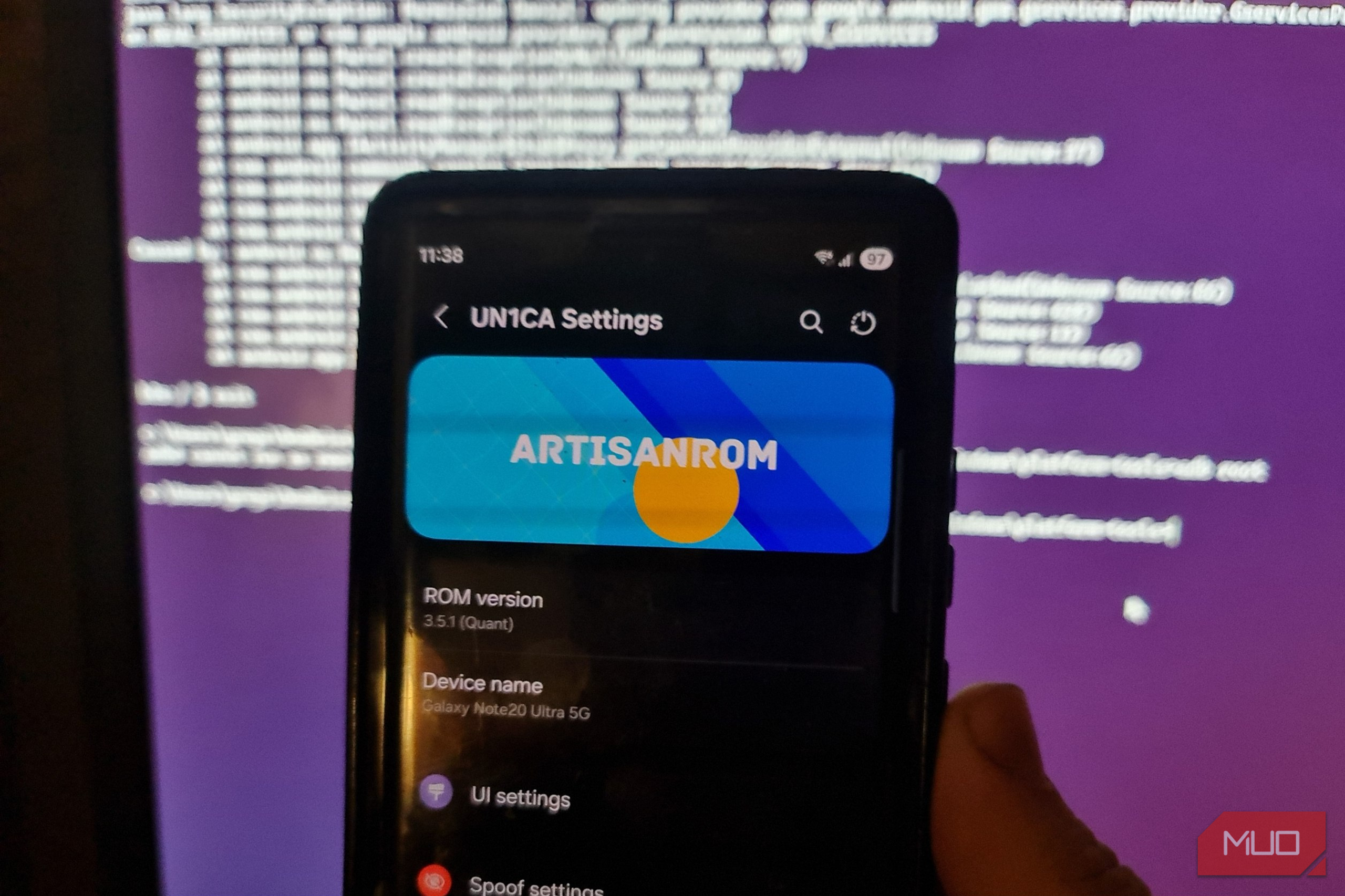
For years, ExtremeROM was the ROM of choice for the Note 20, but since January 2026, the project has reached its end of life. ArtisanROM became the practical successor. It’s built with UN1CA, and it adapts newer Samsung firmware for unsupported Galaxy devices.
Version 3.5.1 offered the upgrade I really wanted by bringing Android 16 and One UI 8 to a six-year-old Note 20.
Installing Android 16 made me earn it
Odin, TWRP, and another factory reset stood between me and the upgrade
I knew exactly what I was sacrificing before I started. Flashing a custom ROM would erase the phone, trip Samsung Knox forever, and make a lot of sensitive security features unreliable. Samsung Wallet, Secure Folder, and anything else dependent on Knox will never work again, even if I reverted and restored the original firmware.
That was not a trivial trade, but neither was paying roughly $2,000 for another flagship when this one still had perfectly good hardware.
To stop Factory Reset Protection from destroying my project before I even started, I logged out of Samsung and Google, then performed the factory reset. I then performed a quick setup and enabled OEM unlocking. Unlocking the bootloader erased it all again, and by then, the Note was cleaner than clean. Still, the serious work had not even started.
The actual installation began on Windows using Odin, a utility that sends firmware files to Samsung phones while they’re in Download Mode. For my SM-N986B running build N986BXXSIHYH3, I needed to load:
To be fair, Samsung hasn’t completely abandoned the Note 20 Ultra. My Exynos model, the SM-N986B
, was still receiving security updates. However, it remained stuck in the past on Android 13 and One UI 5.1. The stock build on my Note 20 was N986BXXSIHYH3
, and security patches could keep that aging release safe. It couldn’t, however, provide new features, interface changes, or the vast amount of improvements found in Android 16.
I did give the phone a fighting chance by factory resetting it. However, even though six years of apps, forgotten downloads, and background services were now gone, it still felt heavy and less responsive than I liked.
I could have looked for a lightweight Android Open Source Project ROM, but I didn’t want to lose everything that made this a Galaxy Note. I still loved Samsung’s interface, camera software, and S Pen features. I wanted a new Samsung experience, not a generic cheap Android phone running on the Note’s hardware.
That, of course, narrowed an already small selection of custom ROMs. Because Samsung, for reasons I don’t understand, sold the US and Canadian Note 20 variants with bootloaders that could never be officially unlocked, the Note 20 didn’t gain a huge developer community around it.
For years, ExtremeROM was the ROM of choice for the Note 20, but since January 2026, the project has reached its end of life. ArtisanROM became the practical successor. It’s built with UN1CA, and it adapts newer Samsung firmware for unsupported Galaxy devices.
Version 3.5.1 offered the upgrade I really wanted by bringing Android 16 and One UI 8 to a six-year-old Note 20.
Installing Android 16 made me earn it
Odin, TWRP, and another factory reset stood between me and the upgrade
I knew exactly what I was sacrificing before I started. Flashing a custom ROM would erase the phone, trip Samsung Knox forever, and make a lot of sensitive security features unreliable. Samsung Wallet, Secure Folder, and anything else dependent on Knox will never work again, even if I reverted and restored the original firmware.
That was not a trivial trade, but neither was paying roughly $2,000 for another flagship when this one still had perfectly good hardware.
To stop Factory Reset Protection from destroying my project before I even started, I logged out of Samsung and Google, then performed the factory reset. I then performed a quick setup and enabled OEM unlocking. Unlocking the bootloader erased it all again, and by then, the Note was cleaner than clean. Still, the serious work had not even started.
The actual installation began on Windows using Odin, a utility that sends firmware files to Samsung phones while they’re in Download Mode. For my SM-N986B running build N986BXXSIHYH3, I needed to load:
- BL: BL_N986BXXSIHYH3_N986BXXSIHYH3…tar.md5
- CP: CP_N986BXXSIHYH3_CP31116918_MQB99425464…tar.md5
- USERDATA: ArtisanROM_SM-N985F_SM-N986B_20260202.tar
- Odin options: Auto Reboot disabled and F. Reset Time enabled, with AP and CSC left empty.
Those files were specific to my model and firmware, so they aren’t universal for every Note 20. Since just one incorrect package could turn an upgrade into an afternoon of recovery work, I double- and triple-checked the file names before hitting Start on Odin.
Odin installed the recovery environment, but TWRP was needed to install ArtisanROM itself. Here, I had to format the encrypted data partition once more, reboot into recovery, and then transfer the actual ROM through Android Debug Bridge (ADB) sideload:
adb sideload “c:<path\to\file>\ArtisanROM_OFFICIAL_3.5.1_20260816_c2s-sign.zip”
The progress indicator stopped at 47%, which made my heart skip a beat because it looked like a failed installation. However, a quick online search put me at ease, as it’s quite common. Importantly, the phone reported that the script had succeeded, and Total xfer: 1.00x confirmed ADB had finished its part of the job.
I held my breath as the first proper boot revealed Android 16 and One UI 8 (plus some interesting start-up music). Samsung then unexpectedly wouldn’t let me continue without signing in to my Samsung account, until I saw the tiny link at the bottom allowing me to complete setup without it.
Keep a copy of the complete firmware package for your exact model and region on the PC. Should the custom ROM fail, you’ll already have the BL, AP, CP, and CSC files needed to restore Samsung’s software through Odin. Don’t rely on being able to find the correct build once your phone stops booting.


 ArtisanROM remains a work in progress, too. Its updater now supports smaller incremental releases, but any major release will probably have me erasing the phone and starting this nerve-wracking process again.
 ArtisanROM Quant
 - Compatibility
- Samsung Galaxy S20, S20+, S20 Ultra, Note 20 Ultra, Note 20 Ultra 5G (international version)
- Price
- Free and open-source
ArtisanROM Quant is a community-developed custom firmware that brings Android 16, One UI 8, Galaxy AI, and newer Samsung features to unsupported Exynos 990 Galaxy phones. It retains Samsung features such as the S Pen, DeX, camera tools, and adaptive refresh rate.
Android 16 made the Note feel expensive again
The improvement was obvious before I started looking for new features


 The difference between ArtisanROM and the official Samsung Android version was obvious. Apps opened instantly, settings responded promptly, and switching between tasks no longer meant waiting for the phone to catch up. ArtisanROM on my Note 20 was blazingly fast.
This was not old software weighed down by years of accumulated junk. Samsung’s installation still felt heavier, even after a factory reset.
One UI 8 made the Note look like the Samsung S24 and S25 series, but ArtisanROM preserved the Samsung identity I actually wanted. Better still, the port introduced Galaxy AI features that Samsung never intended to bring to the Note 20 series:
The difference between ArtisanROM and the official Samsung Android version was obvious. Apps opened instantly, settings responded promptly, and switching between tasks no longer meant waiting for the phone to catch up. ArtisanROM on my Note 20 was blazingly fast.
This was not old software weighed down by years of accumulated junk. Samsung’s installation still felt heavier, even after a factory reset.
One UI 8 made the Note look like the Samsung S24 and S25 series, but ArtisanROM preserved the Samsung identity I actually wanted. Better still, the port introduced Galaxy AI features that Samsung never intended to bring to the Note 20 series: - Note Assist and Writing Assist.
- Browsing Assist and semantic search.
- Call Assist, Interpreter, and Transcript Assist.
- Photo Assist, Drawing Assist, Audio Eraser, and Now Brief. Those extras were definitely welcome, but compatibility was more important. I tested the Note 20 features I use daily:
- S Pen, including Air Command
- Fingerprint reader
- Cameras and video rendering
- 120Hz refresh rate and QHD+ resolution
- Calls and mobile data
- Bluetooth and NFC
- microSD storage All of it survived intact after the upgrade. I kept expecting to discover just one important piece of Note hardware that had been sacrificed, but none was. Android 16 and Galaxy AI gave me plenty of new things to explore, but speed was the upgrade that was most important to me. ArtisanROM stopped the Note from feeling like aging hardware that needed replacing. It felt like the brand-new phone I purchased six years ago. The unlocked bootloader is the price of keeping it current Google services turned the final setup into another troubleshooting session Google Play found the catch almost immediately, and it almost made me revert to the official Samsung ROM. Its device certification screen told me to lock the bootloader, which, given I had installed a custom ROM, would leave the phone unable to boot. ArtisanROM’s integrated Play Integrity tools could update the spoofed device fingerprint, but hardware attestation remained the big obstacle. Since May 2025, passing the strong checks now requires a valid Google-signed hardware keybox. Since most ordinary users can’t legitimately create one, and leaked public keyboxes tend to get revoked, this left me with Google Play Services that didn’t pass device security checks. Google’s custom-ROM registration route then became an absurd, time-consuming side quest. Auto Blocker initially disabled USB debugging. Production ADB refused root, while TWRP mounted /data but couldn’t decrypt the user profile. Android then denied direct access to the Google Services Framework provider. It all looked hopeless until I had the bright idea of extracting the required GSF ID using Google Find Hub’s page source code. Here, one record identified the phone as both its physical SM-N986B hardware and ArtisanROM’s ported SM-S908B identity. Unfortunately, registration changed nothing, and my Google Play is still listed as “Device is not certified.” That’s the strongest reason not to install ArtisanROM on a primary device. I was lucky in that my primary banking apps installed and ran, but Google Wallet was effectively dead. As I progress through installation of other apps, I might find that integrity-sensitive apps may not work at all. I wouldn’t recommend this upgrade to anyone who needs guaranteed mobile payments. For me, physical cards still exist, and the transformation still outweighs that inconvenience. Essentially, ArtisanROM fixed the problem that Samsung’s factory reset couldn’t, and the Note now feels far too good to retire or fret about Google Play certification.