Summary
Backups have a terrible sales pitch: spend time now preparing for a problem that probably won’t happen today. That makes it easy to postpone while your files are sitting where you left them and your drive seems perfectly healthy. Then something disappears, and the whole calculation changes.
That’s why Kopia caught my attention. It’s an open-source backup tool with a desktop interface that gets you to a proper snapshot fairly quickly, while still leaving plenty of control beneath the surface once you start wondering exactly what your backup software is doing.
Kopia gets you past the “I’ll do it later” stage
A backup routine that doesn’t begin with regret
Kopia comes in two flavors. KopiaUI is the graphical desktop app, while the Kopia command-line tool exposes Kopia’s functions for anyone who’d rather work from a terminal or script their setup. Both are available for Windows, macOS, and Linux. The Kopia GitHub project points to its installation guide, while its official CLI reference documents the commands if you want to go that route.
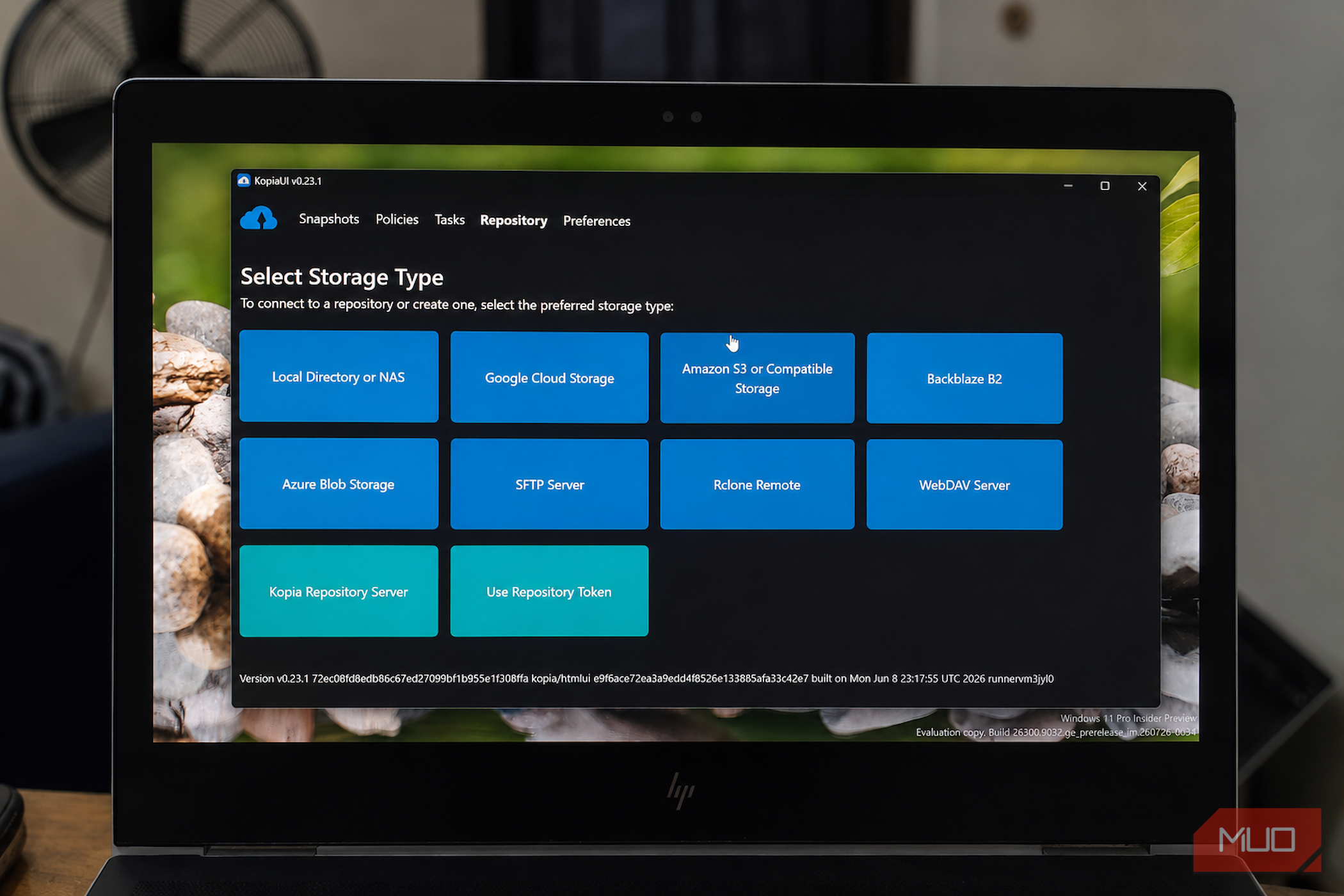
The GUI is the easier place to understand how Kopia thinks. Before protecting a folder, you create or connect to a repository. In Kopia-speak, that’s where your backup data lives. The Select Storage Type screen also makes it clear that Kopia doesn’t lock you into one cloud service. A repository can live on a local or network filesystem, or use remote storage such as S3-compatible services, Azure Blob Storage, Google Cloud Storage, WebDAV, SFTP, and Rclone-supported services.
A local filesystem repository is probably the simplest way to get familiar with Kopia, although putting the only backup on the same physical drive as the originals still leaves you exposed to that drive dying. That’s exactly the sort of problem the 3-2-1 backup rule is designed to avoid. An external drive, NAS, or remote destination gives the backup a much better reason to exist. If a NAS sounds like the obvious next step, it’s also worth considering whether you actually need a NAS rather than assuming every decent backup setup requires one.
Once the repository is configured, you can choose the folders you care about and create a snapshot. A snapshot is Kopia’s point-in-time record of those files and directories, rather than a full image of your PC. It’s also a good example of why snapshots beat simple file copies when you want to preserve earlier states instead of repeatedly overwriting one copy with another. The Snapshots page keeps those backups visible along with details such as when they were created and how much data they contain. You can protect a file before it disappears down the settings rabbit hole.
The easy-looking GUI has plenty of nerd knobs
You can leave the defaults alone, but where’s the fun in that?
That rabbit hole is mostly under Policies, and there’s a lot there. Kopia lets you control how often snapshots happen and how long different generations stick around. You can keep recent hourly, daily, weekly, monthly, and annual snapshots based on your retention rules, or schedule backups at regular intervals, at specific times, or using cron expressions. The obvious advantage of automating your file backups is that the whole routine no longer depends on you remembering to start it.
You can also decide what gets skipped. Exclusion rules can keep disposable folders or file patterns out of the repository, while error-handling options determine how Kopia responds when it hits files or directories it can’t read. Compression has its own controls, including the algorithm and rules for files you shouldn’t compress. Performance settings go further, with options for parallel snapshots and parallel file reads. You can even run actions around snapshot or folder operations if your routine needs scripts or other automation.
I wouldn’t expect a first-time backup user to know what every field means immediately. Kopia uses backup terms like deduplication, retention, inherited policy, compression algorithm, and parallelism without sanding all the technical edges off. The upside is that you don’t need to touch most of them to start.
Policies can be inherited and overridden for particular users, hosts, or folders, so you can set sensible defaults once and change only what needs different treatment. Underneath that, Kopia uses content-addressed storage and deduplication. It breaks data into pieces and avoids storing duplicate content it already has in the repository. If the same data appears across multiple snapshots, Kopia doesn’t need to make another full copy each time.
Snapshots are also encrypted before being sent to the repository, which is one reason backup encryption matters even when the backup itself lives somewhere you consider reasonably safe. Compression can reduce storage use where it makes sense.
That combination feels far more deliberate than dragging folders onto another drive every few weeks and hoping you remember next time.
The useful part starts when a file goes missing
This is the button you hope you never need
Creating a backup job is reassuring, but recovery is the test I care about, after already learning what it feels like to have files disappear. Kopia lets you browse existing snapshots, restore files and directories to a chosen local or network location, download individual files, or mount a snapshot so its contents can be browsed like a drive.
I’d test that recovery workflow soon after setting up Kopia, rather than saving the first dry run for an actual disaster. It’s worth knowing where your snapshots live, what they contain, and how to pull something back while the stakes are still low.
 Kopia
Kopia
- OS
- Windows, macOS, Linux
- Price model
- Free Kopia is a secure open-source backup and restore tool with a user-friendly desktop app for Windows, macOS, and Linux. I’d rather make file loss boring next time The maddening part about losing a file is realizing afterward how ordinary the recovery could’ve been if you’d bothered to set up a backup first. Kopia still expects you to decide where those backups live, and some of its deeper settings reward a little homework, but getting from “I really should back this stuff up” to an automated routine is pretty painless. For anyone who wants real control over their backups and still prefers a decent GUI over living in the terminal, Kopia is the kind of tool I wish I’d stopped procrastinating on years ago.