Summary
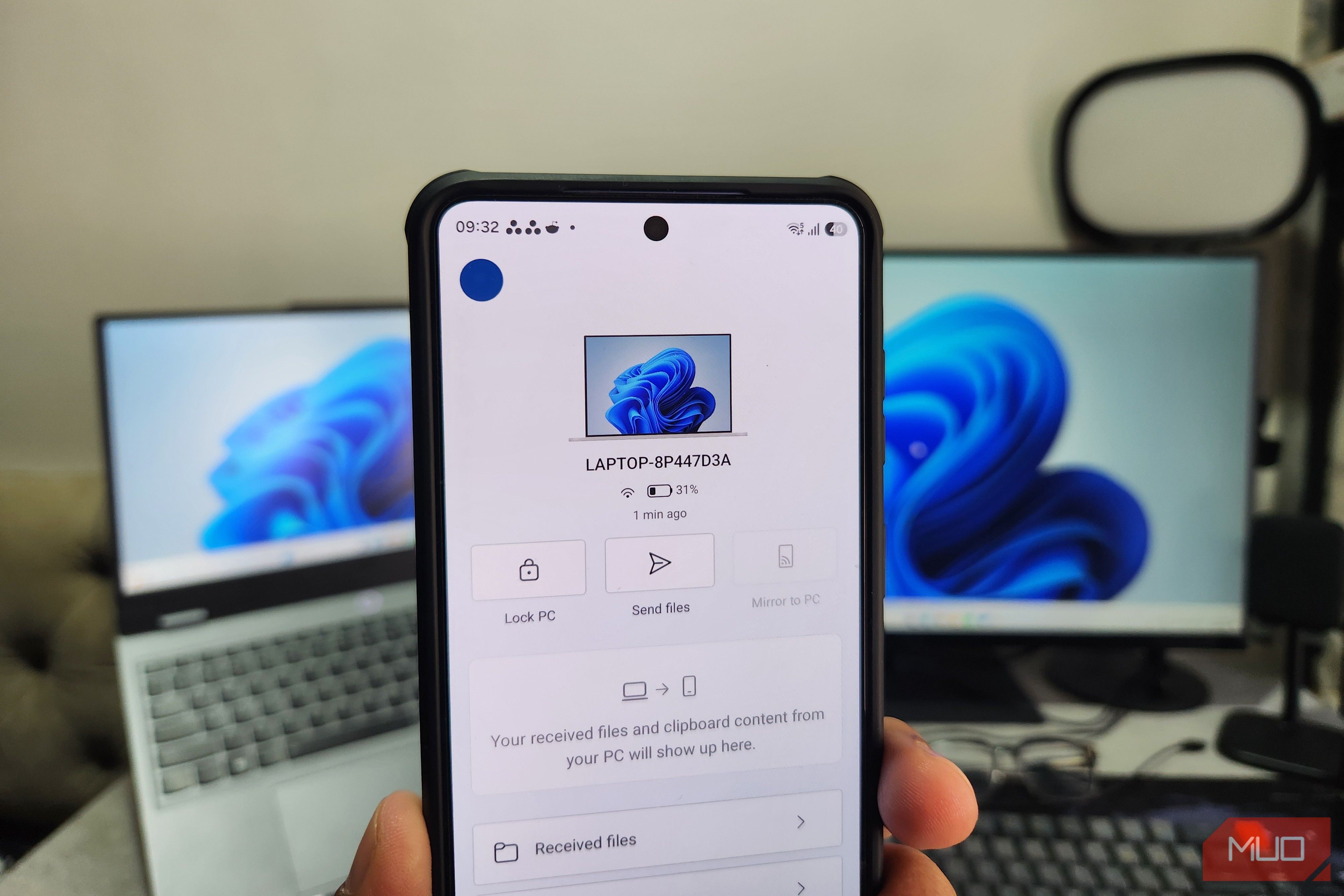
Phone Link started as a way to check phone notifications and make calls from your PC, but it has become way more than that. Microsoft has been steadily adding some great features, and the gap between what it could do and what it can do now is huge. And no, I’m not talking about features like screen mirroring or clipboard sync, although those are useful too. Beyond that, Phone Link now has features that make reaching for your phone feel mostly unnecessary. Pick up where you left off with Cross-Device Resume Use two devices as one If you’ve used a Mac, you probably know how Apple’s Handoff works with iPhones. You can start something on one device, switch to another, and pick up where you left off. Microsoft has brought something similar to Windows and Android with Cross Device Resume, and it uses Phone Link to connect both devices. The number of supported apps is limited right now, but you can do a few things, like start Spotify playback on your phone and resume it on the PC. Or, open an Office file and then open the same on your PC with a click. This also works for WhatsApp. And if you have a Samsung, Honor, Oppo, Vivo, or Xiaomi phone, you can hand off online files you’ve been working on through the Copilot mobile app. As soon as you start a supported activity, your taskbar shows the app icon annotated with a phone badge. Once you click it, your PC resumes the activity. By default, this happens for every supported app, but you can disable it for specific ones by heading to Settings > Apps > Resume. Again, the app selection is still pretty thin, but it’s a promising start. It’s one more reason to use Phone Link if you aren’t using it already. Accessing your phone is quicker than ever One click is all it takes Phone Link already does almost everything useful to keep you away from your phone. It’s now also integrated in the Start menu, which means you don’t have to open the Phone Link app to check phone notifications, battery level, or recent activity. It all shows up right there when you open the Start menu, and it gets better. The same panel also lets you send files or jump to your call logs, messages, and photos. My favorite thing, though, is opening the phone screen. I simply have to click the phone icon in the Start menu and it opens the screen. I can then interact with my phone with my mouse and keyboard, which is way more fun than actually reaching for the device most of the time. And in case you haven’t tried Phone Link’s screen mirroring recently, it’s surely worth another look. It’s smooth with almost zero lag. There’s one more setting you can enable if you enjoy using phone apps on your PC. Head to Phone Link Settings on your Android or iPhone and enable Skip unlock to access mobile apps on PC and Skip device verification to access mobile apps on PC. This basically lets you open your mobile apps from Phone Link on your PC without having to unlock the device with a PIN or fingerprint, which is exactly what most of us want. Expanded view for supported apps Using phone apps on PC is now way more fun As I said earlier, using the phone apps on PC is already fun, but Phone Link can now do more than simply mirror them. It can open Android apps in an expanded view, which lets them use up to 90% of your PC screen. So if you’ve got a 27-inch monitor, you can enjoy multiple mobile apps on a larger screen at once. It almost feels like running Android apps on your PC natively. Once you’ve opened your app, look for the expand view icon at the top and click it. This basically opens the app in a wider layout where it switches to a tablet-style view. If that’s something you always prefer, you can also tell Phone Link to always open apps in an expanded view. Head to Phone Link Settings on your PC, go to Apps, and enable Always open apps in expanded screen. There’s a catch, though. The expanded view doesn’t work well for every Android app, so you can’t use it everywhere. Apps that are designed strictly for a vertical layout may show black bars too. Another thing I noticed is that apps don’t look as crisp when they’re opened in an expanded view on a large screen. It’s not exactly a dealbreaker, but something to keep in mind. The other problem is the availability. Expanded view isn’t supported for every Android phone, so you’ll need to have a supported device running the latest version of Phone Link.