Summary
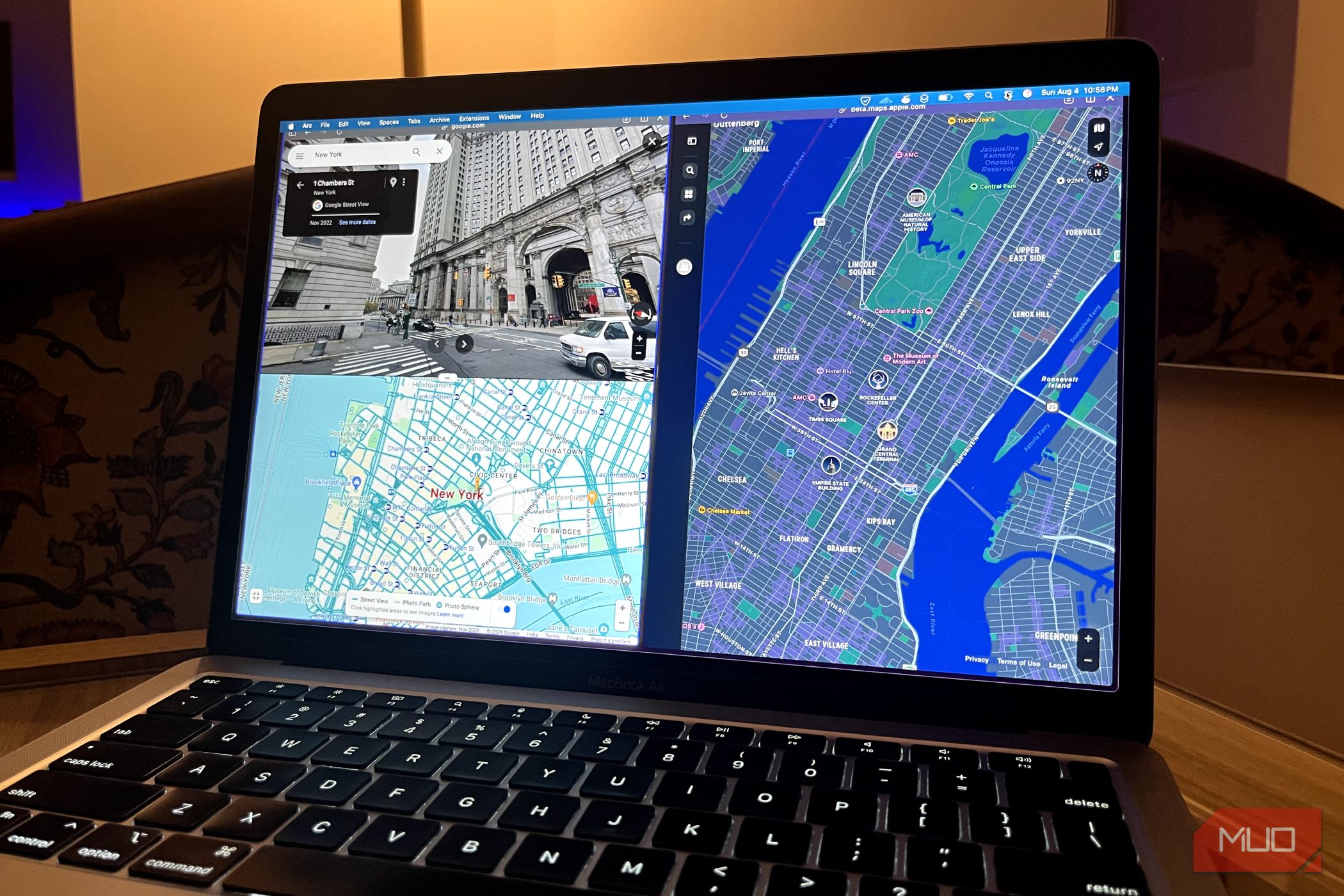
Google Maps is something most of us only use on a phone or in a car’s infotainment system. But Google Maps’ web app is just as good. In fact, it’s a better deal for most things besides turn-by-turn navigation. You get a bigger screen for searching for places, planning trips, browsing the map, or looking at different things. It’s the same features you get on your phone, but the whole experience is much nicer overall. Check traffic before I leave Always leave at the right time Checking traffic is something most people only do when they’re about to leave. But when I have the flexibility, I’d rather drive when the roads are actually clear. And figuring that out is a lot easier on a bigger screen while I’m already in front of a PC. I open Google Maps, plug in my destination, and try out different departure times to see which one’s the fastest. It even shows the typical traffic for each route too, so I can pick an alternative route if needed. I can then add stops for gas and breaks, so I don’t have to do all of that while driving. And once I’ve settled on a plan, Google Maps lets me send directions to my phone and pick up from there. Of course, this isn’t necessary for short trips, but when I’m planning a long trip, this is something I almost always do. Measuring distances and areas A built-in measuring tape Google Maps already shows you distances between locations, but that’s the route distance. It’s not the same as measuring distance in a straight line. Google Maps can also do that. Right-click anywhere on the map and choose Measure distance. From there, you can drop multiple points and Maps adds up the total as you go. This is useful for planning a hiking trail, mapping out a biking route, or even measuring a property boundary. The same tool also doubles as an area calculator for a building, property, a city, or just about anything. You simply have to drop points around the plot of land and Maps instantly calculates the enclosed area. Plan trips on a bigger screen This is where big screens earn their keep Planning a trip with Google Maps usually takes a lot of back and forth. You have to search for places, check what’s nearby, compare hotels, and save those must-visit places so you don’t want to miss. Google Maps has all the necessary features for it. The only problem is doing it on a phone means you have to jump between different screens, which can be annoying. On a PC, that’s not a problem because you have tabs and even split screen. You can check hotels in one tab, the route in another, and nearby places in a third, all while having other sites up for booking or research. You also get a bigger screen, which means you can see more things at once without scrolling up and down. Find and explore places more easily It’s like being there before you’re there Looking up a place on Google Maps is another thing I prefer doing on a PC, simply because there’s more room. The sidebar shows me the place details while the map stays visible on the right, so I can check the reviews and other information without losing sight of the map. Browsing through photos and videos is also a lot better on a bigger screen, for obvious reasons. My favorite thing to do, though, is exploring the street view. I usually look around to see what a place looks like, check the parking situation, scope out the entrance, or get a good feel of the neighborhood. All these little conveniences add up and make exploring places a lot more fun on a PC for me. Use Gemini to have fun Let Google Maps be personal travel agent It’d be unfair to talk about Google Maps in 2026 and not mention Gemini. The “Ask Maps” feature is available on PC, so you can do pretty much all the things you can imagine with AI and Google Maps together. Gemini can help with all the things we’ve talked about so far, but instead of clicking around manually, you ask. For instance, you can ask it to find pizza places near your hotel and summarize reviews. It can even find hidden gems in a city or places where you can work or relax while having a coffee. And since it’s Gemini, you can also ask follow-up questions, fun things to do, build itineraries, or give personalized recommendations. That last bit is the most useful one for me, because Gemini can actually look through my saved places, refer to past chats, access search history, and even connect information from other apps. All of this means it can give suggestions I actually like instead of making generic top-ten lists. Of course, all of this is also possible on the phone, but again, you’d have to scroll through answers, then close Gemini to check the map and reopen it to ask for a follow-up.