Summary
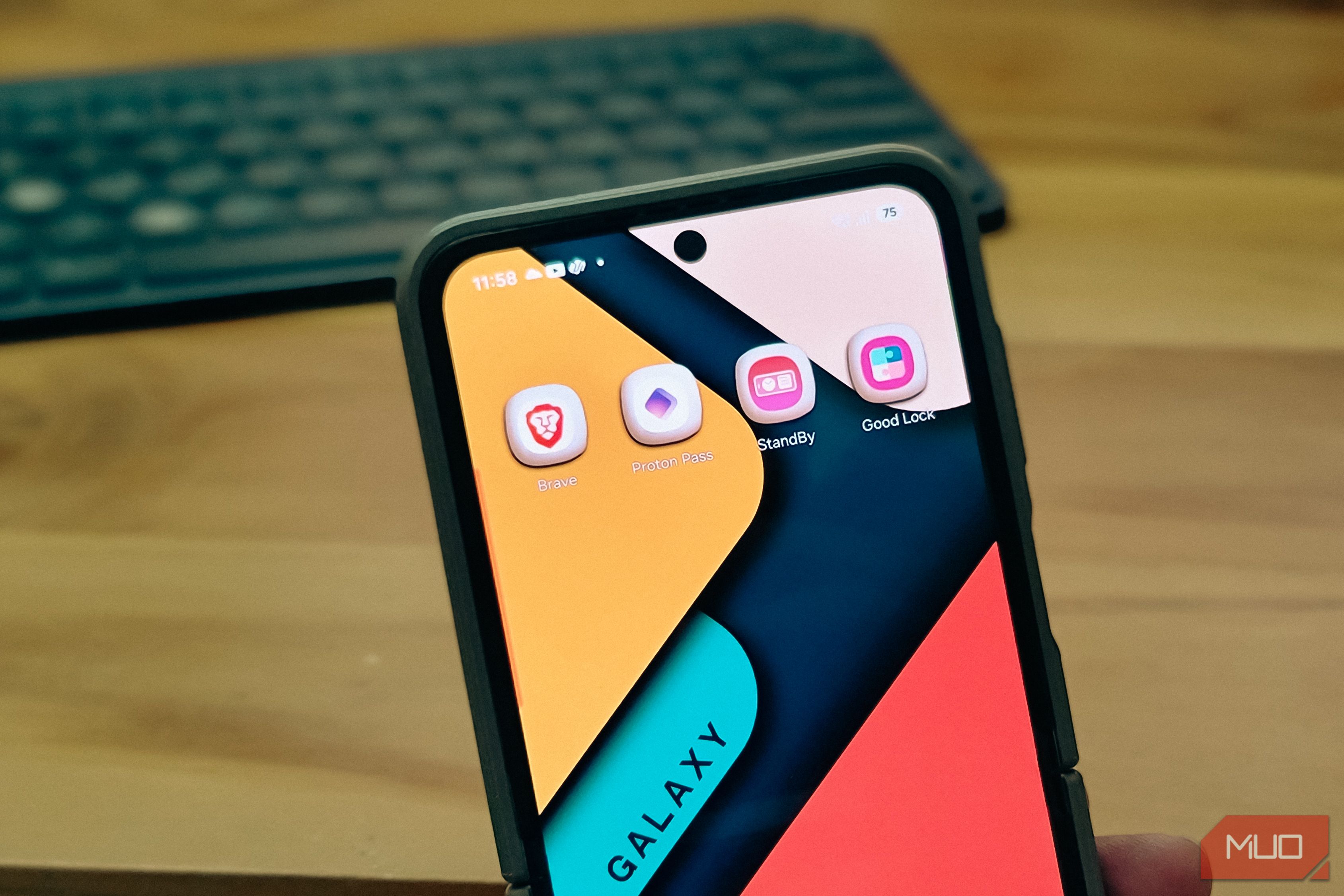
Samsung ships its Galaxy devices with some fantastic apps like Samsung Keyboard, SmartThings, Reminder, and Samsung Notes. Despite the effort, though, some of its offerings fall short of being the best. While some people swap out Samsung’s default apps for Google’s alternatives, I go a different route. I rely on third-party apps to fill the gaps. Some of these replace the existing defaults, while others add functionality that Samsung doesn’t offer at all. They’re among the very first apps I install on every new Galaxy. Good Lock Samsung’s official customization toolkit that changes everything Good Lock is the first thing I download on any new Samsung phone, and it’s the one app I’d miss the most if I switched to another brand. It’s a customization suite that Samsung builds and maintains itself, available for free in the Galaxy Store. What makes Good Lock special is how deep it goes. You’re not just swapping wallpapers or accent colors. With the Home Up module, I can resize and overlap widgets on my home screen so they fit around my wallpaper instead of sitting in a rigid grid. LockStar lets me rearrange the lock screen layout, move the clock, and swap the default shortcuts at the bottom for apps I use more often. And QuickStar cleans up the quick settings panel by letting me hide status bar icons I never look at and show exact brightness and volume numbers instead of guessing from a slider. The module I keep coming back to, though, is Routines+. It expands Samsung’s built-in automation with triggers and conditions the stock version doesn’t offer. Combined with Keys Cafe, which lets me map two-finger swipe gestures on the keyboard to copy, paste, and jump the cursor, Good Lock quietly removes friction from tasks I do dozens of times a day. If you haven’t tried it yet, it might be the best thing about owning a Samsung phone. Standby Mode Turning a charging phone into a smart display One feature I always envied on iPhones was StandBy Mode, the thing that turns a charging phone into a smart nightstand display with a clock, widgets, and photo slideshow. Samsung’s always-on display is nice, but it’s not the same. StandBy Mode is a third-party app that brings that exact experience to Android, and it does it better than I expected. What sold me was the Photo Clock feature, which cycles through a carousel of my own photos while overlaying the time in a corner. I set it to pull from a folder of family photos, and now my phone doubles as a digital picture frame whenever it’s on the charger. The app is smart about OLED screens, too. It has built-in burn-in protection, which matters because most Samsung phones use AMOLED displays that are prone to image retention. There’s also a night mode that applies a red tint so you can check the time in the dark without getting blinded. Once you set it up, the app auto-launches when your phone is placed in landscape on a charger and exits when you pick it back up. The core app is free, with a small one-time purchase to unlock everything. Proton Pass A password manager that doesn’t rely on Google’s ecosystem Samsung’s built-in password manager, Samsung Pass, works fine for autofilling passwords within the Galaxy ecosystem. But it’s tied to your Samsung account, which means if you ever switch phones or use a non-Samsung device, your passwords don’t come with you. Google’s Password Manager has the same kind of lock-in problem, just with a different ecosystem. Proton Pass solves this by being cross-platform from the start. It has native apps for Windows, macOS, Linux, iOS, and Android, plus browser extensions for Chrome, Firefox, Safari, and Brave. I can access my passwords on any device without being tied to one company’s login system. The feature that pushed me to switch, though, was email aliases. Proton Pass lets you generate masked email addresses for any signup through its SimpleLogin integration. You get 10 aliases on the free plan, and you can disable any of them at any time. So when a service starts spamming me, I turn off that alias instead of trying to unsubscribe. Samsung Pass and Google’s Password Manager have nothing like this. Proton Pass also uses end-to-end AES-256 encryption verified by independent audits, which gives me more confidence about where my credentials are stored than relying on a tech giant’s broader data ecosystem. Brave browser A faster, more private browser than Samsung Internet Samsung Internet came the closest to being my default browser. It’s fast, supports ad-blocking extensions, and has a clean interface. But its desktop version is still rough around the edges, which makes cross-device syncing more of a chore than it should be. Brave closes that gap. It blocks trackers, third-party cookies, intrusive scripts, and fingerprinting attempts out of the box, with a Shields icon in the address bar that shows exactly what’s being blocked on each site—no digging through settings, no installing extensions. On Android, where Chrome doesn’t support extensions at all, this is a big deal. Brave has also been gaining recognition as a better browser than Chrome on Android for good reason. The bonus I didn’t expect was YouTube. Brave strips ads from YouTube videos, supports background audio playback, and enables picture-in-picture. That’s three things I used to need separate apps for, and Brave handles all of them natively. It’s also open source and claims page loads up to three times faster than popular competitors, and in daily use, it feels noticeably quicker than Samsung Internet on the same sites. Samsung Internet is a great mobile browser, but Brave works the same way across my phone, laptop, and tablet, which is the consistency I need. These apps make a new Galaxy feel complete Samsung’s strength has always been in hardware and its One UI software, but no phone maker gets every app right. The defaults are a starting point, not a destination. Good Lock adds the customization controls Samsung left out, Standby Mode gives my phone a second life on the charger, Proton Pass keeps my credentials portable across every platform, and Brave handles browsing and YouTube better than any combination of Samsung Internet and Google Chrome. None of these apps are complicated to set up, and most are free. The whole process takes about fifteen minutes, and after that, the phone stops feeling like Samsung’s and starts feeling like mine.