Summary
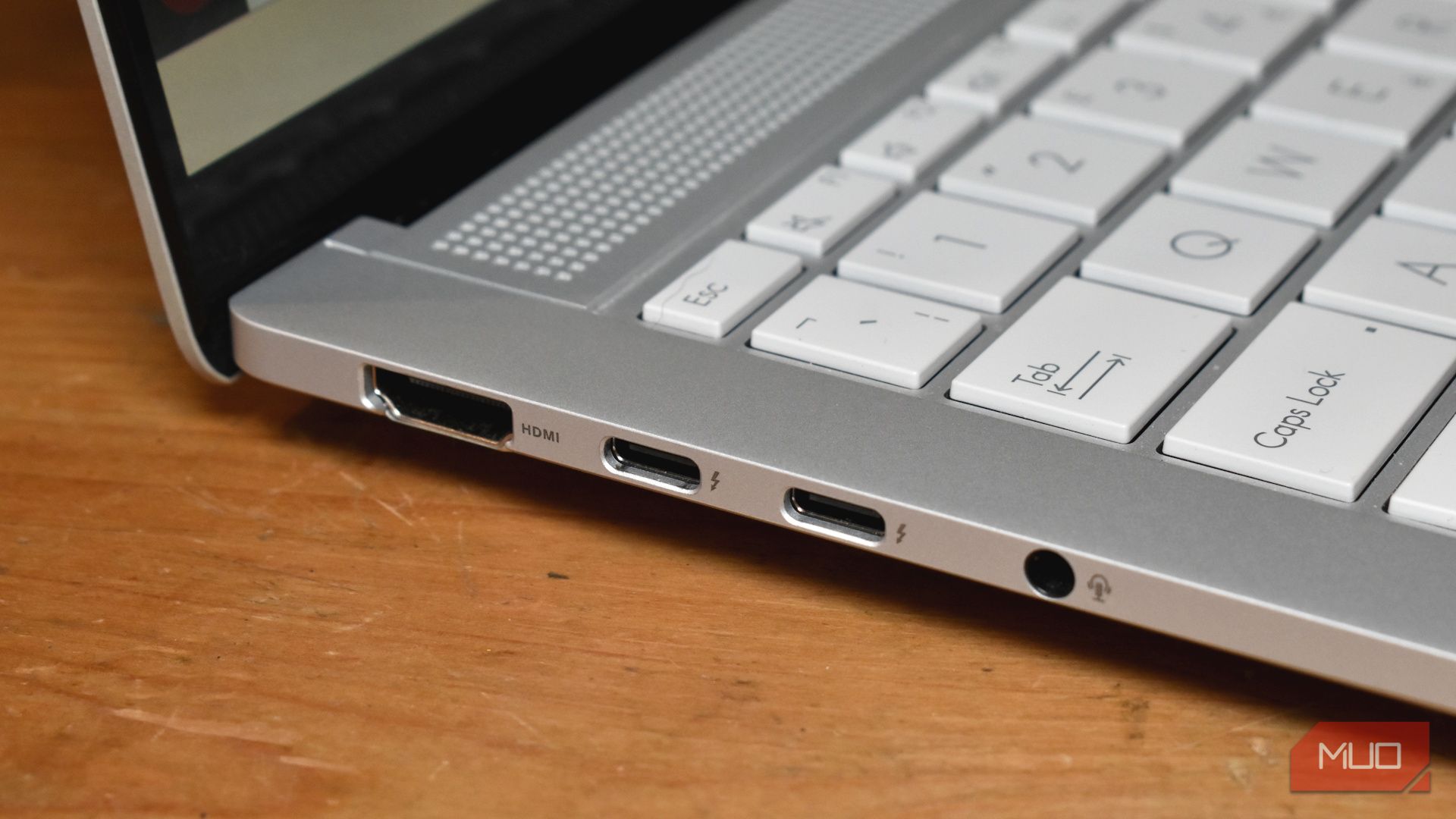
When you turn on your computer and reach the Windows lock screen, it feels like a solid barrier. It isn’t. You’re prompted to enter a password before access is granted. However, Thunderbolt or USB4 devices may still potentially access system memory on some Windows PCs. Many devices have a built-in mechanism that defends against this kind of intrusion, and you can check whether it’s working for you in a single System Information field. The lock screen doesn’t stop every kind of hardware access A locked screen doesn’t erase sensitive data from RAM When Windows is locked, it limits what a user can do via the keyboard, mouse, and desktop. But a connected PCIe device isn’t automatically limited in what it can do with the system’s memory. This is a significant difference, since pressing Win + L doesn’t automatically empty the system RAM. Processes running before the lock may still have sensitive information in memory, including authentication materials or other data an attacker could target. That information doesn’t disappear simply because it’s hidden behind a lock screen. This leads us to Thunderbolt and USB4. They can expose PCIe-connected peripherals capable of Direct Memory Access (DMA), allowing them to read or write system memory without CPU intervention. The point isn’t that plugging in a random Thunderbolt accessory means an intruder immediately walks away with all the information in RAM. The extent of effectiveness usually depends on the accessory’s driver and Windows’ DMA protection. A password prompt controls who can use the OS, but it doesn’t control how far an external device can reach. Kernel DMA Protection restricts what external devices can access Kernel DMA Protection uses the IOMMU to restrict DMA Kernel DMA Protection is a hardware- and firmware-dependent security feature. Modern chipsets come with an Input-Output Memory Management Unit (IOMMU), a gatekeeper between expansion devices and physical system memory (RAM). Windows ensures the IOMMU assigns DMA-capable peripherals to specific memory regions, preventing unrestricted access to RAM. Once Kernel DMA Protection is enabled, devices with DMA remapping drivers can still perform DMA while the screen is locked, but the IOMMU restricts them to the memory regions assigned to them. However, devices without DMA remapping support cannot initiate DMA while the screen is locked. Older interfaces like FireWire, PCMCIA, CardBus, or ExpressCard are not covered by Kernel DMA Protection. Rather than assuming Windows automatically blocks every Thunderbolt device while the screen is locked, the protection distinguishes between peripherals whose drivers support DMA remapping and those that don’t. Kernel DMA Protection only takes effect after Windows loads; before that, the system firmware provides protection, so pre-boot vulnerabilities may still exist. Kernel DMA Protection depends on the PC’s UEFI and hardware support, so two laptops that look almost identical may have different security capabilities. System Information knows if yours is protected Check Kernel DMA Protection in System Information There is a simple way to verify whether your computer has Kernel DMA Protection. Follow these steps:
- Press Win + R, type MSInfo32, and press Enter.
- Look through the System Summary for Kernel DMA Protection. “On” implies that the platform supports the feature, and it’s already enabled on the device. Supported systems usually enable Kernel DMA Protection automatically, so there isn’t a separate switch to turn it on. If it shows ‘Off,’ that doesn’t mean you disabled a Windows setting — Kernel DMA Protection depends on the platform, firmware, and IOMMU support. On some systems, enabling the required virtualization and I/O virtualization options in UEFI can resolve this; on others, the hardware simply doesn’t support the feature. The results you see on MSInfo32 give you exactly what the PC reports as opposed to what the manufacturer advertised before you bought it. Kernel DMA Protection isn’t the only DMA defense Once Kernel DMA Protection is enabled, don’t try to hunt for other ways to make the feature protect your device better. If Kernel DMA Protection is “Off,” you can choose alternatives depending on your hardware and firmware. On certain systems, there are Thunderbolt security controls in UEFI. For systems that don’t use Kernel DMA Protection, Microsoft also documents older BitLocker DMA countermeasures. Alternatives are platform-specific and are not universal fixes; apply them only when they’re appropriate for your hardware and firmware. Drive-by DMA attacks may only take a few minutes and may not even require opening the computer. However, Kernel DMA Protection isn’t a general defense against firmware attacks, pre-boot attacks, or malware that is already running on the system. Also, if a bad actor has adequate physical access, they may still be able to tamper with the actual machine. Aside from a laptop simply having a Thunderbolt port, the real question is whether the OS and port hardware can prevent external devices from gaining unrestricted access to memory.