Summary
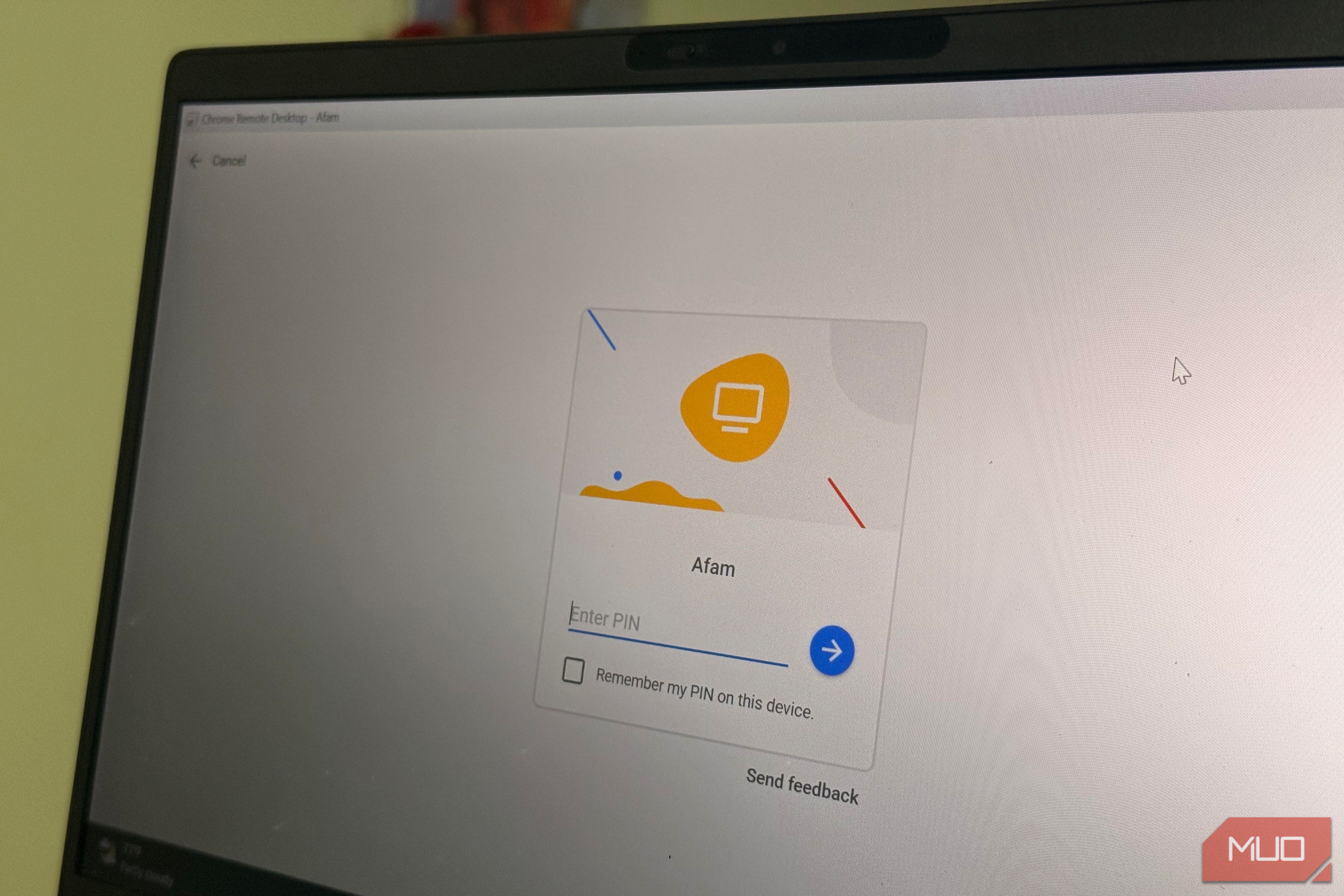
Remote desktop tools are very common. However, when they need one, most people look for a new tool to download, even though they already have Google Chrome installed. Google Chrome gives you access to Chrome Remote Desktop, a simple way to reach your computer without signing up for another remote-access service. I’ve seen several people treat it as a temporary help, missing out on some of its most valued use cases. Once the setup is complete, it becomes a surprisingly convenient way to retrieve files, check apps, and finish work you left behind. You’ve probably already used this tool — for the wrong job The one moment most people have with it is also the one that hides everything else it does . It’s easy to use: open a browser, generate and share a string of digits, then start the session. Once that need is fixed, Chrome Remote Desktop is abandoned until the next problem. This single experience makes Chrome Remote Desktop the tool for remote access to fix computer problems. Once that branding sticks, you stop exploring the tool’s other features or use cases. During those troubleshooting calls, the session periodically asks the person at the desk to re-approve — it’s a design that also makes Chrome Remote Desktop feel temporary. The idea that the same tool may stay permanently without anyone present feels far-fetched. You can register Chrome Remote Desktop with your Google account and keep it on your computer for regular use. This means you wouldn’t need a fresh code or constant session monitoring. The remote access setup is different. You register the computer in advance and protect it with a PIN, then select it from your account and connect without someone on the other end approving every session. One use case may be built around a session started for someone else, while a different scenario stays open for you, permanently ready for use. A sleeping computer might as well not exist Reachability is decided before you leave, not from the road For the permanent version to work, the host machine must be reachable. That machine must be on, connected to the Internet, and not asleep. The entry disappears from the list the moment the network adapter powers down, and it would be impossible to bring it back remotely. After using the one-time support flow, you may assume that using the permanent option is also set up on the fly, just like the support code is generated. This isn’t the case. You must be present at the machine to choose the PIN and register the host. It’s an easy step, but it must still happen in advance because the opportunity disappears the moment you leave the system. It took a few weeks of setting it up to see the real drawbacks. On my laptop, power management became the bigger problem. Even after I disabled standard sleep settings, closing the lid changed what the remote session could see, and I eventually had to treat remote accessibility as part of my power plan setup. Also, forcing a laptop not to sleep has a cost. The battery life takes a hit, and you may notice warmer CPU temperatures. These are factors to consider when you decide a computer has to stay permanently reachable. Five minutes of actual need doesn’t require a full remote workstation The smaller the job, the better Chrome Remote Desktop gets The way I use Chrome Remote Desktop revolves around several small but important tasks. When I’m away from home and require one small file that sits on my desktop, Chrome Remote Desktop gives me the necessary access. It’s also an easy workaround for when I need to finish something inside an application that only exists on that computer, or even when I need to check a browser tab that I left open. These are moments where more robust tools solve problems larger than the ones right in front of me. This is the scale where Chrome Remote Desktop is very efficient. It lets you copy and paste passwords, short notes, and text via the clipboard, cutting out extra steps when moving simple data. On Android, Chrome Remote Desktop apps make performing these small tasks even more practical. Although the on-screen controls feel more limited than the desktop view, I still use the mobile apps to check a tab or click through a dialog. Chrome Remote Desktop isn’t built for full-day remote control; it works best for short tasks. It excels in the five-minute tasks and quick grabs that would feel like underutilizing a robust remote connection app. If the goal was a full-time remote workstation, I wouldn’t choose Chrome Remote Desktop. I get far more control, performance tuning, and features from tools that are designed for that job. But once the alternative is driving home for a file you forgot, Chrome Remote Desktop is the better choice. The best remote PC is the one you set up once and forget about If I’m spending eight hours working on a PC remotely, I wouldn’t choose Chrome Remote Desktop. It’s handy when I need just five minutes on my computer that I can’t physically access.With a one-time setup, the little emergencies become resolvable regardless of my location.