Summary
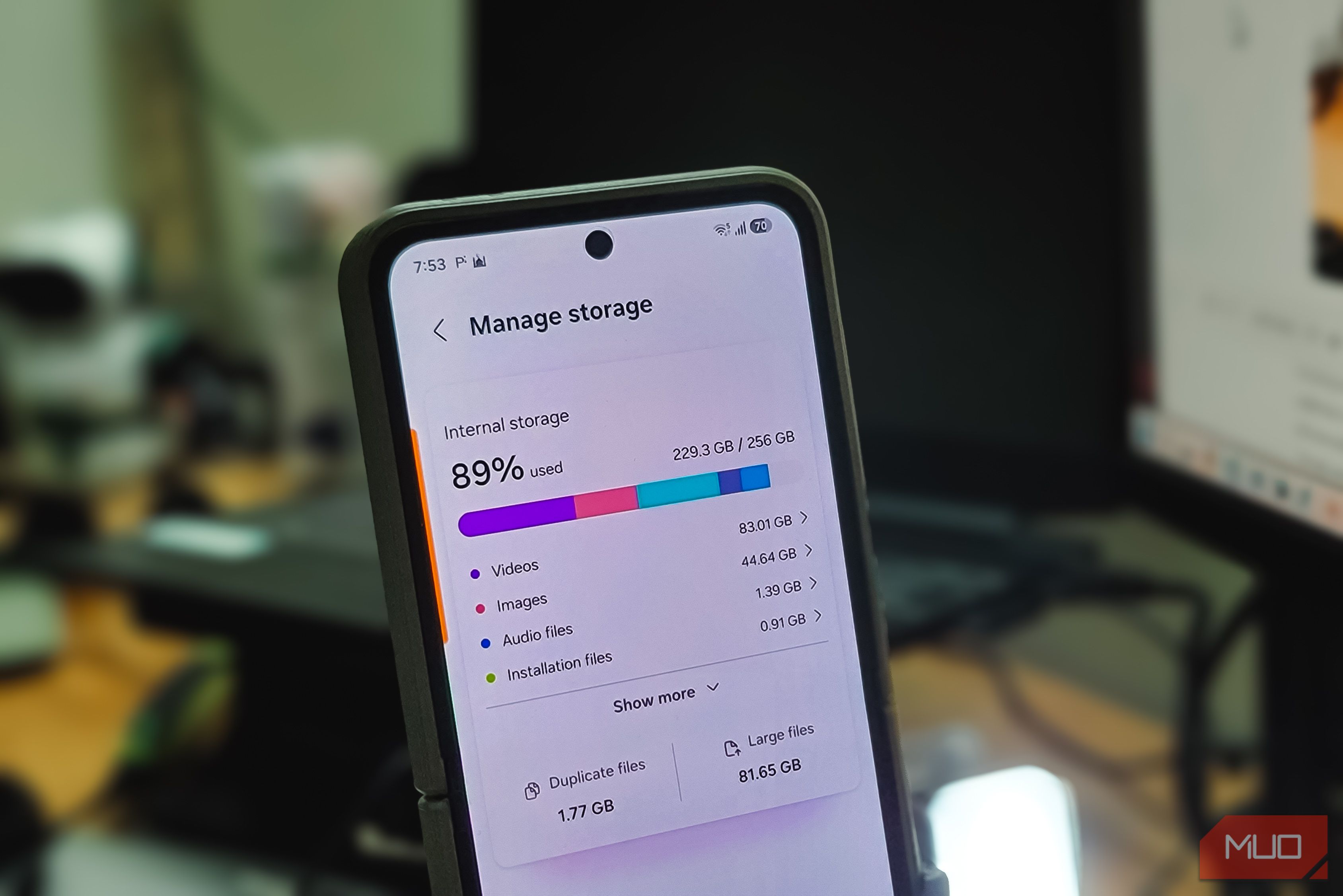
“Your storage is full” is one of the scariest pop-ups you can see on your phone. I got hit with it on my Android a few days ago, and my first thought was, not again. I really didn’t want to go through my gallery and start deleting photos and videos to free up a few gigabytes. So, instead of immediately sacrificing my camera roll, I decided to figure out what was actually taking up all that space. I checked my storage, reviewed my apps, and poked around a few settings. That’s when I stumbled upon one setting that had apparently been turned on for a very long time without me realizing it. And it had eaten through 5.7GB of storage on my phone. Nearly 6GB, just sitting there because of a setting I didn’t even remember switching on. My phone knew everywhere I’d been I don’t really need my phone to remember everything The feature responsible for all of this is Location History, which Google now calls Timeline. It’s an Android setting that creates a personal map of the places you visit and the routes you take. When it’s enabled, your phone regularly saves precise location information, essentially building a record of where you’ve been over time. The strange part is that I have absolutely no memory of turning it on. Yet, when I opened Timeline, there it was: a surprisingly detailed history of the places I’d visited for the past two years. Trips I’d taken, routes I’d followed, and random spots I’d stopped at were all sitting there. And because Timeline data is now stored directly on your device, that history had slowly grown into the 5.7GB chunk of storage I discovered earlier. I can understand the appeal — Timeline is almost like a little digital travel diary. Maybe you want to remember the name of that café you stumbled across months ago, retrace a road trip, or figure out exactly where you went on a particular day. Google can also use this information to make things such as place recommendations more useful. The problem is that I don’t use it that way. If I discover a great café, restaurant, or hidden spot, I’ve probably already saved it somewhere, taken photos there, or found it through social media in the first place. I don’t really need my phone to maintain a diary of every place I visit just in case I want to revisit that history someday. Once I realized how much space Timeline was taking up, keeping it around made even less sense to me. There’s also the privacy side of it. I’m quite conscious of my privacy and how much information I share, so seeing such a detailed record of my movements sitting on my phone made me uncomfortable. Hence, turning Timeline off was an easy decision for me — I got that space back and stopped building a location history I didn’t need. A few taps gave me my storage back Your storage will thank you There are actually a couple of ways to check whether Timeline is turned on your Android phone. I found my way there through Google Maps, and since that’s also where you can see all those previously visited places, I found this route pretty straightforward. Here’s how I did it:
- Open the Google Maps app on your Android phone.
- Tap your profile picture in the upper-right corner.
- Under More from this app, tap Your Timeline.
- Tap the three-dot menu in the upper-right corner.
- Select Location & privacy settings.
- Scroll to Timeline and select the Google account you want to manage.
- Tap Turn off, then choose Turn off and delete activity if you also want to remove your existing Timeline history. That last part is important. Simply turning Timeline off stops it from continuing to build your location history, while choosing Turn off and delete activity also removes the Timeline data you’ve already accumulated. You don’t necessarily have to take the Google Maps route, either. On Android, you can also look for the relevant location controls through your phone’s Settings app. And if you actually like having a record of everywhere you’ve been but don’t want to keep all that data sitting there, you can export your Timeline data before deleting it. For me, though, there wasn’t much worth saving. I wanted the storage back far more than I wanted a years-long map of everywhere I’d been. Well, hello there, 6GB Turning off just this one setting gave me back almost 6GB of storage, and I could see the difference immediately in the Storage section of my phone’s Settings app. If you decide to turn Timeline off, I’d recommend checking there afterward, too, to see how much space you’ve actually reclaimed. I’m constantly digging through my phone, looking for settings and features that can free up space or make it nicer to use. This was definitely one of the more surprising finds. And if your Android phone is also constantly complaining about running out of storage, it might be worth checking Timeline before you start saying goodbye to another batch of something that you dearly want on your phone.