Summary
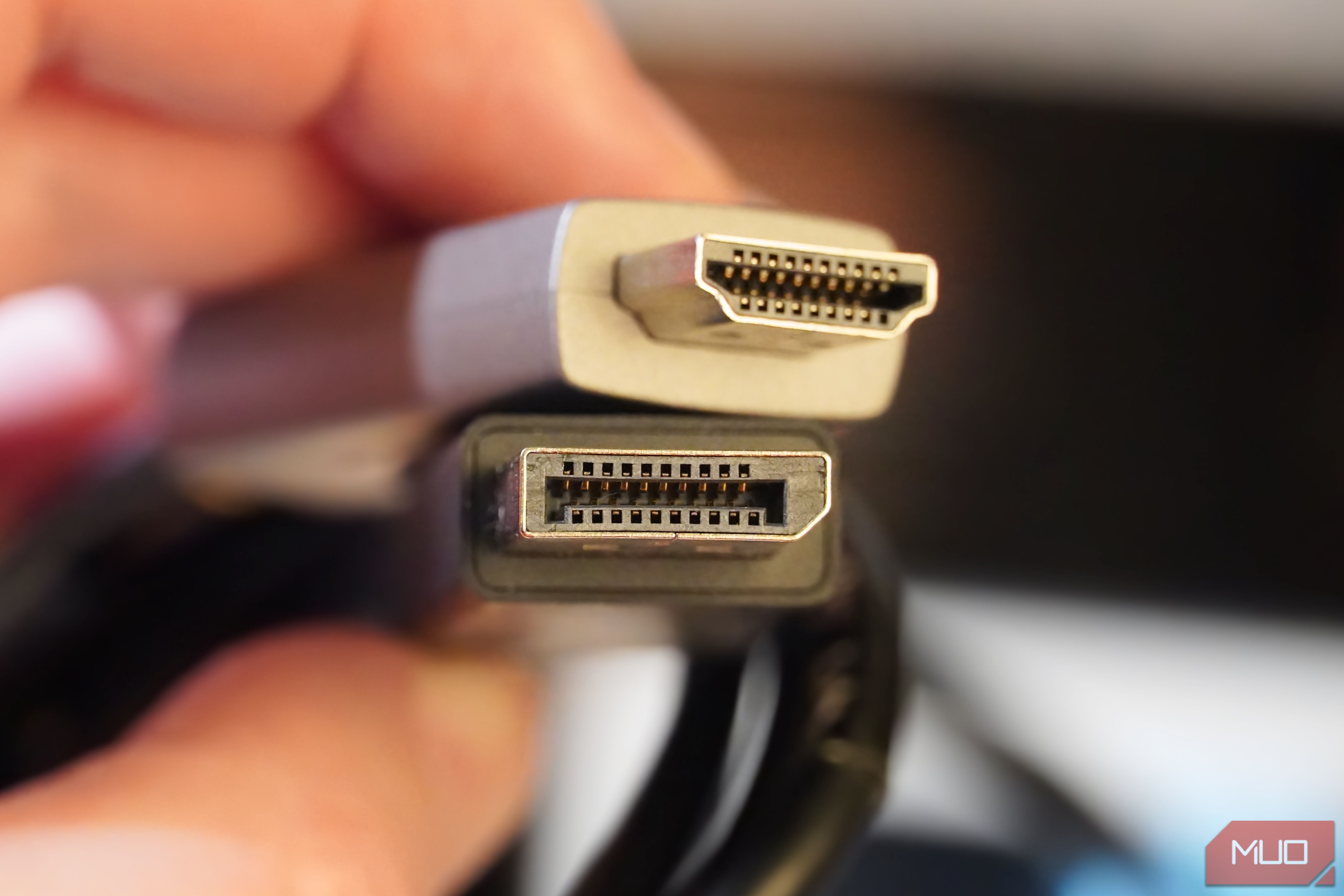
With legacy standards such as VGA and DVI phased out, the two display connectors you’re likely to find on the back of a computer monitor are HDMI and DisplayPort. Early on, if I used a monitor with both HDMI and DisplayPort, I’d plug my computer or laptop into the HDMI port. I had a handful of HDMI cables lying around, and I was familiar with HDMI from using it on my TV and gaming consoles. The familiarity of HDMI makes it easy to use for your monitor, but chances are, DisplayPort would be the better way to connect it to your laptop or desktop.
HDMI earned its rightful place in the living room with exclusive features like the Audio Return Channel (ARC), Consumer Electronics Control (CEC), and the HDMI Ethernet Channel (HEC). However, these benefits don’t extend into your office or gaming desk. DisplayPort’s higher bandwidth and PC-specific perks make more sense for your monitor. If you choose to use HDMI over DisplayPort for your PC monitor, you could be missing out on its full potential.
DisplayPort unlocks your monitor’s max resolution and refresh rate
Until HDMI 2.2 arrives, DisplayPort is the bandwidth champ
One reason to use DisplayPort over HDMI on your monitor is that manufacturers occasionally use a newer DisplayPort version. It’s not uncommon to see a monitor supporting the latest DisplayPort 2.1 version but an older HDMI 2.0 version. In this case, check the specs to make sure you’re getting the newest versions of DisplayPort and HDMI on your monitor. Let’s say that your monitor does support both HDMI 2.1 and DisplayPort 2.1 — the DisplayPort connections will still get the best resolution and refresh rate from your screen.
HDMI 2.1’s maximum bandwidth is set in stone at 48Gbps, whereas DisplayPort 2.1 can operate at 40Gbps, 54Gbps, or 80Gbps tiers. DisplayPort 2.1’s higher bandwidth allows it to hit 4K resolution at 240Hz or 8K resolution at 60Hz, with 10-bit HDR, without compression. While HDMI 2.1 can transmit the same resolution and refresh rate combinations, it needs Display Stream Compression (DSC) to achieve them. The native, uncompressed DisplayPort 2.1 video streams are preferred to the compressed HDMI 2.1 streams as a result.
Using the DisplayPort connections on your monitor does require more due diligence, as you need to make sure it isn’t operating at the 40Gbps DisplayPort 2.1 tier. This mode offers less bandwidth than HDMI 2.1, and should be avoided. However, as long as your ports are using DisplayPort 2.1’s 54Gbps or 80Gbps modes, you’re in store for an upgrade.
DisplayPort 2.1’s maximum resolutions and refresh rates are higher than that of HDMI 2.1 across the board. It can hit 10K at 60Hz natively, or 16K at 60Hz using DSC. If higher refresh rates are your goal, DisplayPort 2.1 can reach 480Hz while driving a 1440p monitor. This is ideal for gamers who would rather have the most responsive monitor than the highest resolution.
DisplayPort’s MST, DSC, and Alt Mode features shine on monitors
They help you get the most from the screens on your desk
DisplayPort 2.1’s use of Display Stream Compression (DSC) beats HDMI 2.1. HDMI 2.1 invokes DSC at lower resolutions and refresh rates than DisplayPort 2.1, so the latter allows you to keep your video stream transmissions native at higher resolutions and refresh rates. On the other end, DisplayPort 2.1 can achieve higher refresh rates and resolutions using DSC than HDMI 2.1 thanks to its extra bandwidth. That said, the stronger DSC isn’t the only reason to choose DisplayPort over HDMI for your monitor.
Multi-Stream Transport (MST) is a DisplayPort exclusive that particularly comes in handy for monitors. HDMI requires a separate cable for each monitor in your setup, while DisplayPort doesn’t have the same limitation. MST works to provide daisy-chaining support for DisplayPort, and you don’t even need the newer versions. Of course, DisplayPort 2.1 has MST and supports daisy-chaining, but this part of the spec dates back to DisplayPort 1.2. A single DisplayPort cable runs from your PC to the first monitor in the chain, and each subsequent monitor is connected via DisplayPort to the one preceding it.
You do need to seek out monitors that have DisplayPort inputs and outputs to use the daisy-chaining function enabled by MST, but everything else is handled by the DisplayPort standard. MST isn’t natively supported by macOS, but ChromeOS and Windows work just fine. This is why DisplayPort should be your first choice over HDMI if you plan to use your PC as part of a multi-monitor desk setup.
Finally, there’s DisplayPort Alt Mode. You might have a third video port on your modern monitor, in addition to HDMI and DisplayPort: USB Type-C. This is the same port used for USB4 and Thunderbolt, but it uses DisplayPort Alt Mode to transmit video data over USB-C. So, even if you’re using USB-C for one or both ends of the monitor’s connection, DisplayPort is actually serving as the video communication protocol. HDMI has no equivalent to DisplayPort Alt Mode, because HDMI Alt Mode never got off the ground.
HDMI is better for your TV, but DisplayPort is best for your monitor
HDMI’s exclusive features aren’t designed for computer screens
For the best experience, use the right video standard for the job. I’d never use DisplayPort in my living room, as I need features like eARC and CEC. Since my 4K TV doesn’t require a higher resolution or refresh rate than HDMI 2.1 offers, there’s no benefit to using DisplayPort. In fact, DisplayPort 2.1 would be a downgrade for my living room TV, as the standard doesn’t support ARC/eARC, CEC, or HEC.
Meanwhile, I’ll always use the DisplayPort 2.1 ports on my monitor over the HDMI ports, because I can get more bandwidth, higher resolutions, and higher refresh rates out of them.
 UGREEN DisplayPort Cable 2.1
- Brand
- Ugreen
- Cable Type
- DisplayPort 2.1
- Length
- 6.6ft
- Data Transfer Rate
- 54Gbps
- Materials
- 28AWG tinned copper and tinplate Ugreen’s DisplayPort 2.1 cable supports high resolutions of 16K@30Hz, 8K@240Hz, 4K@240Hz, or 1080p@540Hz. It also support DisplayPort’s exclusive features, like Multi-Stream Transport.