Summary
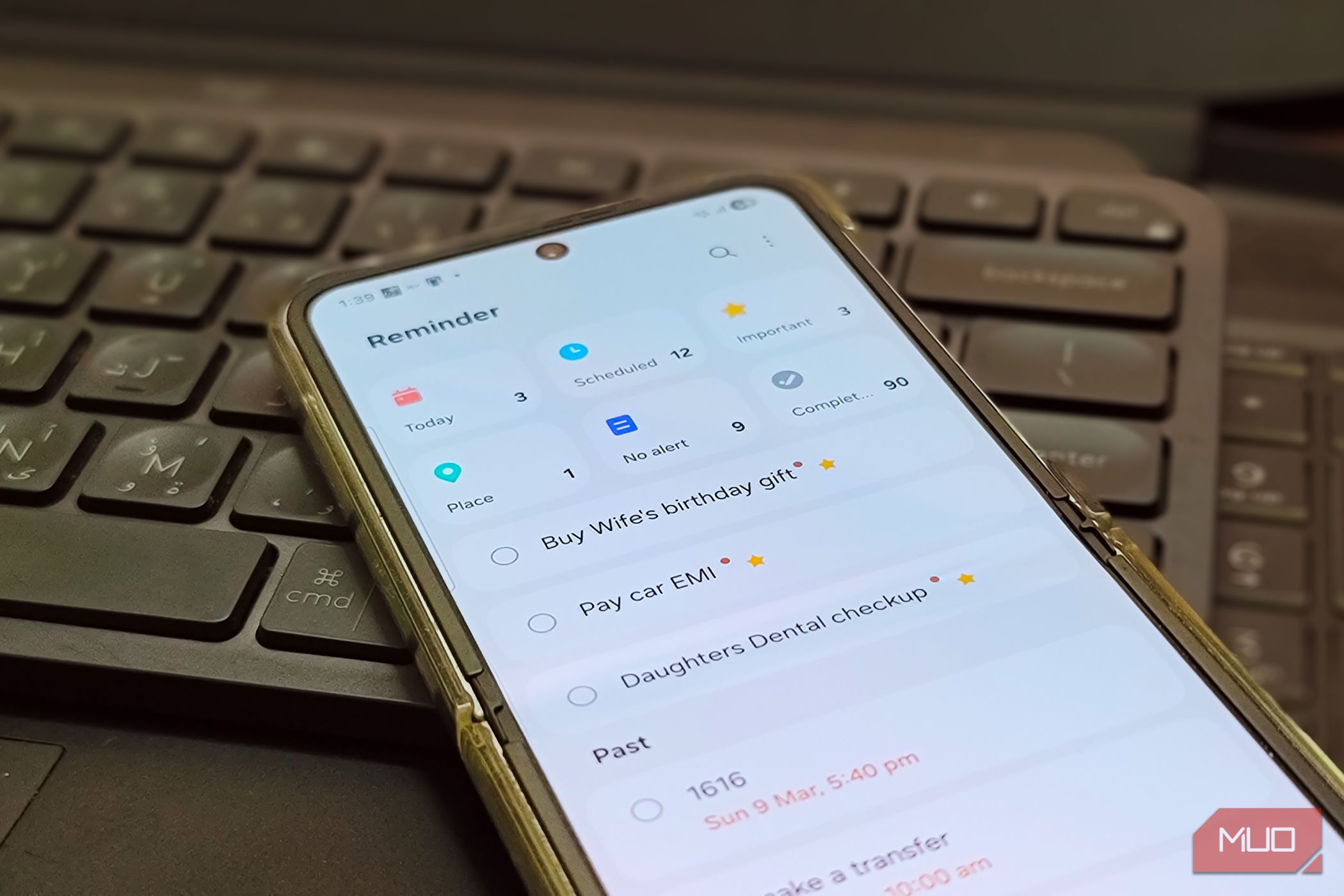
When Google killed location-based reminders on Google Keep, I had to find a replacement to-do and note-taking app that supported the same. Location-based reminders are essential to my workflow, so it was non-negotiable. While I did give Tasks.org a chance, there was a better alternative on my Samsung Galaxy Z Flip 6 that came installed out of the box, but I didn’t pay much attention to it. Samsung Reminder is a fabulous reminder app that does everything a good to-do app should do and then some more. Samsung Reminder’s UI is done right A much-needed design overhaul The old Reminder interface wasn’t the most user-friendly, with a hamburger menu hiding everything behind taps and one long list of reminders with no real organization. It didn’t feel like a Samsung app that could rival its Google counterpart. With the One UI 8.5 update, Samsung redesigned the Reminder app’s homepage with category cards at the top that sort your reminders into Today, Scheduled, Important, Place, No alert, and Completed. Each card shows how many reminders it contains, so you get an at-a-glance view instead of scrolling through one undifferentiated list. The creation screen got a similar cleanup. When you build a new reminder, sub-tasks, date and time with repeat options, location, media attachments, and category are all exposed as distinct icons rather than nested inside menus. Templates make it easy to get started Pre-built reminders so you don’t start from scratch Most to-do apps drop you into a blank screen and expect you to figure things out. Samsung makes things a little easier. Below the category cards on the homepage, the app surfaces sample reminder templates so you can set up a common reminder in a few taps without typing anything. These templates aren’t random, either. Each one showcases a different feature of the app: a workout schedule shows you how recurring reminders work, a pickup reminder shows location-based triggers, and a monthly payment reminder shows custom timing. What you’ll also like is that these templates don’t clutter your Today view. They sit in their own section, showing you what the app can do without mixing demo tasks into your actual reminder list. There’s also a text box at the bottom of the homepage that now offers suggestions as you type, helping you create a reminder faster. Shortcuts sit right under it for adding checklists, locations, and pictures, making those extras easier to attach than before. Location-based reminders are a lifesaver The feature that made me switch for good Location-based reminders are the one feature that makes or breaks the experience for me on any note-taking and to-do app. It was useful on Google Keep and works even better in the Reminder app on my Samsung phone. To create a task with a location-based reminder, create a new reminder, tap the location icon, search for a place or choose your current location, and then pick whether you want to be reminded when you arrive or leave. You can even adjust the geofence radius, which is helpful for larger areas like malls or office campuses where GPS can be a little imprecise. I keep mine set to around 500 meters for most locations, which has been reliable. I use this for everything. Grocery lists tied to the supermarket, a reminder to check tire pressure at the gas station, a prompt to call my family when I get home—the reminders fire when I’m near the location. Samsung’s implementation also works offline, unlike Google Assistant’s location reminders, which need an internet connection. On the other hand, Google tends to be more accurate for business locations since it pulls from Google Maps data. For the places I visit regularly, though, Samsung’s version has been more than reliable. And since it ties into the Samsung Calendar app, you can now create reminders directly in Calendar and even drag and drop existing reminders to reschedule them. Do make sure that battery optimization isn’t putting the Reminder app to sleep. Go to Settings > Device care > Battery > App power management, find Samsung Reminder, and exclude it from sleep. Without that, your location reminders might not fire, and you’ll blame the app for what’s really an Android power management quirk. Samsung’s pre-installed Reminder app is better than most dedicated third-party apps Samsung Reminder isn’t trying to replace a full-blown project management tool like Todoist or TickTick. It doesn’t have Kanban boards, priority matrices, or desktop apps. If you need those, look elsewhere; third-party apps on a Samsung phone fill specific gaps. But for the kind of reminders most people set on their phones, the everyday “pick up milk, pay the bill, call back the plumber” tasks, Samsung Reminder handles them better than anything else I’ve tried.