Summary
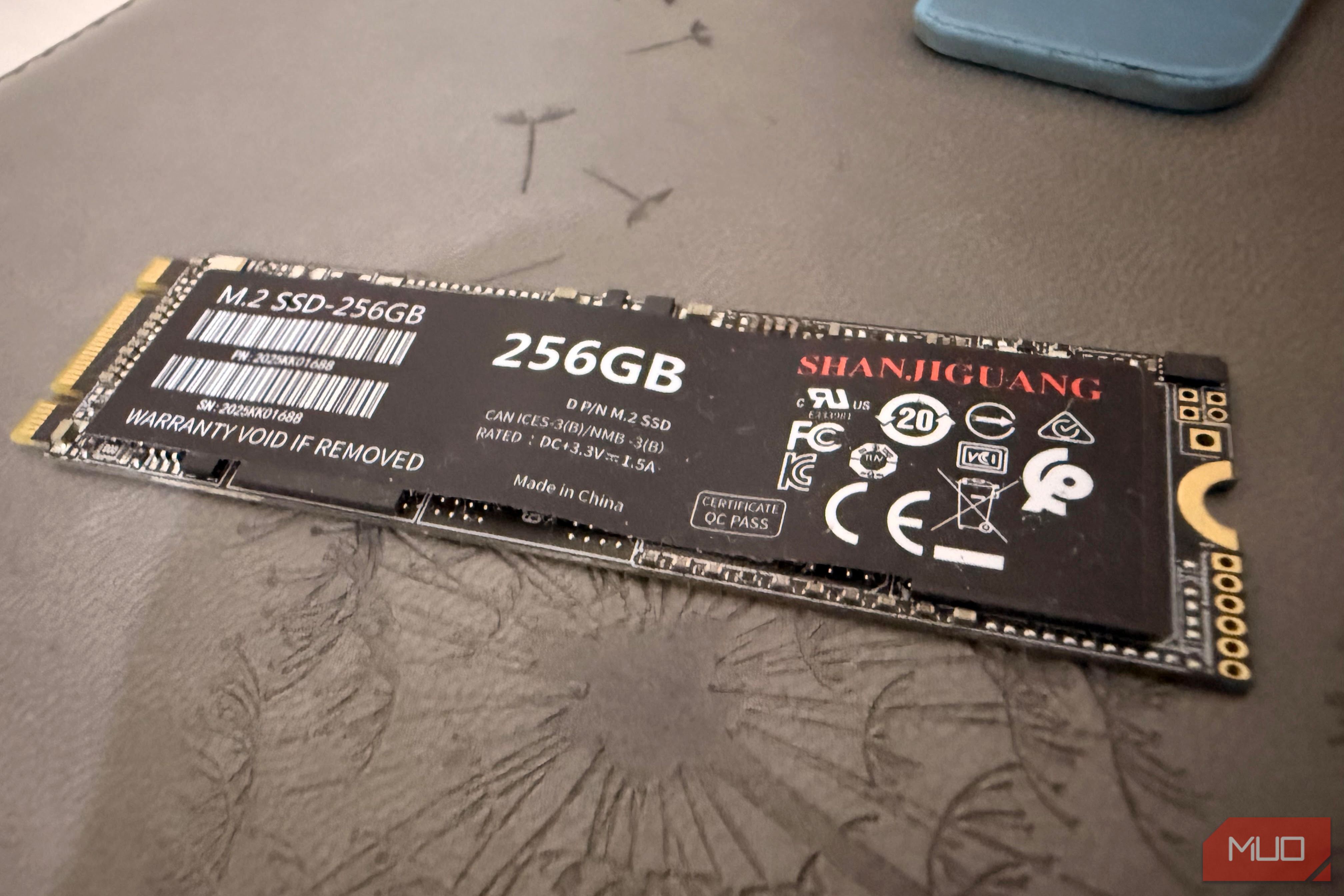
I always considered “no DRAM” a deal-breaker when buying an SSD. I thought a cheap drive without that chip made sense only if speed really didn’t matter. Then I bought a $50 DRAM-less drive and installed it as secondary storage, and its performance for my daily workflow matched drives that cost more than twice as much. This led me to investigate Host Memory Buffer and then put the drive through a side-by-side test against a DRAM-equipped SSD. The results changed my criteria for buying an SSD. My SSD is missing a chip every fast drive is supposed to need What it borrows instead — and why I almost didn’t notice I only noticed it lacked a DRAM chip when I dug into the spec sheet for my SSD. Since I have always associated DRAM-less drives with corner-cutting, it surprised me that this secondary drive was keeping pace with costlier drives I had owned. It wasn’t acting like the drive you buy when you don’t prioritize performance. A drive without DRAM doesn’t mean it has no memory. The controller still has some SRAM of its own, but that’s not the same thing as having dedicated DRAM on the SSD. However, the dedicated mapping table that tracks where data resides on the NAND is missing. Flash storage isn’t a filing cabinet with labeled folders. For every read and write the drive performs, it must constantly check that map. Host Memory Buffer (HMB) allows the SSD controller to access a portion of the host system’s RAM. The borrowed RAM is used for metadata and mapping information, reducing the frequency of NAND accesses. My drive uses about 64 MB of borrowed RAM, even though the SSD doesn’t permanently consume that much memory. Instead of storing the entire index, it holds only the portions the controller needs most. You can’t evaluate an SSD simply based on a lack of a physical DRAM chip. Borrowing memory turned out to be the easy part What separates owned DRAM from RAM on loan Onboard DRAM and HMB may be different technologies solving the same problems, albeit with different approaches. The former is soldered to an SSD and is dedicated to that drive. The latter uses memory from another part of the computer, which the operating system can lend out. HMB isn’t simply an alternative to storing the mapping table in dedicated RAM. The controller chooses what must be kept readily accessible; the remaining information is stored in NAND and made available via the controller’s own memory. HMB functions like a small cache, retaining only the data that is frequently used. There isn’t a direct correlation between buffer size and a drive’s capacity. The drive and the system it’s connected to determine how much a controller will request and receive. | Onboard DRAM | Host Memory Buffer | | |---|---|---| | Where it lives | On the SSD | Borrowed from system RAM | | Ownership | Dedicated to that drive | Shared, allocated on request | | Typical role | Mapping data kept in fast local memory | Selected metadata/mapping data | What is fascinating isn’t just borrowed memory. It gets more interesting when you run sustained workloads instead of brief, bursty tasks. The gap I expected everywhere only showed up once What my testing caught that the spec sheet couldn’t I didn’t find any meaningful difference during sequential transfers. Both drives performed similarly during sequential transfers when I copied a folder of large files. If this were the only basis for comparison, it would feel like DRAM isn’t really significant. However, I wasn’t expecting the results that I got from random reads at low queue depths. To a large extent, these small, scattered requests match the access pattern your system will typically generate. The difference was small enough that I wouldn’t expect it to be obvious during normal desktop work. However, with both drives pushed past their fast cache, sustained writes showed a wider gap. The HMB drive kept steady at around 4.85GB/s as it wrote through 377GB. However, when it ran out of cache, that value dropped to 560MB/s. The DRAM-equipped drive held steady at 6.4GB/s for about 46 seconds longer before dropping close to 900MB/s. My DRAM drive held on longer than the HMB drive, and even when it dropped, it still maintained higher speeds. This may not be entirely due to the lack of a DRAM chip. Factors such as controller design, NAND channel count, cache tuning, thermals, and DRAM all influence performance when a drive is pushed beyond its limits. Practically, gaming, browsing, opening apps, and other activities that require short bursts will look similar in daily use. The difference becomes evident if you need to move very large files. I stopped shopping for the DRAM chip This entire experience has changed my perspective; I now read spec sheets differently. For games, project files, and day-to-day storage — the activities that require me to have a secondary drive — I’d happily buy an HMB drive. I’ve moved past considering DRAM the most important factor for an SSD, and now focus on other factors like controller, NAND type, how the cache is sized, and how a drive handles heat. HMB doesn’t make a DRAM-less drive equal to one with DRAM, but it’s a practical workaround that largely closes the gap.