Summary
Android launchers share one thing in common: you get a list or grid of app icons to launch. Of course, the presentation differs, and that is what sets them apart. I love trying out new launchers, and recently I tried one that makes your app icons tumble over each other and respond to real gravity. That is fun, but the friction of launching an app by swiping up, scanning through a grid of icons, and tapping the right one still exists. It isn’t too much of a hassle, but what if there was a different way to launch apps?
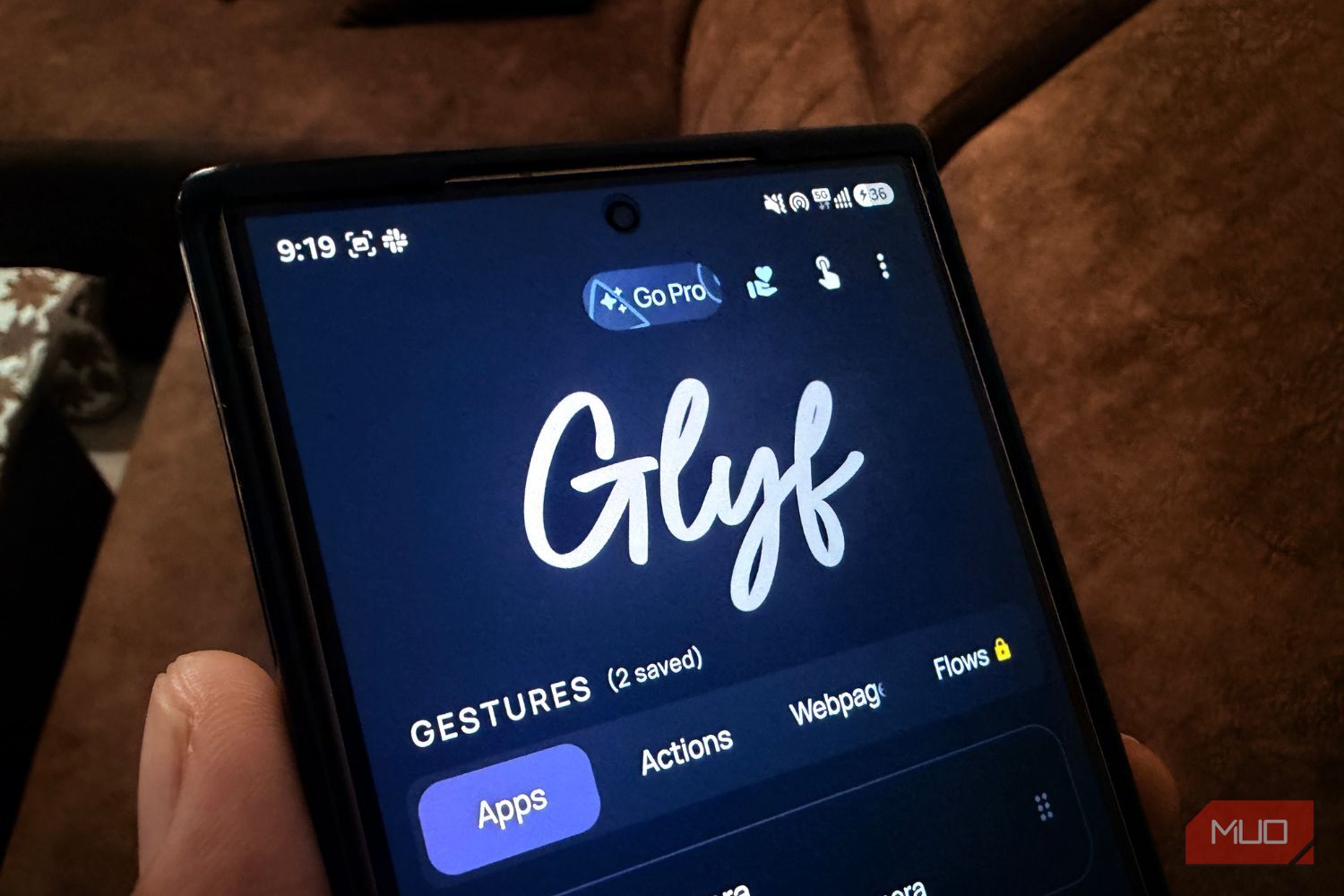
Enter Glyf. A simple launcher app that lets you draw to launch an app. After a few weeks of using it, I think I am sticking with it for a while. Here’s why you should also try Glyf.
Most launchers are the same
They don’t change the way you launch apps
To be frank, most of the popular Android launchers, though they offer a different home screen setup, are basically the same when you open the app drawer. Moreover, when you only have a handful of apps you use every day, searching for them in the app drawer becomes a chore. You can place them or pin them on your home screen, but that also gets in the way of the beautiful wallpaper that you have set.
I have switched between multiple launchers for something faster. Niagara Launcher got close with its alphabetical list. Olauncher stripped things down even further. Both are genuinely great, and I still recommend them. But they all share one thing in common, and that is you still have to look at something and then touch it to open it.
You still have to search and tap every single time. What I wanted was something closer to muscle memory, the same way you don’t have to look for the volume buttons on your phone, because your thumb knows. This is where Glyf tries to make things easier.
Glyf is a small Android app that lets you draw a custom shape or scribble on your screen to instantly launch an app, a link, or a phone action like your flashlight or camera. You can trigger the drawing pad from a widget, a persistent notification, or a Quick Settings tile, sketch your gesture, and launch whatever you want immediately.
 Glyf
Glyf
- OS
- Android Glyf lets you create custom gestures to quickly launch apps, open websites, trigger shortcuts, and perform phone actions. You can also combine multiple actions into a single gesture to create personalized workflows. It does not care which screen you are on You can also chain actions together One thing that I liked about Glyf is that it is not tied to your home screen. Since it launches from the notification pane or a Quick Settings tile, you can trigger it from inside any app, while you’re reading an article, scrolling through social media, or going through your lock screen. You do not need to go back to your home screen first and then do what is needed. That alone removes a step that every traditional launcher, no matter how minimal, still makes you take. Glyf also supports a feature called “Flow Glyfs,” which are multistep sequences bundled behind a single gesture, along with quick triggers for things like flashlight, camera, timers, media controls, and volume. This means one gesture isn’t just opening WhatsApp, but can be “open WhatsApp and jump straight to a specific chat.” Setting up is easy, but you should complicate things as I did. I made the mistake of assigning a complicated gesture to my most-used app, and I forgot it within a day. What worked instead was keeping shapes dead simple: a W for WhatsApp, a C for Camera, and a circle for Spotify. I also added the Quick Settings tile so I can get access to them from any screen and draw a gesture without unlocking anything extra. The real shift happened in about 3–4 days, as I could open apps in one gesture. Some things you should know before trying it The free tier has real limits While Glfy was a bit of a challenge to get the hang of, after some time, I used it without a second thought. Apps opened fine; I was able to bypass multiple steps just to launch a setting, etc. But there is a caveat. The free version restricts you to just two gestures to use. You do get a 6-hour free trial when you first launch the app, which unlocks everything that is reserved for the Pro subscription. This app also overlays whatever launcher you are already using. It does not replace your home screen. You can add a widget to your home screen, tap on it, draw a gesture, and open the app. It is like a shortcut layer that lives everywhere. Whether you should buy it depends on whether you are bored with how your original launcher behaves and want something new to explore. You don’t need to abandon your current launcher or relearn your whole phone. Start with three gestures and see if that fits your everyday use. If so, Glyf could be something you use every day.