Summary
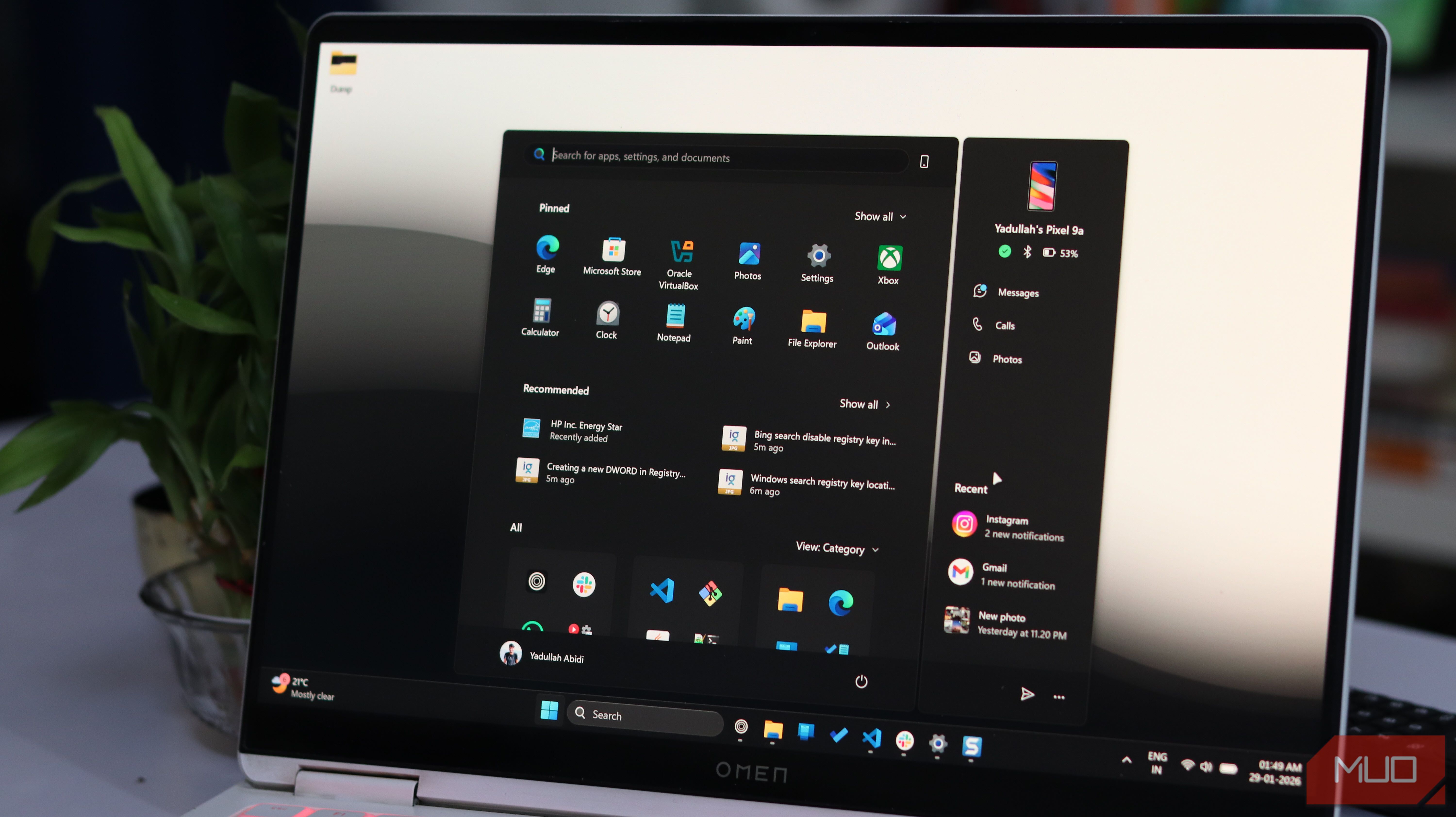
I miss the good old days when Windows was just a simple operating system. Oh boy, do I miss Windows 7. But now, in the glorious era of Windows 11, everything just seems a little out of place and forced, at least in my opinion. Everything is everywhere, and there’s a lot of visual clutter. Take the Start menu, for example. The moment you open it, you’re greeted by a bunch of suggestions and recommendations you likely never asked for. Sure, some people may find the suggestions helpful for discovering new things, but a lot of us have to deal with unwanted recommendations coupled with a messy view. The Start Menu is doing too much I just want a launcher, not another recommendation feed The Start menu has changed quite a bit over the years. It used to be a straightforward place to open apps, but it has gradually become a place where Windows tries to shove information down your throat. In Windows 11, you’ll find your pinned applications alongside a Recommended section that can show recently opened files, frequently used items, and other suggestions. I get why Microsoft would add something like that. For some people, having recently used files and recommended content readily available can be convenient. But that’s not what a lot of us are used to, especially coming from the simple Start menu Windows 7 and 10 offer (the horrible Windows 8 Start menu never existed in my book). Whenever I click the Start button, I’m just trying to launch an application or access one of the things I’ve pinned. I don’t need another place on my PC telling me what I should look at or what I might be interested in. Besides, they take up valuable space in a menu that I would rather keep focused on the things I actually choose to put there. Turning off the suggestions gave me room to breathe Removing the recommendations made the Start menu feel much less crowded Previously, we didn’t really have an explicit option to remove suggestions from the Start menu. But with recent updates, Windows 11 gives us more control over what appears in the Start menu. You can head down to Settings → Personalization → Start and turn off whatever suggestion you don’t need. There are options to disable recently installed apps, recommended files, most used apps, mobile device in Start, recommendations for tips, shortcuts, new apps, and some other content that Windows displays in the Start menu. After disabling all of the options, my Start menu began to feel less busy and cleaner. So, instead of having Windows constantly filling the space with things I didn’t ask for, I had more room to focus on my pinned apps and the things I actually wanted to access. And that’s what I’ve always wanted from the Start menu in the first place. You might actually like the recommendations Not everyone wants the same Start menu experience At the end of the day, it all boils down to personal preference. I don’t like having recommendations and suggestions taking up space in my Start menu, but that doesn’t mean you shouldn’t either. They are not entirely useless; to be fair, I left the suggestions enabled for a couple of days, and I found them helpful in some rare cases. But the headaches I get (I know that’s a bit exaggerated) from the content overload the Start menu presents are way more than the times I actually find the suggestions useful. But yeah, if you regularly open recently used documents or find Microsoft’s suggestions helpful, there’s no reason to turn them off. The nice thing is that Windows 11 at least gives you some control over what appears there, and you don’t have to accept the Start menu exactly as Microsoft designed it. For me, though, disabling the suggestions was an easy decision. I just want a clean place to launch my apps, and now that I’ve removed most of the unnecessary clutter, that’s exactly what my Start menu feels like again. Removing the clutter made a small part of Windows feel much more personal Windows 11 has plenty of features that I don’t use, and the Start menu’s recommendations were one of them. I don’t need my operating system filling the space with suggestions when all I want to do is launch an app. Turning those recommendations off didn’t change Windows 11, but it sure made the Start menu feel cleaner to me. And that’s really what this comes down to. If you like the recommendations, sure, go for it and keep them enabled. But if you find them distracting, as I did, there’s no reason you have to live with them.