Summary
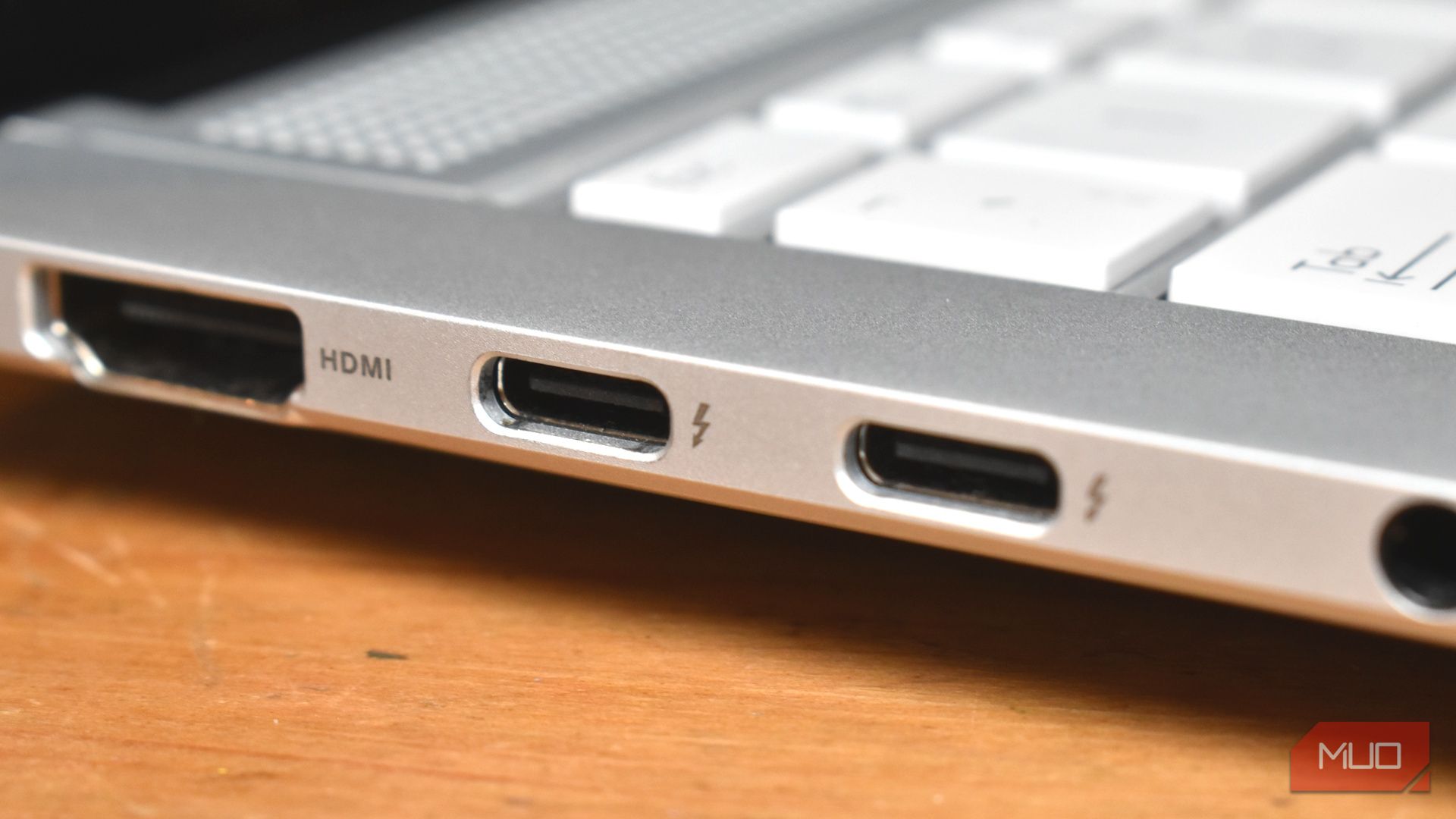
If you’ve ever noticed the symbols next to your USB-C port and wondered what these hieroglyphs mean, you’re not alone. That’s exactly what I just did, and I realized I didn’t fully understand what I was looking at. Turns out, there are quite a few different USB-C symbols that can appear alongside your trusty port, and what they mean can differ depending on the device manufacturer. SuperSpeed trident It doesn’t tell you exactly what you’re getting The classic and somewhat iconic SuperSpeed trident is some of USB’s oldest branding, and, for the most part, it works. Higher numbers alongside the SuperSpeed trident typically indicate faster transfer speeds, as you’d expect — but it doesn’t always work that way. The main problem is that manufacturers often leave the number off when they use the SuperSpeed logo, which basically makes the icon pointless. Like yes, this is USB, but you can clearly see that from the shape of the port. USB-IF rebranded the whole tier system back in 2022 to plain text logos — SuperSpeed USB 5Gbps, 10Gbps, 20Gbps — but plenty of manufacturers are still running the old shorthand, or dropping the number entirely. Spot “SS” on its own, and you’re looking at something faster than a USB 2.0 port, but that’s all the information you have at hand. Regular trident I would be remiss not to mention the good old regular trident. You’ve probably seen this icon thousands of times and never truly considered what it means. If you spot this icon, it means your USB-C port is capped at USB 2.0 speeds, which means a maximum of 480Mbps, and all of the other limitations of the now aging standard. These ports are somewhat rare, but are still in the wild on older or cheaper hardware. Battery icon Get that power, but typically, not how much A battery icon or PD mark indicates Power Delivery support. However, frustratingly, it doesn’t typically state wattage. On rare occasions, you’ll find a wattage figure alongside it, but that’s like finding a unicorn drinking cola in your local Walmart. A port that tops up your phone at 18W and one that charges your laptop at 100W will use the exact same icon. If you need the actual number, you’re reading the spec sheet. Lightning bolt with an arrowhead Thunderbolt is Thunderbolt Of all the symbols that can appear alongside your USB-C port, the Thunderbolt icon carries the most standardization. First, Thunderbolt has a distinct symbol: the lightning bolt with an arrowhead on the tip, sometimes accompanied by a generational number. Thunderbolt is actually useful to spot on modern hardware, because it means your port supports a very specific range of specs. It also makes the port specifically more useful than a standard USB4 port, which, while useful, doesn’t have the same strict level of certification as Thunderbolt. Unfortunately, no standardization requires manufacturers to use a Thunderbolt 4 or 5 icon, so you’ll still have to do some guesswork. USB4 semi-circle The latest and greatest in USB The circular USB4 logo, marked 20 or 40, represents the newer, top-tier option. In practice, manufacturers can print the badge without the number, which puts you right back where you started with the SS trident: you know it’s USB4, you just don’t know which USB4. If you don’t see the number, you’re guessing between the two variants, which have more differences than just speed. | USB4 20Gbps | USB4 40Gbps | | |---|---|---| | Status | Mandatory floor for every USB4 port | Optional — manufacturers choose whether to include it | | Cable | Any certified USB4 cable | Needs a short (0.8m or under) passive cable, or a marked active cable for longer runs | | Typical use | Budget laptops, basic hubs | External SSDs, docks, higher-res displays, basic eGPUs | Either way, there is one certainty: you won’t find the USB4 semi-circle symbol alongside any other port. It’s a USB-C exclusive standard, so if you see it on a USB-A port on a cheap laptop or something similar, you know immediately that it’s fake. D-shape Video out, but at what resolution? The D symbol, often styled like a little monitor, marks DisplayPort over USB-C and confirms the port can push video to an external display. But like many of the other icons on this list, it doesn’t specifically confirm the DisplayPort version you’ll be using. Similar to USB4, this is important because DisplayPort versions linked to USB-C vary in specs and can mean the difference between single and dual panels, 4K60, and so on. | DisplayPort version | Bandwidth | What it actually handles | |---|---|---| | 1.2 | 17.28 Gbps | 4K at 60Hz — the oldest version still turning up on budget ports | | 1.4 | 25.92 Gbps (with compression) | 4K at 120Hz or more, 5K at 60Hz, 8K at 60Hz — the version on most current laptops and docks | | 2.0 / 2.1 | Up to 77.37 Gbps | Beyond-8K resolutions and multiple high-refresh displays — rides on USB4 or Thunderbolt | As you can see, DisplayPort Alt Mode is broad, and the version you end up using really dictates the other hardware you can connect. A battery icon with a “Zzz,” small moon, or standby icon This one does exactly what it says How refreshing — a USB-C icon that does what it says on the tin. A USB-C port with a small moon or set of “Zzz“‘s typically means that this port will stay active and powered even when you close your laptop lid, enter sleep or hibernation mode, and so on. That said, sleep and charge isn’t as rare as it once was. Many USB-C Power Delivery ports will continue to supply power to a connected device once the lid is closed, and you may not see the small moon or “Zzz” icon at all. Sometimes, you may have to enable this feature in the device settings, or go one step further, into the device BIOS. There is also another type of mode this can symbolize, which is that the port can be configured to deliver power when the device is powered down, but this isn’t widespread. The most common icon is nothing at all But there could be so many more | Symbol | Meaning | |---|---| | | You may have seen it at least thousands of times. On your devices, this indicates a USB 2.0 port, also known as a Hi-Speed port, which offers modest data transfer speeds of 480 Mbps. | | | SS stands for SuperSpeed. This appears on USB 3.0 ports and tells you the port supports faster data transfer of up to 5 Gbps. | | | If you spot SS with 10 or 20, the number refers to the maximum gigabits per second the port can handle. These are typically USB 3.1 Gen 1 or USB 3.1 Gen 2 ports. | | | This icon means the USB port supports fast charging. On some laptops, it can also indicate | | | The DisplayPort icon indicates the USB port also supports video output. This means you can plug in an external monitor or projector, though you’ll need the right USB-C cable. | | | The latest USB standard USB4 ports have a half circle with a number (20 or 40) printed beside it. These are almost always USB-C ports, and the number tells you the maximum speed the port can handle, such as 20 Gbps or 40 Gbps. | What’s interesting is that the USB-IF’s official logo documentation [PDF] lists a whole lot of extra icons that could appear alongside our USB-C ports, too. There are Certified Charger, Certified Fast Charger, and cable-specific power rating logos, right down to combinations like 20Gbps/60W and 40Gbps/240W. Almost none of that ever reaches a physical port, as it’s mainly for boxes and so on, but it could feature on a laptop chassis, too. The problem with USB-C port symbols is that there is no consistency at all. Manufacturers aren’t obligated to use any of the symbols, which means regular folks can often find themselves with no inkling of what a port will do. And at the end of the day, the most common iconography you’ll find on your device is nothing at all, meaning you’ll be straight back into your spec sheet after all!