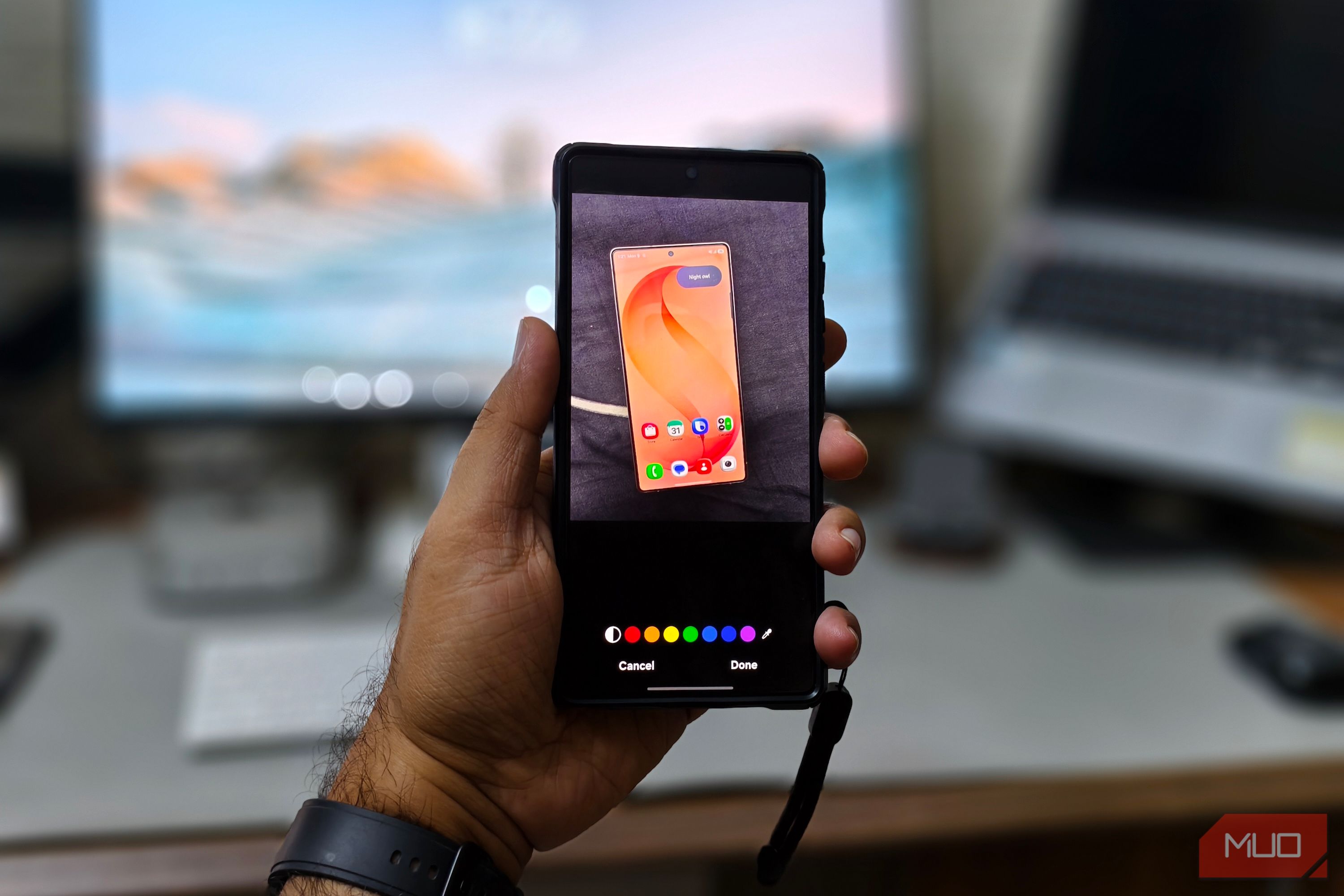
Summary
Samsung Gallery looks like a basic photo viewer, and that is exactly how I used it for years. I would open it, find a quick picture to share, and close it immediately. Whenever an image needed proper editing or a format change, I usually turned to Snapseed or a file converter from the Play Store.
The default app can actually handle much of that work on its own. Tucked behind standard menus are practical utilities that solve tricky media edits and everyday file tasks, making most of those extra downloads unnecessary.
Best face rescues your worst group shots
Fix a bad blink in seconds
Taking a good group photo is tricky because getting everyone to look at the camera at the same moment rarely happens. Even if five people smile perfectly, one person turning away or closing their eyes can spoil the shot. I used to snap several backup pictures to find one where the whole group worked.
Best face fixes that by letting you swap in better expressions from the same moment the shutter fired. Swipe up on any motion photo in Gallery, and a Choose best face option appears on the details panel. Tapping it highlights the detected faces in your picture. For a solo shot, the alternative takes load automatically, while group photos let you pick which person to fix.
Pick the expression you want, and Gallery blends the face in without touching the rest. Repeat for anyone else who needs a fix, then save the result as a new copy. Just make sure Motion Photo stays on in your camera app, so Gallery has the extra frames to work with.
Wipe any sensitive data before sharing
Clean metadata that leaks your address
Every photo you take carries hidden information, including the date, time, and exact GPS coordinates. Share that shot online, and the location tag alone reveals where you live or work. That timestamp confirms when the image was captured, meaning a vacation photo posted while you are still traveling tells anyone that your house is currently empty.
I used to run photos through a separate EXIF cleaner, but Samsung Gallery handles it natively. Open the image, swipe up, and tap Edit next to the details card. You can delete the location coordinates instantly, rename the file to something generic, or change the timestamp to keep your daily schedule private. All of it happens on-device, so nothing gets uploaded to a third-party service.
Save as PDF and shrink oversized photos
Compress or convert without extra apps
Converting a stack of images into a single PDF or compressing oversized media usually sends you looking for third-party tools. Samsung handles both tasks inside the gallery once you turn on the Gallery Assistant module in Good Lock.
With the module enabled, select your files in Gallery, tap More → Extended options, and choose Edit with Gallery Assistant. Tap Save as PDF, and Gallery merges your chosen pictures (or videos) into a single multipage document, where you can reorder pages, rename it, and save it to your phone.
Reducing size solves the other everyday problem: batch compression. It lets you shrink photos and videos at the same time, giving you separate sliders with real-time estimates of the final file size. For videos, you can pick HEVC for smaller files or H.264 for wider device support, then hit Save copy to leave your original high-resolution media untouched.
Instant Slo-mo works on any old video
Long-press to add cinematic playback
Shooting slow-motion video usually requires planning ahead. You have to open the camera, swipe over to slo-mo mode, and hope the action happens under decent lighting. Even worse, the moments worth catching in slow motion often arrive unexpectedly while recording a regular clip. Slowing that footage in an editor turns it into a stuttering slideshow.
Samsung solves this with Instant Slo-mo, and the best part is that it works on existing clips already sitting in your gallery. While watching any video, you press and hold your finger on the display. The phone generates extra intermediate frames on the fly, smoothly slowing down the playback right where you want it. It even applies to older videos recorded years ago or clips you got from social media.
Saving that moment takes just one tap. As soon as you lift your finger from the screen, a small download button appears in the top left corner. Tapping it cuts out that slow-motion section and saves it as a new file in your gallery.
Make your stock apps do the real work
Samsung Gallery has quietly become one of the more capable photo apps on Android. Between the standout tools like Best Face and Instant Slo-mo and the quieter ones sitting in Assistant and Labs, most of what you would install a separate app to do already lives inside the same app. Give those menus a look and see how many third-party downloads you can retire.
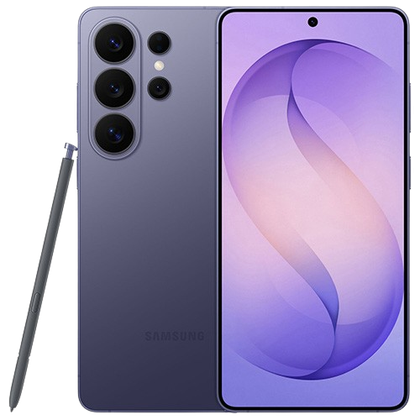 Samsung Galaxy S26 Ultra
- SoC
- Snapdragon 8 Elite Gen 5
- Display
- 6.9-inch Dynamic Super AMOLED 2X
- RAM
- 12 or 16 GB
- Storage
- 256GB, 512GB, or 1TB The Samsung Galaxy S26 Ultra isn’t a massive leap in specs compared to the previous generation Samsung Galaxy S25 Ultra, but it boasts improvements in every aspect. The major differentiators are two features that will appeal to power users and content creators, called Privacy Display and Horizon Lock.