Summary
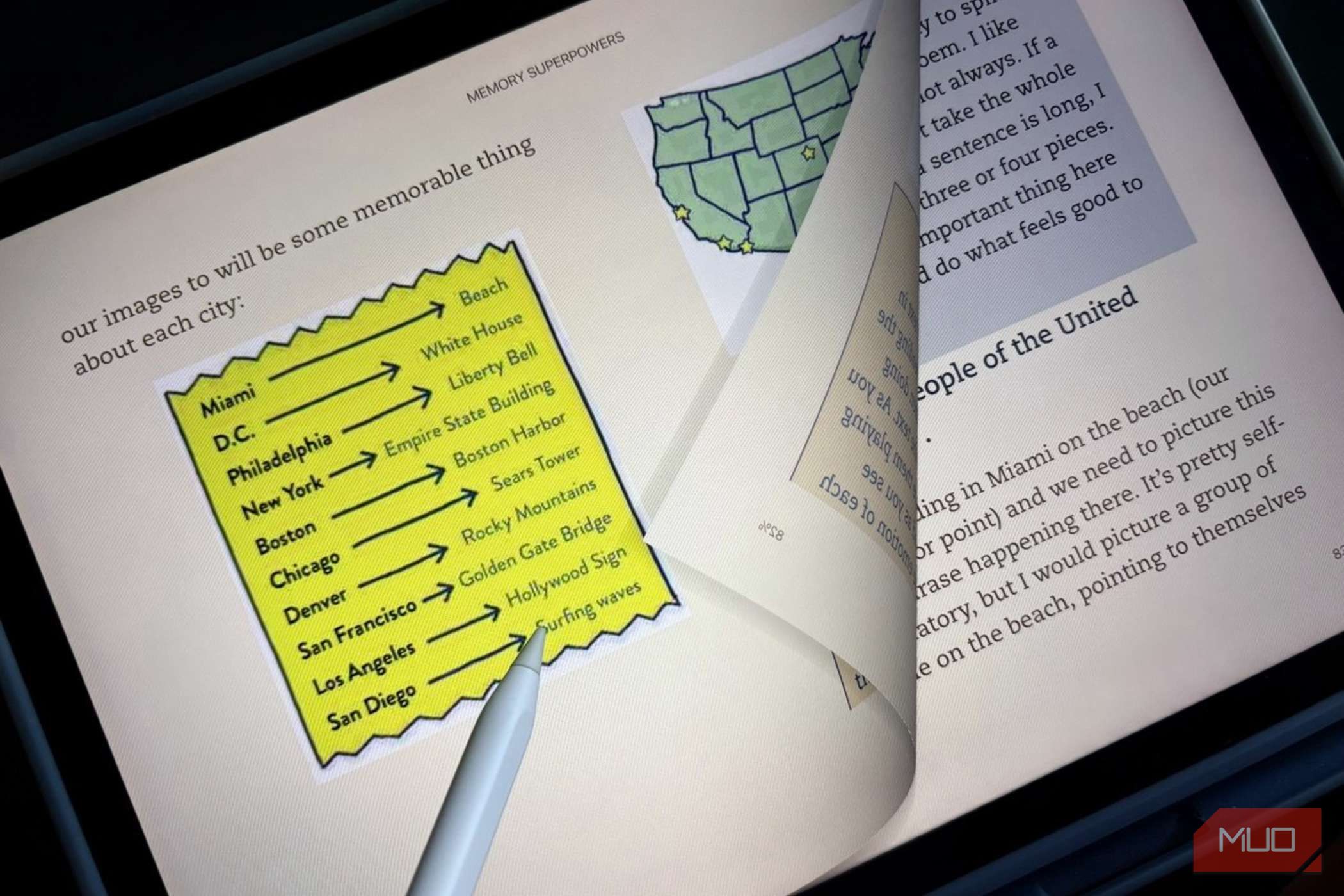
I’ve been reading on a Kindle app for years. I have this strange quirk of experimenting with Kindle settings to make the reading experience better, or at least different. My Paperwhite is old (6th Gen), so I do most of my reading in the Kindle app for iOS and iPadOS. One of my favorite settings on the apps is Page Turn Animation. Turning it on makes reading feel closer to an actual book. It’s a small tweak, but perhaps that’s what our brain likes. Here’s what I changed, why it works, and a few other settings worth pairing with it. Turn on Page Turn Animation in the app One toggle brings back skeuomorphic nostalgia Open any book in the Kindle app on iOS or iPad, tap the center of the screen, then tap the Aa icon. Head into More and toggle Page Turn Animation on. Now, instead of an instant cut, pages slide like you’re flipping a real one. The feature isn’t gimmicky or cosmetic. A simple page flip makes the reading experience more interactive. Otherwise, it’s no different from reading a flat PDF. The curl signals that we are making progress on the book. The animation isn’t jerky, and thankfully it has no annoying sound effects. It’s a bit more instant in the latest Kindle eReaders compared to the Kindle app, and that’s because of the e-ink. Kindle has a simple implementation, unlike Apple Books, which has four distinct effects. When you enable Continuous Scrolling (found under Aa → Layout), the Page Turn Animation option disappears or gets disabled. The page animation also doesn’t work with Dark Mode enabled in the eReaders. The animation isn’t for everyone If you prefer speed over skeuomorphism, simply switch it off My experience with the “feel” of a page turn is subjective. Not everyone will find the animated page turn agreeable. If you’re accustomed to the instantaneous transitions of apps and websites, the extra movement can feel unnecessary and distracting. That’s especially true if you tend to read quickly and treat page turns as nothing more than a way to get to the next chunk of text. Imagine skimming through a 300-page book for key points. Watching a virtual page move across the screen may feel like the app is getting between you and the words. That’s perfectly fine. It’s a simple toggle to switch on and off. I especially enjoy reading children’s books with the animation on, while I switch it off for research books. On iPadOS in landscape orientation, the Kindle app can display two pages side by side. The animation adapts to split down the middle crease, which adds a nice touch. I have also noticed that if Page Turn is active on books, then all personal documents sent to Kindle or sideloaded ones also show the animation. The Aa button and the Page Turn toggle are missing for personal documents. Don’t confuse it with Page Flip Another page-browsing feature with a different purpose Amazon Kindles also offer Page Flip, but it offers a different benefit. Rather than making a normal page turn look more like a physical book, Page Flip lets you browse through pages without losing track of your current reading position. It’s useful when you want to quickly check an earlier passage, scan ahead, or look at a book’s layout. Page Turn Animation is about how you change a page, while Page Flip is about how you browse a book. Both help you move around a Kindle book, but they’re fundamentally different features. I guess it’s another bit of skeuomorphism for those of us who miss leafing through physical books to check how much of a chapter is left. Page Flip is one of the more useful Kindle features when you are reading non-fiction or doing research. Not every Kindle book supports it. Fixed-layout books, converted PDFs sent via Send-to-Kindle, and older MOBI files don’t offer Page Flip. Page Refresh prevents ghosting A cleaner screen makes the animation feel sharper Page Refresh on physical Kindle eReaders controls how often your screen fully redraws to clear leftover imprints, or ghosting, from the previous page. Page Refresh is exclusively an E-Ink physical Kindle feature (located in Settings → Home and Library → Reading Options → Enable Page Refresh). Kindle apps on mobiles do not have e-ink ghosting. On older Kindles, Page Refresh performs this on every new page. On newer compatible models with Page Turn Animation, it provides a different-looking page transition that uses the display’s refresh process under the hood to create a left-right sweep. Page Refresh improves the reading experience if you are reading something with a lot of images. For instance, children’s books or comics. Not every Kindle gets the same experience Your device generation decides what you’ll see Page Turn Animation on physical Kindle e-readers is limited to the Paperwhite 11th generation and later models, including Kindle Scribe. Older models like my Paperwhite and Oasis don’t support it at all. The feature is available on the Kindle apps for Android, iOS, and iPads. I was frustrated that my vintage Paperwhite couldn’t do this until I realized the app was where I actually did most of my reading anyway. If your physical Kindle can’t animate, that’s fine. Font choice, like switching to Baskerville or Caecilia in the Aa → Font menu, can still make the page feel more book-like even without motion. Try reading one chapter with it off, then on I won’t claim that Page Turn Animation will transform your reading habits. It won’t make you read faster or understand a difficult book better. It’s a tiny setting that makes moving from one page to the next look more like the physical action we are so used to. The easiest way to feel the difference is to toggle Page Turn Animation off for one chapter, then back on for the next. Pay attention to how each one feels rather than just how it looks. Maybe it will become a habit.