Summary
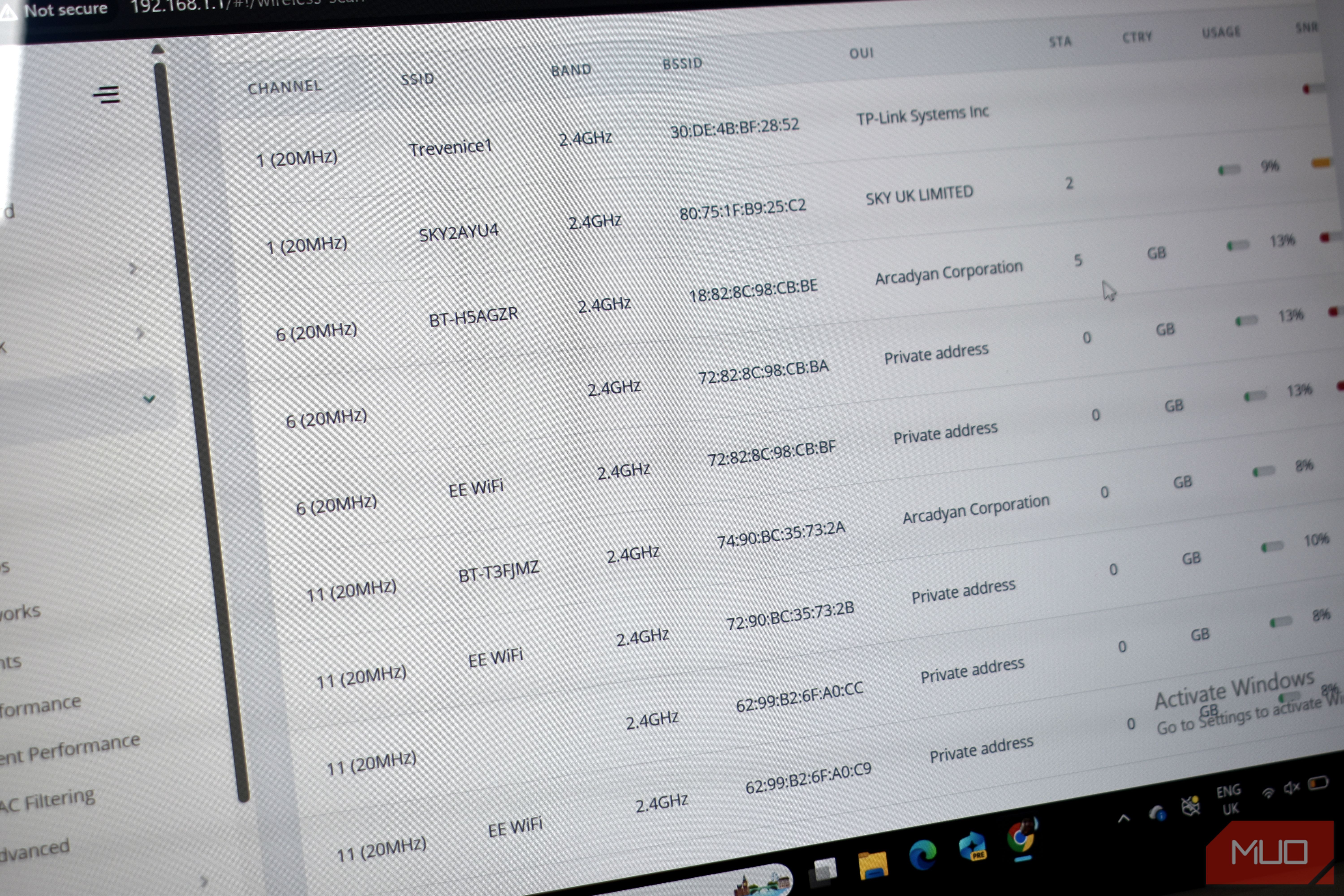
Open your router’s 2.4GHz settings, and you’ll find a channel dropdown with 11 options, sitting there like 11 real choices that will make a difference to your signal. Well, they’re not lying. Each channel will give you different outcomes when it comes to interference, but the picker makes it appear that each channel delivers the same experience. The truth is that when it comes to 2.4GHz Wi-Fi, only three channels are worth using, and even then, it’s a tricky business depending where you live. Why the 2.4GHz channel dropdown is accidentally lying to you Tiny spectrum, lots of competition 2.4GHz is the busiest Wi-Fi band, no matter where you are. It’s the oldest in use in most corners of the world, which means it typically hosts the most devices, all competing for signal. Furthermore, the entire 2.4GHz Wi-Fi band only covers 2400MHz to 2483.5MHz, leaving just 83.5MHz of usable spectrum for all of the devices wishing to connect. That 83.5MHz is broken into 11 channels spaced just 5MHz apart, creating a huge amount of overlapping channels sharing the same space. When you add up the collective channels, each has around 22MHz of signal. That means, across the spectrum, only channel 1, 6, and 11 actually have “clear” space to operate, and should give better Wi-Fi performance. Most Wi-Fi dropdown menus don’t really reveal this. You’ll often see the channel numbers, but the overlapping issue isn’t made clear. Choose 1, 6, or 11 for the best 2.4GHz Wi-Fi signal It’s all about the numbers It may seem a little arbitrary, but when you look at how the spectrum is broken down and divided, it begins to make more sense. Channels 1, 6, and 11 are five channel numbers apart, which works out to 25MHz between their centers, just enough to clear each other’s 22MHz footprint with a sliver of guard band left over. On 2.4GHz, operations are tight. For example, if you choose channel 9, you’ll be overlapping channels 6 and 11, interfering with the signal for folks using those channels. It could affect your signal, too. Pick channel 3, hoping to split the difference, and you have the same problem. It’s overlapping Wi-Fi signals all the way down. Unfortunately, there is no single value of how much bandwidth you’ll lose or the issues it’ll create, either. That’s because Wi-Fi devices sharing a channel basically take turns broadcasting to make sure the broadcast reaches the correct destination. More overlapping signals means more taking turns, and that adds up over time, adding lag and stuttering to your video calls and gaming, and generally making your network feel slower than it really is. Your router may offer automatic best channel selection But “auto” isn’t always “auto” Your router may offer an automatic channel selection option. Your router scans the local area for competing signals and, all being well, picks the channel with the least overlapping Wi-Fi signals, and sets you down there. Automatic scanning means different things, depending on the router manufacturer. On one router, automatic channel scanning may mean that scanning took place when the router first booted, and then hasn’t done it since. On another, it may mean that the router rescans daily to keep you on the best channel of all. Your best bet is to access your router and read the fine print, or input your router manufacturer name and model into an internet or AI search and ask some questions. Choosing the 2.4GHz channel yourself is also an option You’ll need a Wi-Fi analyzer app to pick the right channel Another option is to go-it alone and pick the Wi-Fi channel yourself. As said, you’ll still need to pick either channel 1, 6, or 11, but doing it manually means you could still encounter someone using the same channel. Of course, in some areas, it’s inevitable. That’s where you need a Wi-Fi analysis app that can manually scan the area for competing signals, helping you choose the least congested. On Android devices, the venerable Wi-Fi Analyzer app is still the best; on iOS, AirPort is built into your device and can do a similar job. Run the scan in the evening, not mid-morning. Network congestion follows human patterns. If you scan at 10am on a Tuesday, you’ll see a quieter picture than you will at 8pm when everyone’s home and streaming something. Once you get a picture of your local Wi-Fi networks, you can choose a 2.4GHz Wi-Fi channel and lock it down. The other thing to note here is that you should run the scan reasonably frequently to capture other networks that have also changed. Other folks may be doing the same as you and moving their Wi-Fi channels around, overlapping you again in the process! If you can, move devices to 5 or 6GHz If you’re able, and your device supports it, move them to the faster 5GHz and 6GHz bands. As well as being faster than 2.4GHz, the 5 and 6GHz bands have more available network spectrum, which means fewer competing signals, and potentially better Wi-Fi stability. In some cases, devices will have to remain on 2.4GHz Wi-Fi. Some older devices like smart home plugs, lights, and similar, don’t have the technology to move to the faster bands. But then, moving other devices from the 2.4GHz band to others also clears up spectrum for those that can’t, so it’s win-win, really.