Summary
I’ve scoured Windows for almost every setting that could improve performance or make the OS feel a little better. While Windows’ default settings work against performance for the most part, some essential settings are in place for your own good, even if they come at a cost to performance. A clear example of this is disabling VBS (Virtualization-based Security). While turning this feature off can boost performance by up to double digits in games and other intensive tasks like rendering or editing, it comes at a steep cost, which is why I won’t leave it off. How VBS protects your PC behind the scenes A virtual wall around your most sensitive data VBS creates a virtual environment on Windows using hardware virtualization, separate from the Windows kernel. This creates an isolated memory region that protects it from malware attacks. Think of VBS as an underlying security architecture with features such as Memory Integrity, Credential Guard, and System Guard. These features, intended for security and sensitive functions such as credentials, kernel security, and code integrity, need to be separated from the normal Windows environment. Virtualization comes at a steep CPU cost, meaning part of the chip is dedicated to maintaining this virtual security, and the isolated memory environment also needs its own system RAM. When gaming or performing other CPU-intensive tasks, you’re not really utilizing your resources as a whole, since a portion of them is being diverted from VBS. How to turn off VBS on Windows Just a simple registry tweak fixes it all The usual recommendation is to disable Memory Integrity, but that’s only part of VBS, and disabling it alone won’t do much, since other features in the virtualization setup remain active. First, you’ll need to find out if VBS is enabled on your system, and to do so, follow these steps:
- Press Windows + R.
- Type msinfo32.
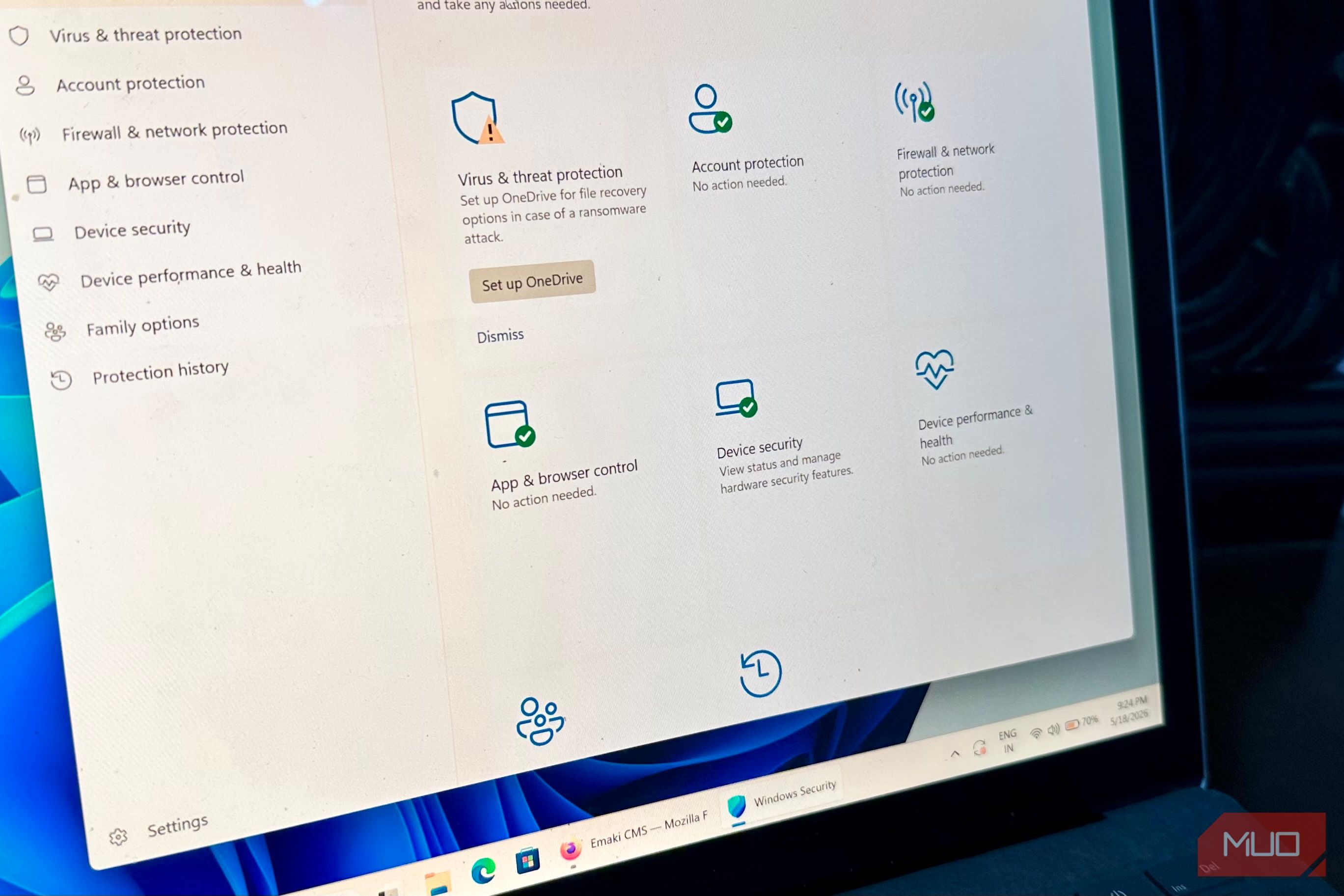
- Check for Virtualization-based Security to see if it’s enabled. To disable VBS, first disable Memory Integrity by going to Windows Security → Device Security → Core Isolation → toggle Memory Integrity off.
- To turn off VBS as a whole, you need to change Registry settings on Windows, and here’s how to do so:
- Open Registry Editor.
Paste this address: HKEY_LOCAL_MACHINE\System\CurrentControlSet\Control\DeviceGuard . - Create a new D-Word 32-bit value and name it EnableVirtualizationBasedSecurity.
- Double-click and set its value to 0. Restart your system for the changes to take effect. I highly recommend backing up the Registry before making these changes, since a slight mistake could break Windows 11 and then prompt a fresh reinstallation. What I measured with VBS on and off The improved 1% lows were the real win My system configuration is already pretty balanced, and I rarely get bottlenecked by any component. This actually gives a clearer picture of what disabling VBS would do for performance. My setup features an RX 5600XT, Ryzen 5 5600, and 16GB of DDR4 RAM. The testing methodology was simple: run CPU-intensive games and benchmarks that maxed out my CPU usage at the same settings, with and without VBS enabled, to see how much it affected performance. Here are the results I got: | Game | Average FPS (VBS off) | 1% Lows (VBS off) | Average FPS (VBS on) | 1% Lows (VBS on) | |---|---|---|---|---| | Apex Legends | 140FPS | 65-75FPS | 143FPS | 78-89FPS | | Assassin’s Creed Black Flag Resynced | 54FPS | 28-34FPS | 55FPS | 30-33FPS | As expected, the average FPS boost wasn’t that massive, at least for these titles, but the 1% improvement was nothing to sneeze at. On average, I noticed an 11.3% improvement in the 1% lows, which is a pretty big difference. Aside from gaming, I also ran Cinebench to see if the CPU’s pure performance increased and to take the GPU out of the equation. With VBS disabled, the score I got on a multi-thread test with two passes was 2401, and with VBS enabled it was 2307, representing a nearly 4% increase. Why the performance gain isn’t worth it A few extra frames aren’t worth opening your PC to malicious attacks While VBS does create resource overhead and disabling it would improve performance, it’s tempting to do so, but I don’t recommend it because it would weaken your system’s security. VBS creates a safe environment for core Windows features to run and protects your credentials. Turning it off leaves your PC vulnerable to various attacks, including exploits. If you have malicious or pirated programs installed on your PC, they can execute kernel-level code and compromise your system. Even if everything on your system is legitimate, a security vulnerability can still leave it open to exploitation by hackers. Memory Integrity will also be automatically disabled when you turn off VBS, giving malicious drivers a better chance to infiltrate the Windows kernel. Newer setups won’t gain much anyway I get it — Windows, by default, isn’t configured for maximum power output, but some settings aren’t to be meddled with. For fairly new setups, the performance boost will be negligible anyhow, which is why I recommend keeping it on. However, lower- to mid-end configurations will largely benefit from those extra few frames, and the performance increase is tempting, but it leaves your door open to credential theft. If your primary goal is gaming, you can turn off this setting to give your games maximum resources, but be wary of the trade-offs.