Summary
Google gives every free account a shared 15GB pool that splits across Gmail, Drive, and Photos. When your Google storage gets full, most users open the Photos app and start deleting. But that move almost never works. The files eating your account rarely sit in your gallery at all. They hide inside parts of Google that the main storage screen ignores, and the biggest ones stay invisible unless you know exactly where to look. Real cleanup starts on a page Google never nudges you toward, and photos wait until the end.
Google buries the page you actually need
See your whole account in one place
When storage runs low, Google’s prompts push you toward whichever app you opened, and each service counts only what it stores. The bar you see inside Gmail, Drive, or Photos is limited to that one app’s contribution, nothing more. You end up with three separate totals but never a combined view of your full account. And none of these screens will tell you which specific file or email is taking up the most space.
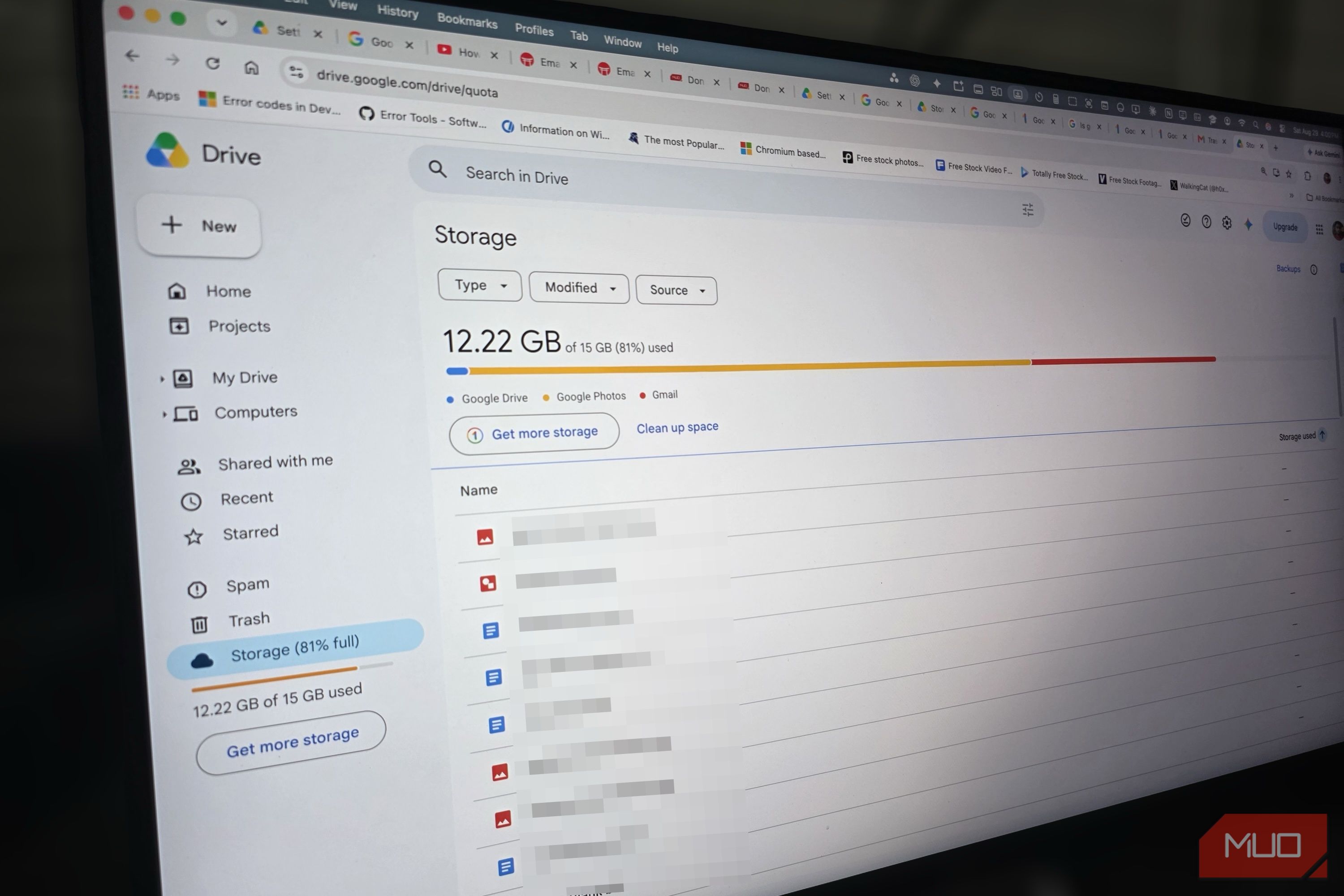
For that, you need to head to Google One Storage Manager, a page Google leaves out of its storage warnings. Here your full storage allowance appears in one place, split cleanly between Gmail, Drive, Photos, and other files. The dashboard also organizes the largest files across your entire account into a single cleanup list, something the individual mobile apps never do.
A regular smartphone photo weighs only 3 to 5 MB. Google Photos has counted every new backup against your quota since June 2021, so deleting a hundred photos still clears less than half a gigabyte. The heaviest files usually sit in places you rarely open, which is why your photo gallery should always be the last place you clean, not the first.
Even old mail keeps eating your storage
Find giant email attachments in seconds
Deleting an email, a Drive file, or a photo doesn’t free up storage right away. Google holds discarded items in the Trash for thirty days before removing them for good, and during that month every trashed file continues counting against your storage quota. The same rule applies to Spam. Emptying the Trash and Spam bins across Gmail, Google Drive, and Google Photos clears those files completely, and your storage total drops shortly after.
With the bins cleared, the next place to look is old email attachments. Standard text emails consume only a few kilobytes, so thousands of ordinary messages barely dent your storage. The real space hogs are old threads that carry PDF scans, presentation decks, or spreadsheet exports. Over several years of day-to-day email, forwarded files and forgotten project threads add up to multiple gigabytes across your Gmail account.
Digging those threads out manually would take hours, but Gmail’s search operators can pull them up in seconds. Type has:attachment larger:10M in the search bar, and Gmail returns every email with an attachment above 10 MB. You can change that number to 5M or 20M depending on how deep you want to clean. A quick purge of twenty or thirty of these oversized threads frees more room in two minutes than deleting a thousand text emails ever would.
The heaviest files in your account stay invisible
Clear hidden Android backups and shared copies
While keeping your Google Drive organized helps manage your daily workspace, checking your normal folders will not show you where background storage is actually going. If you use an Android phone, apps like WhatsApp for chat history and Samsung Cloud for device backups write their data into a hidden storage layer. You can look through every folder on your screen and never see these files, yet they count against your storage limit just like any document you uploaded. In fact, apps you uninstalled years ago can still leave behind multi-gigabyte backup files.
The Google One Storage Manager lists these hidden backups under its Other category, showing the exact size of each app’s data. Reviewing this list lets you permanently delete backup files from old phones or unused services, recovering space that was completely invisible inside your standard Drive folders.
Beyond app backups, the Shared with me section of Drive creates a similar blind spot. Files other people share with you don’t use any of your storage while they stay in that tab. But if you click Make a copy to save your own version, Google creates a standalone duplicate that counts against your account quota. It is easy to duplicate a heavy work presentation or shared archive for a quick edit and leave it occupying your account for years.
Clean the account, keep the memories
Staying under Google’s free storage cap doesn’t require deleting your photos or paying for cloud storage before you are ready. The trick is tackling your account in the right sequence. Once you empty your forgotten trash bins, remove years of oversized email attachments, and clear out leftover app backups in Drive, you will usually reclaim several gigabytes of free space. Run through this cleanup once or twice a year, and your photo library can stay right where it belongs.
 Google Photos
- OS
- iOS, Android
- Price model
- Free
- App Type
- Gallery and photo editor Google Photos is a gallery app, photo editor, and cloud storage solution. It’s an easy way to back up your photo or video collection, make edits using generative AI, or share albums with others. You get up to 15GB of storage completely free.