Summary
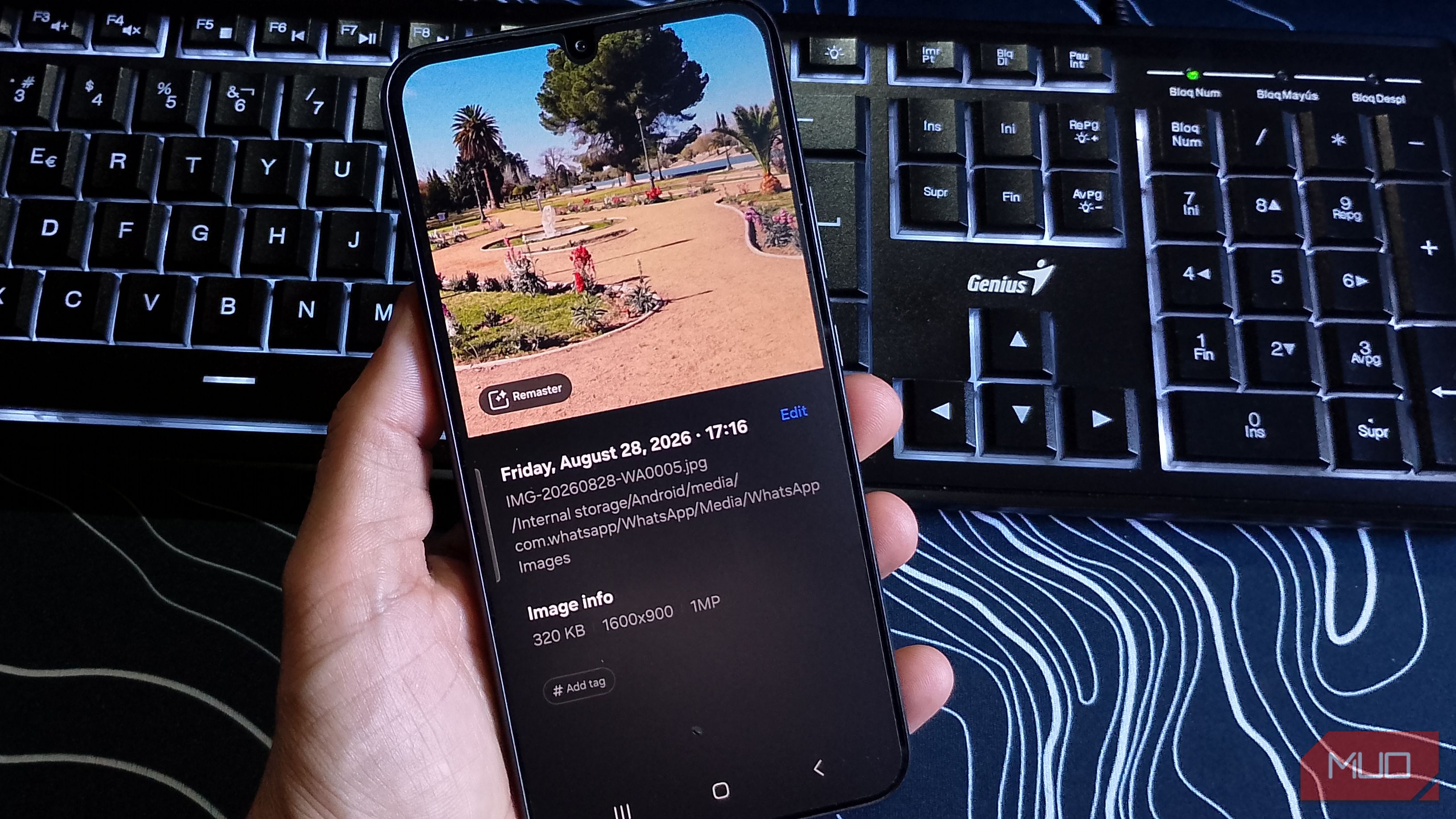
I’ve lost count of the number of times I’ve taken a picture in a hurry, only to realize later that it was either too dark or on the blurry side. I’ve tried camera settings that can help prevent blurry photos, but I still don’t always catch the problem until later. So when I saw how much the Remaster feature improved my pics, my regret levels reached a new high. It handles the same quick fixes I used to open another app for, even though my Galaxy already has photo-editing tools built into Gallery. What surprised me was how little I had to do to make a photo I might have deleted worth keeping. Remaster won’t save every bad picture, but before I open a more powerful photo editor, it’s going to be my first stop. Samsung says Remaster is available only on selected models/software versions, so the option may not appear on every Galaxy device. Remaster saved the photo that was already close to usable Low light was an easy win, but heavy motion blur showed me where it starts to struggle. Remaster fixes the small things that didn’t come out right when I took the photo. For example, I took one picture in low light that came out too dark. Instead of opening another editing app to fix it, Remaster brightened it just enough for the photo to look good enough to keep. Samsung also says that it can:
- Reduce blur
- Reduce noise
- Increase photo resolution The lighting was the only real problem with the photo. Everything else looked just fine. Remaster lets me use a slider to see the before-and-after difference. Remaster . To see how it handled a tougher problem, I tried it on a much blurrier photo next. The image looked a little cleaner, but the person’s face remained soft, and the ghosting around his body was still there. It didn’t fix it as much as I’d hoped, but I could see some improvement.After running this test, I could see that there are some pics I’ll still need a more advanced tool to fix. Remaster lets me check the faces before I trust the whole edit The close-up thumbnails made it easier to spot the faces that still looked off Remaster also lets me inspect the picture a little further, thanks to the thumbnails that show me people’s faces. Even if a face is “buried” in the background, the tool zooms in on it. I can then use the before-and-after tool to see how much of an improvement that part of the picture is. Samsung says the thumbnails use face and object detection to highlight areas with drastic before-and-after changes, with up to three. However, at least during my testing, it didn’t add a fourth thumbnail, even though another person’s face was partially visible. That makes Remaster easier to trust as a first stop because you can quickly decide whether the edit is good enough or whether you still need another editor. The photo is already in Gallery, so that’s where I want the fix to happen Only the tougher edits make me reach for something more powerful One of the main reasons Remaster is my first choice is that it’s already in the Gallery app. It’s the app I have to open anyway to look at the picture in the first place, so it saves me time since I don’t have to open another photo editing app, even for the smallest fix. I only have to swipe up → tap Remaster → use the slider to compare the before-and-after to see if I’m happy with the results. For a picture that only needs a little more brightness or a small cleanup, it gets the job done most of the time. It also saves me from downloading another photo-editing app that I may only use every once in a while anyway. I like taking pictures, but that doesn’t mean I always have the time to sit there making tiny fixes. So having the feature right there is a time saver when I’m in a hurry. And sometimes my phone already feels sluggish, so knowing I don’t have to install another app is a relief. The last thing my phone needs is one more app. I’m not going to pretend Remaster will give me professional-level results, because it does have its limits. If the blur is heavy or the picture needs a bigger fix, I’ll need something more powerful. I usually end up trying to fix those on my computer anyway, since I already have it open for something else. But for the smaller photo editing issues I usually run into, Remaster has been a huge help. Remaster could end up being a waste of time Using an editing app saves time by having both basic and intermediate options If you already have a favorite photo-editing app, Remaster might not be your first choice. An editing app you have in mind could take care of small to intermediate editing, so you don’t have to switch from one app to another. That can also save time if your phone is already feeling slow. Plus, Remaster doesn’t give you much control since you can’t tell it exactly what you want to change. Maybe you want to keep a certain level of blurriness for an artistic look, but Remaster could end up removing too much of the effect. If that’s what you were aiming for, Remaster might be something you’ll skip. Remaster is still a decent first option Since the photo is already open, I can test Remaster before switching apps I’m not going to deny that if you start with a photo editing app, you get your basic-to-intermediate editing options and save time in the process. However, since you’re already in the Gallery app, why not see if the basic editing that Remaster offers is enough? That way, you avoid app-switching. You also save time because, if you’re like me, you might have more apps installed than you would like to admit. And if you uninstall and install apps regularly, you could lose track of where that editing app is and waste time looking for it. With the Remaster tool, you only need to open the picture → Swipe up → Tap Remaster. If I’m not happy with the results, that’s when I know I need a real editor. Remaster is going to be my first stop from now on Remaster isn’t going to replace a photo editing app on my Android phone. If I see that it can’t handle what I need it to do, I’ll switch over to a more powerful app. But for the small stuff, like a little more brightness or a photo that looks slightly off, I’m going to try Remaster first. I’m already in the Gallery anyway, and it only takes a few taps here and there to access it. If you have it on your Galaxy phone, try it on one of those pictures you were thinking about deleting.