Summary
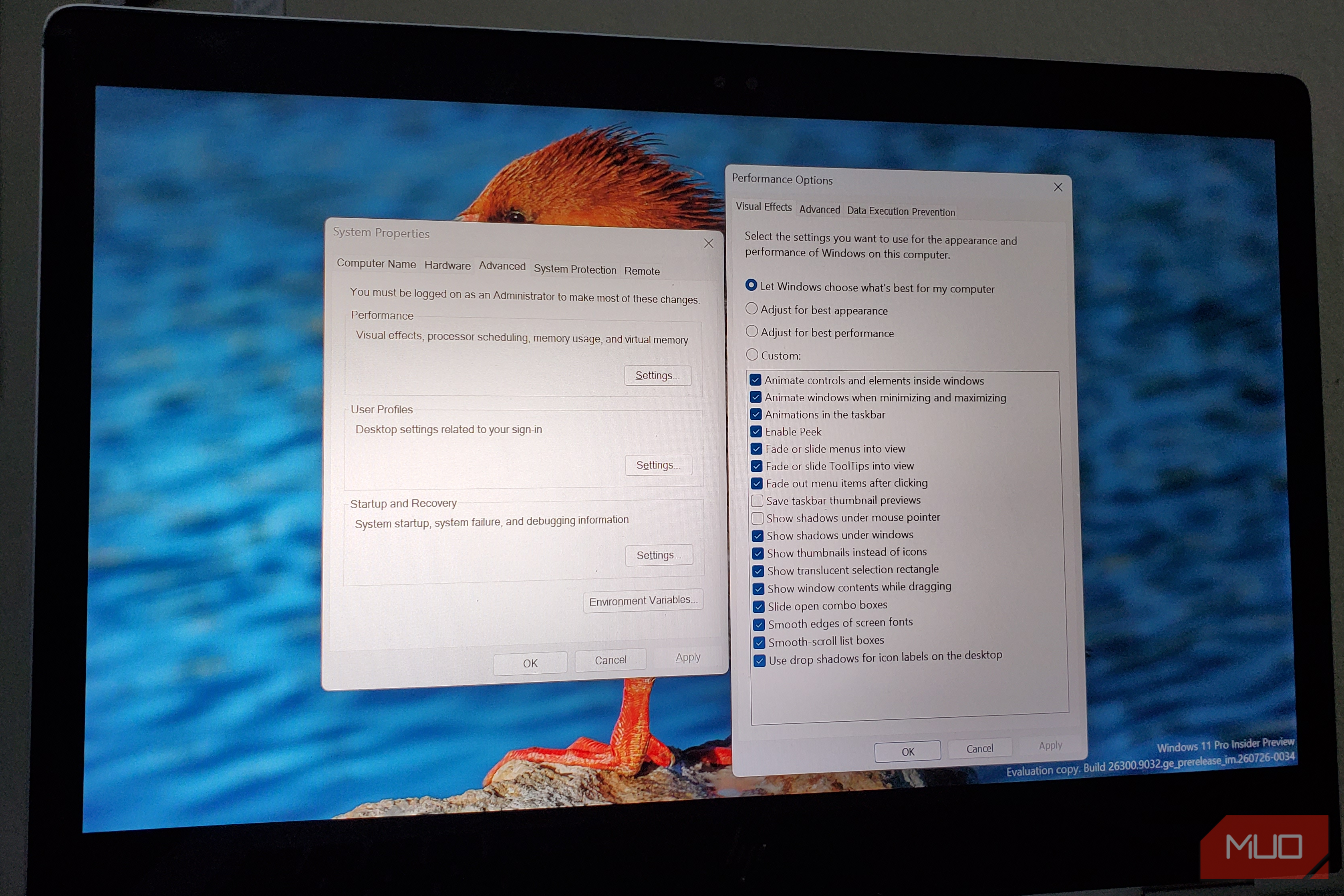
Windows 11 has gotten surprisingly good at steering me away from Control Panel. If I right-click This PC and choose Properties, I end up in Settings. If I open the old System page in Control Panel, Windows redirects me there too. But if I start looking for environment variables, pagefile controls, or crash dump settings, Windows still sends me back to System Properties, with its cramped buttons, crowded tabs, and unmistakably old-school Windows design. The shortcut is sysdm.cpl, and Windows 11 still uses this dialog for a handful of advanced settings that Settings hasn’t fully absorbed. Microsoft replaced System but left the back room intact Microsoft moved out but forgot a few boxes Microsoft has been peeling responsibilities away from Control Panel for years, and the old System page was one of the more obvious casualties. In 2020, Microsoft announced that its basic system information . Microsoft also made it clear that the deeper controls would stick around for anyone who still needed them. That’s pretty much where we still are today. Opening Properties from This PC takes me to the modern About page, where Windows displays the processor, installed RAM, device name, Windows edition, and the rest of the usual hardware and OS details. The old Control Panel System page has been stripped of most of its functionality. If you type sysdm.cpl into Run, though, System Properties still pops right up. It’s hardly the only classic Windows interface left standing, since Folder Options is still around, Windows Features hasn’t gone anywhere, and System Protection still opens another tab inside that same old System Properties window. What remains inside System Properties is mostly the advanced functionality Microsoft has not yet moved into Settings. Some of its older responsibilities now have modern equivalents, but several of the more specialized controls still depend on this dialog. Settings taps out when the knobs get complicated Eventually, Windows sends you to the grown-up controls Most of the controls Settings still hasn’t absorbed are tucked under the Advanced tab, and if that’s all I need, SystemPropertiesAdvanced via Run takes me there directly. The first button opens Performance Options, where Windows still keeps visual effects, processor scheduling, and virtual memory settings. If I ever need to adjust the pagefile manually, this is still the familiar path, although Windows handles it automatically by default and most people are better off leaving the Windows pagefile alone. Below that is User Profiles, a more specialized tool administrators can use to inspect and manage locally stored profiles. Microsoft’s current documentation still lists user profiles as one of the tasks handled through Advanced System Settings. Then there is Startup and Recovery, which is useful when troubleshooting crashes. It controls whether Windows automatically restarts after a system failure and what debugging information gets written, including memory dump settings. Even configure them.The reason I end up here most often, though, is Environment Variables. Developers run into these all the time when using Windows environment variables such as PATH, configuring Java, pointing software at a particular directory, or setting a variable that a development environment expects. Sooner or later, you usually wind up staring at the same old Environment Variables dialog. Microsoft even makes the split fairly clear. It describes Advanced System Settings as a place for options that aren’t typically available through Settings or Control Panel, specifically calling out system properties, environment variables, performance settings, and user profiles. In other words, Windows has moved most everyday system settings into Settings, while several advanced controls still open older dialogs. This dialog has survived every cleanup crew so far Somehow, this window keeps making the cut I can see why Microsoft keeps carving pieces out of Control Panel. Settings is easier to search, works better on modern displays, and gives Windows 11 a much more coherent look. The migration is still moving, too. Throughout 2025, Microsoft continued shifting date, time, regional formatting, keyboard, and other options from older Control Panel pages into Settings. The controls still living inside System Properties are much more specialized. Rebuilding all of them in Settings would mean recreating tools that many Windows users will never open. The administrators, developers, and troubleshooters who do need them already know where to find them, decades of documentation point to the same place, and commands such as sysdm.cpl and SystemPropertiesAdvanced make them quick to reach. Microsoft hasn’t said that’s why the dialog is still around, but it makes sense given the audience still using it. The old interface also manages to cram a surprising amount into one compact window. Performance settings, user profiles, environment variables, and crash behavior are all within a few tabs, whereas a modern Settings equivalent would easily scatter the same controls across several pages. System Properties is a pretty good snapshot of how uneven Windows’ migration away from Control Panel still is. Microsoft has modernized most of what ordinary users see every day, while several tools aimed at administrators, developers, and troubleshooters still live comfortably in the old interface. sysdm.cpl still has a job to do I don’t really miss Control Panel as a whole, and Microsoft has moved enough of it into Settings that I can go days without thinking about the old interface at all. System Properties has managed to stick in my muscle memory, though, because every now and then I need one of those obscure controls, type sysdm.cpl almost automatically, and Windows 11 drops me back into the same compact dialog I’ve been using for years. Microsoft may eventually move the rest of those settings somewhere newer. Until that happens, sysdm.cpl is still one of those Windows commands worth keeping in your back pocket, especially when some of the system’s most useful advanced controls are still tucked inside that stubbornly old-school window.