Summary
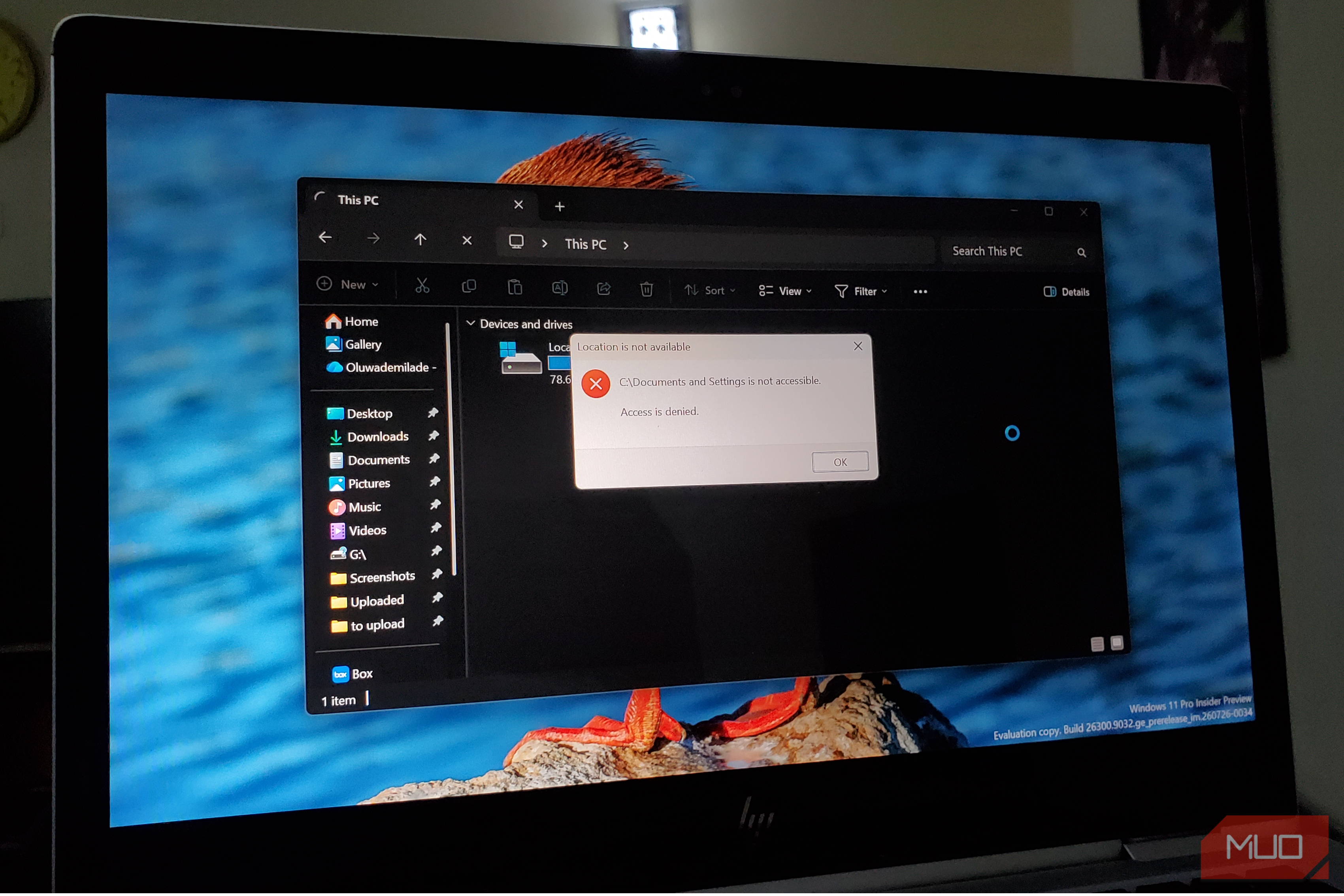
When you encounter a Windows error, you’re often shown a wall of text or codes you can’t select or copy. Ctrl+C does nothing, forcing you to manually switch back and forth between the message and your browser to search for a fix. Retyping error codes gets tedious quickly, which is where Textify comes in. While it isn’t as flashy as Windows 11’s built-in text extractor, it solves this older problem effortlessly. The annoying Windows habit of locked-up text Textify brings a fix for this big annoyance Windows has never been great about letting you copy text from every corner of its interface. Dialog boxes, system error messages, taskbar tooltips, and even some app menus display text using older UI frameworks that were never built with copy-paste in mind. A lot of these elements are rendered using accessibility frameworks rather than standard text boxes. So, Windows doesn’t treat the words on such screens as something that you can select. That is a very different situation from a webpage blocking copy-paste on purpose, which you can usually work around with a browser extension or a quick settings tweak. Enter Textify. It was built by developer Michael Maltsev of Ramen Software specifically to get around this restriction of selecting text from an non-selectable text screen. This tool has been around since March 2016, and it has stayed refreshingly simple. You simply need to point your mouse at the text that you want to select, trigger a shortcut, and Windows treats it as text as if it belongs to a text box. Textify makes use of Windows accessibility tools to read what’s on your screen. Early versions used Microsoft Active Accessibility, but starting with version 1.9, the developer switched the tool over to Microsoft’s newer UI Automation framework. This is because parts of the Windows 11 taskbar had stopped supporting the older system, which is why Textify still works reliably even on the newest builds of Windows. Setting up Textify is simple Start grabbing text from an non-selectable screen in an instant Installing and getting Textify to run is simple. The latest version of the tool, which is v1.10.4, can be downloaded from its official website. It’s portable and weighs in at around just 600KB. Once you’ve downloaded the tool, here’s what you need to do:
- Run the installer to install the tool, which usually takes a few seconds.
- Launch Textify, and you will be presented with a small settings window showing you the current shortcut.
- Leave it running in the background or set it to start automatically with Windows.
The default shortcut key is Shift + middle mouse button to activate, but you can change it to Ctrl or Alt and choose between left, right, or middle mouse button. It is not a dealbreaker if your mouse doesn’t have a middle button.
Once it is running, you’ll see how its actual use case is dead simple. Say you come across a cryptic Windows error message. Hover your mouse over the message, hit the Textify shortcut, and the text turns into a normal selectable field. Select what you need, copy it with Ctrl+C, and paste it wherever you are troubleshooting from, whether it is a browser or a support forum.
This has saved me from manually retyping error codes more times than I would like to admit. And it is a lot less annoying than the workaround of taking a screenshot of a message and running it through an OCR tool.
 Textify
 - OS
- Windows
- Developer
- Michael Maltsev Textify is a lightweight Windows tool that lets you extract and copy text from dialog boxes and other interface elements that normally don’t support text selection. It works by hovering over the text and using a customizable mouse shortcut to open a selectable view. You can even translate text And you don’t need to leave the window Textify not only lets you grab text from a non-selectable pop-up, but with version 1.6, it includes web service integration. Notably, once you highlight the text using Textify, you can send it straight to a translation service, a dictionary, or a web search using a keyboard shortcut, without ever needing to open a new tab. It’s a small touch, but it turns Textify from a one-trick tool into something that you will actually keep open all day. If you’re someone that switches between multiple copy and paste methods across Windows already, Textify slots in as one more tool for those specific situations where Ctrl+C alone won’t cut it. But Textify isn’t a perfect tool, and it falls short in some areas. For instance, since Textify scans through UI elements using accessibility APIs, pages or windows packed with a huge amount of structured text can make it choke, occasionally slowing down whatever app you are using while it processes everything on screen. For this, you can rely on your browser’s own copy-paste troubleshooting steps or a dedicated text-extraction feature. For those who run into locked text quite often Whether you should install Textify or not depends on the work that you do daily. Basically, if your work involves copying and pasting text from locked error dialogs, taskbar tooltips, or old-school app menus, Textify is worth keeping on your computer. It’s free, tiny, and actively maintained by its developer. I’ve been using it for quite some time, and don’t mind keeping it there even when I don’t need it much, since I do come back to it more often than not.