Summary
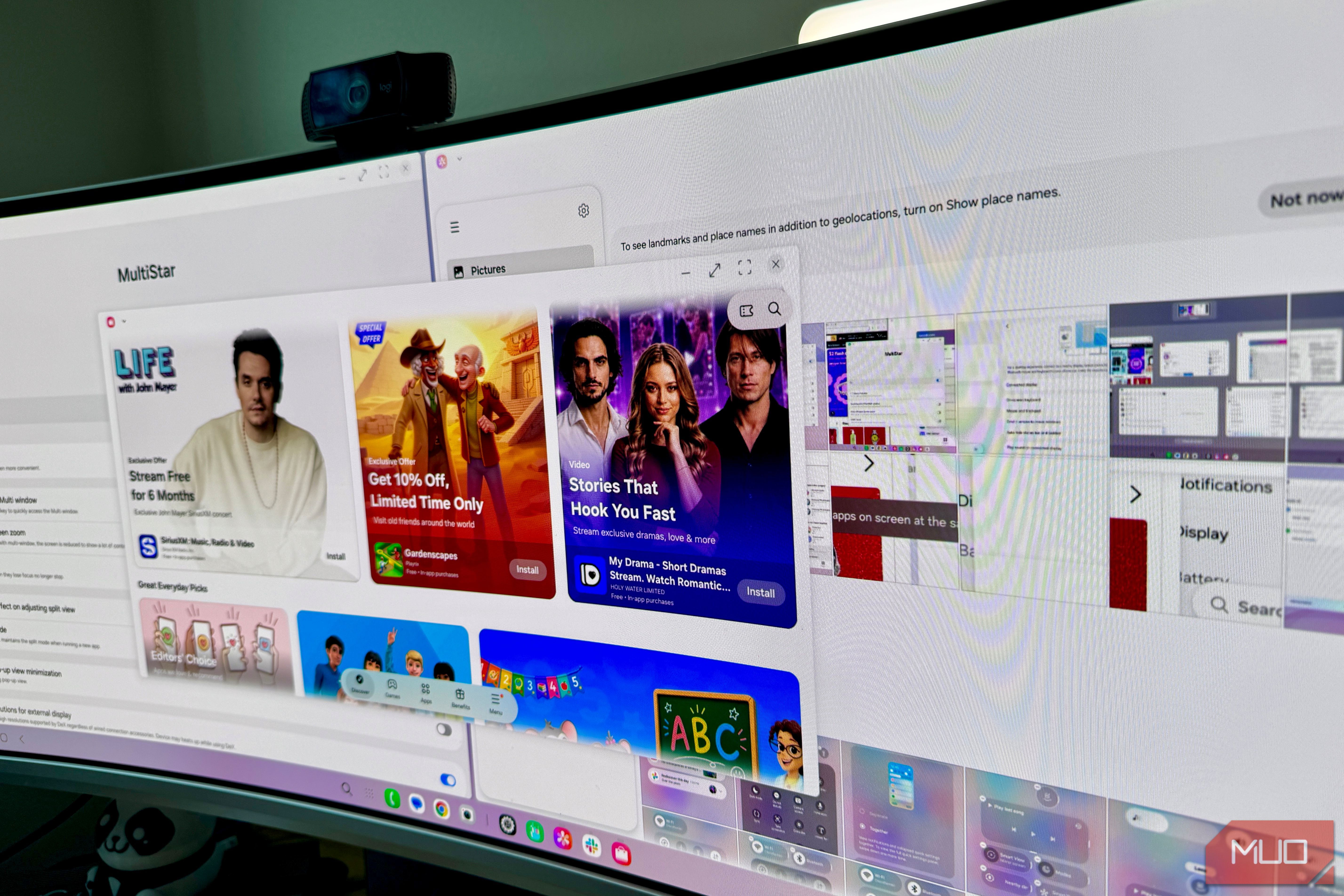
Samsung has rebuilt DeX three times in the last year, and I’ve believed “it’s finally good” after each one — so this time, instead of just poking around the settings menu, I plugged my Galaxy Z Fold 8 into a monitor and tried to do my actual job, while researching this article. I’m also writing this piece on my Samsung via our CMS (though I needed to go to a computer when trying to add photos — the CMS didn’t like it). One UI 9’s DeX is the third era of a rebuild that started with One UI 8. That iteration moved DeX onto Google’s Android 16 desktop framework and continued to add virtual desktops and window persistence in One UI 8.5. One UI 9 itself adds a few smaller refinements, like top-and-bottom window snapping, easier desktop switching, and a relocated taskbar toggle, but it’s the first version where those cumulative changes add up to something that survives contact with my specific workday. Here’s what happened when I tried to make it my only computer, and the specific tests worth running if you want to try it yourself. A timeline of Samsung’s DeX changes When and what changed in each iteration Understanding the current state of Samsung DeX means looking at its evolution, which didn’t happen overnight. The real timeline spans three key software milestones: One UI 8 (September 2025, Android 16): Samsung completely rebuilt DeX’s underlying foundation on top of Google’s native Android desktop mode, as noted by PhoneArena. This foundational overhaul introduced refreshed window styling, updated taskbar functionality, and improved native display rotation. One UI 8.5 (Mid-2026): This release added the core features that finally transformed DeX into a true desktop replacement. It introduced up to four virtual desktops, saved window layout and position memory between sessions, allowed widgets directly on the DeX home screen, enabled native screen recording, and added productivity keyboard shortcuts. Plugging a Galaxy into a monitor after One UI 8.5 offered up a platform that had fundamentally evolved. One UI 9 (Stable as of August 7, 2026): The latest stable update introduces top and bottom window snapping alongside the existing side-by-side split view. It also brings live desktop previews within the Recents view and a smoother drag-and-drop gesture for moving windows between virtual desktops. There’s also a relocated taskbar auto-hide toggle. How I tested DeX The rig, the rules, and a Good Lock detour I took my Samsung Galaxy Z Fold 8 and plugged a USB-C cable into the bottom port. I stuck the other end of that cable into my OWC Thunderbolt dock that I usually use for my MacBook docking, which is connected to a 49-inch Philips ultra-wide display. Then I paired a Keycron 81 keyboard and a Logitech MX Master 3S to the Z Fold 8 via Bluetooth. DeX launches automatically upon connecting an external display, or manually via Quick settings panel (two-finger swipe down) > Samsung DeX icon, or under Settings > Connected devices > Samsung DeX. When I first connected the phone to the monitor, everything looked stretched and blurry. DeX’s built-in “Display resolution” menu on the 49-inch ultra wide only offered standard 1080p and 900p-class options, which still stretched the picture across the panel rather than filling it natively. The fix required hopping into Samsung’s first-party modding toolkit, Good Lock:
- Download Good Lock via the Galaxy Store.
- Open Good Lock, then search for and install MultiStar.
- Launch MultiStar, scroll down, and toggle on High resolutions for external display.
- Go back to to Settings > Samsung DeX > Display resolution to select the proper native aspect ratio. Unfortunately, Samsung caps DeX’s output resolution at WQHD (2560 x 1440), so it looks good and not stretched, but it didn’t go 100% across my entire screen. Still, it’s good enough to work on. The tests that I ran on DeX Checking to see if it can function as a work solution Generally, I use Slack, our custom CMS, Google Docs, and Asana for a typical workday. I spend a lot of time in Chrome, too, and I need to access Google Photos and Dropbox as well. Ultimately, with the below tests, I was able to actually get work done, without having to mess about too much with the settings.
- Window snapping behavior: Samsung promises top-and-bottom window snapping alongside left-and-right split views. In practice, dragging a window to the top edge maximizes it to full screen, while dragging to either bottom corner triggers a split-screen layout with an app-picker overlay.
Virtual desktop transfers: Early reports touted a window-header menu for moving apps across virtual desktops, but this feature was entirely missing on the stable Z Fold 8 I have —the header for each window contains only a close button. However, enabling Cmd + Arrow shortcuts in Settings > Samsung DeX provided a superior alternative, allowing instant window snapping ( Cmd + Left/Right ), maximizing (Cmd + Up ), and minimizing (Cmd + Down ). - Running multiple apps at once: Attempting to open a sixth active window on a single desktop triggered a system warning “Can’t display more than 5 apps at a time,” forcing the oldest window to minimize automatically.
- Reboot persistence: The windows stayed in the same place after I undocked the phone to run downstairs, but were int the same spot once I re-plugged in in. After a hard restart while docked, a couple of windows restored to their exact screen positions, but a different one did not. Your mileage may vary. The verdict, plain and simple My basic day-to-day job worked without problems in this setup. Tools like Asana, Slack, email, and MUO’s own CMS operated smoothly, to the point that it just felt, well, like a computer I was using. I test a lot of laptops and phones, and it genuinely felt like I could get work done on this device if I were traveling or my main laptops were in the shop. That success stems from the fact that the basic usability elements like keyboard shortcuts, basic reboot persistence, and core window handling, work consistently, even if flashier features like the advertised window snapping and desktop-switching menus fall short. I’d be happy using DeX on this Z Fold 8 if I had to, and probably not complain much at all. It is ready today for readers who already own a compatible Samsung phone, have a spare monitor available, and perform the vast majority of their work inside a browser; those who require multi-monitor extended displays or more than five active application windows simultaneously should continue to wait.