Summary
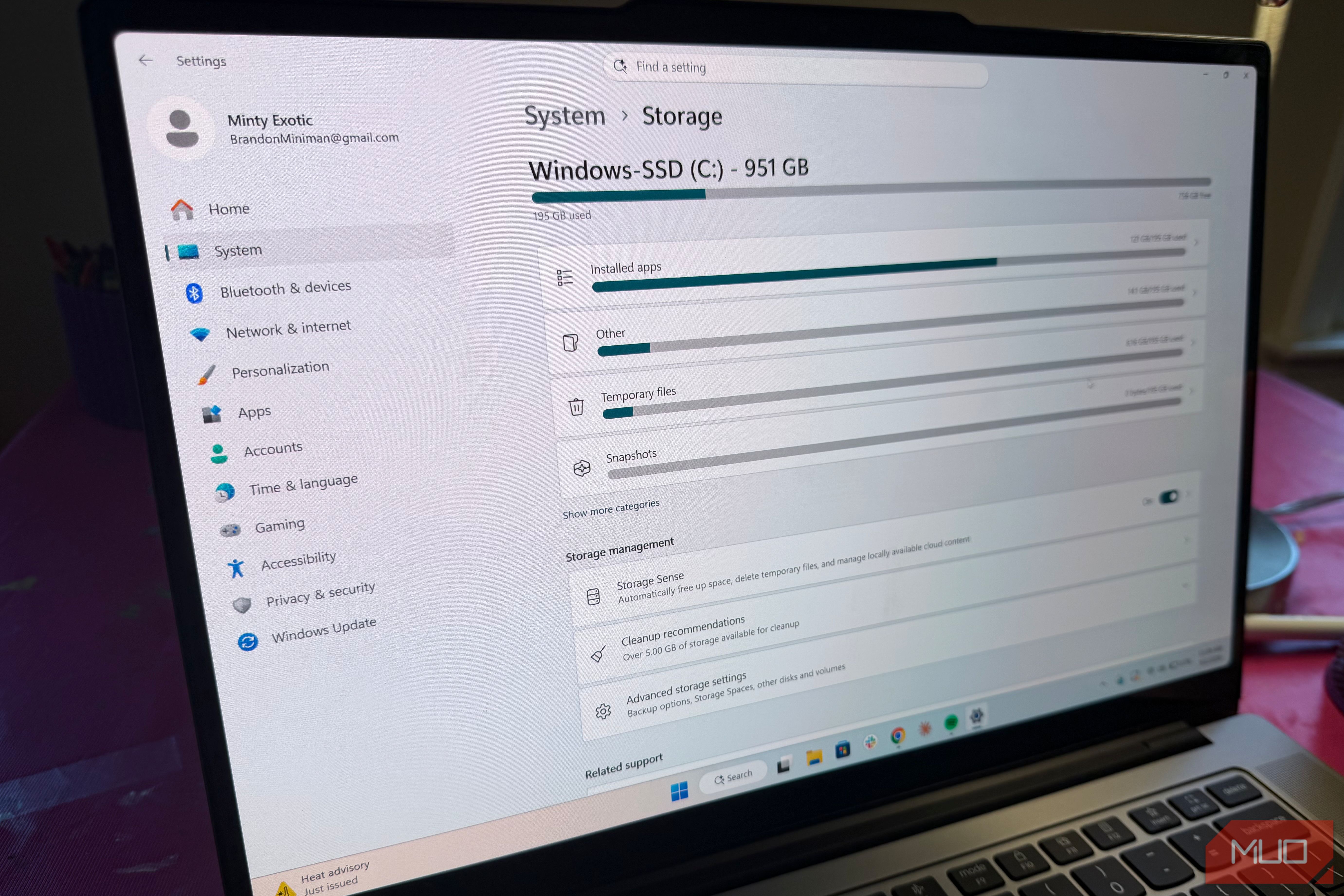
Windows is not good at taking out the trash, and anyone that has left temporary files, old installation files, and an increasingly heavy recycle bin go unchecked knows what I am talking about. Using Microsoft’s built-in storage tools, I was able to not only automate the cleaning of certain parts of the OS (I immediately got back 610MB of space then set it on autopilot to clean my PC weekly), but also identify old files I had forgotten about from various folders that totaled a bit over 10GB. How to enable Storage Sense (It’s off by default) Storage sense is easy to turn on and automate your PC to run regularly to clean up files you don’t need. The first time I ran it I saved 610MB. To turn it on, go to Settings > System > Storage > Storage Sense > Automatic User content cleanup turned On. Above that, also enable “Keep Windows running smoothly by automatically cleaning up temporary system and app files.” This second option does a lot and has really no downside: it will clear out old system logs, error reports, and staging files in the C:\Windows\Temp folder. In addition, this check box removes setup data left behind by desktop applications. In the first field for Configure cleanup schedules, I like to set Run Storage Sense to Weekly. You can also run Storage Sense on-demand like I did, should you need to free up some space, if you click Run Storage Sense now within the same screen. But it only works if you wait between running it — my first time running it freed up 610MB of space, as mentioned, but when I tried running it the next day (after I had used my laptop minimally), I got a message saying, “We couldn’t free up any more disk space”. For the second field, automatic deletion of recycling bin files, I actually set this to Never out of personal preference because sometimes I keep deleted files in my recycling bin only to realize I need them months later. So I prefer to delete them manually. Lastly, you can pick how often files in your Download folder are deleted. I set this to 60 days, because, like my recycle bin, I like those files to stay in there longer in case I need them. So what exactly is this tool removing? What it’s actually doing Getting rid of files you don’t need or forgot about Windows has a bad habit of keeping things around, and Storage Sense does a good job at cleaning that up. What Storage Sense doesn’t do is impact your personal files. With the exception of opting in to automatic emptying of your recycling bin and purging your download folder, which are off by default, Storage Sense doesn’t impact your personal files, and focuses on things left behind by Windows like scratch data, cache, and temporary files (which Windows makes a lot of in daily use). But Windows has other tools that can help you free up storage space (one is old and one is newer). Other ways to free up storage space Windows gives you several tools By going through the Windows Cleanup recommendations located at Settings > System > Storage > Cleanup recommendations, I was able to find 10.2GB of system storage savings. This tool, unlike Storage Sense which focuses on the files you probably don’t need, Cleanup recommendations looks specifically at your Downloads folder (mine was 7.7GB) and looks for large or unused files (Windows found 2.54GB of app installation files I was done with and didn’t need anymore). In addition, Windows will look for Unused apps that you might want to uninstall (I didn’t have any), plus something called “Files synced to cloud,” which looks at files you’ve already uploaded to OneDrive (which you can set up in a less annoying way, if you want) and thus are duplicated on your PC which you can presumably delete. I didn’t have any such files. Disk Cleanup is still here Then there is Disk Cleanup, which has been around in Windows for a very long time. This one goes a bit deeper. Disk Cleanup also purges cached previews stored by File Explorer. It looks for and deletes temporary internet files, removes the DirectX Shader Cache, which are graphical assets compiled by the GPU to speed up certain apps loading (but this gets rebuilt if you delete it), among other things, but if you’ve recently run Storage Sense like I did, you probably only have a few dozen megabytes to clean up. When I ran Disk Cleanup, I was able to free up another 70MB. Windows can clean itself You just have to turn it on After using Storage Sense to automate the cleaning of my computer on a weekly basis (you should never run out of storage space), while using tools like Disk Cleanup and Windows cleanup recommendations, I was able to reclaim a significant amount of storage space on my laptop. I saw no downside to using these tools, especially once I told it to ignore my recycling bin and only delete files in my Downloads every two months or so.