Summary
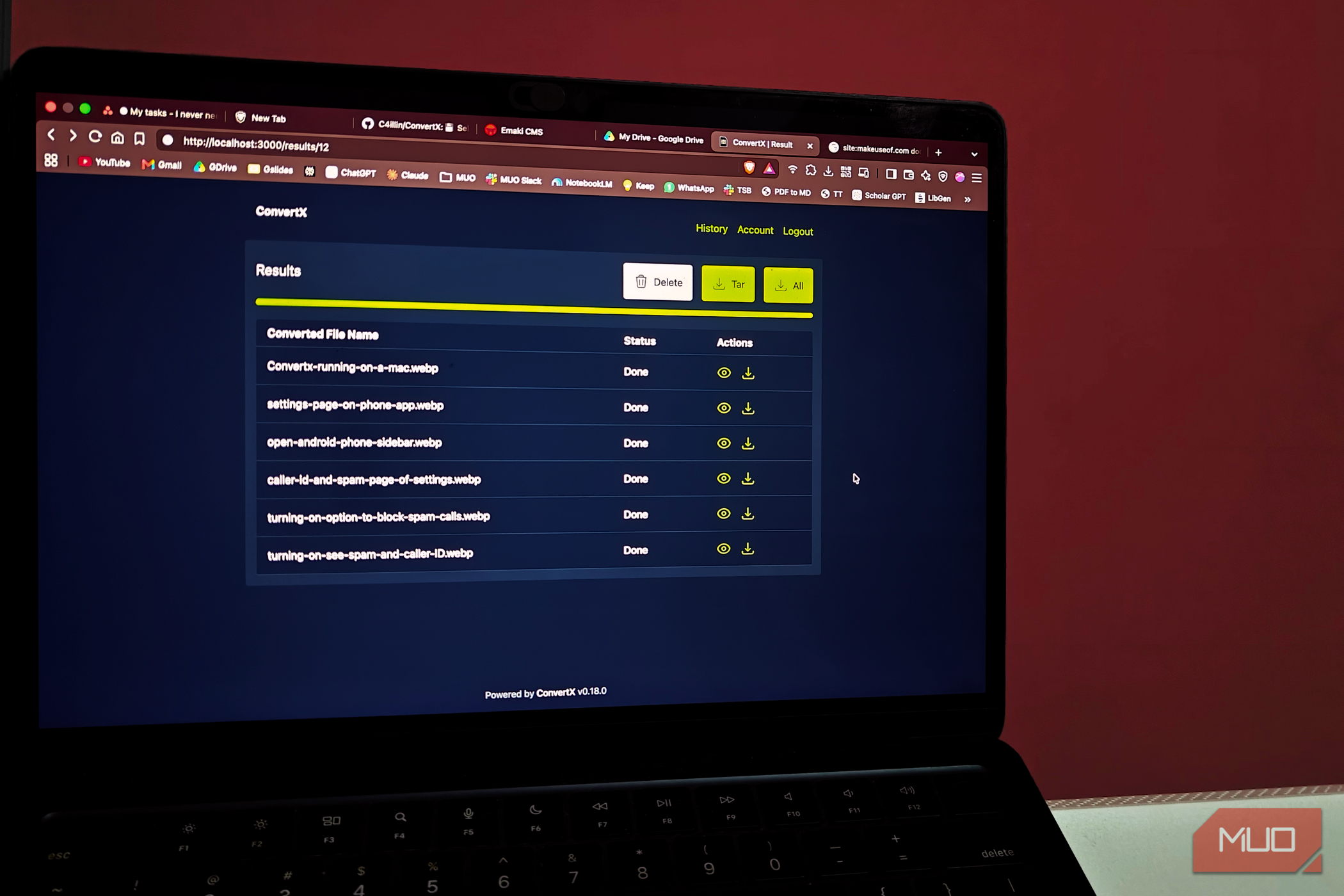
For the longest time, I’d relied on online file converters for all those quick conversion needs. As someone working with various types of media, I found an additional tab in my web browser convenient. However, I wouldn’t rely on these sketchy file-conversion websites nowadays, knowing the serious privacy concerns they pose. At the same time, I like the idea of opening a new tab to convert a file. A Docker container I came across recently, namely ConvertX, solved this problem for good! ConvertX is twenty conversion engines in a trenchcoat One Docker container, absurd format coverage For starters, ConvertX is a completely free, self-hosted online file converter that you can set up using Docker. Now, unlike the typical online file converters you may have come across, ConvertX is capable of converting files between over a thousand file formats, including popular and lesser-known ones. The tool does it by combining 20 conversion engines under a GUI. The self-hostable app also packs a number of features that make it a worthwhile alternative to the convenience of file-converter sites. For instance, the developer continues to add more conversion engines to the app, so you have an ever-growing list of supported file formats. The current list includes popular engines like ImageMagick, FFmpeg, Pandoc, LibreOffice, Inkscape, GraphicsMagick, libheif, Vips, XeLaTeX, Potrace, VTracer, msgconvert, dvisvgm, and Markitdown. Given that you can set this up on any device using Docker, I was surprised to find such a powerful tool free of charge. However, I thought setting up ConvertX and running it on my not-so-powerful MacBook would be difficult, but I was wrong. My Docker Compose file took less time than one upload No Dockerfile archaeology required I’ll level with you here. I’m not an expert when it comes to Docker, and I don’t have the most powerful hardware, either. So, I had all the anxiety I could have when it came to setting up this 1000+ file conversion suite. As it turned out, though, setting up the Docker container took less time than uploading a file to sketchy file conversion websites. Here’s how I went about it. docker run -p 3000:3000 -v ./data:/app/data ghcr.io/c4illin/convertx I set up ConvertX on my MacBook Air by running the following command in Terminal. The process took only a few seconds, and the app was ready to use. By default, ConvertX is accessible at http://localhost:3000, and you will first need to log in with the default credentials. Once you see the interface, you can start converting files. Note: I’ve followed the easier method, but you may want to follow the Docker Compose file method if you want to customize how ConvertX is installed. I must mention that ConvertX is not the most modern file-converter interface. Instead, you get a drag-and-drop interface to import all the files you want to convert. You can then use a search interface to select one of the formats you want the file converted to. Then you hit the Convert button, and the result will be available in a few seconds. I tested the many converters it claims to support Some engines pulled their weight, but one did not Given the sheer number of files and formats it supports, I wanted to see what it’s like to run ConvertX on my Mac and use it for day-to-day purposes. The results did vary by converter engine, but they are still good enough to recommend. For instance, when I tried to convert a JPEG file to PNG, I could choose among multiple converter engines, but not all of them pulled their weight. Yet, when I chose the right engine, the performance was impressive, indeed. So, the best experience from ConvertX meant choosing the right conversion engine as well. The Search bar on the interface makes this process easier, too. You can easily search for the target file format and click Convert. Sometimes, the app takes a few seconds to show you the results. I also love the option to view and download the files without leaving the web browser. I also tried bulk conversion options using ConvertX, and the experience was smooth. I could drag and drop multiple files into the interface, and ConvertX even lets me download them all in a single archive. Overall, I found that ConvertX will suit workflows that heavily rely on web browsers. For me, being able to access all these features from a single tab is pretty awesome. On a related note, ConvertX is so lightweight that I can let it run in the background and use the converter page on localhost. This isn’t something I can say about other Docker containers I’ve set up on my 8GB MacBook Air. I’m sure this point may not matter when you have a fully-fledged system for Docker containers, though. Where ConvertX still isn’t the full answer As much as I’m delighted by what ConvertX offers, it is not perfect. The biggest obstacle will be the overhead of self-hosting, and unless you have RAM to spare, running this app in the background may be challenging. The tool’s rather rudimentary UI may also be a concern for some people, and you do not get a mobile app or anything you can access on the go. Regardless, if you are looking for maximum privacy while having all the options to convert files to the formats you actually need, setting up ConvertX is a great option, and I can vouch for it.