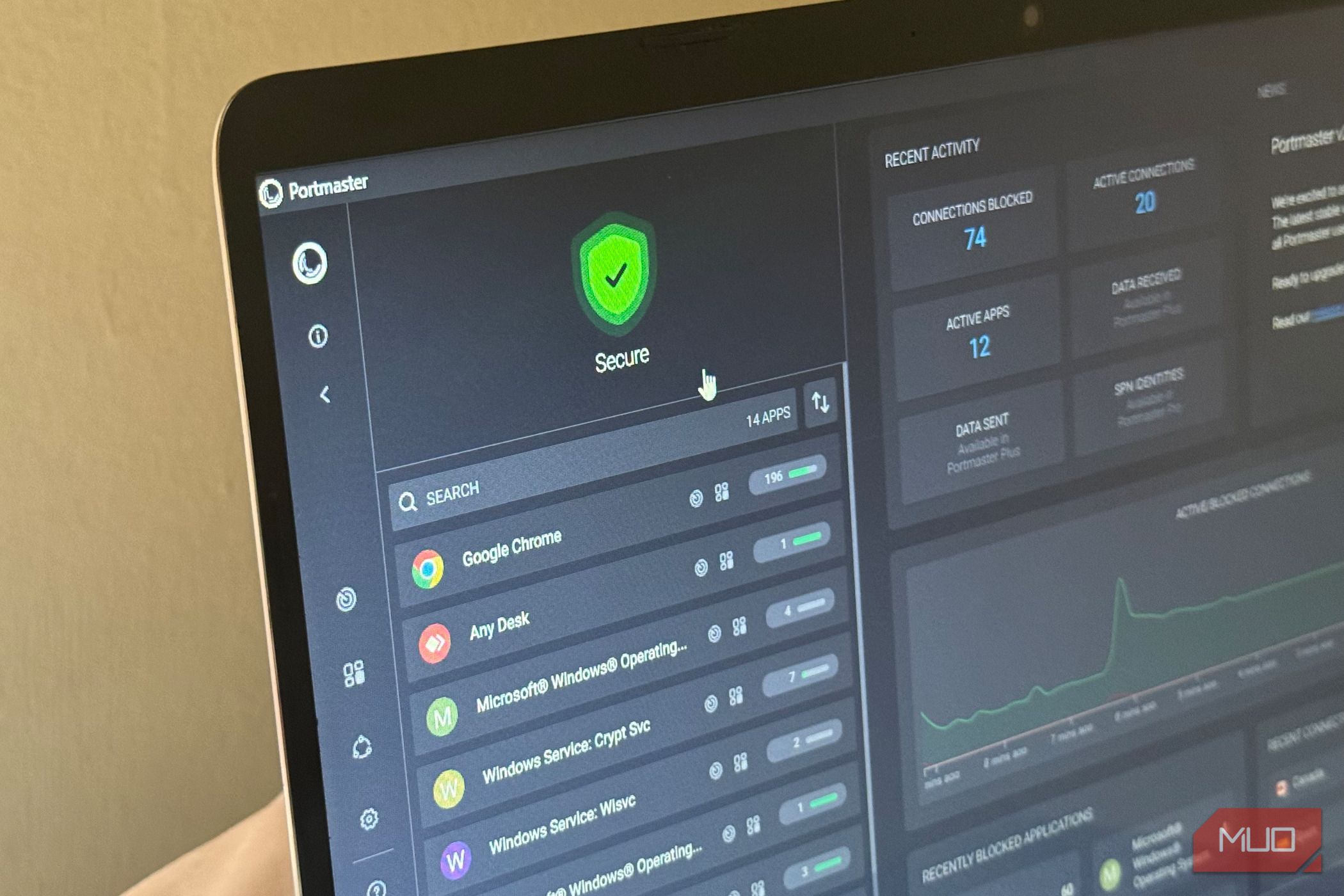
Summary
My PC doesn’t have much going on most of the time. It’s a low-end HP-15 laptop, so I keep things lean, with nothing more than Windows services, Chrome, Slack, and maybe any other tool I’m working on. I thought I had a decent idea of what my PC was doing online. Then I installed a free network monitor and firewall, Portmaster, to see if my assumptions held up. I left every setting on default without even signing up, and used my PC as normal. After a while, Portmaster showed me connections I wouldn’t have noticed otherwise, but it didn’t say exactly what those connections were. So most of what runs quietly in the background was a mystery until I chased it down myself, and I found some interesting connections, to say the least. My PC was making connections I wasn’t thinking about Not everything I chased down had an answer I expected to watch Portmaster for a while before anything worth mentioning showed up. Instead, Spotify, AnyDesk, and WhatsApp were already on the list with active connections, and I hadn’t opened any of them since rebooting. I wasn’t particularly concerned, since I know apps can run background tasks without being open. But seeing those connections on my PC caught my attention. I wasn’t just reading about background activity anymore; I had actual processes and destinations in front of me. Not every connection pointed to something specific. BITS (Background Intelligent Transfer Service) kept climbing in connection count from 7 to 9, then to 15, without me opening anything else. That actually made more sense once I looked into what it does. It’s a shared Windows service that handles background file transfers for Windows and other applications. So, seeing BITS alone doesn’t tell me which app or task started the activity. That’s still useful to me because the connection told me something was using BITS, but I needed to look at the actual BITS function to know what was behind it. Spotify had more to say than I expected One domain looked completely out of place Spotify gave me the most interesting set of connections. At one point, I saw more than 600 connections, with close to 20 percent blocked. Most of them were normal servers and CDN addresses, which are standard Spotify processes. Then I saw bat.bing.com . Portmaster told me it was blocked, but it didn’t tell me why a music app would need it. So I went looking for an explanation. It turned out to be Microsoft’s ad-conversion tracking endpoint, the kind of thing that checks and reports whether someone who clicked an ad went on to do something afterward to Microsoft Advertising. That’s the part Portmaster can’t do for you: turning a blocked domain into an actual answer instead of just a line on a list. None of this tells you whether that traffic is worth worrying about on a capped plan; for that, you’d still want to set your connection as metered separately. I opened the block, clicked Allow Domain, and Portmaster confirmed a new rule. I didn’t notice any change except that all the bat.bing blocked connections disappeared. So, I have an answer to what the connection was, but no proof of what allowing it changed to my listening experience. Windows has its own version of this A Microsoft domain isn’t automatically an explanation I expected Windows itself to be the boring part because, well, it’s Windows. Instead, taskhostw.exe kept appearing in Portmaster’s activity. The process was connecting to settings-win.data.microsoft.com , with the connection blocked by one of Portmaster’s filter lists. Seeing that many attempts to a Microsoft domain get blocked is the sort of thing that makes you jump to conclusions. So I checked instead. Microsoft’s documentation says this endpoint is used to remotely configure diagnostic-related settings and data collection. It doesn’t upload your diagnostic data itself. That was a useful correction to my first assumption. You can still reduce what Windows 11 reports back if that bothers you, but that’s a different decision from what this specific block turned out to mean. I still couldn’t explain every Windows connection I saw, but this one showed me why investigation matters. A domain can look concerning in isolation and turn out to have a very ordinary explanation. Chrome had another connection worth chasing Grammarly’s checking in on more than my grammar Chrome had another blocked connection worth checking: gnar.grammarly.com . This was caught under one of Portmaster’s activated filter lists. I initially didn’t want to check it, but because it seemed like something I would normally ignore, I checked it. Grammarly’s own privacy page calls it a core account function, such as logins and secure sessions. But the name has history. Grammarly has documented its Gnar analytics system, which explains why the domain shows up as blocked in one of the filters. So again, an unfamiliar domain that was blocked didn’t automatically mean something was wrong once I investigated it. That’s probably the biggest difference for me. Portmaster can put network activities before me, but the understanding comes from actually doing the work to know what I’m looking at. I stopped guessing at what I didn’t recognize A little less mysterious, in a good way You could fairly say most people don’t need to sit around chasing down every connection their PC makes. I agree. I have no interest in doing that either. That wasn’t why I installed it. What I wanted was a way to investigate and understand when something didn’t make sense. That’s exactly what Portmaster gave me. When I saw bat.bing.com under Spotify, I could look up the domain instead of guessing why a music app was connecting to Microsoft. I could do the same thing when gnar.grammarly.com appeared under Chrome. Even the Windows connection that initially looked like something more concerning had a documented explanation once I searched for it. I didn’t end up blocking everything Portmaster flagged. In fact, I allowed bat.bing.com on Spotify after finding out what it was, and the blocked entries disappeared. I made that decision because I understood what the domain connection was doing, not simply because Portmaster had flagged something I didn’t recognize. That’s probably the best way to use Portmaster. Don’t just treat every blocked connection as a problem. Use it as a starting point when you see something you don’t understand. Find out which process made the connection, look up the destination, and then decide whether you actually want to allow it. I started this thinking I had a pretty good idea of what my PC was doing online. I didn’t. I also didn’t find the reason my PC seems to burn through my data so quickly, but I came away knowing how to investigate the next connection that makes me wonder where my data is going.