Summary
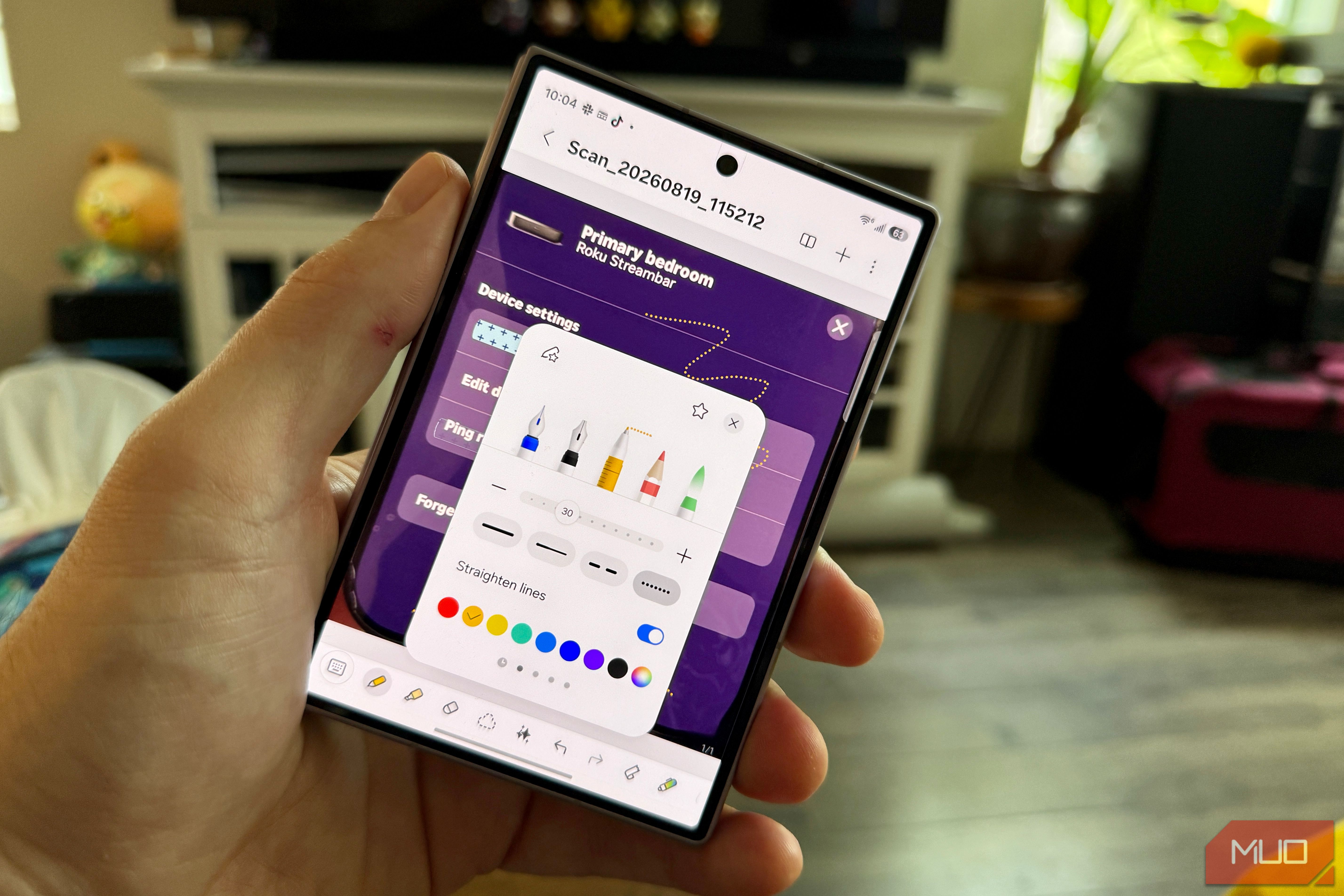
TheGalaxy Z Fold 8 is my first Galaxy phone ever, so when I opened Samsung Notes a few weeks ago, I had no history with the app and no idea what had just changed with One UI 9: a redaction tool, a new pen style, and, less happily, a dead OneNote sync feature. A week of actually using it later, I get why longtime Samsung people call this an underrated app, and I got there without any of the baggage (or the S Pen) that usually comes with that opinion. Samsung Notes got a Tape feature that hides part of a note until you tap it, and a dotted pen line style. It also lost its Microsoft OneNote sync outright, which Samsung confirms is gone for good with this update, not a bug. None of that fully explains why I ended up using Notes daily this week, though. Mostly, it’s just a great app, with some killer features (some AI, some not) that appeal to this brand-new Galaxy owner, even without the S Pen. What Actually Changed in Samsung Notes with One UI 9 Additions, Hidden Trade-Off, and Misconceptions Samsung’s One UI 9 update brings a mixed bag for Samsung Notes users, as it delivers two useful Pen updates while also removing its long-standing integration with OneNote. On the feature front, the update finally introduces a Tape Tool and a Dotted Pen Line, bringing over two popular creative options long favored by iPad power users. However, before updating, note-takers should be aware of a major breaking change: Microsoft OneNote sync has been officially discontinued. According to Samsung’s updated support documentation, notes will no longer sync directly to Microsoft’s ecosystem. Samsung Notes’ Newest Features Don’t Actually Need an S Pen My Z Fold 8 doesn’t have a stylus As a new owner only a few weeks into using the Z Fold 8, I opened Samsung Notes with no S Pen, but I wanted to try out the app and the new features. I wondered if these new tools could work using only finger input. Surprisingly, the answer is a straightforward yes. Placing the Tape tool directly over text with an index finger proved effortless and precise on the first try, with no fiddling or repositioning, while the tap-to-reveal gesture responded instantly with zero lag. Looks like they don’t really need that S Pen, after all. Even more impressive was the freehand line input. Drawing a dotted line with a finger produced a stroke that was clean, sharp, and wobble-free as a standard solid line, and it worked just as well when I toggled Straighten lines on. The real reasons to use Samsung Notes Formatting and Summarizing, plus annotation and integrations I don’t do a whole lot of studying and don’t really need to hide info from myself on my phone, so the Tape feature, while cool, isn’t really targeted for people like me. Using dotted lines is also useful, but it’s not the main reason I’ll stick with Samsung Notes when using the Z Fold 8. That’s Auto Format and Auto-Summarize, two features that have been here since before One UI 9, but are great for meeting notes, lots of research notes, and even grocery lists. The ability to annotate PDFs is really nice, too, since i run into a lot of those during my daily work. I was still pretty surprised by how much I liked Samsung Notes in One UI 9 Samsung Notes absolutely holds up as a finger-and-keyboard app, making it a useful app for someone like me who doesn’t use a stylus like the S Pen. The app’s headline AI tools—summaries, formatting, and cleanups—don’t care whether you have a stylus; they work identically on pure touch input. Plus, the new One UI 9 features are very usable on my Z Fold 8 screen in both open and closed modes. Drawing is just fine with a finger, and if you need the Tape features, that works with a digit as well. Unfortunately, for anyone currently relying on native Microsoft OneNote syncing, you’re out of luck. There are likely other notes app that do sync, like Joplin or Mem.