Summary
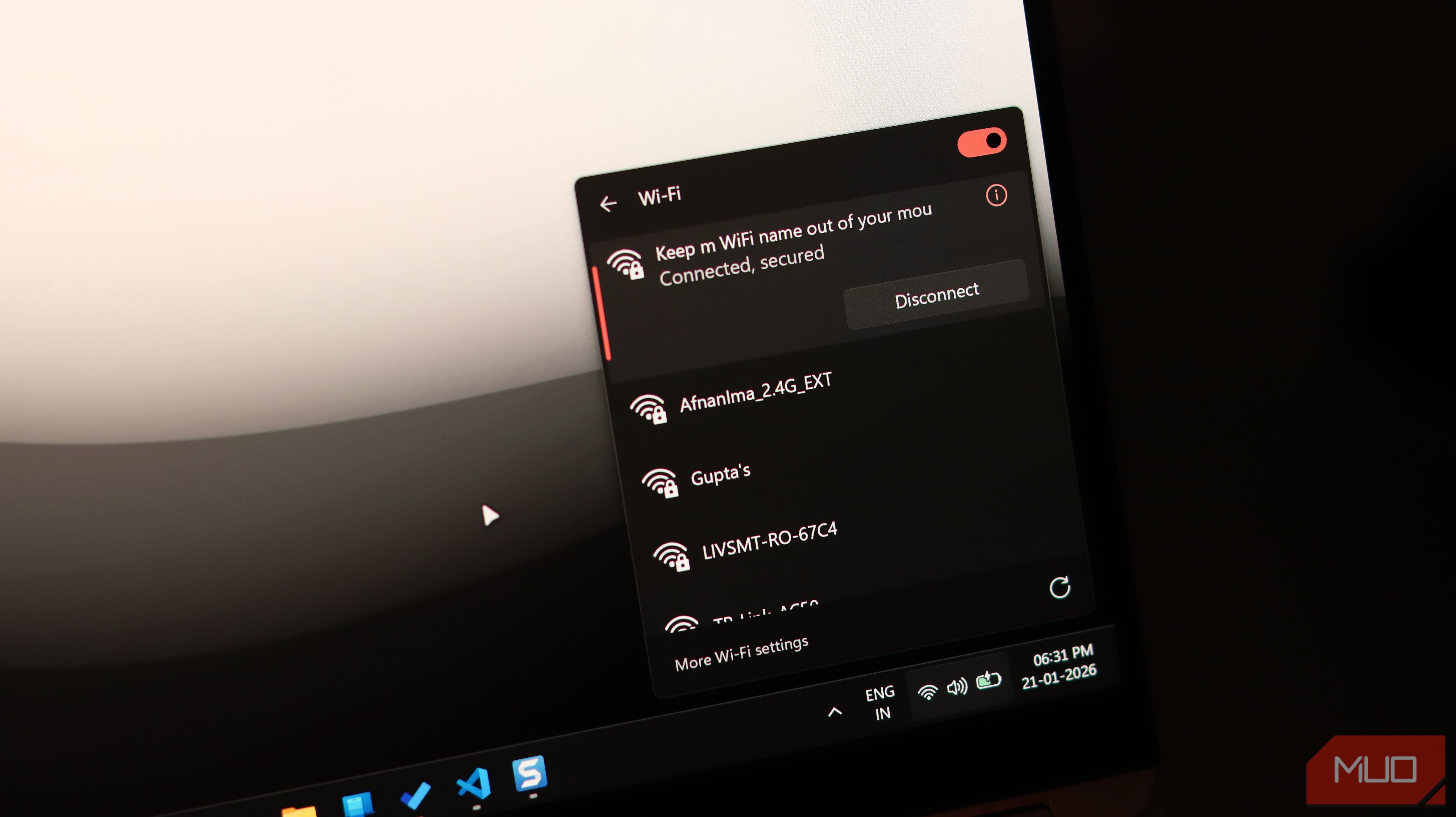
There’s this common misconception that a full Wi-Fi bar equates to optimal internet. While that can be true in some cases, the bars only show the signal strength between your device and your wireless router, basically the distance between you and your router. They don’t measure the performance of your actual internet connection. I didn’t really clock this early because I’m usually close to my router and everything works just fine — well, until it didn’t. No matter how close I was to my router, I got random disconnections and didn’t get anywhere near the speed I expected from my internet connection. I initially thought something was wrong with my router or my ISP was just bugging, but it turned out the problem was much closer to home. Turns out I was fighting congestion and interference Distance from the router isn’t the only thing that matters I eventually figured that my problem wasn’t the distance between my laptop and router. It was congestion and interference from other wireless networks and devices around me. I live in an apartment complex, so there are plenty of other routers and wireless devices competing for the same limited radio spectrum. Even if my laptop is sitting right next to my router, that doesn’t mean the Wi-Fi connection will be clean. It’s just like standing in a crowded room. Being close to the person you’re talking to doesn’t make it easier to hear them when everyone else is talking at the same time. That’s basically what was happening with my Wi-Fi. My router could have a strong signal to my laptop, which is why Windows showed full bars. Meanwhile, interference from nearby networks was still causing inconsistent performance. Once I understood that, I stopped worrying about the number of Wi-Fi bars and started looking at how my router used the wireless spectrum. Switching frequency bands gave me more control Not all bands are created equal Routers nowadays usually support multiple Wi-Fi frequency bands, with 2.4GHz and 5GHz being the most common. Newer routers may also support 6GHz, depending on the hardware and Wi-Fi standard. The 2.4GHz band has better range and can travel through walls more effectively, but it’s also more crowded and prone to interference because so many devices use it. The 5GHz band, on the other hand, has a shorter range, but it usually offers more channels and provides less congested connections. Since I was already always close to my router, switching to 5GHz made more sense for me. I actually took it a step further and created two separate Wi-Fi networks for my frequency bands (although not all routers allow you to do that). This way, I could choose the network I wanted based on where I was and what device I was using. So, for devices that needed better range, I could connect to the 2.4GHz network. For my laptop and other devices close enough to the router, I could connect directly to the 5GHz network. That alone made my connection more consistent, but I still wasn’t completely satisfied. Manually picking a channel closed the gap Letting the router choose a channel isn’t always the best option Many routers automatically choose a Wi-Fi channel for you. This is totally fine, but the issue is that the way routers choose a channel depends on the hardware. Advanced routers can change channels automatically once they notice a particular channel is crowded. But regular routers choose a channel only when they boot up, and that’s it. In most cases, the channel that looks fine when the router connects to at launch may become congested later. So to “automatically” choose a different channel, you have to reboot the router. I don’t want to keep rebooting my router for it to choose a different channel, so I decided to lock mine to one channel. The exact channels available depend on your router and region, but the general idea is to pick a less congested channel. On the 5GHz band I use, channels such as 36, 40, 44, and 48 are commonly used and are a good starting point for manual selection. Meanwhile, if you decide to stick with the 2.4GHz band, your best options are usually channels 1, 6, and 11. You can also use a Wi-Fi analyzer app to see which channels are less crowded before choosing one. Full Wi-Fi bars don’t tell the whole story The biggest lesson I learned is that Wi-Fi signal strength and internet quality are two completely different things. My device could be sitting right next to the router with full Wi-Fi bars and still experience slow speed and poor performance because of congestion or interference. Switching from 2.4GHz to 5GHz helped because I was using a less crowded band that was better suited to my situation. Then, manually choosing a less congested channel took things a step further. Next time your connection feels off despite a full signal, look past the bars. Check which band and channel you’re actually on first.