
Summary
You would think that after owning a Galaxy device for years, I’d know every corner of One UI. Samsung’s software is dense, packed with enough settings that I still occasionally find something I’ve somehow missed. Gallery Labs is different. You won’t find it by digging deeper in Settings, and Samsung doesn’t put a button anywhere to tell you it exists. You have to unlock it yourself. I did that on my Galaxy S24 Ultra running One UI 8.5, and after scrolling through the menu, I found a handful of settings I’m puzzled Samsung still keeps hidden. How to break into Gallery Labs The version number is the key Samsung hasn’t made Gallery Labs particularly difficult to unlock. You just need to know where to tap.
- Open Samsung Gallery.
- Tap Menu at the bottom right.
- Go to Settings > About Gallery.
- Tap the Gallery version number repeatedly.
- Keep tapping until you see “[Labs] Gallery Labs is enabled.”
- Go back to Gallery Settings and scroll to the bottom.
- Open the new Gallery Labs menu. The first thing you’ll see is a fairly blunt red warning. Samsung says the functions are unofficial, intended for internal testing, and could cause unexpected behavior or corruption. The menu also looks nothing like a normal settings page. Features are divided by the One UI version they first appeared under, so my One UI 8.5 phone still has sections labeled One UI 7.x, 6.x, 5.x, 3.x, and even 2.x. Scroll far enough, and you eventually reach database tools, image decoders, Safe mode, and a system heap dump option. Most of that is developer territory. The settings worth using are scattered elsewhere through the menu, and a few of them should already be regular Gallery options. Lock an album without moving everything out of it Secure Folder might be overkill for this One UI’s Private Album keeps selected photos and videos behind authentication, giving supported Galaxy phones a proper place to put media behind the device lock. Secure Folder can do something similar on a much larger scale. Album entry-locks in Gallery Labs tackles a much more ordinary problem, and that’s where I find it more useful. Enable the switch, then:
- Open the Albums tab.
- Select the album you want to lock.
- Tap More > Choose Lock album. The album stays where it is, with a small padlock icon, and Gallery asks for authentication before opening it. Samsung actually warns you about the limitation under the toggle: Album entry-locks do not provide secure access control for the underlying media. Someone who can access the same files in My Files or another app may still be able to open them. So I wouldn’t put sensitive photos behind this and call it a day. For that, Samsung’s Secure Folder gives you an encrypted space for private photos, files, and apps, while Private Album is another better option for media you actually need to protect. I use album locking for the far more mundane situation where I hand somebody my phone to look at one album and don’t want them casually wandering into another. That doesn’t need a vault. It just needs a locked door inside Gallery. Samsung already built a much easier way to make PDFs The printer workaround can finally retire Turning several photos into a single PDF on Android has traditionally meant using the built-in Print-to-PDF method. You select the images, choose Print, then save the imaginary print job as a PDF. Gallery Labs has a Save as PDF switch that cuts out the detour. Once enabled:
- Select several images in Gallery.
- Tap Create.
- Choose Save as PDF.
That’s it. Gallery combines the selected images into one document. I’ve used plenty of dedicated scanning apps, and they’re still better if I need automatic cropping, OCR, or document cleanup. But if I’ve already photographed several pages, receipts, or handwritten notes, I shouldn’t need another app to bundle them together.
Slideshows can finally stick to the photos I selected
A slideshow that actually knows when to stop
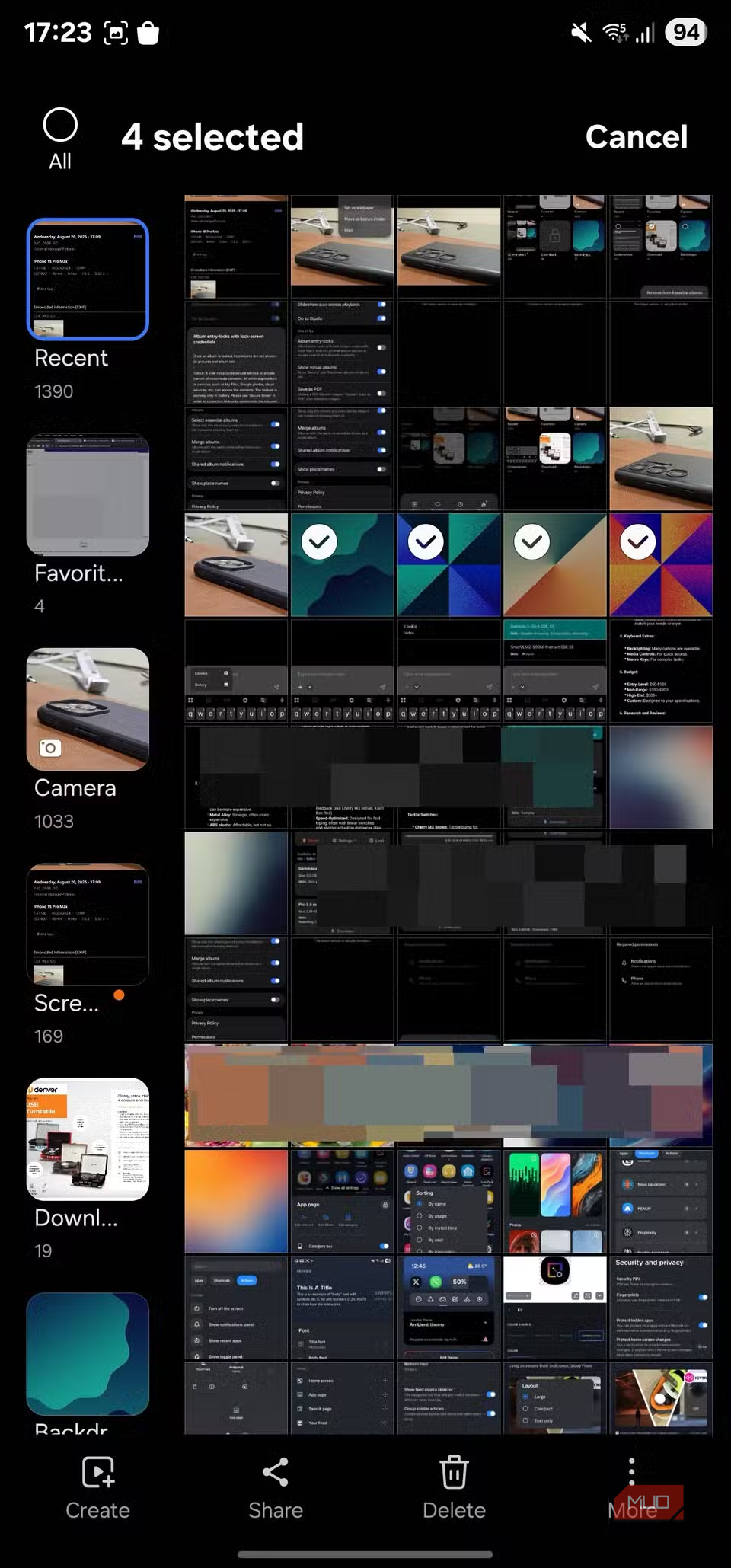
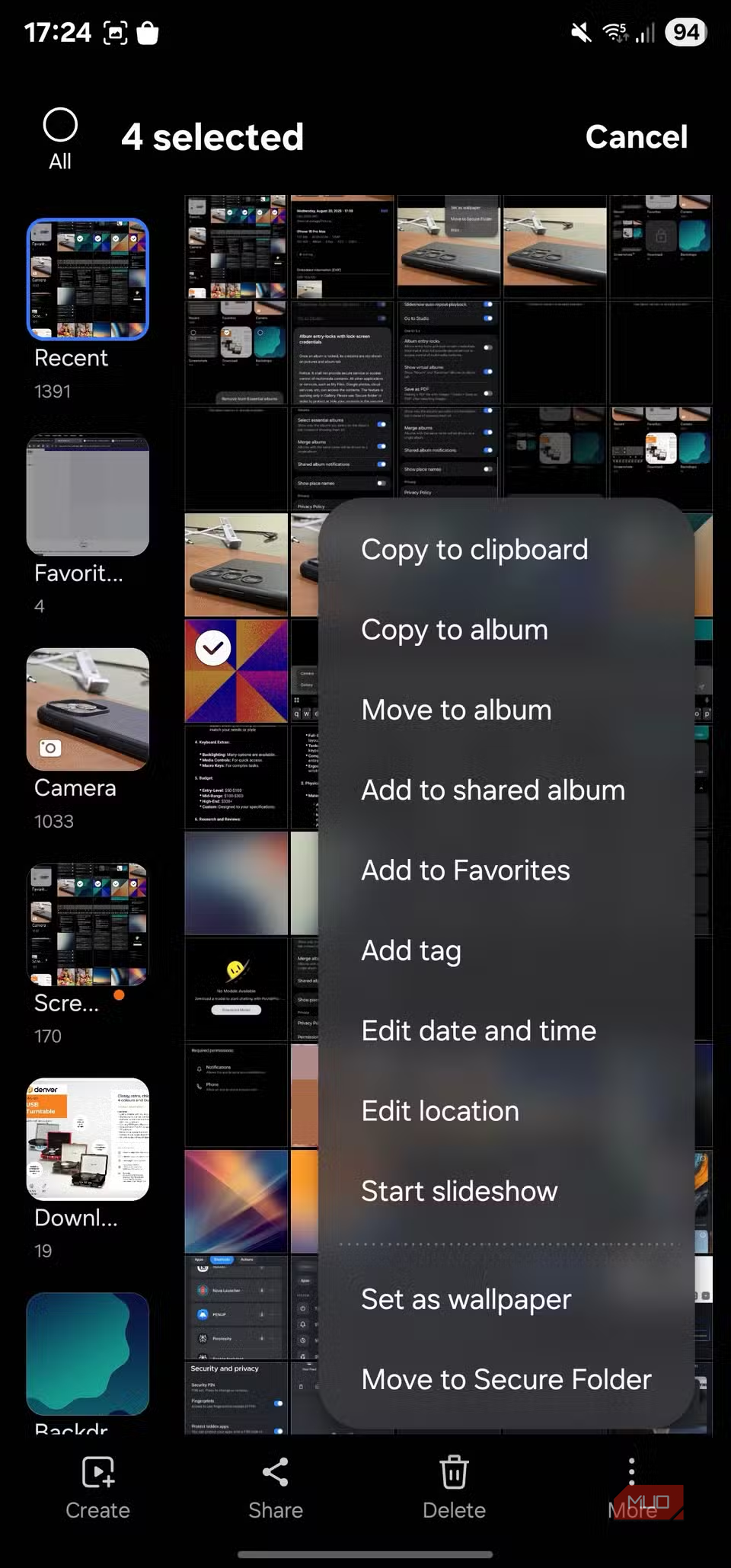
 The regular slideshow option in Gallery is fine until you only want to show somebody a few specific pictures from a much larger album. Gallery Labs has Slideshow with selected items for that.
 - Enable Slideshow with selected items.
- Select the photos you want.
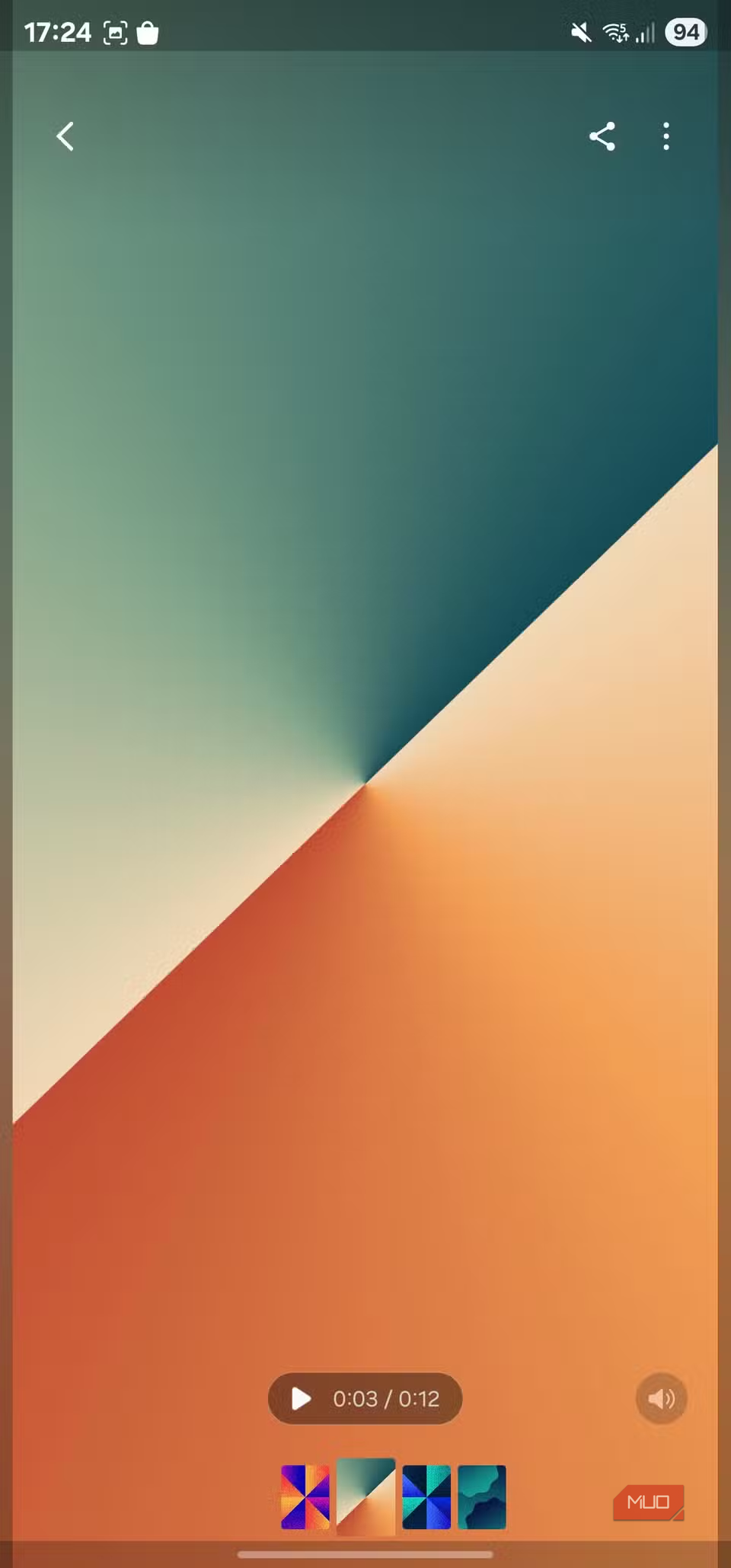
- Tap More > Start slideshow. Gallery plays only those photos. Without it, showing someone six pictures from an album containing hundreds either means manually swiping through them or creating a temporary album first. Gallery Labs also lets you undo a few Samsung decisions The photo viewer doesn’t have to look the way Samsung picked Samsung Gallery puts a filmstrip underneath photos so you can quickly scrub through nearby images. I understand why it’s there, but I prefer the photo viewer without it. Gallery Labs exposes the Filmstrip in viewer, so I can turn it off. The video viewer has even more options. Video player mode on filmstrip lets you change how video scrubbing works, including switching back to the older seek-bar interface. If you prefer a normal playback bar over dragging through thumbnail frames, it’s worth trying. There are a few other small controls nearby:
- Video preview on picture list determines whether videos preview while you’re browsing.
- Play next video automatically can move straight into the next clip when the playback controls are hidden.
- Show trash storage info tells you how much space Gallery’s Trash is occupying. These don’t justify unlocking Gallery Labs on their own. Once you’re already in there, though, they’re useful switches to know about. There are a couple of newer experiments worth trying too The newer toys are hiding near the top Under the One UI 7.x section on my phone, Use AI zoom caught my attention. Samsung describes it as enhancing small images while you pinch to zoom. I wouldn’t expect it to recover detail that was never there, but it’s another example of how Samsung Gallery already handles a surprising amount of photo editing without another app. AI zoom is easy enough to switch on and compare with smaller images yourself. There are two useful metadata options nearby, too: Show full address in details, and farther down, Show EXIF in details. Both add more information to Gallery’s Details view when the image contains it. EXIF is especially useful if you photograph with different cameras because EXIF metadata can include camera details and even GPS location data. So, Show EXIF in details is the one I’d keep enabled. It saves me reaching for another app when I just want to inspect the metadata attached to a JPEG. I wouldn’t touch everything in here Samsung’s warning isn’t decorative Gallery Labs gets increasingly technical the farther down you scroll. My phone includes Android image decoder, Album database backup and restore, File browser, Safe mode, and Capture system heap dump. I wouldn’t change any of those unless I had a specific reason to. The red warning at the top of Gallery Labs is there for exactly this sort of thing: these options can cause unexpected behavior. If something does go wrong, Clear settings changed in Labs resets the Labs changes you’ve made without touching your photos. A few of these are ready to leave the lab I went into Gallery Labs expecting the usual collection of half-finished developer switches. There are plenty of those, but mixed among them are settings I can actually see myself using every day. I’m keeping album entry-locks, PDF creation, and a few viewer tweaks enabled on my S24 Ultra. What gets me is how long some of these options have apparently been sitting here. Gallery Labs still sorts some of them under older One UI generations, yet turning them on still starts with tapping a version number until a hidden menu appears.