Summary
I’ve used Samsung Notes for months without really thinking about whether I needed anything else. It came with my Galaxy Tab A11, and it worked, and that was enough reason for me to stick with it. I mostly type my notes anyway, and I’ve never regularly used handwritten notes, especially not on my smartphone or tablet.
I’d actually seen xnotes mentioned on Reddit a while back, but never bothered much about it. Then I came across it again on F-Droid, and this time, my curiosity won. I don’t have a stylus, and this is clearly an app built for pen users. I expected to open it, scribble a few words, decide it wasn’t for me, and move on. I’ve found apps that turned out better than expected before, but I wasn’t expecting this one to keep surprising me well past the handwriting part.
Handwriting isn’t my habit, but xnotes still worked
My finger, apparently, was enough
xnotes is clearly built for people who actually handwrite. It’s pressure-sensitive, made for pens and styluses, and I had neither. All I had was my fingers and some doubt.
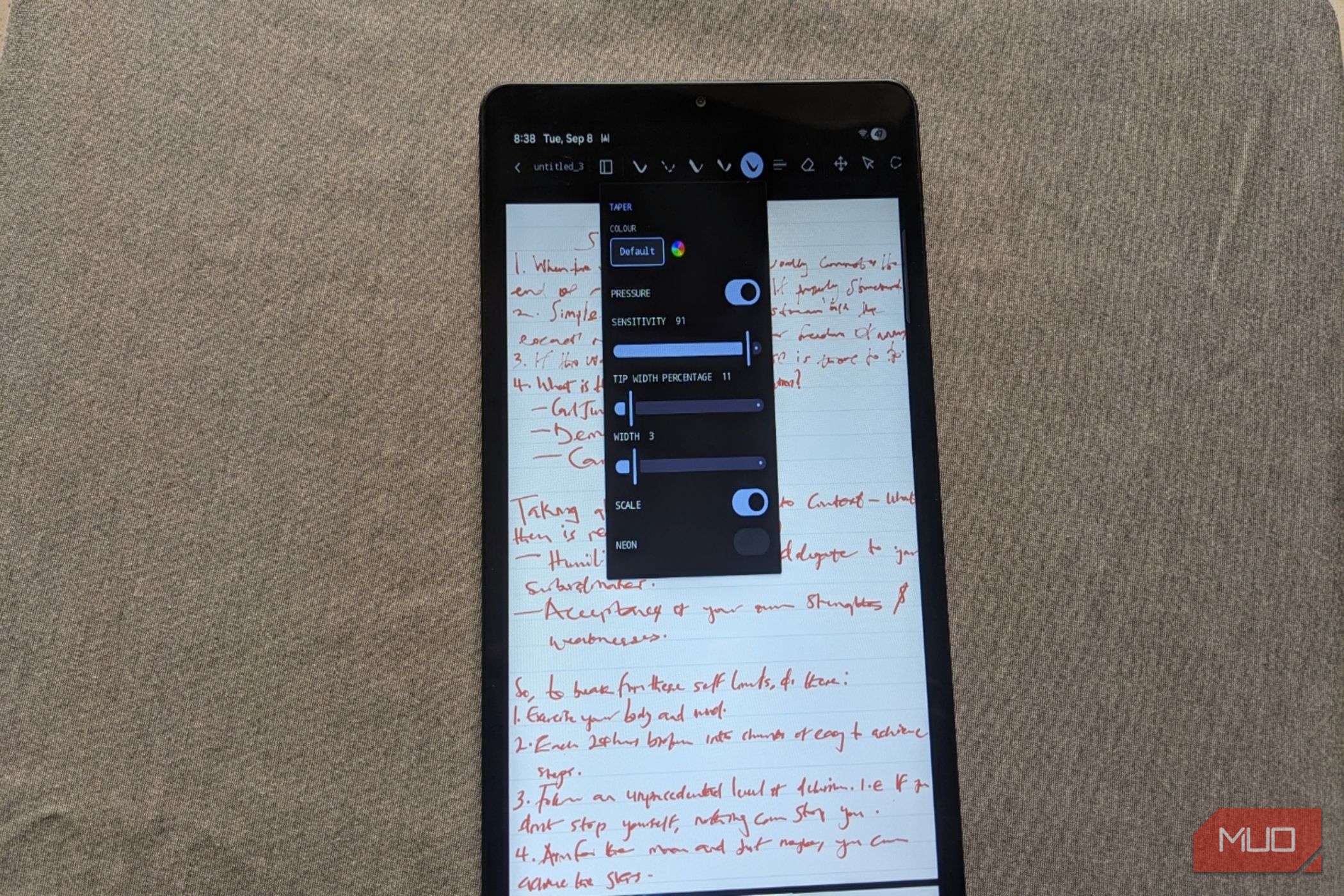
My first attempts looked exactly how you’d expect. My letters were uneven, strokes were too thick, and I erased more than I wanted just to keep things legible. But once I found the sensitivity controls by double-clicking the pens, things clicked faster than I expected. There’s a sensitivity slider for finger input, and pushing mine up to around 90 made my strokes noticeably smoother. I also lowered the pen width since my handwriting is naturally small, and it looked thicker than it needed to be.
With those changes, I wrote a full page of real notes, not something I can just throw away. It went fine.
I also didn’t expect much editing. Instead, I found out that I could go back and edit strokes like objects after writing them. Lasso-selecting a section of the handwriting brings up a real edit menu. I could cut, copy, duplicate, delete, move, or lock them, plus a separate panel to change color or thickness afterward. For a basic free handwriting app, that was a pleasant surprise.
Getting my notes out is where it won me over
One tap versus picking a side
xnotes never asked me to sign in anywhere, and there was no account creation, email address, or login. On first launch, it asked me to pick a folder on my Tab or use the app’s own storage to keep notes in. That was the entire setup.
Importing PDFs isn’t exactly one-click, as you need to bring files in one at a time, and each PDF creates a folder named after the file, which you confirm or rename before continuing. It’s not a major problem, just a small extra step.
Exporting is where xnotes really won me over. After annotating or writing, tap export, choose a folder, and done. I opened the exported file outside xnotes, and the handwriting stayed sharp when I zoomed in. The annotations are stored as vector strokes rather than flattened onto the page. Although the file did get noticeably bigger after annotating, that’s a fair trade for keeping everything right.
When I tried the same thing on Samsung Notes, the gap showed up fast. There’s no direct save-to-device option. Samsung Notes makes you choose between a “Notes-compatible PDF,” editable inside Samsung Notes but nowhere else, or a “Standard PDF,” editable elsewhere but no longer inside Samsung Notes. You genuinely have to pick a side.
For example, I had to share my file through Telegram, then open Telegram separately and download it to my device. Compare that to xnotes’s one-tap and a folder, and it’s not even close. I also found two sync options inside Samsung Notes’ settings: one for Samsung Cloud and one for Microsoft OneNote, and both require signing in. That’s fine if you’re already invested in those services. xnotes never asked me to sign in to anything, ever. I didn’t expect to care about that difference, but it ended up being one of the things I liked most.
It became more than just a notes app
My reading app too, apparently
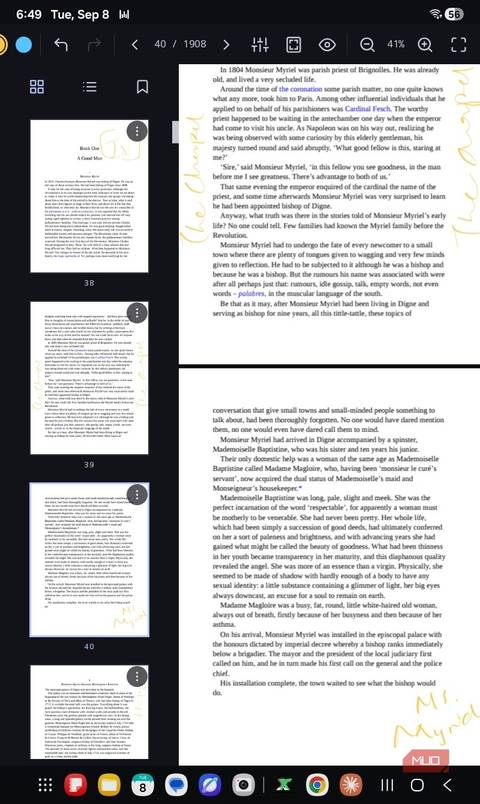
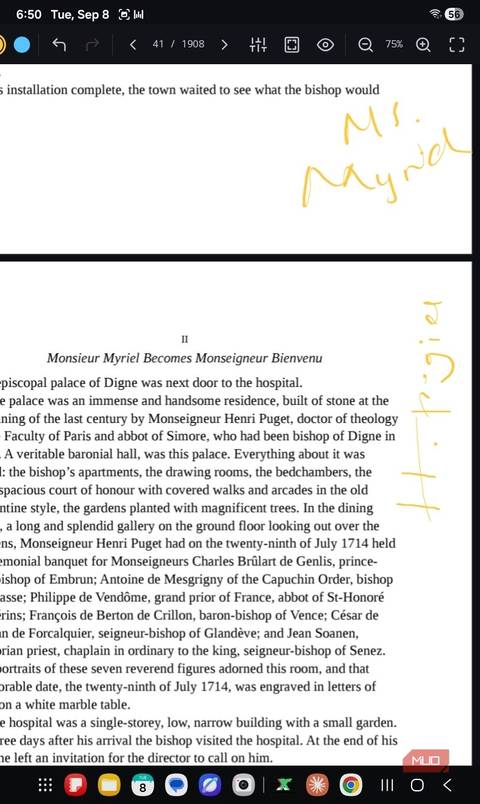 Once I had a few PDFs in xnotes, I started using it for something I hadn’t originally considered. I loaded a 1,000-page document into it, mostly out of curiosity, and it didn’t glitch. Scrolling through the document was as smooth as with a single page, and I could write comments directly on the pages as I went.
That’s actually useful for the way I read. Instead of switching between a reading app and something else to jot thoughts in, I could write on the exact spot that mattered while still looking at it. I can then export the annotated file when I’m done. Plus, it offers multiple viewing options.
xnotes stopped feeling like something I’d downloaded to try; it became something I kept, keeping my PDFs, reading and marking them up in the same place.
Where Samsung Notes still wins
Samsung’s app goes much deeper
Once I had a few PDFs in xnotes, I started using it for something I hadn’t originally considered. I loaded a 1,000-page document into it, mostly out of curiosity, and it didn’t glitch. Scrolling through the document was as smooth as with a single page, and I could write comments directly on the pages as I went.
That’s actually useful for the way I read. Instead of switching between a reading app and something else to jot thoughts in, I could write on the exact spot that mattered while still looking at it. I can then export the annotated file when I’m done. Plus, it offers multiple viewing options.
xnotes stopped feeling like something I’d downloaded to try; it became something I kept, keeping my PDFs, reading and marking them up in the same place.
Where Samsung Notes still wins
Samsung’s app goes much deeper
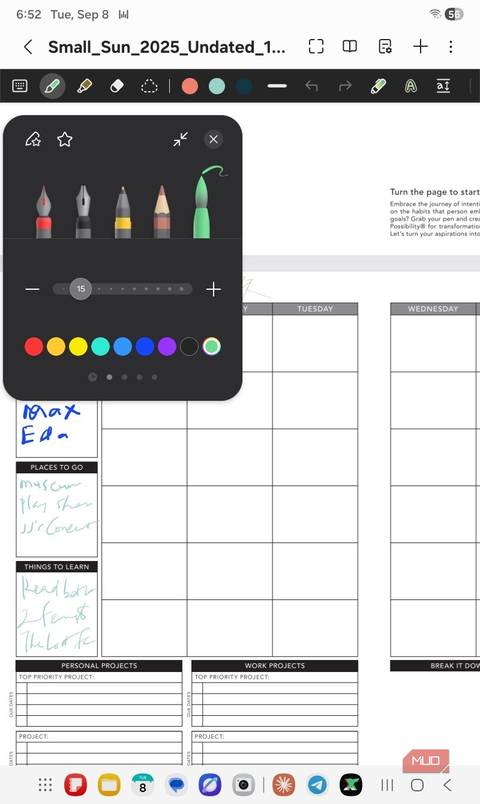
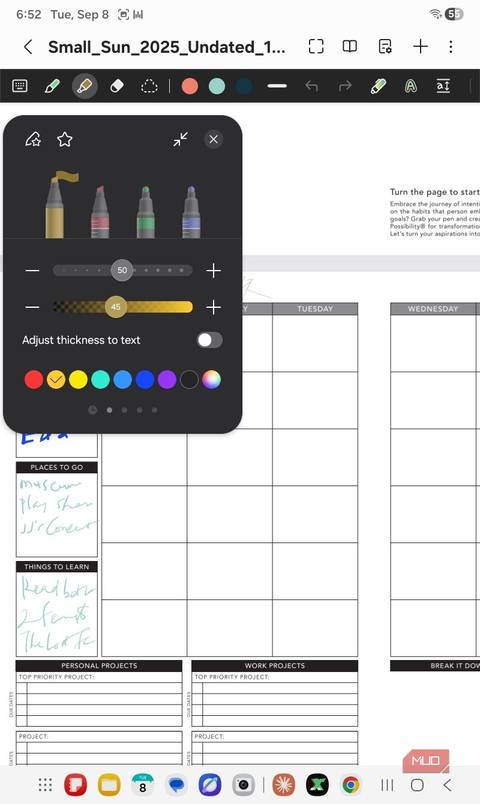
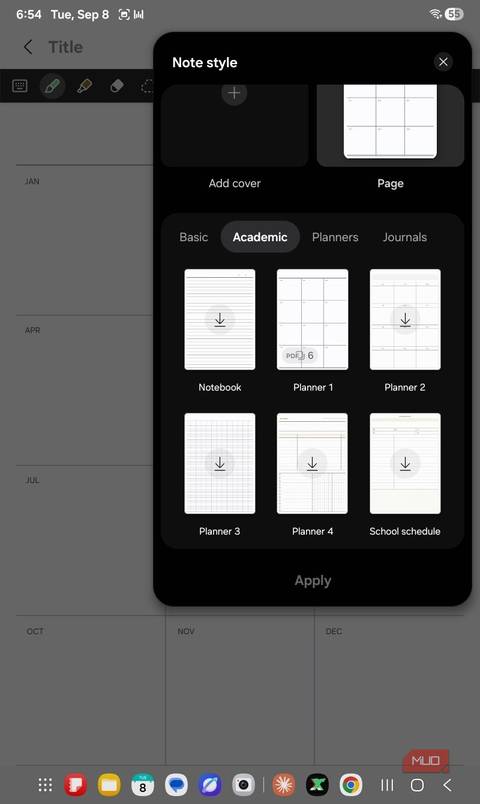
 Samsung Notes comes with a large built-in template library: planners, journals, academic layouts, ready to tap and use without importing anything. Its pen and highlighter tools are also deeper, with five nib types, each with its own thickness and pressure settings, and color panels. xnotes has pen customization too, but Samsung Notes gives you far more to play with.
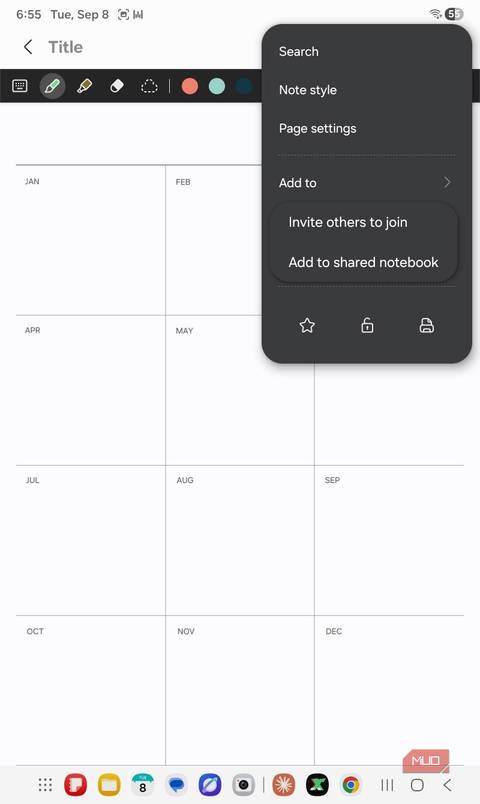
Samsung Notes also lets you invite someone else into a note to collaborate, but xnotes doesn’t offer this. And depending on your Samsung device, you may have access to Note Assist AI features for things like summarizing, formatting, spelling corrections, translation, and converting handwriting to text. I don’t have Note Assist on my Galaxy Tab A11, so I can’t pretend I’ve compared the two apps there.
Searching inside my handwritten notes on Samsung Notes came up empty, even though this search worked on typed ones. xnotes doesn’t offer in-note search at all, only by file name from the main screen. Neither app handles this well, but at least xnotes isn’t pretending to.
I wasn’t wrong to expect a downgrade
But I massively underestimated what free could offer
I didn’t download xnotes because Samsung Notes had suddenly become a bad app; far from it. Samsung Notes is still the more polished choice if you want its templates, pen options, collaboration, and, on supported devices, its AI tools.
What surprised me was how little I actually had to give up by trying something outside Samsung’s ecosystem. I don’t have a stylus; I had never even really experimented with writing on a touchscreen with my finger. Yet, xnotes gave me enough control to make that workable, handled the PDFs I threw at it, and made moving my files around much simpler than I expected. Most importantly, my notes feel like files I actually own.
I still have Samsung Notes on my tablet, and I don’t see a reason to delete it. But now, I reach for xnotes first!
Samsung Notes comes with a large built-in template library: planners, journals, academic layouts, ready to tap and use without importing anything. Its pen and highlighter tools are also deeper, with five nib types, each with its own thickness and pressure settings, and color panels. xnotes has pen customization too, but Samsung Notes gives you far more to play with.
Samsung Notes also lets you invite someone else into a note to collaborate, but xnotes doesn’t offer this. And depending on your Samsung device, you may have access to Note Assist AI features for things like summarizing, formatting, spelling corrections, translation, and converting handwriting to text. I don’t have Note Assist on my Galaxy Tab A11, so I can’t pretend I’ve compared the two apps there.
Searching inside my handwritten notes on Samsung Notes came up empty, even though this search worked on typed ones. xnotes doesn’t offer in-note search at all, only by file name from the main screen. Neither app handles this well, but at least xnotes isn’t pretending to.
I wasn’t wrong to expect a downgrade
But I massively underestimated what free could offer
I didn’t download xnotes because Samsung Notes had suddenly become a bad app; far from it. Samsung Notes is still the more polished choice if you want its templates, pen options, collaboration, and, on supported devices, its AI tools.
What surprised me was how little I actually had to give up by trying something outside Samsung’s ecosystem. I don’t have a stylus; I had never even really experimented with writing on a touchscreen with my finger. Yet, xnotes gave me enough control to make that workable, handled the PDFs I threw at it, and made moving my files around much simpler than I expected. Most importantly, my notes feel like files I actually own.
I still have Samsung Notes on my tablet, and I don’t see a reason to delete it. But now, I reach for xnotes first!