Summary
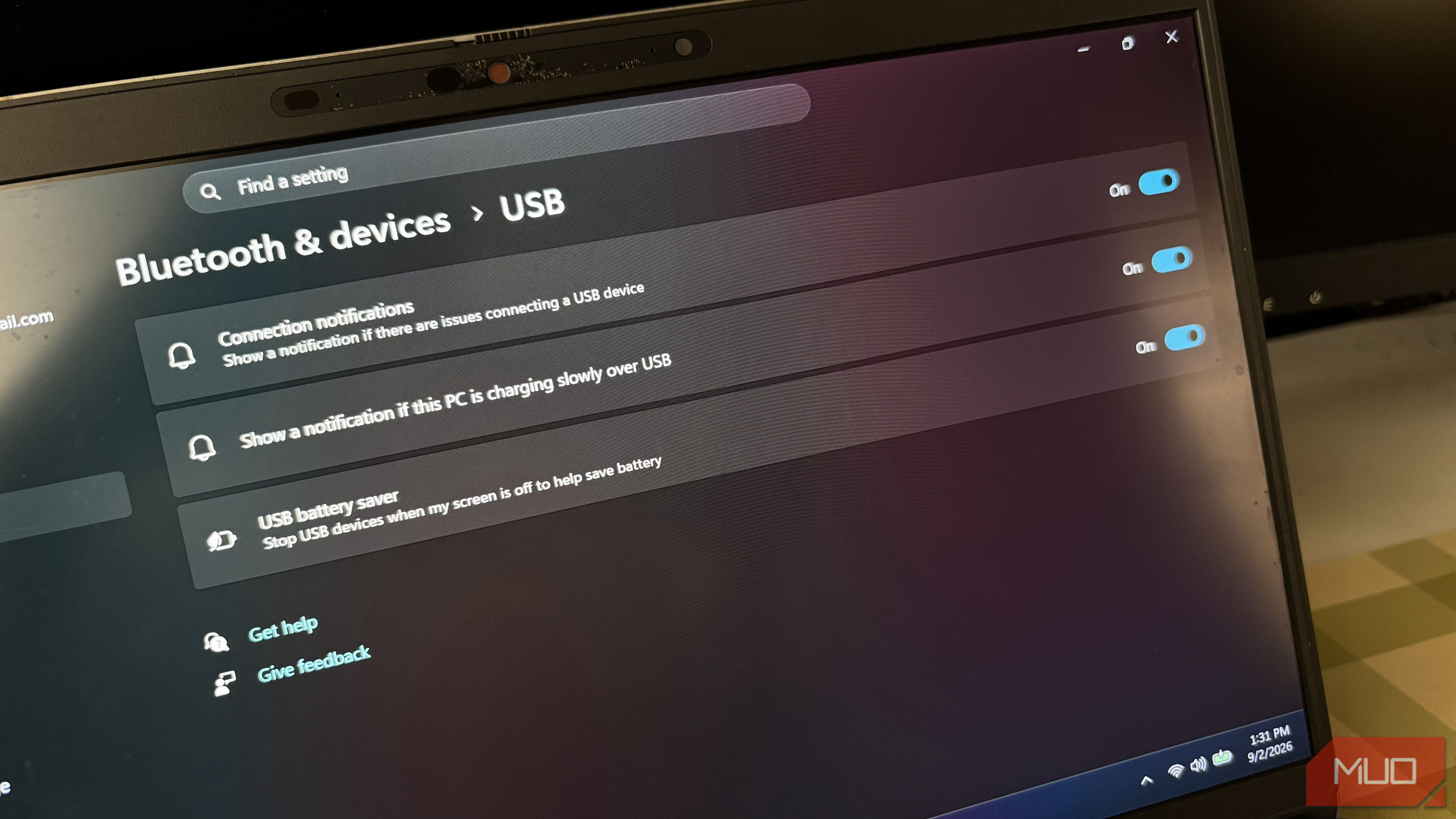
I often connect a lot of USB devices at the same time to my laptop while working. USB hub, mouse, keyboard, external drive, you name it. But I noticed that my mouse and sometimes my USB hub would randomly disconnect even though they were still plugged in. I knew it wasn’t a cable problem because the issue was too inconsistent to be one. Meanwhile, I reinstalled Windows 11 on my laptop a while ago, and I’d never experienced anything like this before the reinstall. Apparently, before reinstalling Windows, I had disabled the USB battery-saving feature that can cause this kind of behavior. But you know once you reinstall Windows, everything goes back to its default settings, so the feature was turned back on. USB power-saving feature is helpful when Windows gets it right Windows can temporarily reduce power to inactive USB devices Windows’ USB power-saving feature lets it suspend individual USB ports or devices when it thinks they’re idle, with an emphasis on “when it thinks.” That’s totally useful on a laptop because every little bit of power saving can help extend battery life. And a USB mouse, keyboard, external drive, or hub that’s just sitting there doing nothing doesn’t need to consume power all the time. Now, the problem is that Windows doesn’t always get the timing right. For instance, I left my workstation for about 10 minutes to grab a snack in the living room, and before I got back, Windows already assumed my external drive was idle (mid-file transfer, by the way). Sometimes, I may just decide to scroll through TikTok on my phone for a bit while working, and Windows might disconnect my USB mouse. The device may reconnect a few seconds later, but that doesn’t make the interruption any less annoying. Also, in some cases, I have to remove the USB device and reinsert it into my laptop before it works again. Turning off USB power saver fixed my problem The setting depends on your Windows 11 version As with most Windows default settings, the USB power saver isn’t really obvious. You may not even know it exists if you’ve never encountered an issue that made you look into it. However, I use a newer Windows 11 build, so it’s a bit easier to find. All I did was open the Windows Settings app, go to Bluetooth & devices > USB, then toggle off USB battery saver. But if you’re running an older Windows 11 build, you won’t find “USB battery saver,” as it is called USB Selective Suspend. Also, you can only find it in the Control Panel. So, to disable the feature, open the Control Panel and go to Hardware and Sound > Power Options. From there, select Change plan settings, followed by Change advanced power settings. In the window that appears, expand USB settings, then expand USB selective suspend setting and change it to Disabled. Finally, apply the change and close the window. Windows should then stop selectively suspending USB devices to save power. Don’t stop there; check Device Manager too Windows can still manage individual USB devices through their power management settings There’s another place where Windows can apply USB power management, and it’s easy to overlook. Even after changing the system-wide power setting, I also checked Device Manager to make sure Windows wasn’t allowed to turn off individual USB devices to save power. To check yours, right-click the Start button and open Device Manager, expand Universal Serial Bus controllers, look through the listed USB devices and hubs, right-click a relevant USB Root Hub or Generic USB Hub, and select Properties. If there’s a Power Management tab, open it, look for Allow the computer to turn off this device to save power, uncheck it if it’s enabled, click OK, and repeat the process for other relevant USB hubs if necessary. You may not see the exact same options on every device. Windows and hardware manufacturers can expose different settings depending on the USB controller and driver being used. I wouldn’t recommend blindly changing every USB-related setting you can find. The goal is to prevent Windows from aggressively powering down the devices that are actually giving you trouble. Windows shouldn’t decide when your USB devices are done USB power saving makes total sense on a laptop since it helps save power. But it can become frustrating when Windows’ attempts to save power interfere with devices you’re using. After turning off the USB battery saver (or USB Selective Suspend), your USB devices should no longer be affected by this power-saving feature. Of course, it won’t fix every USB problem. If you have faulty cables, damaged ports, or bad drivers, you could experience disconnects too. But if your USB devices work normally most of the time and randomly disconnect or reconnect, checking Windows’ power-management settings is an easy place to start.