Summary
I was pretty happy with what my internet speed was showing on speed tests. However, I couldn’t see that reflected when loading web pages or playing YouTube videos. Videos still buffered before playing, and websites took a bit longer to load — the usual stuff with slow internet. If you’re facing this too, the problem isn’t bandwidth; it is DNS, the system that translates every web address you type. I only noticed mine after switching my DNS and seeing my browsing speed up. The best part? It took less time than my last speed test. Your speed test isn’t telling you everything It isn’t measuring your everyday browsing When you use any website or application to run a speed test, it isn’t actually testing what you would browse every day. Instead, it is measuring how fast your connection can move a big chunk of data to and from one nearby server for a few seconds. Well, that’s about it. This isn’t real browsing. Real browsing is completely different. Notably, loading a single webpage triggers dozens of separate lookups, connections, and handshakes, and a speed test never accounts for any of these. According to a methodology breakdown of Ookla’s own Speedtest, every test captures “a snapshot” of your connection for that specific time, place, device, and network in a single moment, not an ongoing picture of how your apps and sites actually behave. Here is the important part that gets missed. Before your browser starts downloading a page, it has to figure out where the page lives. That lookup happens before any of the bandwidth comes into play. A slow or overloaded resolver can quietly stall it every single time you click a link. A speed test chart won’t show you these details. You will just feel it as the annoying blank pause or delay before a site starts to load. DNS (Domain Name System) is basically the internet’s phone book. You type a name like makeuseof.com, but your device does not understand that. It needs a numerical IP address to actually find the site. DNS is what translates whatever name you typed into the address your device needs. This translation happens in milliseconds, but milliseconds add up fast when you are loading dozens of ads, images, and script domains on a single page. Your ISP’s default DNS is often the weak link Picking a faster DNS fixes this issue Most people never touch their DNS settings because they do not know they exist. Your internet provider assigns one automatically the moment you connect to the internet. People keep using it and blame their internet connection or hardware for the slow internet. The problem is that the ISP’s default DNS can be slow and get overloaded during heavy traffic. The worst part is that some providers don’t prioritize keeping them fast at all. So basically, you could have gigabit bandwidth, but because of your ISP’s default DNS, your internet still feels like you are stuck on a bad connection. The best part is that you can fix it yourself, and it takes just a few minutes. Also, you don’t have to guess which DNS to pick, as there are a handful of public DNS servers that are available for free, well-tested, and easy to switch to.
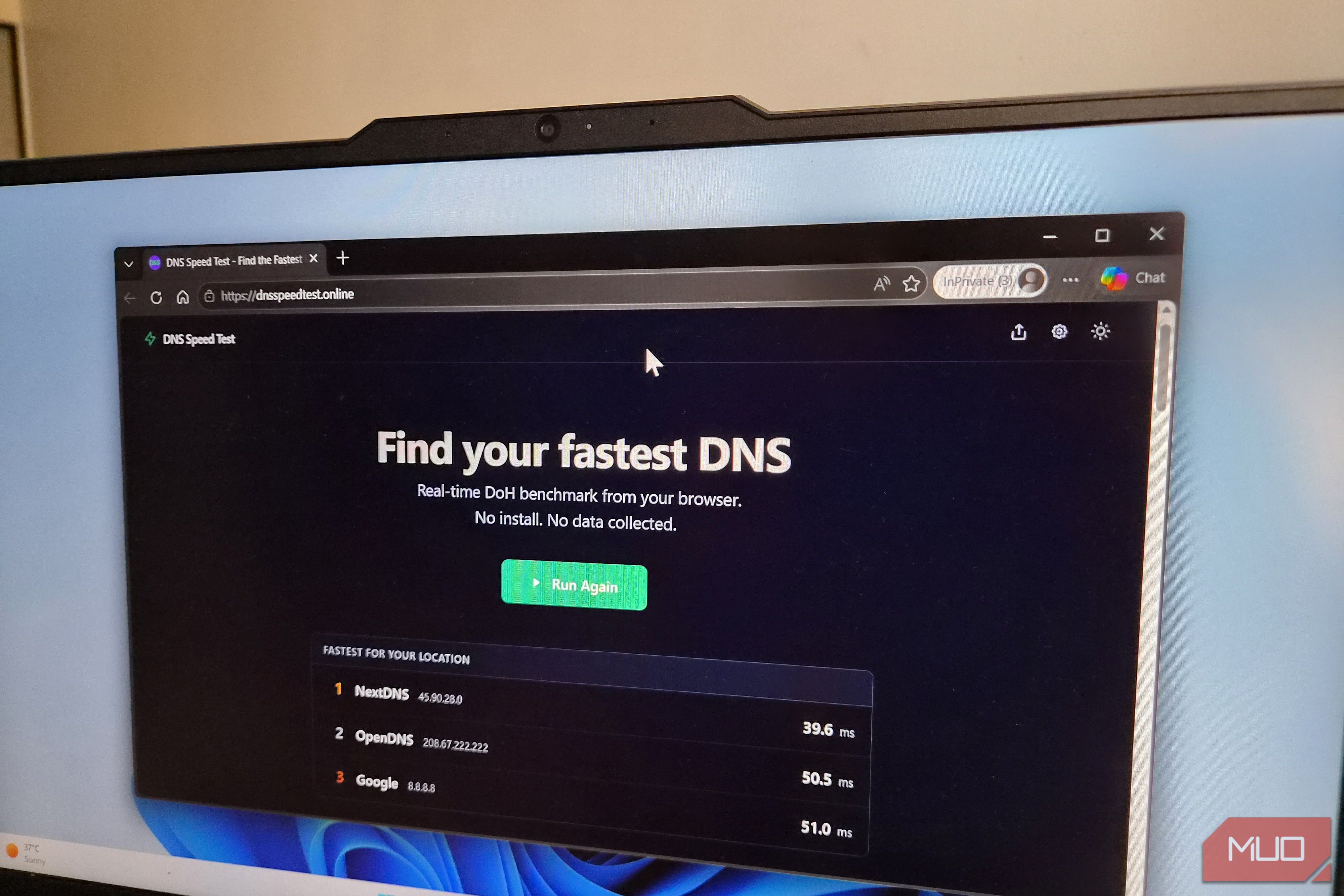
Cloudflare (1.1.1.1 and 1.0.0.1): Measured as the fastest public resolverin independent benchmarks, with servers in hundreds of cities. - Google Public DNS (8.8.8.8 and 8.8.4.4): A globally distributed resolver documented in detail by Google, with no content filtering by default. - Quad9 (9.9.9.9): Built with security in mind, blocking known malicious domains automatically. If you want to get more specific, you can try one and apply some DNS tricks to get the fastest option for your location. This is because the best DNS can genuinely vary by region and ISP routing. Switching DNS is super easy You don’t need technical knowledge to do this Follow the steps below and change the default DNS on your PC:
- Open Settings by pressing Win + I.
- Choose your active connection (Wi-Fi or Ethernet), then click Hardware properties.
- Next to the DNS server assignment, click Edit.
- Switch from Automatic (DHCP) to Manual, turn on IPv4 (and IPv6 if you use it), and enter your chosen address.
- Save, then restart your browser to see the difference. Android works similarly; go to your Wi-Fi network’s advanced settings. If you want the change to apply to every device in your house at once, doing it at the router level is usually the smarter move. You will notice a difference Don’t expect your download speed to jump to some serious numbers with just a DNS change. DNS doesn’t touch your bandwidth at all. It only shortens the time it takes to start each connection. But that delay is exactly what makes browsing feel laggy, even when your Mbps numbers are fine. We have seen Google’s DNS lookup times drop from around 76ms to 32ms, and we also noticed the biggest improvement on image-heavy sites pulling from multiple domains at once, something that I also experienced. But if switching DNS doesn’t solve your slowdowns, the real issue might be Wi-Fi interference, an overloaded router, or ISP congestion during peak hours instead.