Summary
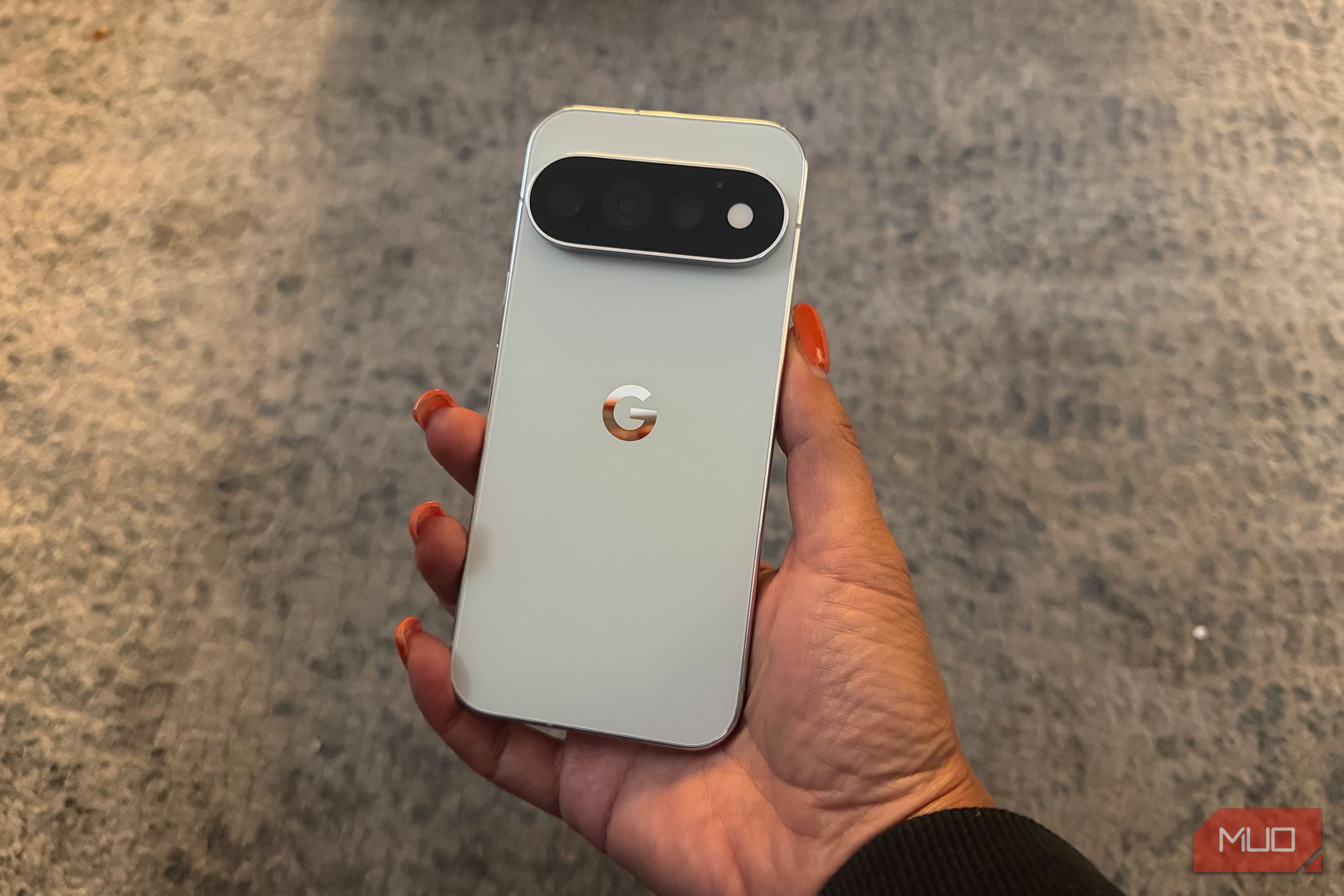
The HiLight LED array on the back of my Pixel 11 Pro XL is one of the few features that genuinely separates it from last year’s Pixel. Despite eight lights surrounding the camera bar, Google gave them almost nothing to do. Out of the box, it glows when I’m talking to Gemini hands-free and it lights up for calls from my favorite contacts. That, and I get a grand total of five colors to choose from. That’s the whole feature. HiLight Studio, an open-source app vibe-coded by tech YouTuber Dhananjay Bhosale, changes that by finally giving those LEDs a real purpose. What HiLight Studio actually does with those eight LEDs Turns out the hardware was capable all along HiLight Studio takes control of all eight LEDs and hands the customization over to you. The big one is per-app rules. I picked WhatsApp, gave it a color, and told the app to light up the array when a message lands. You can have it fire on the notification, while the app is open, or both. That one addition is what fixes Google’s version, because HiLight finally works as an actual notification light rather than a Gemini party trick. There is also a wide selection of animated patterns—including comet, pulse, breathe, wave, rainbow, and random. If these preset patterns aren’t enough, you can set individual colors for each of the eight LEDs (up to ten colors total) while adjusting saturation and brightness. I ended up leaving mine on a slow breathing pattern, which is calm enough that it doesn’t nag at me from the corner of my eye. Custom setups can be saved as presets, which export and import cleanly if you need to back up your settings or share them. There’s a Quick Settings tile as well, which I use more than I expected, since I can switch the whole thing off from the shade without opening the app. Setting it up takes a few minutes and a helper app This is the part where you’ll want to slow down HiLight Studio isn’t on the Play Store, so you’ll need to sideload it, which just means installing the app file yourself instead of pulling it from an official store. It works only on Pixel 11 Pro, Pixel 11 Pro XL, and Pixel 11 Pro Fold, since those are the only phones it supports. Here’s how to get it on your phone:
Open your browser and go to the project’s GitHub page, find the Releases section on the right side of the repo, and open the latest one. - Download the file ending in .apk from that release.
- Once it finishes, tap the download to open it. Your phone will ask whether to allow installs from your browser or file manager, so turn that permission on, come back, and let it install.
- When Android flashes a Play Protect warning saying the app is unrecognized, tap the “more details” or “install anyway” option instead of the big Cancel button. That Play Protect warning is expected for anything sideloaded. The app is signed with a debug certificate, so Android treats it with suspicion even though there’s nothing wrong with it. Here’s the part that trips people up. On its own, the app still can’t control the LEDs, because driving that array needs shell-level access to a system service that normal apps aren’t given. To grant it, you use a free helper app called Shizuku:
Install Shizukufrom the Play Store and open it. - Start it using the Wireless debugging method, which Shizuku walks you through step by step inside the app.
- Back in HiLight Studio, open the Setup tab and tap Request access.
- Approve the prompt that Shizuku pops up, which is what links the two and lets the app talk to the lights.
The whole process took me less than two minutes. There’s also an ADB command route documented in the repo if you’d rather do it from a computer. Shizuku is the easier path, though, and I never needed the terminal.
Two more toggles and you’re done. Grant Notification access so the app can react to notifications, and Usage access so the rules tied to an app being open can work, and the Setup tab guides you to both. Then flip on the Live switch, pick a look in the Style tab, and the lights come alive. One thing to remember going forward: this access resets every time you restart your phone, so after a reboot you’ll need to open Shizuku and start it again, then reopen HiLight Studio, or the lights will just stay dark and leave you puzzled.
The safety limits are there for a good reason
Nobody wants to cook their camera bar
Because the LED array was not designed for continuous high-intensity use, HiLight Studio enforces built-in safety limits you can’t override: Ambient effects switch off after 30 seconds unless you push that out to five minutes, and even then it makes you click through a warning first. Notification effects top out at a minute, the brightness quietly tapers once the lights have been on for 10 seconds straight, and there’s a hard rule that the array can’t run for more than half of any 10-minute stretch. Every time one of these kicked in, the app told me why the lights had dimmed, which beats sitting there guessing.
It also respects Do Not Disturb, runs its own quiet hours, and dims itself when the battery gets low. And it keeps to itself. The app can’t even connect to the internet, so nothing it sees in your notifications ever leaves your phone.
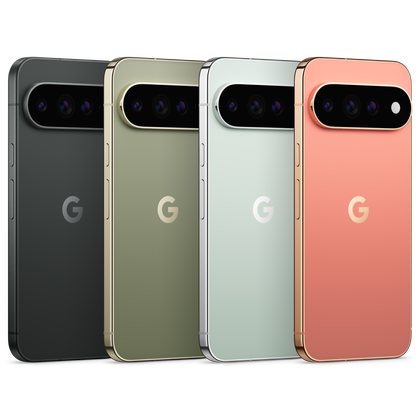 Google Pixel 11 Pro XL
 - Brand
- SoC
- Google Tensor G6
- Display
- 6.8-inch Super Actua display
- RAM
- 12 or 16GB The Pixel 11 Pro XL is Google’s top-tier flagship for 2026, powered by the Tensor G6 chip and running Android 17. It headlines with HiLight, an eight-LED array around the camera bar that glows for Gemini and favourite-contact calls, alongside Google’s latest agentic AI features. The Pro XL pairs a large high-refresh OLED display with an upgraded camera system and 256GB base storage.
- Storage
- 256GB, 512GB, or 1TB
- Battery
- 5115 mAh
- Ports
- USB-C 3.2
- Operating System
- Android 17
- Colors
- Canyon, Olive, Fog, Obsidian
- IP Rating
- IP68
- Display resolution
- 1344 x 2992 Is it worth the hassle? For me, yes A rare community fix that outdoes the manufacturer I’ve had HiLight Studio running for a while now, and it’s done the one thing I wanted, which is to turn a gimmick into something I actually look at. A green sweep for WhatsApp, a blue pulse for a call, and I can clock what’s happening on my phone from across the desk without picking it up. That said, this is an experimental app, vibe-coded and signed with a debug certificate, so keep your expectations in check. A few people have reported that after installing it, Google’s built-in HiLight for Gemini and favorite calls stopped behaving until they uninstalled the app and rebooted. My unit never did that, but you should know it’s a possibility going in, and if it happens, pulling the app and restarting sorts it out. It’s a bit funny that someone else had to build the HiLight experience Google should have shipped, rough edges and all. Maybe there are real reasons Google kept these lights on such a short leash, longevity being the obvious one, but HiLight Studio shows how much more the array could have done from the start. If you own a Pixel 11 Pro and those lights have been sitting there doing nothing, it’s worth the ten minutes to give it a try.