Summary
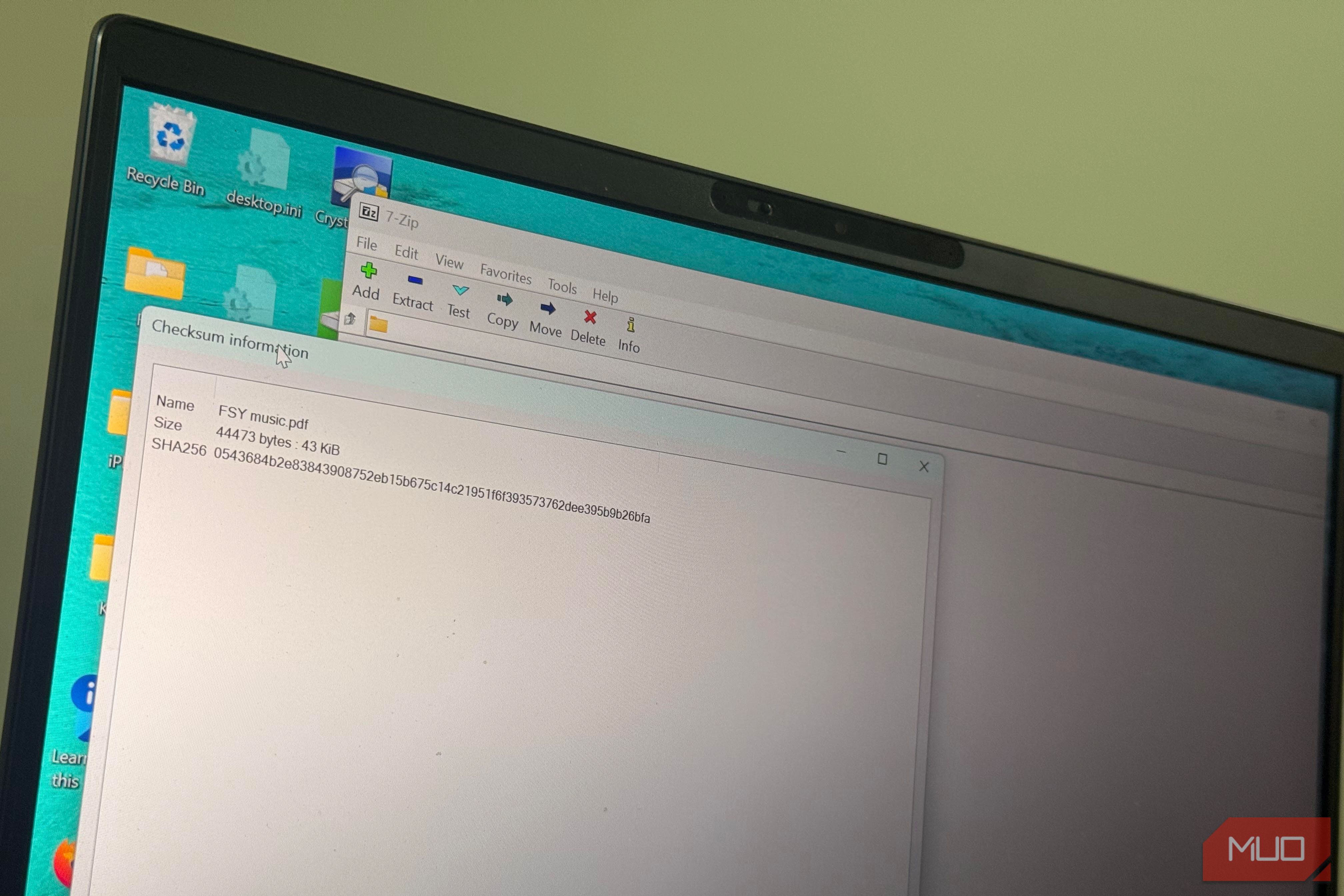
I rarely use a separate checksum tool. Hitting 100 percent on a download’s progress bar usually signals the download is complete. After that, if the downloaded file name looks right and the size matches what you expect, you move on. However, a simple comparison can reveal whether a downloaded file has been corrupted or altered, provided you have a trustworthy reference to compare it against; 7-Zip already has the check built in. Since I noticed it, I now use it for installers, ISOs, and any software that requires elevated rights. The line I’d scrolled past every time I right-clicked a download Two menus deep, doing a job I assumed needed separate software I didn’t know that with 7-Zip’s shell integration enabled, you get a new 7-Zip context menu entry when you right-click a downloaded ISO or app file and select Show more options. If you hover over it and navigate to CRC SHA > SHA-256, 7-Zip will calculate the hash and display the checksum result, usually including the app name, size, and the hash. You can compare this checksum result with the SHA-256 value published by the developer. When I do this check and it matches what the developer displays, it shows that my copy produces the same digest as the reference published for the file. This is something the file name or size cannot prove. Without this check, a completed download only tells you the transfer is finished. You don’t really know if the contents are what they are meant to be. If you change a single bit of the file, the resulting hash will almost certainly be completely different from the original. Within that same 7-Zip menu, there are several other hash types. You choose one based on what the publisher provides, but it’s the same process. It will calculate the file’s fingerprint and give you something to compare against the developer’s reference. This seems like a simple process, but I already have 7-Zip installed for splitting large files, encrypting data, and creating highly compressed archives. Now I don’t need a different app for this integrity check. A match that answers the wrong question My file matched the reference number, and that told me less than I assumed After getting a match, you are probably asking: what have I proven? Well, it’s similar to checking a package against a number on its label. It shows the package and the label agree, but it doesn’t say whether you can trust the person who wrote the number. Matching hashes tell you the file and the reference value correspond, even if the reference value itself isn’t trustworthy. I can run the check on 7-Zip and get a perfect match if an attacker gains access to a download site and replaces both the installer and the SHA-256 value published alongside it. In that case, all you have checked is the modified file against the reference the attacker gave. Digital signatures and hashes don’t answer the same questions. A signature can authenticate a file to a signing identity, while a hash lets you determine whether your copy matches a reference value. But because a successful hash check feels like a green light, you may miss this distinction. A hash check is valuable depending on the reference’s source. You get useful evidence from a comparison if the source is trustworthy. But if a compromised source controls both sides, the check only proves the values match. I don’t verify every file I download I care more about what happens if I get it wrong The consequence of getting it wrong now determines if I check a file I’ve downloaded. I usually would check operating-system images, installers, firmware, and utilities I’m about to execute. These fall into the category of things I would normally run with administrator privileges. When I see a mismatch, I don’t immediately assume someone attacked the file. The publisher may have released a new version, the page may contain a stale checksum, or the download may be corrupted. Regardless, I wouldn’t run it if I wasn’t sure why the values differ. | Check | Tells me | Doesn’t tell me | |---|---|---| | Filename | I got the expected file | What’s actually inside it | | File size | Confirms expected size | Does not prove contents unchanged | | SHA-256 match | It matches the supplied reference | That the reference is trustworthy | | Digital signature | The file is associated with a signing identity | That the signer is automatically trustworthy | | Antivirus | It may detect known or suspected threats | That the file is guaranteed safe | The rule for me is: don’t simply verify everything; think about the consequences of getting something important wrong. For those things that matter, a few seconds checking with 7-Zip is an easy trade-off. Two extra clicks; zero extra software The point of this is bigger than the checksum menu; it’s the habit it’s helped me to build. I’ve learned to right-click first so that I avoid a mistake on a download that actually matters. This way, I don’t have to waste time or incur risk later. I already own the tool, and now I am putting it to use in one extra way that most people ignore.