Summary
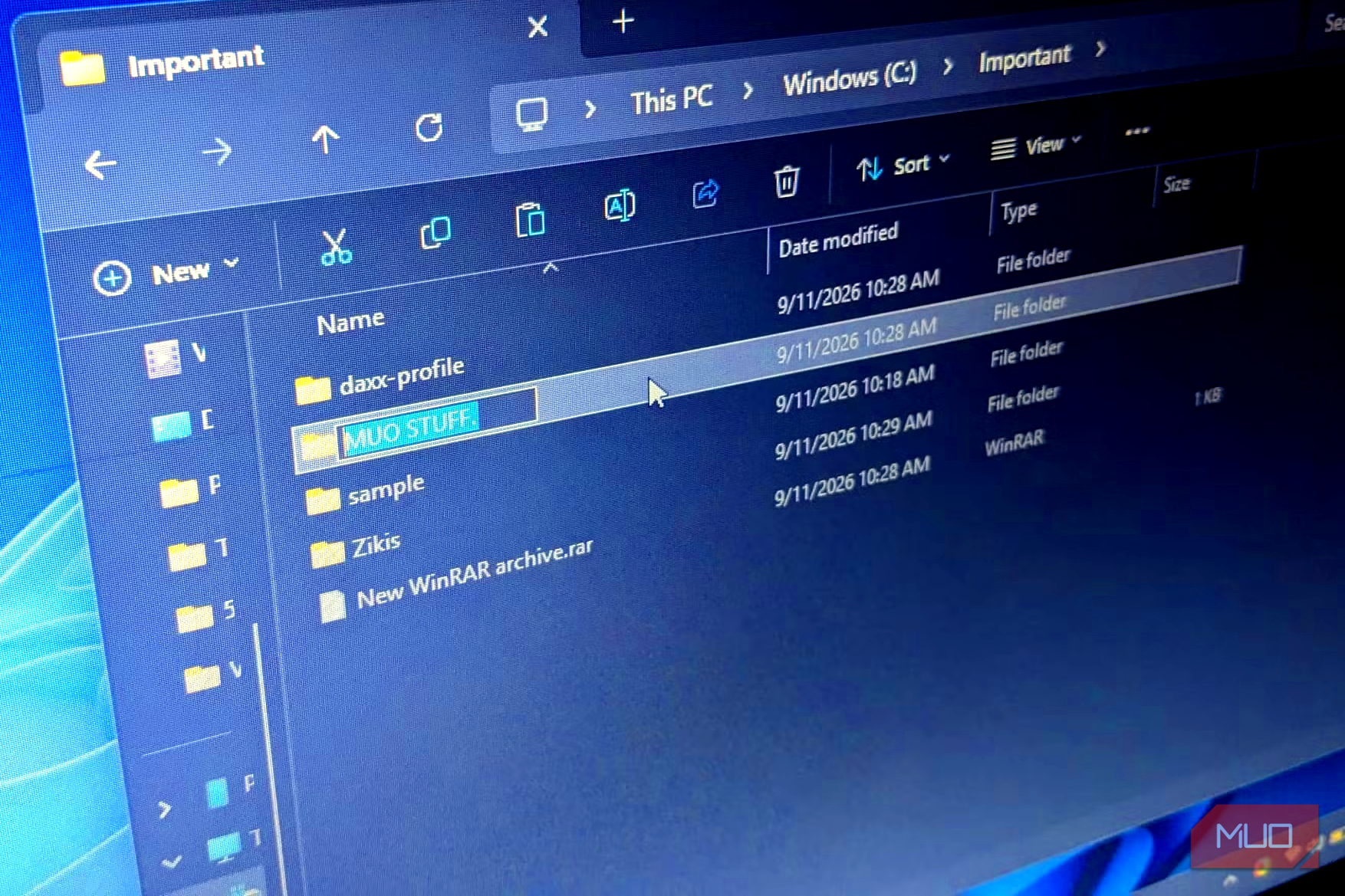
Have you ever renamed a file or folder and had it come out different from what you typed? Recently, while pasting a document title into a rename box, I hit Enter, and the period at the end just disappeared. There was no warning or error message; Windows just removed the character without explaining why.
Now, this wasn’t the first time it had happened. It’s one of those tiny, odd Windows behaviors that becomes the norm, but I wasn’t going to let it slide this time. I needed to know the reason it keeps stripping the period and changing the folder name without even telling me.
It’s not a one-time glitch
Except for files with extensions
If it were a one-off glitch, it would be easier to shrug off. I deliberately tried it with several file types to make sure I didn’t fat-finger it the first time, and Windows removed the period whenever it was the final character in the name.
Files with extensions were different. A name such as document.txt
contains a period, but that period separates the file name from its extension, so it isn’t at the end of the name. I thought folders would be different, but I was wrong. Folders got the same treatment too.
That’s when it stopped looking like a random glitch. Windows was clearly following a rule, and that applies to both files and folders. The obvious guess is maybe Windows’ file system just doesn’t support trailing periods. That would make sense, but it would have been wrong.
NTFS doesn’t actually have a problem
The part that actually stores your files doesn’t care
Microsoft’s file-naming documentation specifically tells Windows users not to end a file or directory name with a space or period. But it also notes that the filesystem may support those names even though the Windows user interface doesn’t.
That was the surprising part. So, NTFS, the system actually responsible for storing the files on my drive, has no problem storing a name ending in a period or a space.
While it’s easy to think of Windows file handling as one system, it has layers involved. For instance, NTFS, exFAT, and FAT32 don’t all handle files the same way; each with its own rules. So whatever was doing the stripping must be a rule somewhere before the file actually sits.
So Windows is still following some very old rules
Win32 normalization is a thing
The answer is in how normal Windows apps handle file paths. File Explorer, Notepad, and most everyday Windows apps use the standard Windows file-handling APIs, known as Win32. It sits between an app and the file system and processes file paths according to a set of rules before working with the file system.
So, under Win32 normalization rules, a trailing period or space gets treated as something that shouldn’t survive to the end. That’s why my period disappeared without an error. Windows cleaned it up before handling the name.
The weird part is that this behavior exists alongside a much newer filesystem that doesn’t necessarily need the restriction. Windows has changed since the days of DOS, when filenames followed a strict eight-character, plus three-character format that had no room for a trailing period.
While NTFS supports long filenames, Windows is still carrying an older naming system forward. It’s part of a small pile of things Windows 11 still won’t let you do due to history and compatibility issues.
The period at the end of my filename was one of those rules hiding in plain sight. But I still wanted to know one thing. If the file system could support the period, could I actually make Windows keep it?
I forced Windows to keep the period
Going around the gatekeeper with the \?
prefix
In each of the following examples, the period before the closing quotation mark is part of the command.
To confirm this was Win32’s doing, and not an issue with NTFS restrictions, I used Command Prompt with a special path prefix. This prefix tells Windows to hand the request straight to NTFS. I used: type nul > “\?\C:\Important\sample\config.”
This time, Windows created a file named exactly with the period intact. This was enough to confirm that the trailing period wasn’t simply impossible to store.
Then I repeated the same experiment with a folder using:mkdir “\?\C:\Important\sample.”
And again, the folder appeared with the period clearly visible. Using them was a different story entirely. File Explorer froze for about a minute before responding again when I double-clicked on the file. Clicking the folder created a Location is not available error, insisting the folder didn’t exist while it sat right there.
Renaming, deleting, cutting, and copying all failed the same way, with Windows popping up a Could not find this item error at every attempt. This is the kind of freeze you’d expect from File Explorer just refusing to respond for entirely unrelated reasons, except this time, the cause was already known.
Windows hadn’t created some mysterious broken folder. I had created a name NTFS could store, but normal Windows file handling wasn’t designed to handle it comfortably.
I eventually had to use the special path again to remove what I had created. For the file, I used:
del “\?\C:\Important\sample\config.”
For the folder, I used:
rmdir /s /q ”\?\C:\Important\sample.”
Since I couldn’t use it or open it, File Explorer basically treated it as non-existent, even though the file and folder sat right there.
A missing period is worth caring about
Where it might bite
A trailing period sounds like an incredibly minor thing to care about, but you’re not always the one typing filenames.
Scripts, exported program files, and pasted text can all produce filenames ending with a trailing period or space without anyone noticing, especially with Windows’ existing character and path length limits, which cause their own headaches.
If Windows displayed an error saying the name wasn’t allowed, you’d know something was wrong and change it. Silently removing a character is different. The file gets created, and you usually don’t find out until something downstream stops matching.
Most of us would probably never run into this or need to worry about it. I had seen Windows remove periods before without giving it much thought. But this time, I followed that tiny behavior’s rabbit hole to a rule that’s been around since before most of us owned a computer. Nothing about it is actually broken. It’s just an old compatibility rule that has survived, even with much newer file systems already in place.