Summary
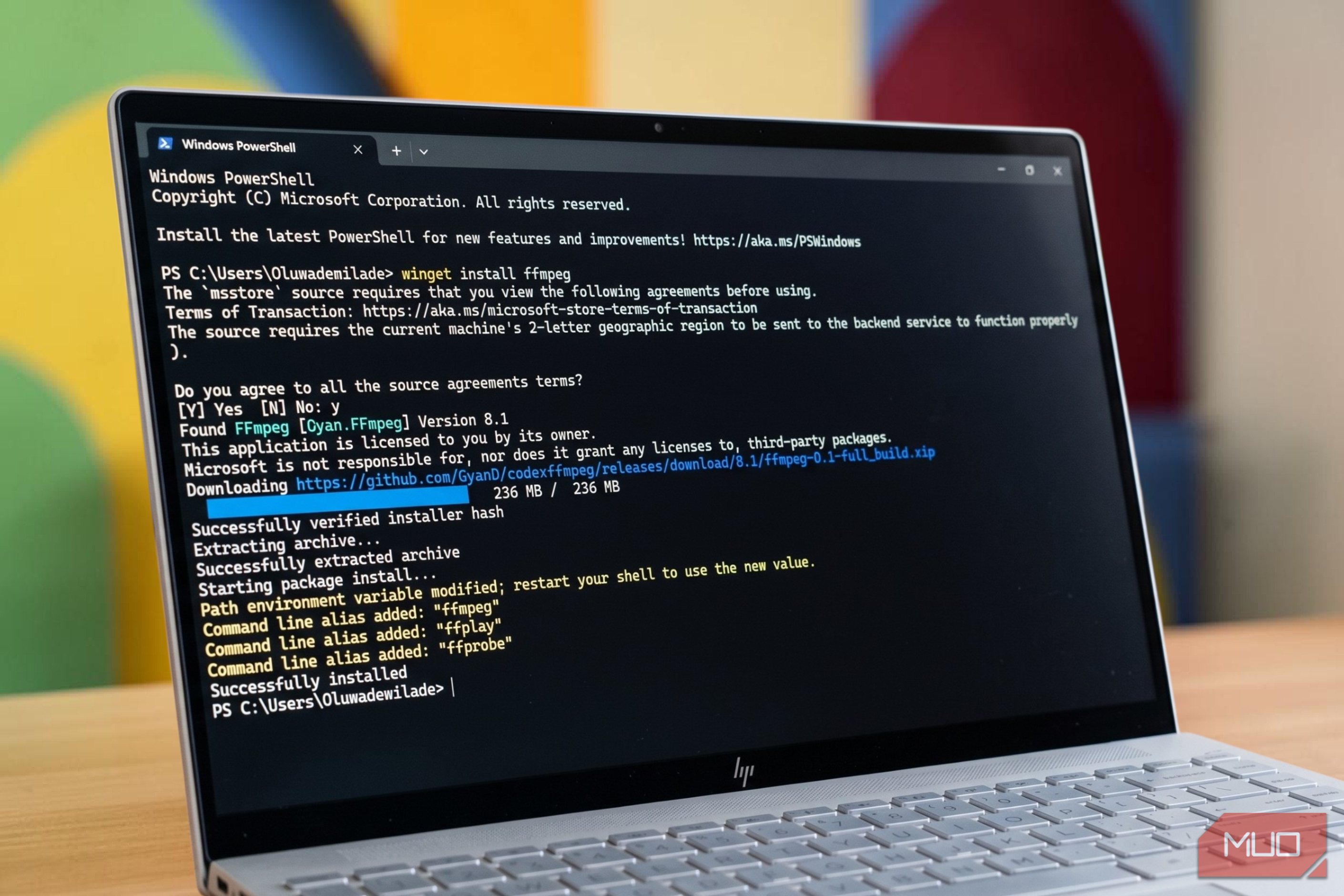
I love using Windows, but I’m not a fan of bouncing between Settings, Control Panel, Microsoft Store, and File Explorer to get the basic stuff done. They all work great, but they aren’t exactly quick. The good thing is that Windows gives me options. There are enough commands built into Windows for managing settings, installing apps, moving files, and fixing network issues. These commands let me get the same job done faster, without opening a single extra window. Winget for managing apps Install and update apps without any hassle Microsoft Store is great, but it doesn’t list every app. And that means you often have to rely on third-party sites and direct downloads to get your favorite apps. But even after you do that, updating those apps still isn’t seamless. Winget can solve this. It’s Windows’ built-in command line manager that lets you install, update, and manage apps directly from command prompt. For instance, running winget install Google.Chrome installs Chrome. If you don’t know the exact command for an app, winget search chrome can help with that too. The main benefit here is that you don’t have to deal with half a dozen prompts just to install a simple tool. For updates, winget upgrade gives you a list of all pending app updates in one shot. If you want to install them in one go, running winget upgrade —all takes care of it. Winget also has a command for uninstalling apps. To uninstall Spotify, for instance, you simply have to type winget uninstall spotify , and that’s it. SFC to repair system files Repair corrupt files with a single command If you’ve used Windows long enough, you already know how it can sometimes behave weirdly for no obvious reason. Apps crashing randomly, File Explorer freezing, startup errors, or general instability are all common issues. Sometimes, it’s not very specific, but you can tell something isn’t right. SFC (System File Checker) is a command for such occasions. It scans all system files on your PC and compares them against their known-good version. If there are files that are damaged or missing, this command fixes them automatically. And all you really need to do is run sfc /scannow and wait for it to run. Robocopy of faster file transfers Nobody likes waiting Copying and pasting files the usual way on Windows can be slow and unreliable. But it doesn’t have to be this way. Robocopy is an admin-level tool that lets you transfer files much faster. It handles small files better, doesn’t stall when running into a problem, and supports multi-threaded copying. The basic syntax is Robocopy source destination , so copying from one drive to another drive looks like this: Robcopy D:\Photos E:\Backup\Photos There are also parameters you can use, like typing /E copies all the subfolders, /MT:16 uses 16 threads, /ETA shows the estimated time remaining, and so on. I wouldn’t bother with Robocopy for smaller files, but if you’re moving large folders and files, robocopy is definitely worth the hassle. Taskkill for terminating frozen processes The nuclear option for stuck apps For most users, Task Manager is the usual choice for killing frozen apps and programs. Windows even has a handy “End task” option for force-quitting apps directly from the taskbar. At times, though, neither option works. Taskkill lets you end such a process straight from the command line. You can type taskkill /IM processname.exe and Command Prompt takes care of the rest. Typing /F at the end of the command force-quits the app. Typing /T kills the process along with anything it spawned. I reach for this whenever using the taskbar or Task Manager isn’t an option. Del to clear temporary files with ease Spring-cleaning without third-party tools As you work, play, or do anything else on your PC, Windows piles up temp files constantly in the background. These are usually harmless, but they can also take up space over time. The good news is that you don’t need to use dedicated cleanup apps or delete files manually via File Explorer. You can type these two commands and remove all the temporary files in one go. del C:\Windows\prefetch*.*/s/q del /q /f /s %TEMP%* The first one clears out the Prefetch folder, which Windows uses to speed up app launches. The second one targets the Temp folder, where apps dump temporary files they’re supposed to clean up after themselves and often don’t. The /q flag skips confirmation prompts, /f force deletes read-only files, and /s clears out subfolders as well. Fix network problems in seconds Three lines to internet sanity When the internet acts out, the first instinct is to open the Settings app and go through network settings one by one. That works, but Windows has a few commands that can save you some time here. You can run these three commands, and your network issues will most likely be sorted. ipconfig /flushdns netsh winsock reset netsh int ip reset The first one clears the DNS cache. Windows stores DNS lookups so it doesn’t have to ask for them every time, but that cache can become outdated over time and cause problems. The second one resets the Winsock catalog, which is what Windows uses to handle network connections at a lower level. Finally, the third resets your IP settings to default in case things like VPN or a setting are causing a problem.