Summary
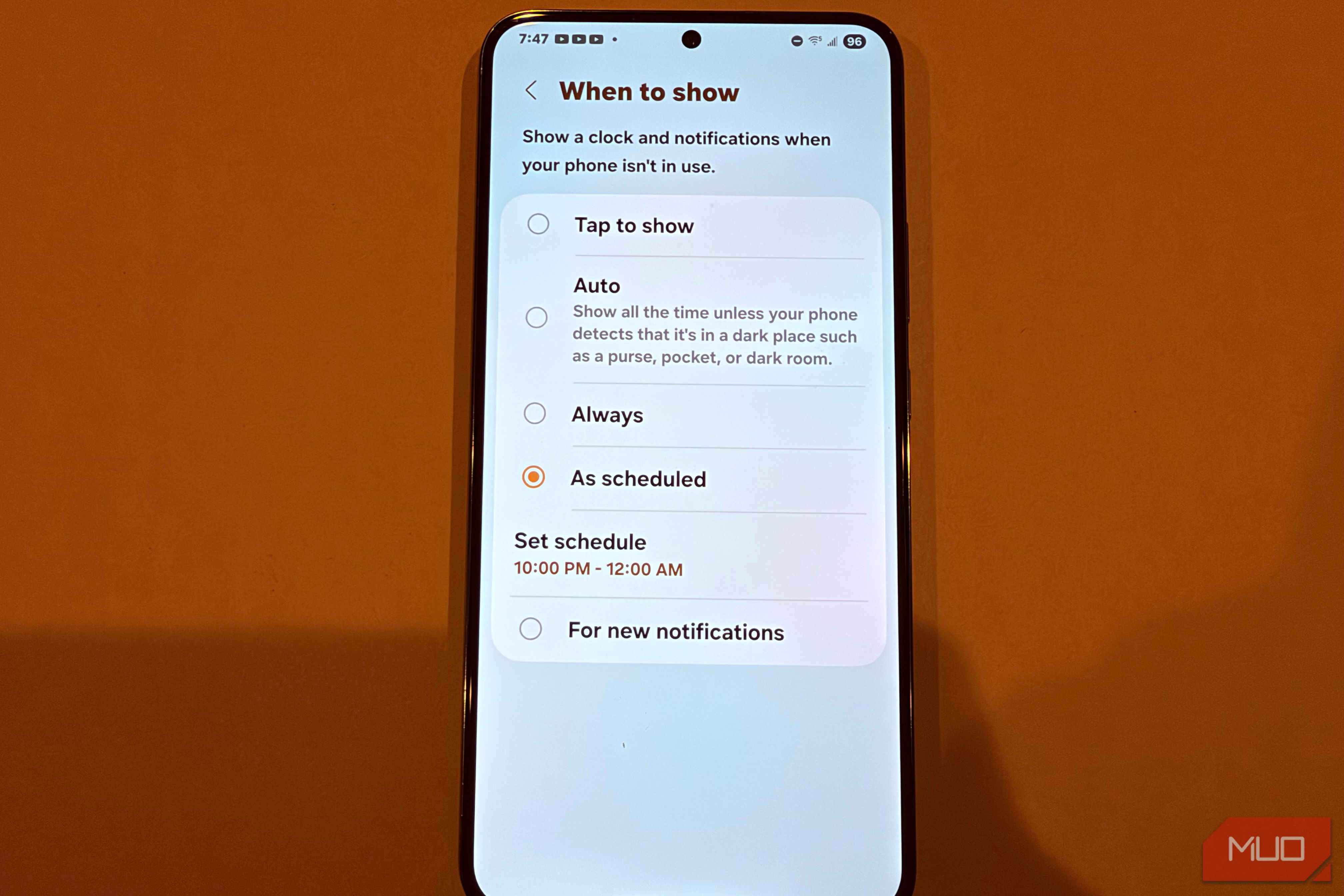
Always on display (AOD) is a genuinely clever feature, but running it all day is mostly wasted power. Also, if you’re wearing a smartwatch, your phone’s AOD is doing a job that’s already being done on your wrist — and draining the battery to do it. Here’s a hidden Samsung Galaxy setting that lets you schedule AOD for the hours you’ll actually use it. Always on display is a significant battery waster You don’t need your screen to always be on! I almost always keep my AOD turned off for several key reasons. The biggest is that AOD is simply an unnecessary drain on battery—you don’t need your phone’s screen to always be turned on, even though it is power-efficient (where, on AMOLED, only the illuminated pixels use power), just to see the time or your notifications’ status at all times. If you’re wearing a smartwatch, AOD is totally redundant (the time and your notification status are already on your wrist!). Even if you don’t wear a watch, we live in a world where most people spend all day in front of a computer where you constantly see the time, and in most cases, where you also see your notifications (especially if you have a Mac or are using Windows with Phone Link). The latest phones, especially the most recent flagships from Samsung (like most Ultra phones and all Galaxy phones starting with the S24), utilize LTPO displays that can refresh as low as 1Hz. These screens can minimize power usage by refreshing at just one time per second, like when using AOD. Despite this, you’re still powering thousands of pixels to make AOD work. On an AMOLED screen, unless you’re seeing a truly black pixel (which draws zero power), the screen is still using battery, and it’s unnecessary. The power drain isn’t huge, but it’s not zero. If you still insist on using AOD but want to minimize battery drain, there’s a non-obvious feature built into Samsung phones that lets you schedule AOD at certain parts of the day. If you really want to keep it on, set up an AOD schedule It’s built into your Samsung Galaxy You can set up a schedule for when AOD is active, and you can use it to be more gentle on your battery. I’ll explain how I have mine set up, but to start, you can access AOD scheduling by going to Settings > Lock screen and AOD > Always on Display > When to Show > As scheduled. I have my AOD scheduled to run for five hours per day from 5pm until 10pm. This is because during that period of time, I’m off work and usually not in front of a computer (and by then my smartwatch is usually away on the charger), so it’s handy to have the time always showing if I keep my phone face-up. This schedule also reduces the temptation to check my phone for notifications, like when I’m around my kids, as the AOD is helping me to keep track of any important notifications. Then, I have AOD ending at 10pm which is around the time I plug my phone in for the night and head to bed. By doing this, I’m giving my screen a rest and instead of running AOD for the entire day, it’s just on for a handful of hours when I actually could benefit from it. If you still want access to the time and your notifications without the battery drain, you have some other options. Some alternatives to AOD Lift to wake or wearing a smartwatch can achieve the same thing As mentioned, wearing a smartwatch removes the need for AOD since watches are designed to sip power while displaying the time and your notification status at all times. But if you don’t have one, or don’t want to wear one, there’s a middle ground if scheduling AOD isn’t enough: use lift-to-wake. This is the sister feature to tap-to-wake (which is also a big battery waster as it’s keeping your phone’s digitizer active even when in your pocket). Lift-to-wake lets you turn on your phone’s screen briefly for a glance at the time and your notification status with minimal battery draw since it’s using your accelerometer. To turn this on, go to Settings > Advanced Features > Motion & gestures > Lift to wake. Setting an AOD schedule saves a lot of battery By using some of these tricks, you can minimize the power draw of AOD if you’re smart about when you actually need it so that you can set a schedule. How much can you save? I was able to end the day with 5-10% more battery by scheduling AOD versus keeping it on all the time. It’s not a huge difference, but it’s significant.