Summary
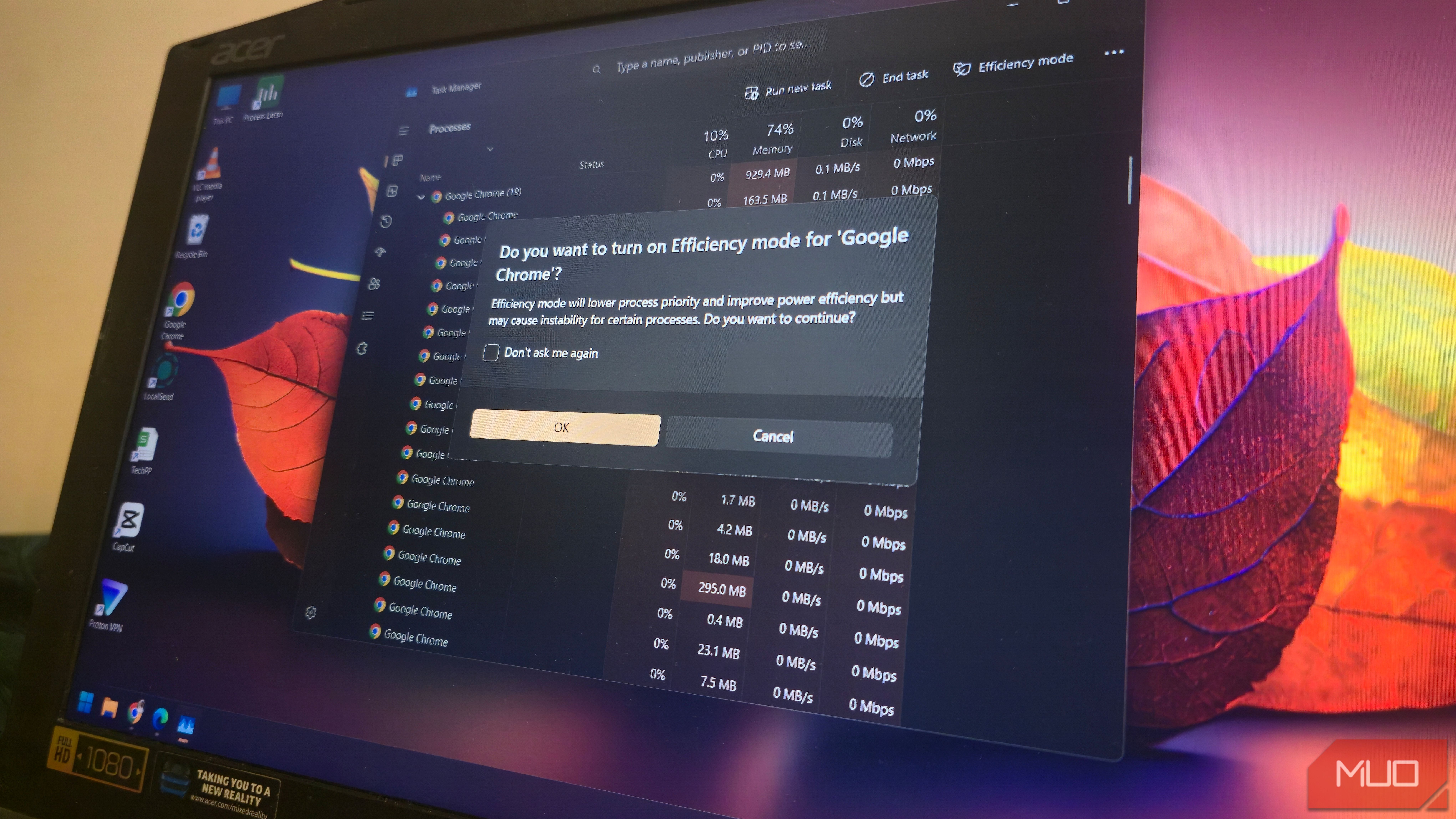
There are lots of resource-heavy apps on Windows (I’m looking at you, Google Chrome). These apps can consume a huge chunk of CPU and memory and, in some cases, slow down the overall performance of your PC. Efficiency mode is Windows 11’s solution to this problem, and the idea makes sense. If an application is using more resources than it needs, Windows can reduce its priority and limit how much CPU power it gets to help keep the rest of the system responsive. The problem is that those resource-hungry apps often need those resources to function properly. And if I have enough CPU and memory to spare, why not just let the apps use what they need to work at their full potential? But Efficiency mode can kick in automatically without my consent, depriving an application of resources even when I’m actively using it, which can make the app feel slower. Windows 11 often decides which apps get throttled Efficiency mode lowers a process’s priority and tells the CPU to favor power efficiency Efficiency mode, originally introduced as Eco mode in Windows 10, was renamed to Efficiency mode with Windows 11. When Windows detects an app using too many resources, it can automatically put it in Efficiency mode, which drops the process priority to Low and applies EcoQoS (Quality of Service). Low priority means other tasks can get CPU time before that process does. Meanwhile, EcoQoS tells the CPU to use its most power-efficient cores and clock speeds for the process. You can see when Efficiency mode is active by opening Task Manager. If Windows has applied Efficiency mode to a process, you’ll see a small green leaf icon next to it. This seems like a reasonable way to prevent background processes from consuming resources unnecessarily. But oftentimes, apps that actually need the resources are the ones getting slammed with the Efficiency mode tag. An application using a lot of CPU or memory isn’t necessarily doing something wrong. Sometimes it uses that CPU because I’m actively asking it to do something. Chrome is a good example. If I have dozens of tabs open, several web apps running, and a few extensions doing their thing, Chrome can consume a lot of resources. But that doesn’t automatically mean I want Windows to interfere with it. Having Windows decide that the process doesn’t deserve all the resources it was using can result in slower responses and a less responsive experience. In other words, Efficiency mode is trying to solve a problem I don’t always have. Task Manager lets you disable (and enable) Efficiency mode for specific apps You may need to expand some processes to get the option Windows 11 doesn’t give users a system-wide switch to disable Efficiency mode. But I can manage it on a process-by-process basis through Task Manager. If I open Task Manager, right-click a process, and look for Efficiency mode, I can manually disable the feature for that particular process/app. In some cases, though, the option is grayed out and unavailable. For example, when I tried to turn off Efficiency mode for Chrome on my PC, I found the option wasn’t available. Depending on your Windows 11 build, you may not be able to select the Efficiency mode option when you right-click a process in the Task Manager. But don’t worry; all you have to do is expand the process, and the several subprocesses underneath it should have the option. Then, you can disable the option on the individual subprocesses under the main process. Turning Efficiency mode off doesn’t make the change permanent. Windows can still automatically reactivate Efficiency mode on an app you’ve previously disabled it for Best performance mode reduces how aggressively Windows uses Efficiency mode It’s not a switch for Efficiency mode, just less incentive to use it Windows gives you some control over how aggressively it prioritizes power efficiency through its power mode settings. If you don’t want Windows to be as aggressive about saving power and you’d rather prioritize performance, you can change the power mode to Best performance. To do this, open Settings > System > Power & battery. Under Power mode, select Best performance. Mind you, Efficiency mode and power mode aren’t the same thing. And changing your power mode doesn’t give you a master switch for Efficiency mode. The setting only tells Windows to prioritize performance over power savings, which in turn can affect how quickly it decides to apply Efficiency mode. I just want Windows to let me use my resources Efficiency mode isn’t a bad feature at all. I would even say it’s a great feature if it gives me more control, like a system-wide switch or a simple way to tell Windows to not throttle a given application. Unfortunately, that’s not the case. Windows can decide which app gets throttled, and you may not even know until you start noticing the app fumble. You have to then check the Task Manager and turn off the feature. If I have plenty of CPU and memory available, I’d rather let the applications I’m actively using take advantage of those resources. What’s the point of using a high-end PC if my apps can’t run at the max?