Summary
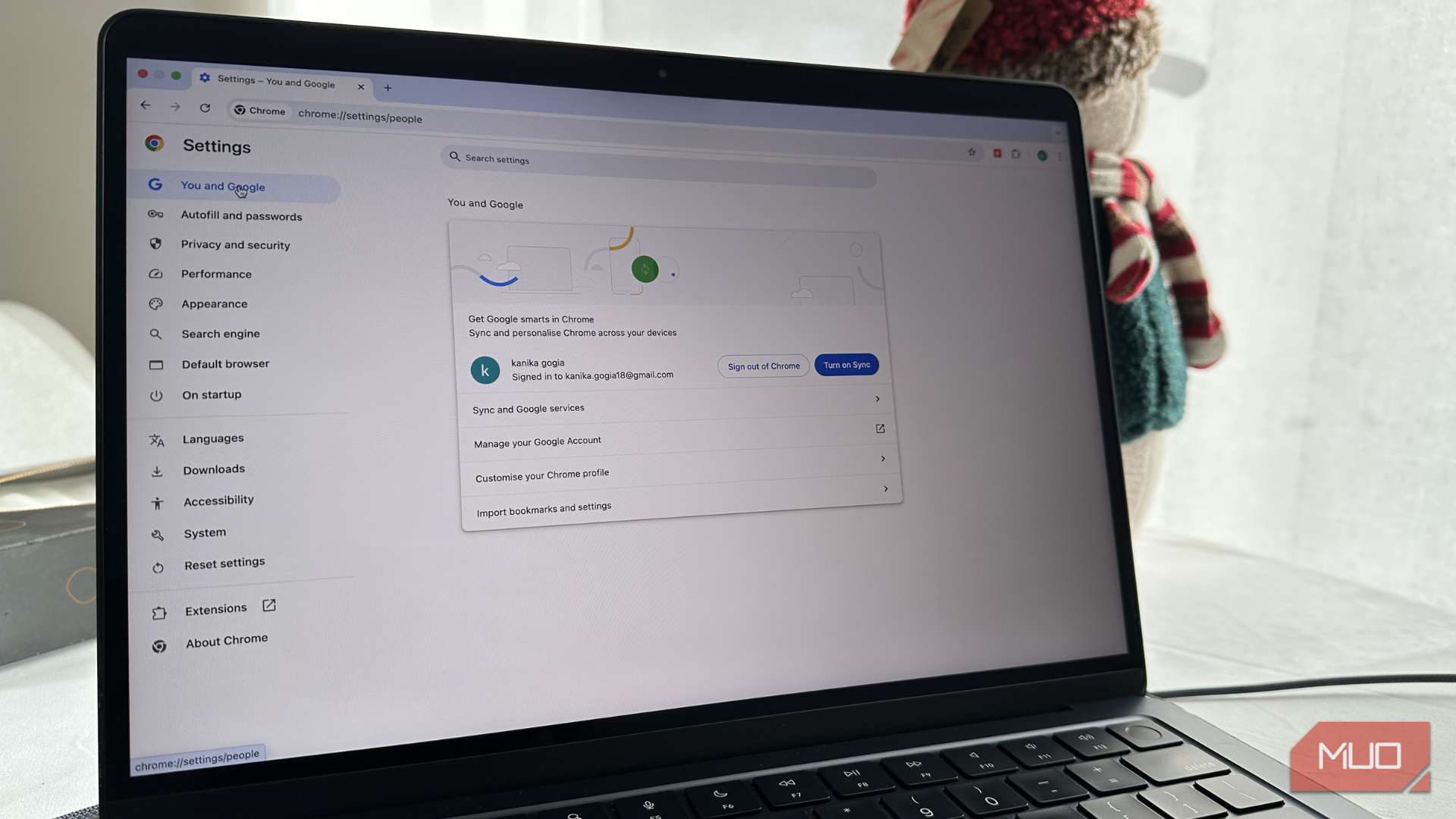
Chrome is arguably the best browser out there, at least number-wise. It holds over 69% of the global browser market share as of August 2026, according to StatCounter GlobalStats. So, even though I hate on Google Chrome every little chance I get, rightfully so, of course, it’s still what I and more than half of internet users use. But the difference between most Chrome users and me is that I don’t use Chrome exactly as Google ships it. Anytime I install Chrome on a new device, there are a few settings I immediately change to make the browser feel more private, less demanding, and overall more pleasant to use. None of these changes requires extensions or anything complicated, as they’re all settings Chrome already gives me. I just don’t leave them at their defaults. Block third-party cookies Not all cookies are bad, but I don’t need advertisers tracking me across the web There are two types of cookies you can come across when you open a website: first-party cookies and third-party cookies. First-party cookies are created by the website you’re visiting, and they are actually helpful. They can remember things like your login status, language preferences, items you’ve added to a shopping cart, and other settings that make the website work the way you expect. Third-party cookies, on the other hand, are where things get wicked. They’re often used by advertisers to track your activity across different sites, so they can serve you personalized ads. I don’t know if you are, but I’m not interested in making it easier for advertising networks to follow me around the web. So, blocking third-party cookies is exactly what I do. I just go to Settings > Privacy and security > Third-party cookies and choose Block third-party cookies. However, there are some websites that need third-party cookies to function properly. Fortunately, Chrome gives me a way around that. On the same Third-party cookies settings page, I can add specific websites to the list of sites that are allowed to use third-party cookies. Set Memory Saver to the max Chrome’s most aggressive memory-saving setting helps keep inactive tabs from eating up RAM Chrome has earned its reputation for being hungry for memory. I’ve literally seen a single webpage consume around 1.2GB of RAM on its own. Multiply that by the dozens of tabs I can have open while researching something, and even my 16GB RAM laptop will begin to feel the heat. Chrome’s answer to this is Memory Saver. The feature is enabled by default, but Chrome normally uses the Balanced setting. That’s fine for most people, but I prefer to be more aggressive with it. In some situations, it can take a while before Chrome decides an unused tab should be deactivated. Until then, those old tabs can continue occupying active memory even though I’m not using them. So, I go to Settings > Performance, make sure Memory Saver is enabled, and choose Maximum. This makes Chrome more aggressive about putting inactive tabs to sleep. When I return to one of those tabs, Chrome reloads it instead of keeping the entire page sitting in memory the whole time. Stop Chrome from running in the background Closing Chrome shouldn’t mean leaving hidden processes running A lot of people don’t know that Chrome can continue running in the background even after you’ve closed every Chrome window. In other words, clicking the X doesn’t mean Chrome has completely stopped working. This happens because of a setting, and yes, you guessed correctly, it’s turned on by default. As with every other background app, Chrome running in the background means it will continue to consume system resources. No one wants their precious resources to be used by an app that’s already closed. Like, what can I possibly need Chrome to do when I’ve closed it? I close Chrome because I’m done using it. Well, to stop Chrome from overworking itself and my resources, I go to Settings > System and turn off Continue running background apps when Google Chrome is closed. Disable page preloading Chrome doesn’t need to load websites I might never visit Based on your browsing history, Chrome can predict the websites you’re likely to visit next and load them in the background so they open instantly when you click them. The idea sounds useful, and under the right circumstances, it can make browsing feel quicker. The downside is that Chrome has to do some work before I even ask it to. Preloading can consume additional mobile data, battery power, and system memory. So, what if I don’t end up visiting the sites Chrome predicts I’ll visit? The resources it used to preload them are just wasted. I’d rather Chrome load a webpage when I actually decide to visit it. So, to turn off the feature, I go to Settings > Performance, and disable Preload pages. I might give up some of the speed benefit that preloading can provide, but I also avoid Chrome spending resources on webpages I may never open. On a laptop or a metered connection, that’s a trade-off I’m perfectly happy to make. I don’t have to use Chrome as I got it Chrome is popular for a reason, and I’m not pretending these settings suddenly turn it into a lightweight or privacy-focused browser. But I also don’t see a reason to accept every default setting just because Google chose it. None of these changes takes more than a few minutes, but they make Chrome feel much more suited to how I actually use it. So, yes, I still use Chrome despite all the things I complain about. I just don’t use it with Google’s default settings.