Summary
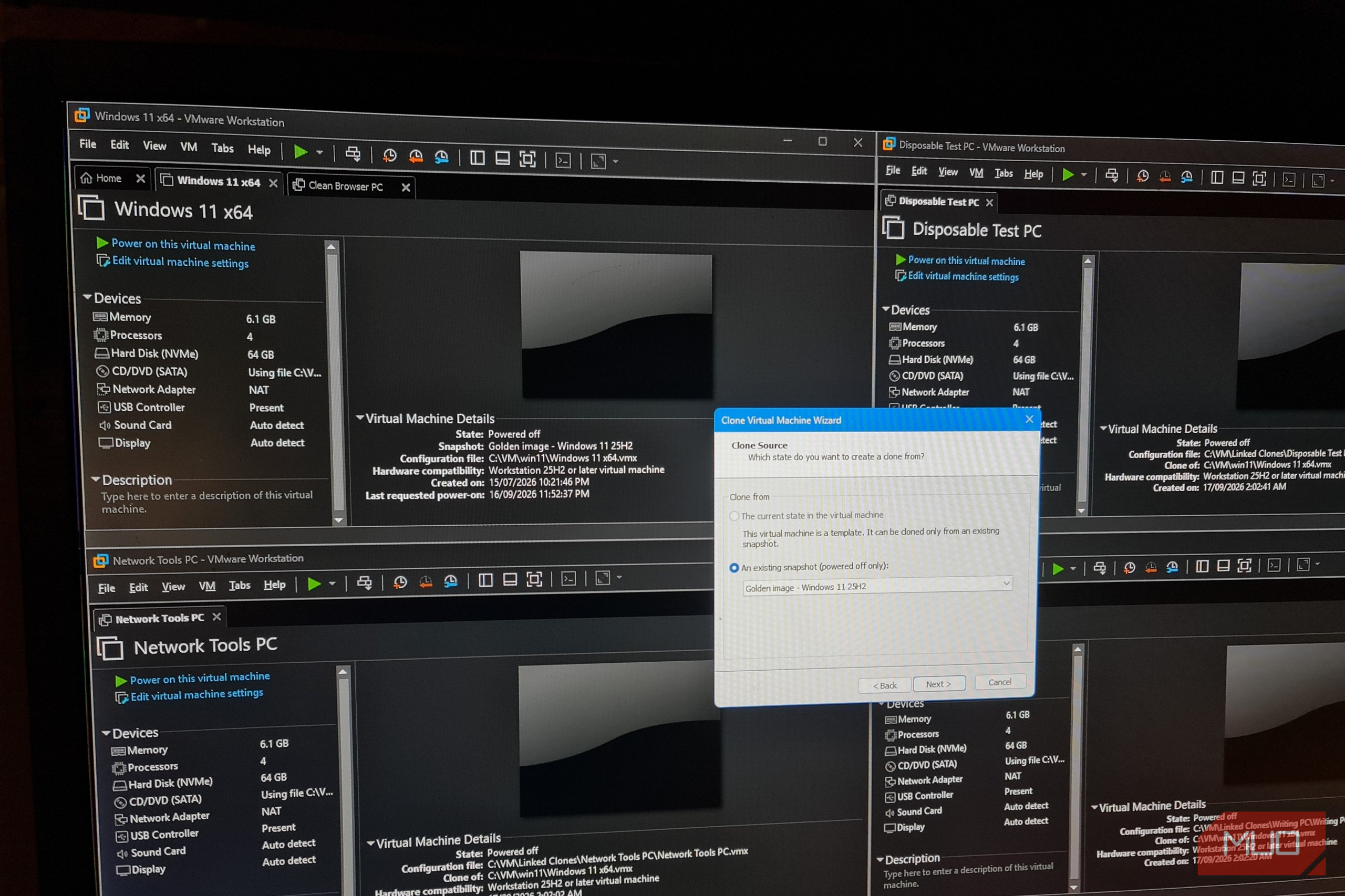
I had a modest 100 GB free on my laptop, with one properly configured Windows virtual machine already occupying more than 20 GB. Creating five fresh PCs the usual way would have meant sitting through Windows Setup five times, updating them, personalizing them, and wasting precious hard drive space. Instead, I built one golden image in VMware Workstation and created five linked clones that share its virtual disk. Each clone can be spun up in seconds and only occupies 8.0 MB of hard disk space when initially deployed. After configuring and customizing each one, the complete setup, including the original VM, only used 32 GB. The cloning was the easy part, but making the parent VM was anything but. I had to make one Windows installation worth cloning Every shortcut later depended on getting the parent right first I didn’t install Windows again just to make this work. I already had a licensed Windows 11 lab VM that had been optimized but was hardly considered “golden.” It had a few forgotten VMware snapshots that had made its size balloon to 86.93 GB, a 64 GB thin-provisioned disk, and a virtual TPM with partial encryption. Since I’d long forgotten what the snapshots were supposedly saving, I deleted them both, which consolidated the folder to 39.13 GB. I then turned the current installation into a baseline I would actually be happy to clone:
- Windows 11 25H2 building 26200.9457, up to date with patches.
- The latest VMware Tools version 13.1.5.0.25544008
- Firefox, 7-Zip, and Notepad++
File extensions enabled, startup apps trimmed, and annoying Windows Taskbar features removed. That means every future machine will get a clean browser, archive utility, editor, and current driver integrations from the very first boot. I also disabled hibernation with powercfg /hibernate off and removed its hiberfil.sys file, and ran DISM /Online /Cleanup-Image /StartComponentCleanup . VMware’s Compact function then got the VM files down from 39.17 GB to a more reasonable 23.61 GB. The annoying part came when I went to test cloning. VMware disables the ability to create linked clones when a VM is encrypted. On my golden VM, the Windows virtual TPM was the reason there was partial encryption. My volume was fully decrypted, so I safely removed the vTPM and VMware encryption, recreated my Windows PIN, and confirmed the VM still booted. Finally, I shut it down, created the golden snapshot, and enabled Template Mode to protect the parent from me inadvertently altering it. Five new Windows PCs appeared in seconds Linked clones store my changes without copying Windows five times A VMware linked clone isn’t just another copy of the VM. It reads unchanged blocks from the golden snapshot and writes only its own new data to what’s called a “delta disk”. That dependency is how VMware created my five cloned PCs, all with different jobs:
- SOFTWARE TEST PC for testing software on a new machine.
- Clean Browser PC for testing web pages on a browser with no add-ons or cookies.
- Network Tools PC for packet inspection in a controlled environment.
Writing PC for testing
world-buildingandmind-mapping softwarein isolation. - Disposable Test PC for when I really need to break Windows.
VMware gave every clone a different virtual MAC address and UUID automatically. Unfortunately, the Windows VM clones still inherited the parent’s WIN11-GOLDEN
computer name. I renamed each guest after its first boot with Rename-Computer -NewName “
, then repeated the process for every linked clone.
Putting the golden image in Template Mode keeps both VMware and me from accidentally deleting the parent VM. It doesn’t make the clones temporary. In fact, their applications, files, and settings all survive a reboot, unlike a VM with an Independent-Nonpersistent disk.
The only way to return the linked clones to their original state is to delete them and spin up a new linked clone.
 VMware Workstation Pro
- OS
- 64-bit Windows and Linux
- CPU
- 64-bit Intel and AMD x86/x86-64 PCs The storage difference was bigger than I expected Five useful machines consumed less space than two full copies The clearest comparison of disk usage came before I installed any role-specific software on the clones:
- A new linked clone before boot used only 0.008 GB.
- A representative linked clone after its first boot used 0.579 GB.
- A full clone made before boot occupied the same amount as the golden VM at 23.603 GB. That made the full clone about 40 times larger than a linked clone that had already booted once, restarted, and received its new hostname. The gap narrowed as I started using the machines, but not to the extent of a full clone. Their final delta disks only reflected what was actually installed. Clean Browser PC, for example, reached 0.749 GB, and the Writing PC grew to 4.778 GB after Obsidian, LibreOffice, and my favorite writing tools were installed. Linked clones won’t stay tiny forever. They do grow after each update, application install, and changed disk block that belongs to that clone increases its delta file. Even so, the ~24 GB parent and five custom PCs still occupied only 32.327 GB combined. If I had simply made full clones, then the hard disk space required for all of them would have exceeded 118 GB. The linked clones therefore saved around 85 GB, or 73%. Since the customized full clones would have grown too, the longer-term disk space-saving is potentially much higher than that. Each clone became a genuinely different PC The shared foundation didn’t force them to stay identical At first glance, it does look as though every one of the clones is just the same PC copied five times. That’s true, but only at the point of creation. Each inherited updated Windows, VMware Tools, my preferred settings, and installed software, but then diverged as soon as I used it:
- Software Test PC got Process Explorer and Autoruns.
- Clean Browser PC got Brave and Opera browsers.
- Network Tools PC had Wireshark and Nmap installed.
- Writing PC got Obsidian, LibreOffice, Scrivener, and its one test vault. Everything added after that remained inside that clone’s delta disk. My Obsidian vault didn’t appear on Network Tools PC, and Wireshark never reached the Writing PC or the golden VM. The shared baseline was common to all five, but the machines’ applications and files were independent. There was, of course, still an obvious hardware limit. My laptop, with only 16 GB of RAM, could store all five VMs comfortably, but each VM had 6 GB of RAM assigned. I could run them independently, but not simultaneously. Just because linked clones save disk space doesn’t mean they share or increase memory or CPU. Deleting a broken PC was easier than repairing it The clean replacement arrived before I could troubleshoot the old one The Disposable Test PC gave me one of the best reasons to keep this setup. To test it, I deliberately spoiled its pretty desktop wallpaper with a solid red color, installed VLC and Power Toys, removed the browsers and Notepad++, and created 20 junk files on the desktop. After this, its delta file grew to roughly 3.5 GB. I could have uninstalled the new applications, restored the missing ones, deleted the clutter, and reversed the changed settings. But why? As it turns out, it’s much easier to shut down the ruined VM, delete that linked clone, and spin up a new one in under a second. After doing just that, the replacement occupied only 0.650 GB. The ugly red wallpaper was gone, along with junk files and VLC. Firefox and Notepad++ had also returned as they were installed on the golden parent image. Anything that’s stored inside the deleted clone disappears along with it, so it goes without saying that disposable PCs shouldn’t hold irreplaceable work. The benefit, though, is having the freedom to experiment. When I’ve destroyed a linked clone VM beyond the point of no return, I can replace it instantly without having to either fix it or reinstall Windows. The golden image is also the single point of failure Linked clones are excellent lab machines, but poor independent backups The weakness is that none of these linked clones is an independent PC. Each requires the parent VM, its golden snapshot, and shared base disk to remain intact. Try to move it, delete it, or re-encrypt it, and all five linked clones will fail. Maintenance is also a problem. Existing clones won’t inherit updates or applications added to the parent later. I would need to update the golden image, take a new snapshot, and rebuild the clones that needed those changes. Encryption was, for me, the most uncomfortable compromise. Since VMware refuses to create linked clones unless I remove the encrypted TPM, the Windows 11 lab image is left without one of Microsoft’s normal hardware requirements. The parent also passes along any accounts, credentials, or personal files. In theory, the linked clone VMs shouldn’t have received Windows licensing activation, but they did. In time, they will likely lose it, although after several weeks of using this setup, it’s yet to happen. I would choose full clones for any permanent, security-sensitive, or portable machines. For disposable labs, browser testing, and software experiments, the dependency on the parent VM is reasonable enough. Finally, even though my perfect Windows installation did take hours to prepare, every fresh PC took seconds to deploy. When combined with the disk space saved from using the clones, the compromises are definitely worth it for my workflows.