Summary
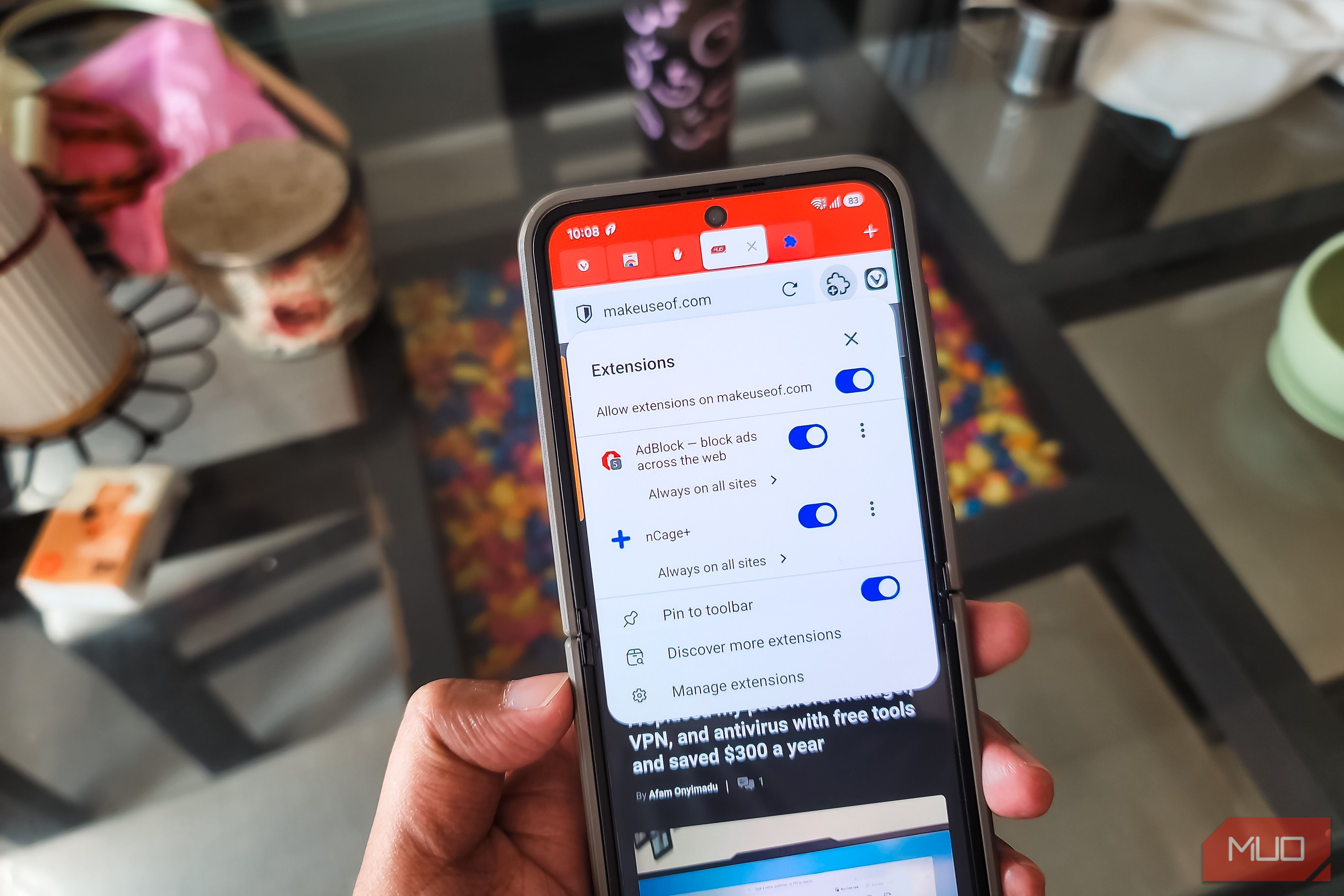
Chrome is the most popular browser on PC. However, on Android, it lacks the feature that makes it so easy to recommend on a PC: extensions. Chrome for Android won’t let you install any extensions from its popular Chrome Web Store. Fortunately, many other Chromium browsers can do what Chrome can’t. And at the top of that list is Vivaldi. The latest update to this feature-rich Android browser lets you install extensions from the Chrome Web Store, just like you would on your PC. I made the jump from Chrome to Vivaldi on Android a long time ago, and this update gives me even more reason to keep it as my default. Vivaldi can run Chrome extensions The same Web Store, now on your phone For someone like me, who does most of his work in a browser, extensions are a cheap way to add extra features and stay in sync with the other tools I use. I’m not even talking about ad blockers and tracker blockers, since Vivaldi offers those out of the box. I’m talking about extensions that show price history on Amazon, or let you save images in a friendlier format like JPG or PNG instead of the awkward WebP. Vivaldi isn’t the first Android browser to support extensions. Kiwi Browser did it long before. But Kiwi was never a popular Chrome alternative, and I never used it as my main browser. Vivaldi is the browser I already open dozens of times a day, so extension support there makes a much bigger difference to how I use my phone. Installing an extension is a familiar process. Tap the Extensions icon in the top-right corner next to the address bar, then tap Open Chrome Web Store, search for the extension you want, and tap Add to Vivaldi. Tap Add extension to confirm, and it’s installed. You use extensions the same way you do on a PC. Tap the Extensions icon, then tap any installed extension to use it. To disable or remove one, tap Manage Extensions instead. From there, you can toggle an extension off or remove it completely. That said, most extensions are built for a mouse and a big screen. Most of the ones I tried work fine, but some pop-up panels look cramped on a phone, and extensions that depend on desktop-only features may not work at all. Top 5 Chrome extensions to install Small tools that fix everyday annoyances While extension support is great, what should you install first? An ad blocker might be your first pick, but Vivaldi already has built-in ad and tracker blocking, so you don’t need an extension for that. Here are a few that I think make more sense on a phone. DoubleClicker Start with DoubleClicker, my favorite of the bunch, and it solves a problem that the browser makers should have built into their apps, which is the ability to open a link in the background with a double-tap. Once installed, double-tapping any link opens it in a background tab, rather than opening the link in the current tab. Normally, you’d long-press a link and pick Open in background tab from the menu. With DoubleClicker, one quick gesture queues the link for later, and you keep reading the page you’re on. Auto Scroll Extension If DoubleClicker saves you taps, Auto Scroll Extension saves you swipes. You pick a speed, tap its icon, and the page scrolls on its own. It’s handy for long articles or recipes, especially when you want a hands-free experience. Pin its icon to the toolbar so it’s always one tap away. Click to Remove Element Vivaldi’s blocker handles ads, but it can’t catch everything that gets in your way. Click to Remove Element lets you tap away any part of a page, like a video player that follows you as you scroll or a floating menu that eats up half your screen. Tap the extension’s icon, then tap the element you want gone. If you tick the Remember box in the panel at the bottom, that element stays hidden every time you revisit the page. Keepa Keepa is likely the one I missed the most on my phone. It adds a price history chart to every Amazon product page, which has helped me decide whether to buy the product or wait it out by seeing the price fluctuation trend. Once installed, scroll down a little on any listing to see how the price has changed over time, and use Track product to get an alert when it drops. It has saved me from buying things during fake sales more than once. Save Image as Type Finally, Save Image as Type fixes the WebP problem I mentioned earlier. Long-press any image, and you’ll see a new Save image as option in the menu. Tap it, pick JPG, PNG, or WebP, and the image saves in that format. So, you don’t have to convert files after the download. Vivaldi is a great Chrome alternative even without extensions Extensions are just the latest bonus Even before extensions arrived, Vivaldi already did a lot that Chrome doesn’t. Tab management is the biggest one for me. You can stack tabs into two rows, switch between tab styles, and swipe to close tabs. Privacy is another reason to pick it over Chrome. Vivaldi doesn’t build an interest profile about you the way Google does. It uses an anonymous ID only to count users, and it doesn’t need an account at all. You only sign in if you want to sync bookmarks and passwords across devices. It also has small extras like a reader mode that strips pop-ups from articles, a built-in notes tool, and the option to block trackers only while it continues to show ads on sites you want to support. And if you’re coming from Chrome, you can import your bookmarks, history, and passwords, so switching doesn’t mean starting over. It’s one of the Android browsers that do more than Chrome without keeping note of everything you do. Chrome’s own extensions, finally where they belong Google may have its own reasons for not bringing extension support to its popular shiny browser, but that hasn’t stopped the rivals from banking on it. With Android phones becoming bigger and bigger, thanks to the folding displays, I can see a future where the lack of extension support on mobile browsers will be a dealbreaker.