Summary
It’s fair to say that the current state of USB naming conventions can be confusing. But if you want the fastest connection, USB4 is where it’s at. USB4 cables generally support speeds of up to 40Gbps, and USB4 v2 supports up to 120Gbps, but the standard requires 20Gbps as a minimum. However, there’s a good chance that you’ll plug your high-speed SSD into a USB4 port and experience terrible performance, no matter the specs on your drive, device, or cable. But that disappointing performance probably isn’t down to a subpar cable or a failing SSD. Even with a brand-new high-spec SSD and a great-quality cable, your PC might be the problem. An aggressive power management setting could be throttling your USB connections by as much as 80%. A hidden USB4 bottleneck How energy-saving features can throttle USB4 devices Modern computer operating systems, and especially Windows 11, make aggressive use of two power management features that can be a death knell for performance. Link Power Management (LPM) and PCIe Active State Power Management (ASPM) are regularly used across USB4 and Thunderbolt controllers with the aim of preserving battery life on laptops. The theory makes plenty of sense — laptop battery life has gotten better in recent years, but it can always be better. The problem is that these power management features can force high-speed accessories into low-power sleep states even during active data streams. That, in turn, can dramatically affect data throughput. And that’s especially noticeable when transferring data from something like an external SSD. Here’s how things go wrong. When you start to transfer a large file like a video you’re working on, the drive’s USB controller struggles to maintain a sustained high throughput. Operating systems like Windows 11 rapidly toggle power states to reduce power use, creating spikes and hiccups in the data transfer stream. In this case, instead of using the full bandwidth available, your computer falls back to legacy USB speeds of around 500Mbps. Identifying the culprits The Windows settings to look for To understand why this happens, we first need to look at two specific Windows power management systems: USB Selective Suspend and PCIe Link State Power Management (LPM). USB Selective Suspend is a feature that lets operating systems pause power to individual USB ports without turning off the entire hub or controller. It works well for low-power accessories like mice and keyboards, but high-performance external NVMe enclosures expect a continuous PCIe connection over your USB4 interface. Things go awry when that isn’t the case. PCIe Link State Power Management repeatedly tries to force PCIe lanes that connect your computer’s USB4 controller to an external device into the L0s or L1 low-power modes. But the constant negotiation required to switch between an active state and the low-power states LPM demands affects performance. The time spent waking the controller is time when data cannot be transferred, and that causes performance to nose-dive. The end result is that two features designed to make the most of limited battery life can cause performance bottlenecks. Unlocking full USB4 bandwidth How to reclaim your stolen performance The good news is that this performance, while problematic, is already a solved problem. We know what causes the performance degradation, so we can address it. You need to manually prevent Windows from putting your USB4 host router and downstream hubs to sleep, and the process is surprisingly quick and easy to follow.
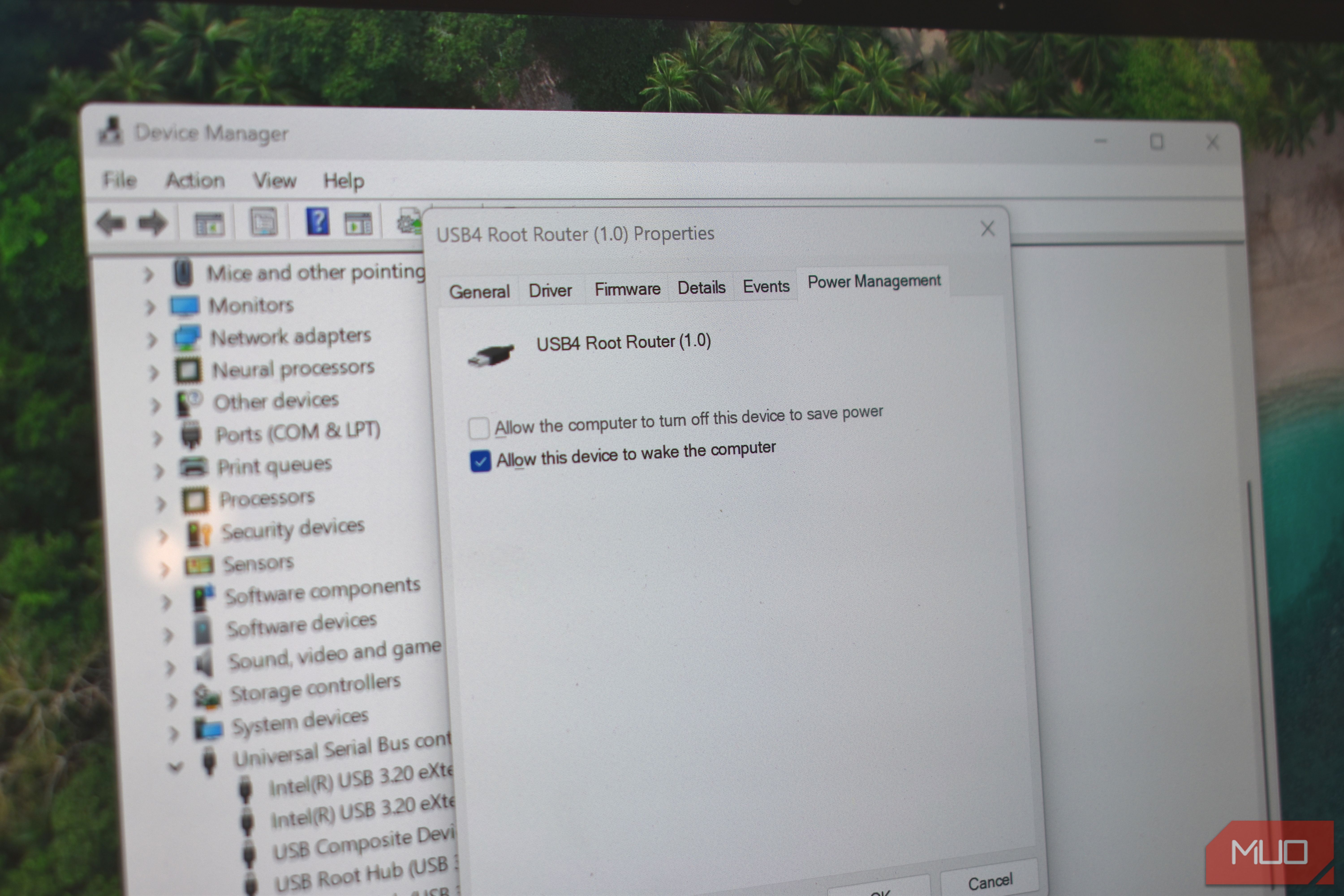
- Right-click on the Start button and select Device Manager.
- Find and expand the Universal Serial Bus controllers section.
- Locate entries named something along the lines of USB4 Host Controller, USB4 Root Hub, or Thunderbolt Controller.
- Right-click each device, choose Properties, and select the Power Management tab.
- Uncheck “Allow the computer to turn off this device to save power.”
- Click the OK button to save your changes. Alternatively, in the classic Windows Control Panel, find the Power Options section and edit your active power plan to disable the USB selective suspend setting. Also set the Link State Power Management option within the PCI Express section to Off. A performance and battery life balancing act Choose the right settings for your needs While there is undoubtedly a time and a place for energy-saving features like USB Selective Suspend and PCIe Link State Power Management, they aren’t always needed. They can help extend battery life on laptops, but at the cost of hampering the performance of high-speed external devices. That trade-off makes sense on thin-and-light machines. But not so much on workstation laptops with big batteries or that spend their days connected to a wall outlet. For that reason, it’s up to you to decide what matters most: longer battery life or faster data transfers. And now you know which options to look for when you have.