Summary
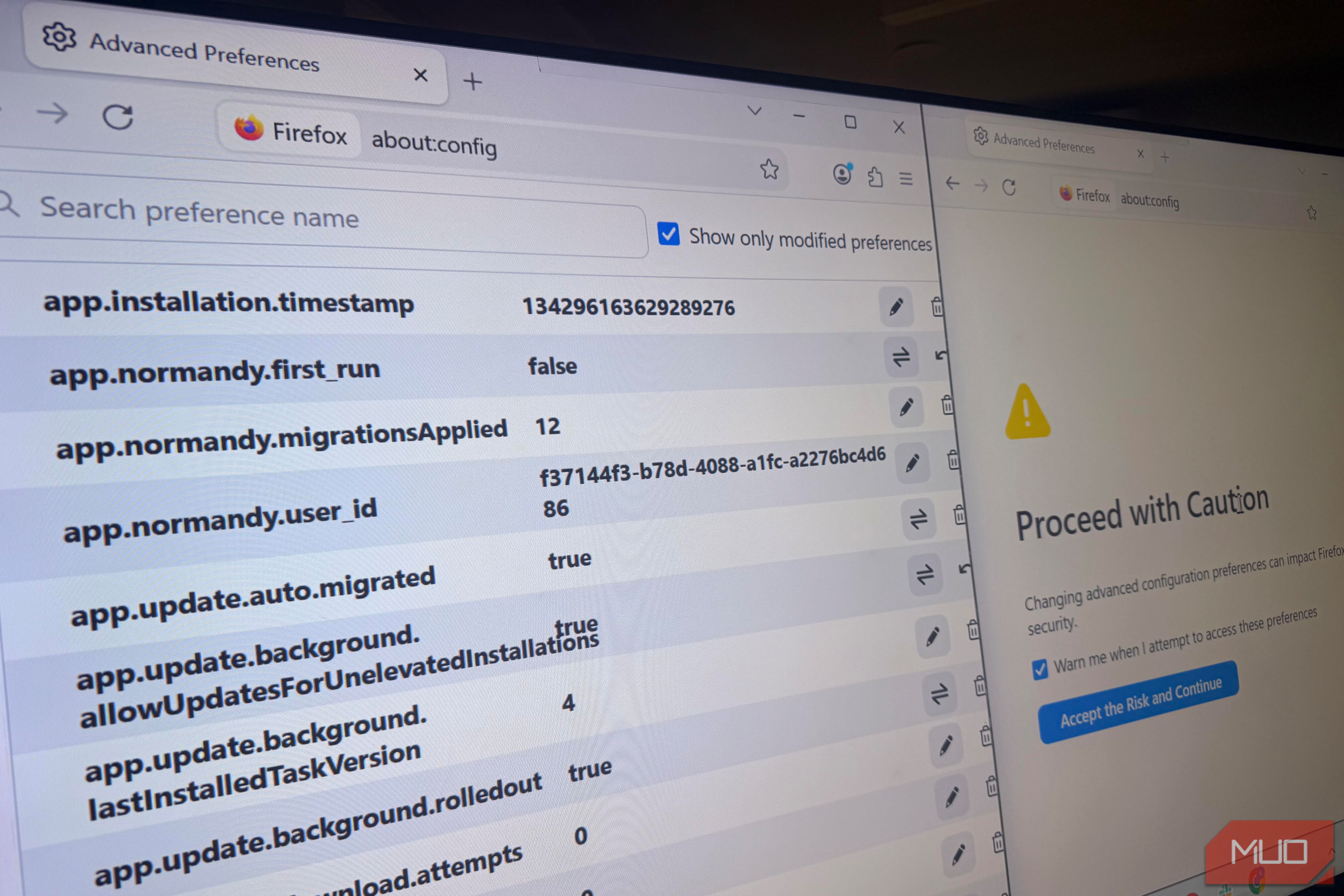
I treated Firefox’s about:config like a room that I’m never supposed to enter. I may cut myself some slack considering that it holds hundreds of settings with names that sound like source code elements and a warning button that reads “Accept the Risk and Continue.” But this changed when I investigated and learned which of those settings I could change without creating a problem I didn’t understand. The goal wasn’t to convert my browser into a supercharged privacy machine. I just needed to know which changes were low-risk and useful to me, and I found three I now keep enabled. Make Firefox show more of the URL browser.urlbar.trimURLs makes the address bar less tidy When the address bar on Firefox displays URLs, it cleans them up by default. The browser.urlbar.trimURLs configuration is the part that controls this behavior, and it’s set to true by default. Once you set it to false, Firefox shows more of the URL in the address bar. One reason I liked this is that the change is small; it clearly shows what the browser is doing with this preference. For HTTP websites, this affects how parts of the address are displayed. It doesn’t change the website you visit, and it doesn’t make the connection more secure. However, it’s useful for me in two distinct ways. First, it reduces the guesswork when I’m looking at an address. I like the bar feeling a little less tidy when I need to check a redirect, compare links, or just understand what Firefox is showing me. Secondly, I write explainer articles and sometimes make videos too. These are often the kind of tutorials where the exact URL matters. For instance, in a how‑to about a router, self‑hosted service, or any local device using plain http://, the default trimming will display http://192.168.1.1/ as 192.168.1.1. A reader who copies what is shown in my screenshot or video may type 192.168.1.1 exactly as shown, and Firefox can treat that input as a search rather than the local address I intended to show. If you prefer having the cleaned-up URLs, you can always search for browser.urlbar.trimURLs and switch it back to true. Stop the last tab from closing the window browser.tabs.closeWindowWithLastTab fixes a tiny annoyance I kept accepting This one is probably much easier to judge because the difference it makes is more pronounced. By default, the browser.tabs.closeWindowWithLastTab configuration is set to true. With it enabled, closing the last tab can close the window. When you change it to false, the window remains open even if you close the last tab. This sounds trivial until you accidentally close a window only when you meant to close the last page. This error is hardly a disaster because Firefox can restore recently closed tabs. However, there’s still more work required in restoring something you didn’t plan to close in the first place. I especially appreciate this option with tiling window managers or multi-display setups, because closing the last tab also closes the window, which means I have to recreate that window and potentially its position. Also, I’m a habitual Ctrl+W user. For me, it’s a reflex for closing tabs, and I don’t always check how many are left. When I press Ctrl+W on a lone tab, I lose the window itself, especially if I was in the middle of typing or had some window-specific state open, such as an about:config session or a developer tools panel. Reopening closed tabs doesn’t always restore that context. Setting this option to false is how I now use the browser. The downside is obvious if you deliberately use closing the last tab as a way to close the window. Make copied URLs easier to read browser.urlbar.decodeURLsOnCopy changes what lands on your clipboard I actually had to stop and test it twice for this setting. Some URLs include percent-encoded characters; they’re normal on the web but look unpleasant when pasted. browser.urlbar.decodeURLsOnCopy is the Firefox preference for this. By default, it’s set to false, but I like setting it to true. This way, Firefox puts the human-readable, percent-decoded version on the clipboard when I copy an entire URL from the address bar. For context, by default, copying a URL like https://en.wikipedia.org/wiki/Café_de_Flore ends up being https://en.wikipedia.org/wiki/Caf%C3%A9_de_Flore when you paste it into Slack, Word, or email. While it’s perfectly valid, I find the encoded form harder to read when I’m sharing a URL with someone. Changing this preference to true is an easy fix. I keep this preference enabled because I mostly share URLs in places where the decoded form works fine, but I wouldn’t call it universally better; some services expect or handle the encoded form differently. Some preferences were interesting, but I couldn’t justify changing them As you may expect, about:config has several other settings, many of which sound tempting. But whenever I couldn’t confidently explain the consequences of a preference, I left it alone. This was mainly true for networking, DNS, fingerprinting, and performance preferences. What makes me stick to these three is that their effects are easy for me to understand and reverse if I don’t like them. As a general rule, before changing advanced preferences, remember that they can affect Firefox’s stability, security, and performance.