Summary
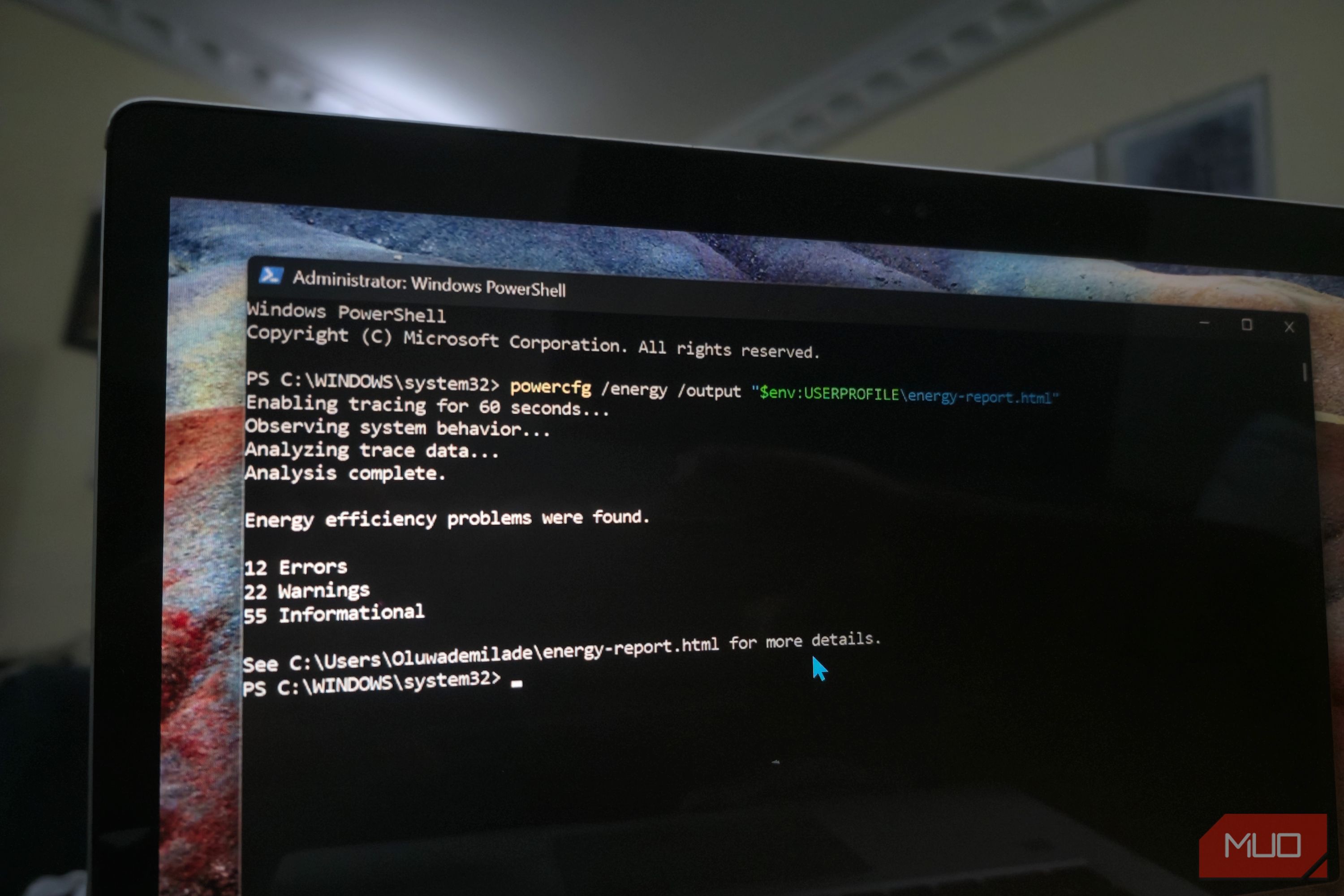
When a Windows laptop starts draining battery faster than usual, most people check Task Manager first. That works well for obvious problems like an app hammering the CPU, but plenty of power issues happen lower down. A USB device might refuse to power down, an app might keep requesting a high-resolution system timer, or your power plan might be configured in a way that keeps hardware running harder than it needs to. Windows can check for those problems itself. The tool is called powercfg /energy , and the report it generates is much more revealing than you’d expect from a tool buried behind a command line. Give Windows 60 seconds to watch what your PC is doing Your PC has a lot to say powercfg /energy runs a diagnostic trace and checks Windows for common energy-efficiency and battery-life problems. By default, it watches the system for 60 seconds and generates an HTML report with everything it finds. Microsoft recommends running it while the PC is idle with your apps and documents closed, and my testing showed why that advice is worth following. Open Terminal as administrator, then run: powercfg /energy /output “env:USERPROFILE\energy-report.html” You can also give Windows more time to catch an intermittent problem by adding /duration . The default is 60 seconds, so powercfg /energy /duration 120 extends the observation window to two minutes. My first run also showed why an idle test gives you a cleaner result. Average CPU utilization came in at 45.95%, with Gopeed alone responsible for 27.02% during the trace. Chrome, Brave, Docker, FxSound, and several other processes also showed up in the report. I closed the apps I didn’t need, left the PC alone, and ran the test again. Average CPU utilization dropped to 3.67%, while the warning count fell from 22 to 11. With that background activity out of the way, the remaining problems were much easier to separate from whatever happened to be busy during the first run. The red boxes are leads, not a to-do list Your report will probably look worse than your PC is The report sorts everything it finds into Errors, Warnings, and Information. Some entries are easy to decipher at a glance, while others read as if they wandered out of a driver engineer’s debugging notes. Mine flagged the High Performance power plan, a disabled sleep timeout, maximum-performance Wi-Fi settings, PCI Express power management, USB devices that weren’t entering selective suspend, and programs asking Windows for shorter timer resolutions. It also called out individual processes that used a significant chunk of the CPU during the trace. Several of those overlap with the Windows 11 battery settings you’d normally have to dig through one by one. The report gets impressively specific about those findings. A USB warning can include the hardware ID of the device that refuses to suspend, while a timer warning can name the process requesting a different timer resolution. High CPU usage gets the same treatment, with the individual executables listed instead of leaving you to hunt through Task Manager. I wouldn’t treat every red entry as a problem that needs fixing, though. One of my USB errors pointed to USB\VID_2F6E&PID_4E17 , which PowerShell identified as my Scarlett 2i2 audio interface. I checked further and found that an audio stream was active at the time, so the interface staying awake was perfectly reasonable rather than evidence of some mysterious battery drain. The same judgment applies to the rest of the report. High CPU usage while you’re encoding video tells a very different story from high CPU usage while the laptop is sitting untouched. A long display timeout may be deliberate, and some platform-power warnings can trace back to hardware or firmware limitations that you can’t fix by flipping a Windows setting. I’d use the report to shrink the suspect list. Start with findings that match the battery or power problem you’re actually seeing, then investigate those before chasing every warning Windows recorded. Follow the useful clues with the rest of Powercfg Now you get to interrogate the suspects /energy gets a lot more valuable when you treat the report as a starting point instead of a final diagnosis. If the report suggests that an app or device is keeping the machine awake, run: powercfg /requests Microsoft says /requests shows application and driver power requests that can keep the display from turning off or prevent the PC from entering a lower-power sleep state. On my PC, the command immediately showed Chrome holding a video wake lock and an execution request because it was playing audio. It also listed FxSound and a USB audio device with active audio streams, which gave me much better context for the USB and timer warnings I’d already seen in the energy report. From there, you can keep following the trail. powercfg /lastwake tells you what woke the PC during its most recent sleep transition. If a peripheral keeps showing up in that investigation, Windows can also tell you which devices can wake your Windows PC, letting you narrow that list down. /waketimers lists any active wake timers. If /energy throws an unfamiliar USB hardware ID at you, PowerShell’s Get-PnpDevice can usually turn that cryptic string into a device name you actually recognize. Windows also has separate reports for different kinds of power questions. powercfg /batteryreport generates a Windows battery report with battery usage and capacity history, which is much more useful when you’re trying to judge the battery itself rather than whatever Windows is doing right now. Modern Standby gets its own diagnostic tool. /sleepstudy can help you figure out whether your laptop is actually sleeping and what it was doing while the screen was off. /energy is better when you want to catch inefficient behavior or questionable configuration while the system is actually running. Keep this one in your troubleshooting back pocket I wouldn’t run powercfg /energy every week just to hunt down every red box in the report. It’s much more useful when your PC starts behaving differently, and the usual battery page gives you nothing useful to work with. Give Windows a minute to settle, then use the report to decide where to dig next. That beats changing a handful of power settings at random and hoping the battery percentage starts dropping a little slower.